Dynamic Agent Few-shots
Few-shot prompts are examples that help the agent generate better answers by showing it how to respond to certain types of queries. These examples are part of the agent's prompt and guide its reasoning through in-context learning, allowing it to recognize patterns and produce more accurate responses.
After receiving a user query, the agent processes it through a series of well-defined steps—such as interpreting the question, retrieving relevant context, generating a response, and executing code if needed. Each step can be customized, allowing you to understand how the agent thinks and adapts. This visibility is enabled through step-level callbacks, which expose the agent’s intermediate reasoning and actions.
This document covers configuration for the CanvasAgent_default and CanvasAgent_deep_research named agents. The project ids for these agents are default_canvas and deep_research. You can use the lowercase ids to initialize those agents or the names. All other agents are instances of Dynamic Agent Canvas or Dynamic Agent Deep Research, so you can follow the same steps for any agent instance.
Prerequisites
Before you begin, ensure you can access Jupyter Notebook and the Application C3 AI Console.
Open Jupyter Notebook
Open Jupyter Notebook from the C3 Generative AI Application card:
- Navigate to your application in C3 AI Studio.
- Select Jupyter Notebook.
- Set the
py-canvas_312runtime as the notebook kernel.
How few-shots are stored and retrieved
Memory is a dynamic agent feature which allows agents to remember important information across conversations. This memory is often implemented using embeddings, which are vector representations of text.
Those embeddings are stored in a vector store. When a new query comes in, the embedding vector of the query is compared semantically with the stored vectors in long-term memory.
In prompt engineering, you want to manage this memory and only retrieve the few-shot examples that are relevant. Once you retrieve the relevant few-shot examples, you should add them as context into the system prompt.
The memory manager of the dynamic agent is implemented in the Genai.Memory.DynamicAgentFewShot.Config Type:
```python
# Default config
few_shot_manager = c3.Genai.Memory.DynamicAgentFewShot.Config.inst()
```
You can also access the embedder (turns text into embeddings) with:
```python
few_shot_manager.embedder
```
You can access the vector store (stores the embeddings) with:
```python
few_shot_manager.vectorStore
```
The fields of few-shot examples are:
displayText(required):- The string content display to the LLM agent when this example is retrieved.
- User's queries are retrieved against this field if
queryis not provided for a few-shot example.
specialization(optional):- The specialization of the python agent.
- This distinguishes between different agent specializations within the same project.
project(optional):- The project(which is an instance of Genai.Project) that this example belongs to. This can be used to filter out based on use case.
- If your agent instance is assigned to a specific project, only examples in the same project are retrieved.
query(optional):- The query string that this example corresponds to. When provided, similarity search is conducted against this field instead of
displayText, allowing optimization for retrieval without affecting the content shown to the agent. Enables alternative phrasings or keywords to improve matching.
- The query string that this example corresponds to. When provided, similarity search is conducted against this field instead of
description(optional):- Internal documentation for the example. Documents the purpose and context of the example, facilitates example management and organization, and helps track the intended use case for each example.
Add the few-shot example in the Dynamic agent's memory
To add few-shot examples, you should use the config interface Genai.Memory.DynamicAgentFewShot.Config#addMemories, which handles the vector encoding as well as the upsert.
Add a few-shot example with a query, displayText, and an
<execute>block. In this example, the LLM is instructed to return a greeting like"Hello, ma'am.Pythonfew_shot_examples = [ { "id": "ingested_example_1", "displayText": '''User: Greet me Assistant: <execute>print("Hello, ma'am.")</execute> <solution> """-- """ </solution> ''', "query": "Greet me", "description": "Greeting example", "specialization": "genericAnalysis" } ]Add the memory to the few shot manager configuration.
Pythonfew_shot_manager.addMemories(few_shot_examples)Confirm the memory was created.
Python# Fetch the memory from the entity type c3.Genai.Memory.DynamicAgentFewShot.fetch()To complete using few-shot examples, you must configure a callback spec. List all of the pre-built callbacks with:
Python# List all pre-built callbacks c3.Genai.Agent.Dynamic.Callback.fetch()
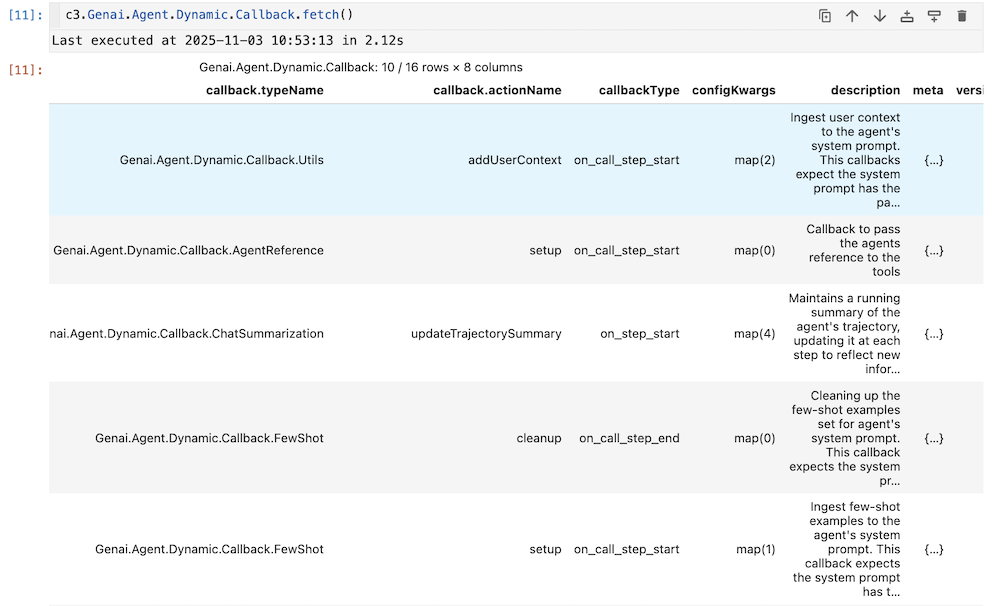
You can see that the description for the few-shot 'setup' callback is:
"""
Ingest few-shot examples to the agent's system prompt. This callback expects the system prompt has the param named 'FEWSHOT_EXAMPLES' and would replace the param. Configuration of this callback is `n_few_shots` which is the number of few-shot examples to be ingested. The default value is 3.
"""
On a high level, this few-shot setup callback adds few-shots to the system prompt. This system prompt syntax accepts a string and any parameter such as {{FEWSHOT_EXAMPLES}}. In this example, the callback would replace the {{FEWSHOT_EXAMPLES}} parameter of the system prompt with the few-shots added in Step 3.
Create a callback spec to retrieve those few-shots.
Pythonagent = c3.Genai.Agent.Dynamic(name="default_canvas") callback_spec = c3.Genai.Agent.Dynamic.OnStepCallbackSpec( onCallStepStart=[ # Add user context callback (Persisted) c3.Genai.Agent.Dynamic.Callback.forId("few_shot_setup").withConfigKwargs({ "n_few_shots": 3 }), ], onCallStepEnd=[], onStepStart=[], onStepEnd=[], )Update the system prompt to use the callback.
Python# First, let's create a proper system prompt with the required structure UPDATED_SYSTEM_PROMPT = """ You are the C3 AI Planning Agent -- the interface between users and their enterprise data and applications. You must never use your own knowledge. You must use only the provided tools and libraries. User Context Information: {{USER_CONTEXT}} TOOLS & LIBRARIES: {{toolkit}} - pandas: Data manipulation. - datetime, dateutil, time: Date/time operations. - matplotlib, numpy: Visualization and numerical computations. DATA MODEL DOCS: {{documentation}} ADDITIONAL MODEL DOCS: This is a petroleum consumption use case where clients will be querying on weekly usage. IMPORTANT: - Always use the tools to retrieve information when applicable, do not use any of your own knowledge apart from your description. - In the solution tag, include all hyperlinks. {{FEWSHOT_EXAMPLES}} All communication must occur strictly inside tags: - <thought> for reasoning or planning - <execute> for executing code or logic - <solution> for final answers TAG FLOW RULES: You must follow this tag flow exactly: -> <thought> -> <execute> -> <thought> -> <execute> -> … -> <solution> Unless no execution is needed, in which case, use <solution> directly only. -> <solution> <thought> - Natural, human-like reasoning. - First <thought> outlines a numbered strategy. - Subsequent <thought>s describe only the immediate next step. - No robotic phrasing. <execute> - Execute one logical action. - Do not use backticks for the code, use only <execute> - Must include exactly one output: print(variable) or display(figure). - Do not use .head() -- always print the full result. - Import any needed libraries before use. - Never redefine or duplicate tools or previously defined variables. """ # Create system prompt SYSTEM_PROMPT = c3.Genai.Prompt.fromString(UPDATED_SYSTEM_PROMPT) SYSTEM_PROMPT = SYSTEM_PROMPT.withField("id", "updated_system_prompt_canvas") # Add ID SYSTEM_PROMPT = SYSTEM_PROMPT.upsert(returnInclude="this") # Create chat manager spec chat_manager_spec = c3.Genai.Agent.Dynamic.ChatManagerSpec( systemPrompt=SYSTEM_PROMPT )Apply the callback spec to the agent configuration.
Python# Apply callback spec to agent agent_config = c3.Genai.Agent.Dynamic.Config.forConfigKey("default_canvas") agent_config.setConfigValues({ "chatManagerSpec": chat_manager_spec }) print("✅ Agent configured with few-shot setup callback")Test the agent with the few-shot callback configuration.
Pythonquery_string = {"query":"Greet me."} query_result = c3.Genai.ChatBot.createInitialGenAiResult(query_string) query_result = agent.run(query_result.searchQuery.standaloneQuery, query_result)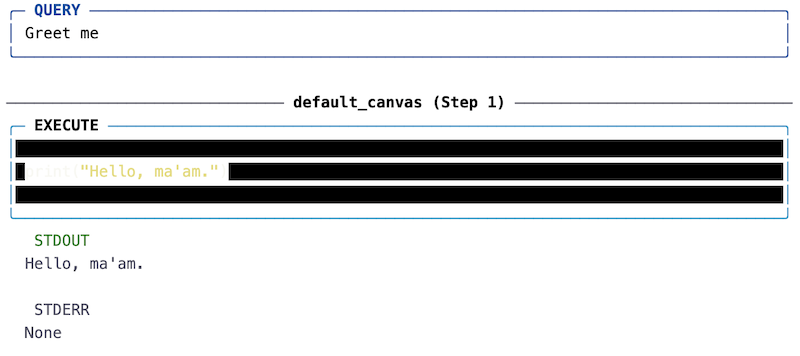
Clean up the few-shot examples.
Python# Remove all DynamicAgentFewShot memories at once count = c3.Genai.Memory.DynamicAgentFewShot.removeAll({}, True) print(f"Removed {count} few-shot memories")