Troubleshoot Dynamic Agent
When Dynamic Agent queries fail or behave unexpectedly, debugging helps identify the root cause. Use these diagnostic approaches, from checking engine logs to verifying configurations.
Verify LLM Completion Client configuration
Dynamic Agents use GenaiCore.Llm.Completion.Client for LLM communication. During initialization, the key for your LLM is seeded into your cluster into an authentication Type.
When agents fail to respond or show LLM-related errors, you may need to verify the completion client configuration.
- Check if the agent's LLM client exists:
var agentConfig = Genai.Agent.Dynamic.Config.forConfigKey('<agent_config_name>');
var llmClient = GenaiCore.Llm.Completion.Client.forConfigKey(agentConfig.llmConfigName);- List available completion clients:
GenaiCore.Llm.Completion.Client.UiHelper.listCompletionClients();- Make sure the completion client is returning a response from the model.
GenaiCore.Llm.Completion.Client.forConfigKey('<completion_client_name>').completion([{ content: 'Hello world?', role: 'user' }], {
  returnJson: true,
})
Non-standard model configurations
If you have a non-standard model name such as gpt-4o-globalstandard-2024-11-20, you may need to set the model config again after app initialization. While the API key is seeded in your cluster, the application is using the default LLM configuration instead of the non-standard model.
In this case, run the following code to set a new configuration for the completion client. The model name must match the auth name in this configuration.
GenaiCore.Llm.Completion.Client.make({
"name": "<completion_client_name>", // gpt_4o_1 or any name that has not been used yet
"model": {
    "type": "GenaiCore.Llm.AzureOpenAi.Model",
    "model": "genai-c3-c3-eastus-gpt-4o-globalstandard-2024-11-20",
    "auth": {
    "type": "GenaiCore.Llm.AzureOpenAi.Auth",
    "name": "genai-c3-c3-eastus-gpt-4o-globalstandard-2024-11-20"
    },
},
"fileData": {
    "supportedFileTypes": [".png", ".jpg", ".jpeg"],
    "maxFileSize": 15728640,
    "numberOfPages": 100
}
}
).setConfig()
Common LLM client errors:
"GenaiCore.Llm.Completion.Client not found for config key": The
llmConfigNamein your agent configuration references a non-existent client. Create the client or update the configuration to reference an existing one.Authentication failures: Verify the client's authentication configuration and ensure API keys are properly set.
Model not available: Check that the specified model name exists and is accessible with your credentials.
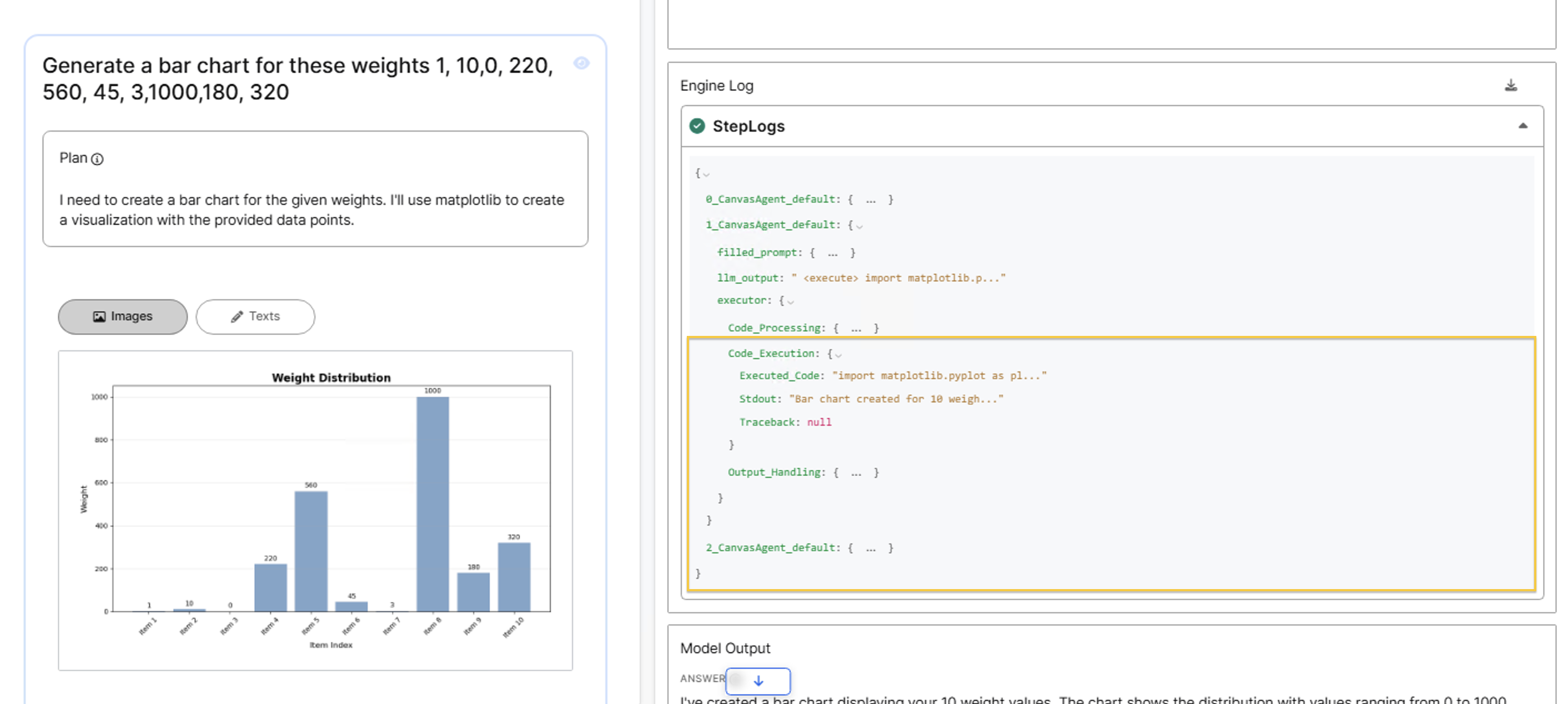
View engine logs in the UI
The engine log provides the most detailed information about agent execution and errors. To view engine logs:
- Navigate to History in the C3 Generative AI Application.
- Select the query you want to investigate.
- In the side panel, select the specific message to view its logs.
- Review the StepLogs section to see each execution step.
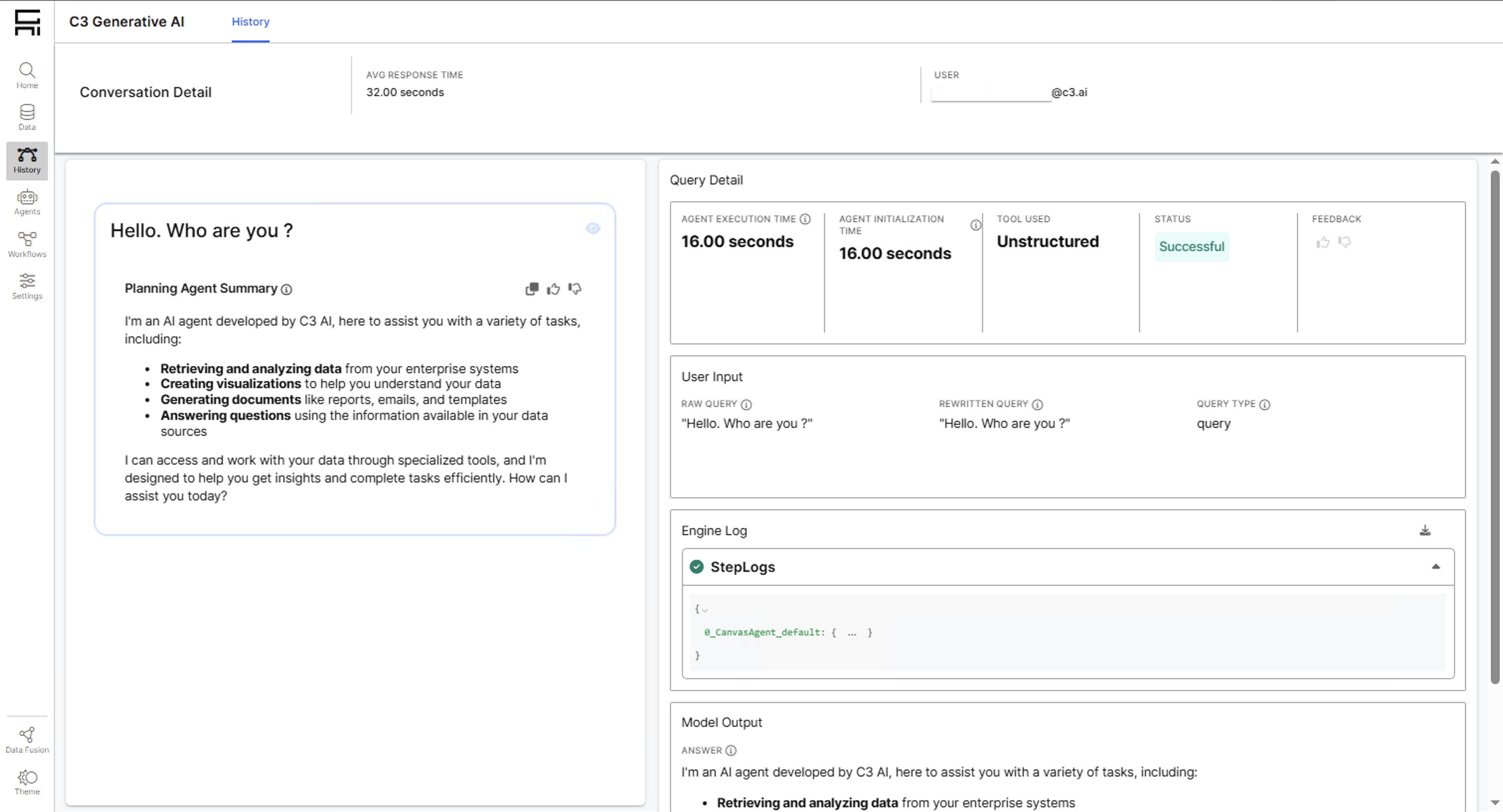
Each step that Dynamic Agent took appears as a separate entry. Steps use zero-indexing, so step 1 is the second execution step.
Key sections in engine logs
System prompt
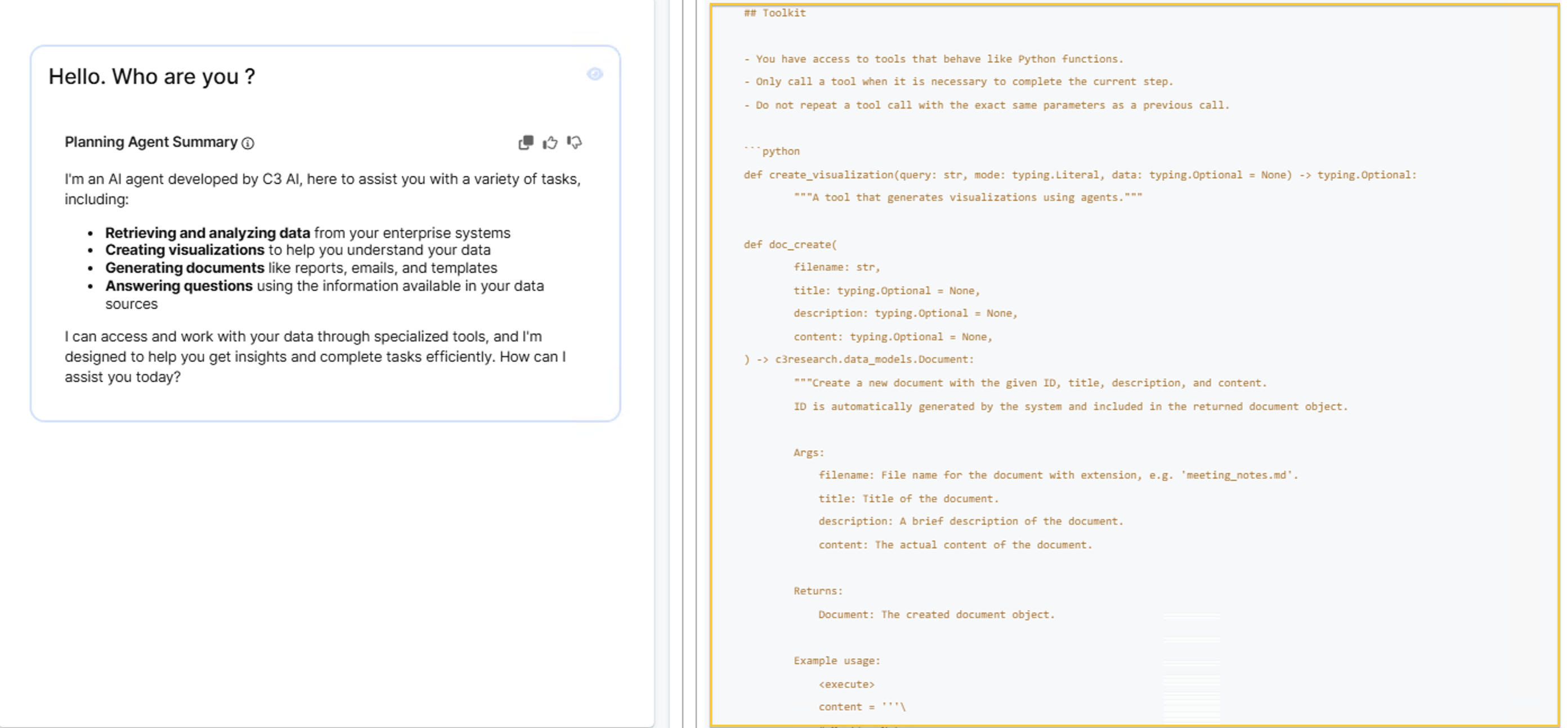
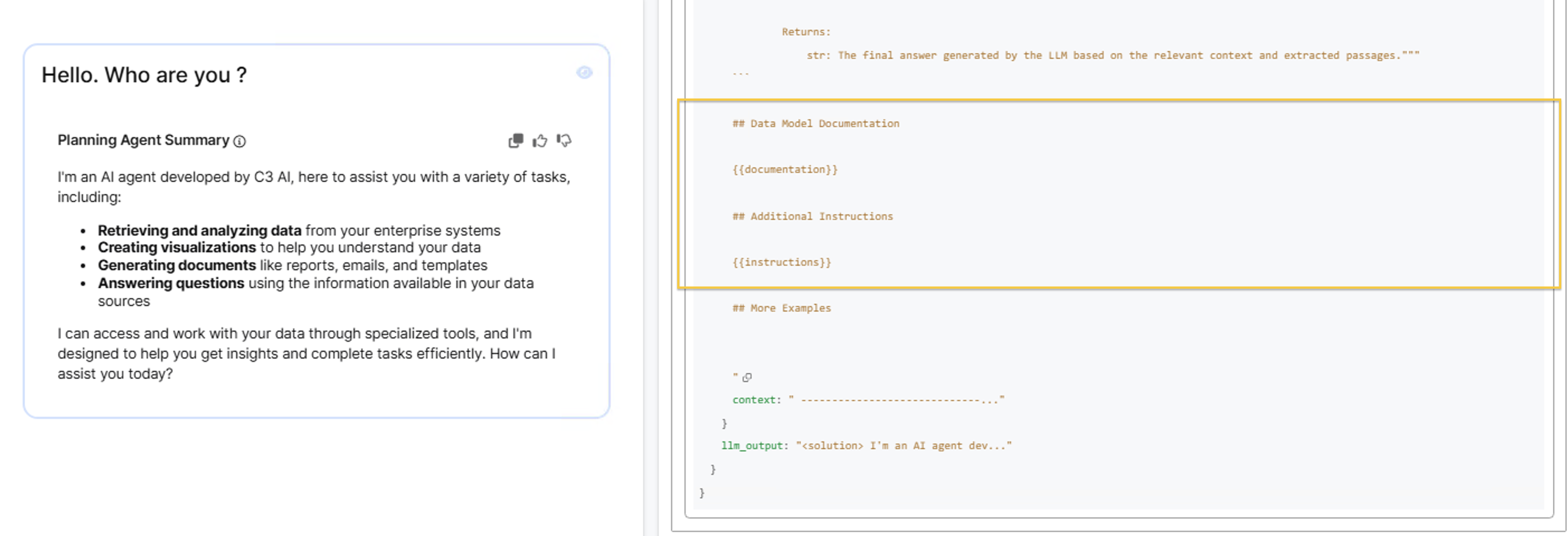
The system prompt contains all rules and context for the Large Language Model (LLM). Locate filled_prompt -> system in the JSON structure.
- Toolkit section: If Dynamic Agent can't find expected tools or calls wrong tools, verify the tools appear in this section. The system prompt must include tool definitions for the agent to access them.
- Data model section: For structured query issues, confirm the relevant Type schemas appear here. Missing Type definitions prevent reliable structured queries.
Learn more about customizing the system prompt in Dynamic Agent System Prompts.
Chat history
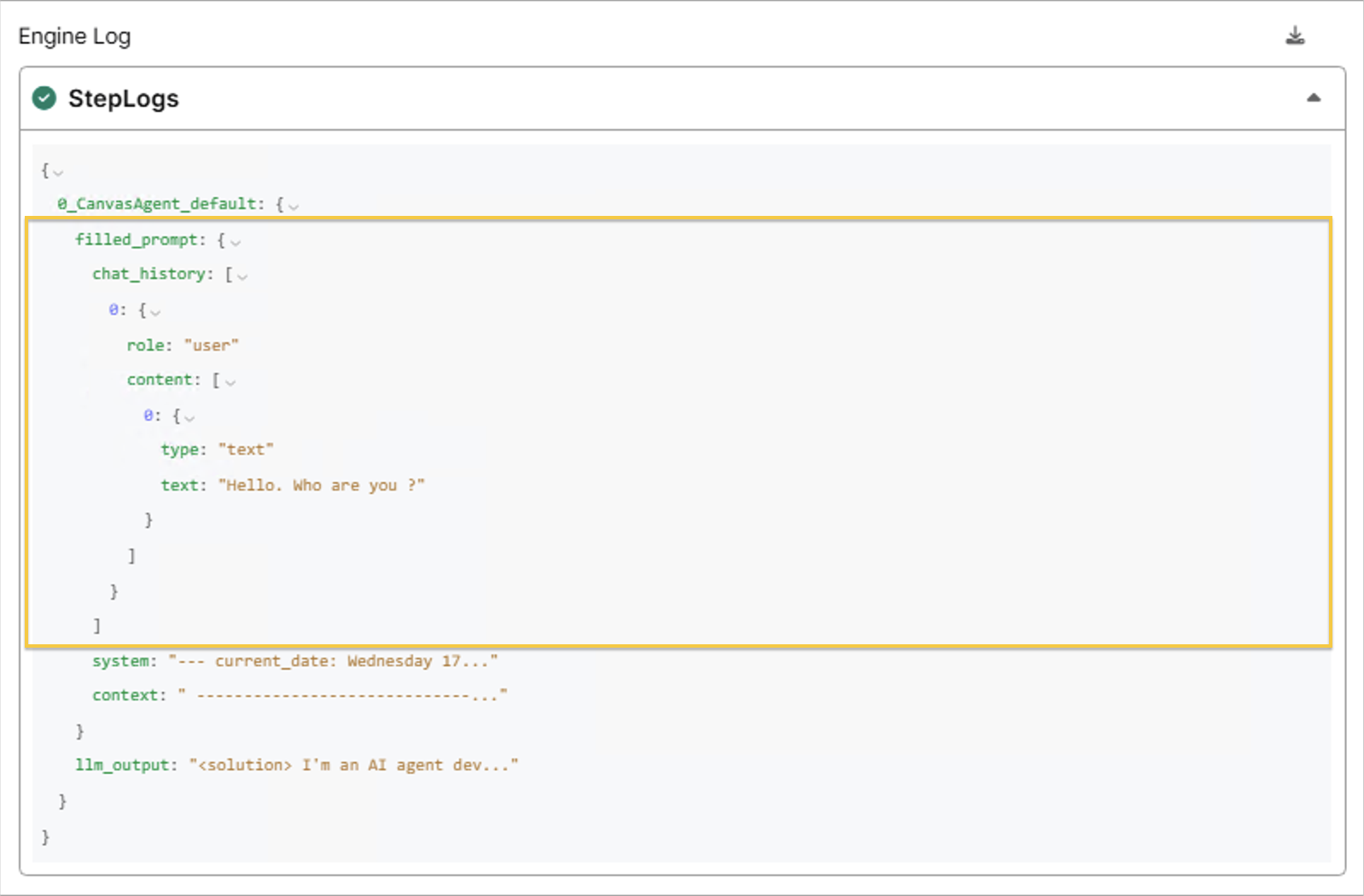
When Dynamic Agent appears to "forget" previous conversation context, examine the chat history section. The default configuration maintains 10 steps of history, but session errors can truncate this. Locate filled_prompt -> chat_history -> content in the JSON structure.
Code execution
This section shows how the agent called your tools and what happened during execution. Locate executor -> Code_Execution.
Review these fields:
- Executed_Code: The actual Python code the agent generated.
- Stdout: Output from
print()ordisplay()statements. - Traceback: Error details if execution failed.
Debug network issues
Use Chrome DevTools Network tab to identify these common problems:
Check agent selection issues
If your Dynamic Agent doesn't appear in the UI dropdown:
- Open Chrome DevTools and navigate to the Network tab.
- Look for the
uiPlannerSelectionOptionsrequest. - Check if your agent appears in the response.
Resolve citation problems
If citation pills don't show for structured queries:
- Check the
getWhitelistedTypeMetadataresponse. - Verify your Types appear in the whitelist configuration.
Resolve common configuration issues
Removed tools are still present as stale values in the config
If removed tools still attempt initialization, update all configurations with current toolkit values.
Genai.Agent.Dynamic.Config.listConfigs().collect().each(config => config.setConfigValue('toolkit', config.toolkit.get()))Check agent status
You can check the Dynamic Agent configuration and status via UI or static console. Learn more about Dynamic Agent configurations in Configure Dynamic Agent.
Key fields to verify:
- active: Must be
trueforQueryOrchestratorto use the agent. - configName: Links to the configuration containing tools and prompts.
- toolkit: Contains the tools available to the agent.
Ignore common false errors
OpenTelemetry errors: OpenTelemetry errors usually appear after other exceptions. Look for the underlying LLM configuration or tool execution error in the full stack trace.
Communication channel errors: These harmless errors occur when calling initialization from static console instead of the
py-query_orchestratorkernel. The agent will function normally despite these messages.