Connecting Tabular Data Sources
C3 Generative AI enables seamless integration with external data sources by leveraging the C3 AI Platform’s data integration capabilities. This allows external data to be ingested, structured, and queried through C3 Generative AI’s structured data framework.
Configuring the environment
To upload data via the UI, the application must be set to trial mode. Keep in mind:
- Only one trial mode application can be configured per environment.
- The application must be started and upgraded from static console.
- Trial mode is not recommended for production deployments.
Start application
Use the following command to start the application in trial mode:
C3.env().startApp({rootPkg:'genAiSearch', mode: 'trial', rootPkgVersion:'<root-pkg-version>'})Upgrade application
To upgrade the application, run:
C3.env().upgradeAppById('<appId>', {rootPkg:'genAiSearch', mode: 'trial', rootPkgVersion:'<root-pkg-version>'})Adding external data sources in the UI
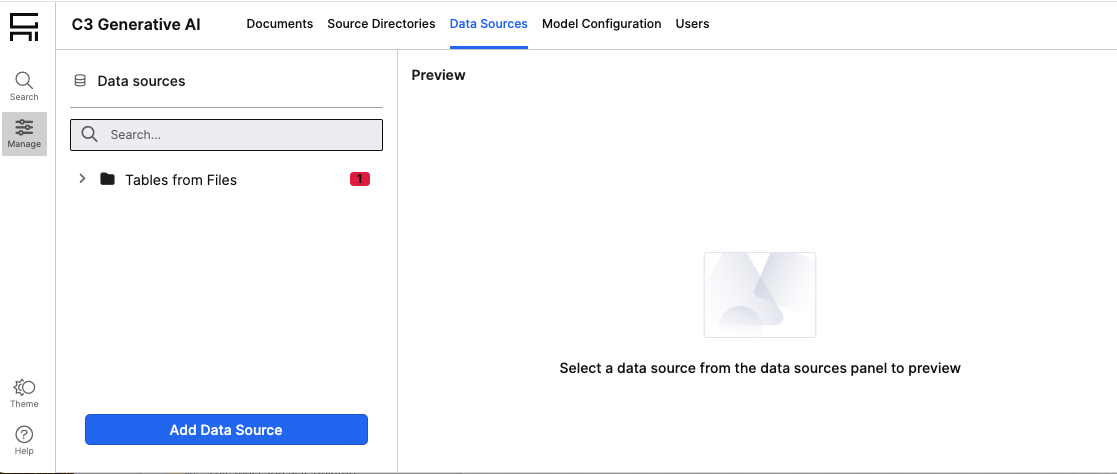
To add external data sources, navigate to:
UI Path: Data → Data Sources
Updating the data model
After uploading data through the UI, the data model must be updated to reflect the newly added Types. This can be done by clicking the "Sync" button at the top of the screen. By default, these updates apply to: Genai.StructuredData.DataModelGraph.forId('default').
Debugging issues
For troubleshooting common data ingestion issues, refer to the Troublehsooting Guide.
Platform data integration
For a deeper dive into the C3 AI Platform’s data integration capabilities, see the C3 AI Data Integration Guide