Full Page Search
Overview
With the new full-page search capability, you can run both traditional queries and more complex multi-step queries using agents.
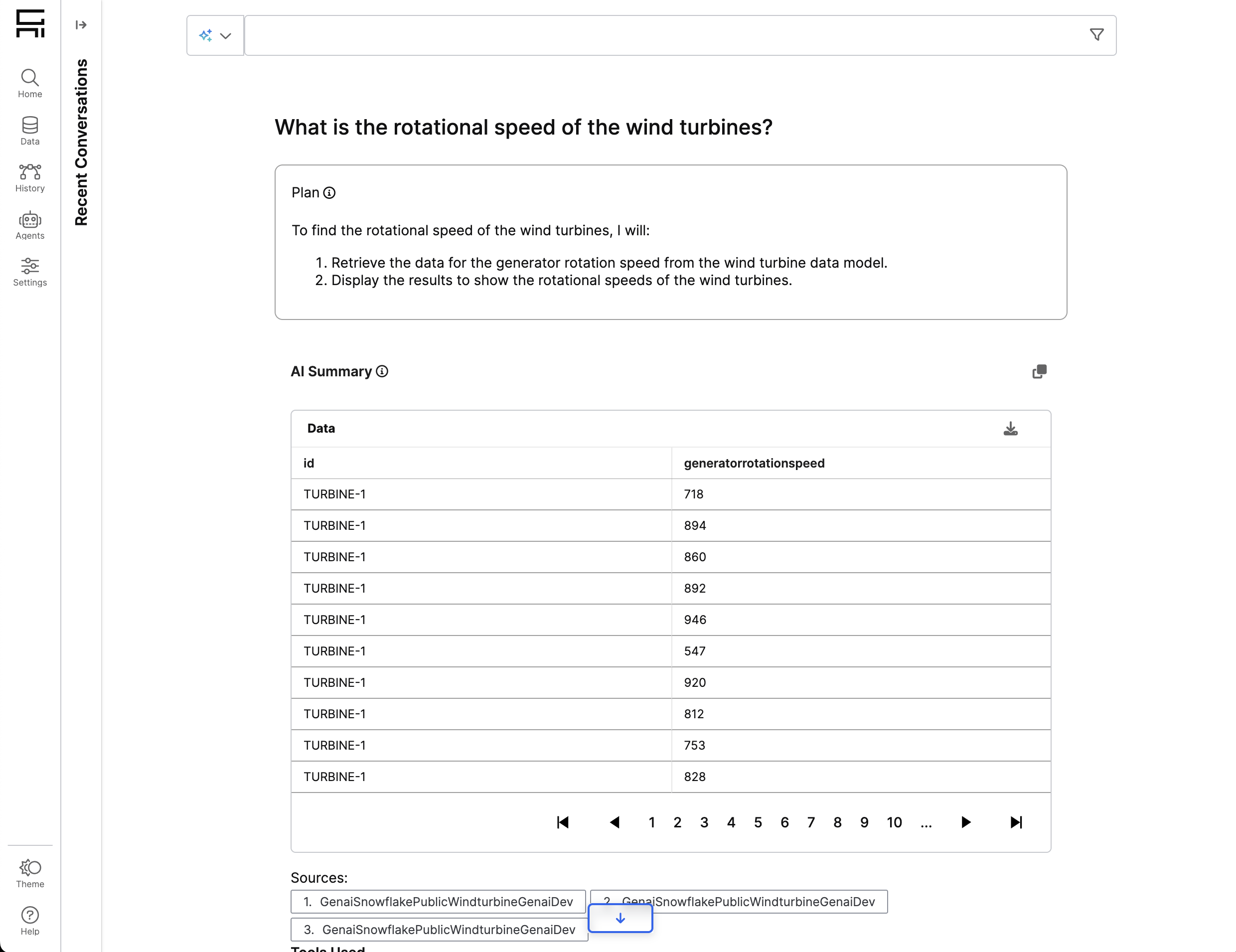
Enabling full page search UX
Full page search is enabled by default.
Using multi-step results
Multi-step results are enabled by default through Dynamic Agent. Agents produce thoughts and iteratively reason until reaching a solution for the query, which results in a multi-step answer:
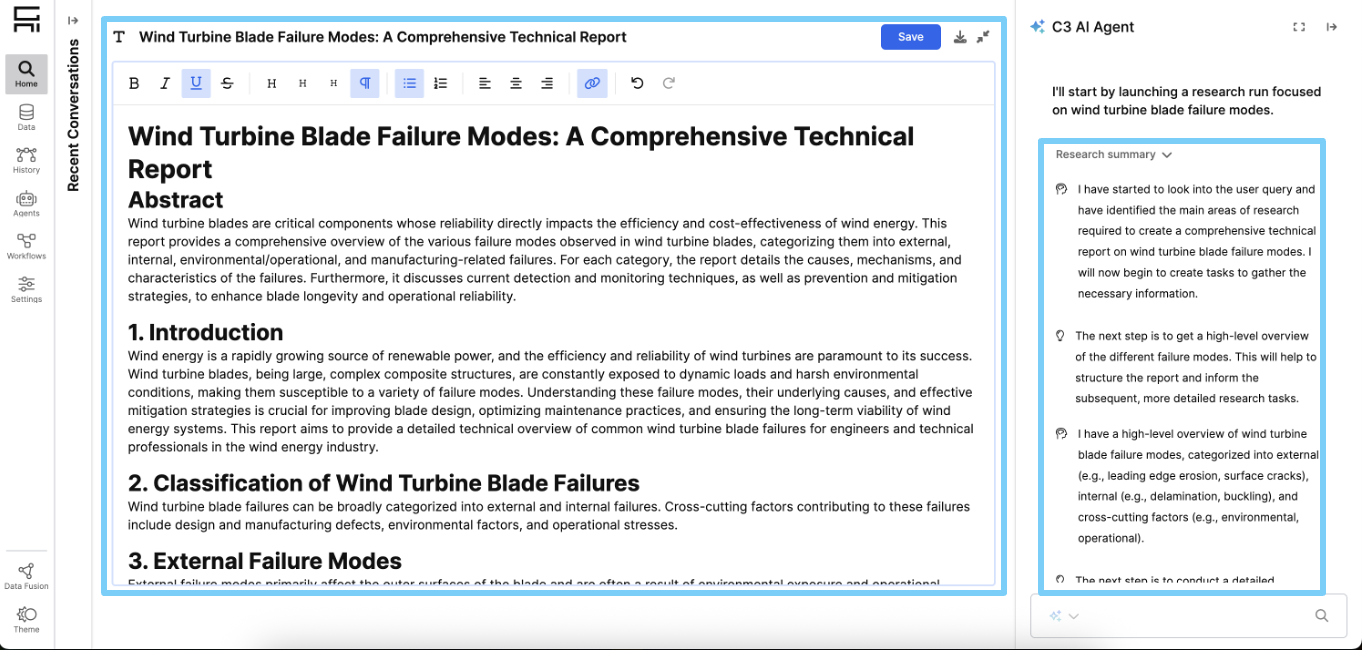
Canvas UX
Some of the tool outputs from Dynamic Agent can require user interaction, such as forms and documents generated.
When this happens, the full page search will load its "Canvas" view. From Canvas, users can interact directly with these resources. Agents are aware of changes done to these outputs and can help with iteration, for instance, writing a document or sending an email.
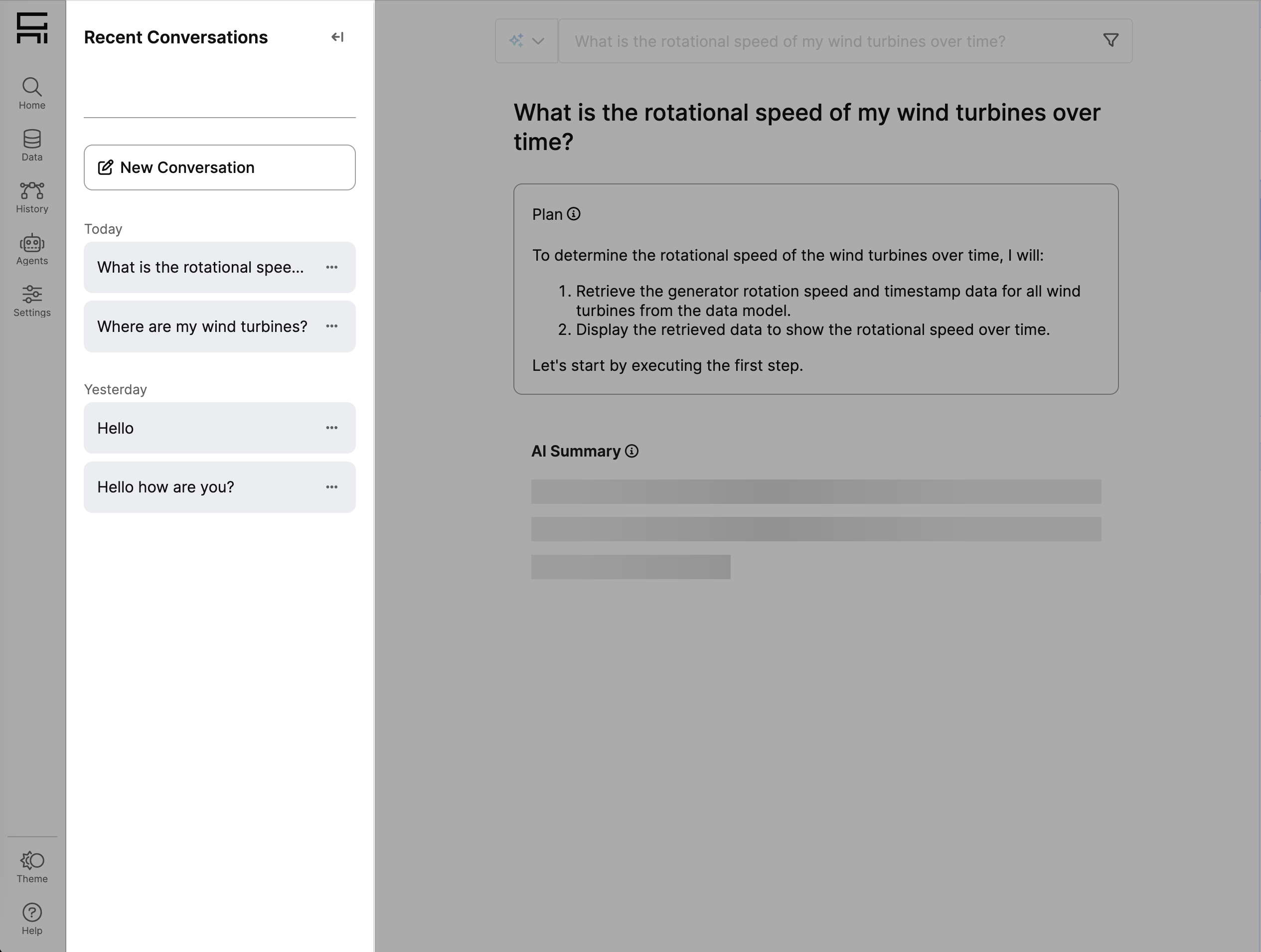
Recent Conversations sidebar
The new search results page includes a sidebar that gives you quick access to these features:
- Change your active project.
- Start a new conversation.
- Navigate between recent conversations. You can continue any of the previous conversations.
You can perform these actions for each conversation:
- Rename the conversation, which will update its title in the sidebar.
- Remove the conversation. This will delete the conversation from the sidebar, but it will still be visible from the History page for admin purposes.
Advanced configuration of Full Page Search
The new full page search is able to render numerous complex results, and these results are loaded lazily to improve performance. You have full control over this behavior through these configurations from GenAiUiConfig:
feedResultsDoNotLazyLoad: if set totrue, results in the search page won't be lazy loaded. Defaults tofalse.feedResultsLoadingOffset: only applied whenfeedResultsDoNotLazyLoadisfalse, it determines how far in advance the results should start to be loaded. If set to0, then results will load only when they become visible in the screen. It's default value is100%which means results start to load when they're one viewport height away from becoming viewable in the screen.feedResultsMinHeight: it determines the minimum height of the results container while they haven't been lazy loaded. As soon as the results load for the first time, they will remain the same height to ensure a smooth scrolling behavior. The default value for this config field is150pxand it shouldn't be necessary to modify it unless for other devices such as mobile.feedMaxResultsInState: it determines the maximum number of search results for which data should be stored in the application's Redux state. When the number of results on the search page exceeds this value, the least recently used result will be discarded. Data for discarded results is reloaded onto the application state if they become viewable again.feedResultsLoadingOffsetalso determines how far in advance data should be reloaded if the result is no longer in the Redux state.
Additional configurations are available for interactive visualizations:
interactiveVisualizationDoNotLazyLoad: determines whether interactive visualizations should lazy load or not.interactiveVisualizationLoadingOffset: determines how far in advance the components for interactive visualizations should be loaded.interactiveVisualizationMinHeight: determines the minimum height of the interactive visualizations containers while they haven't loaded in the application.
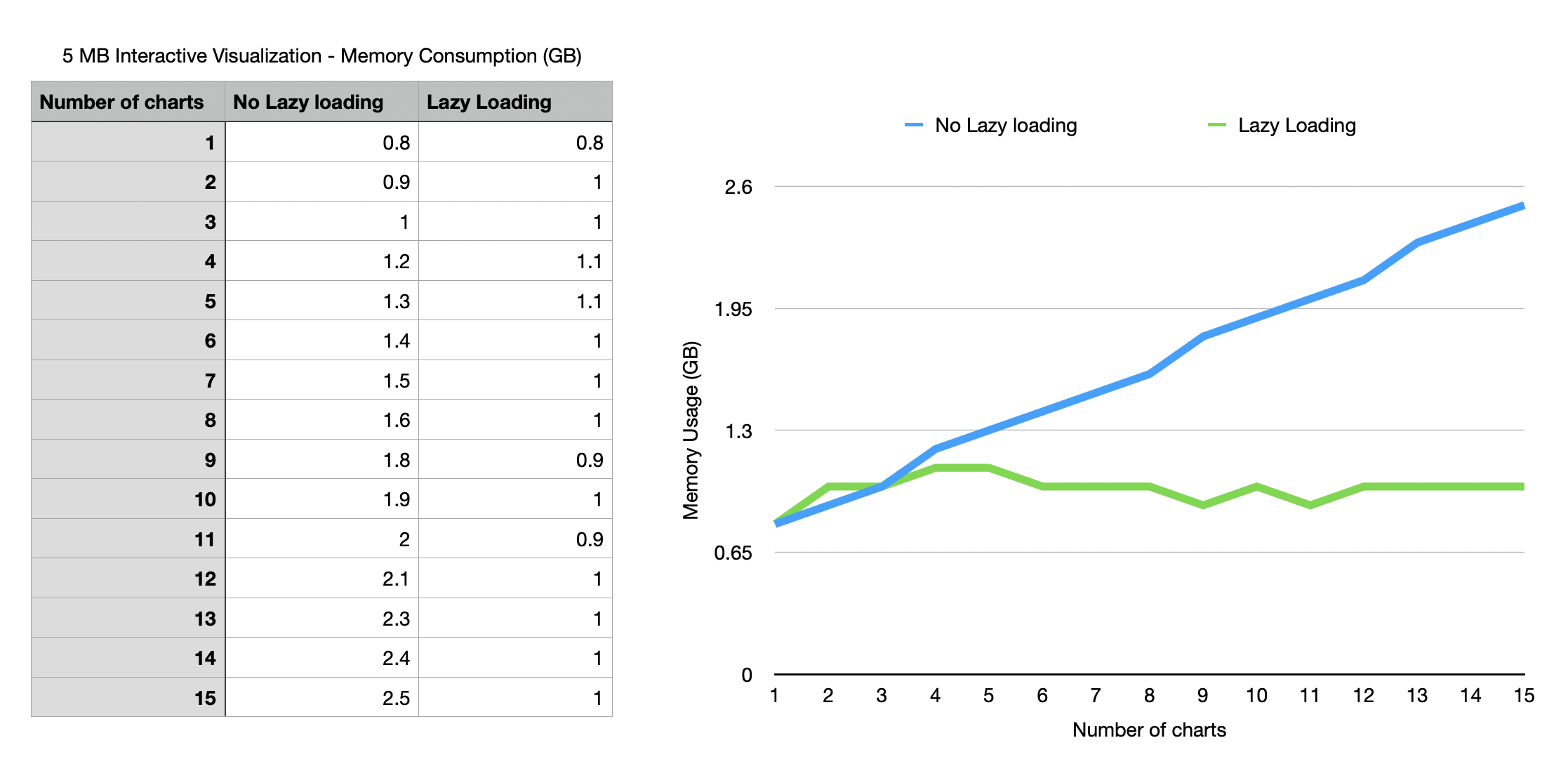
Lazy loading interactive visualizations is also enabled by default, and highly encouraged, as it drastically decreases memory usage in the application.
Application State for GenAI Agent Resources
To support complex tool outputs, the application state consists of these fields specific for managing Genai.Agent.Resources:
agentResources: The interactive artifacts generated by the agent (documents, forms, deep research, etc.), keyed by ID.agentResourcesMetadata: UI details that help render each resource with the right component and controls.agentResourceEditValues: Your in-UI edits to resources. They're included in the next query and then cleared after being saved on the server.