Retrieval Evaluation
Overview
Retrieval Evaluation allows you to assess the performance of your configuration for the C3 Generative AI application by running a series of queries on a dataset of your choice.
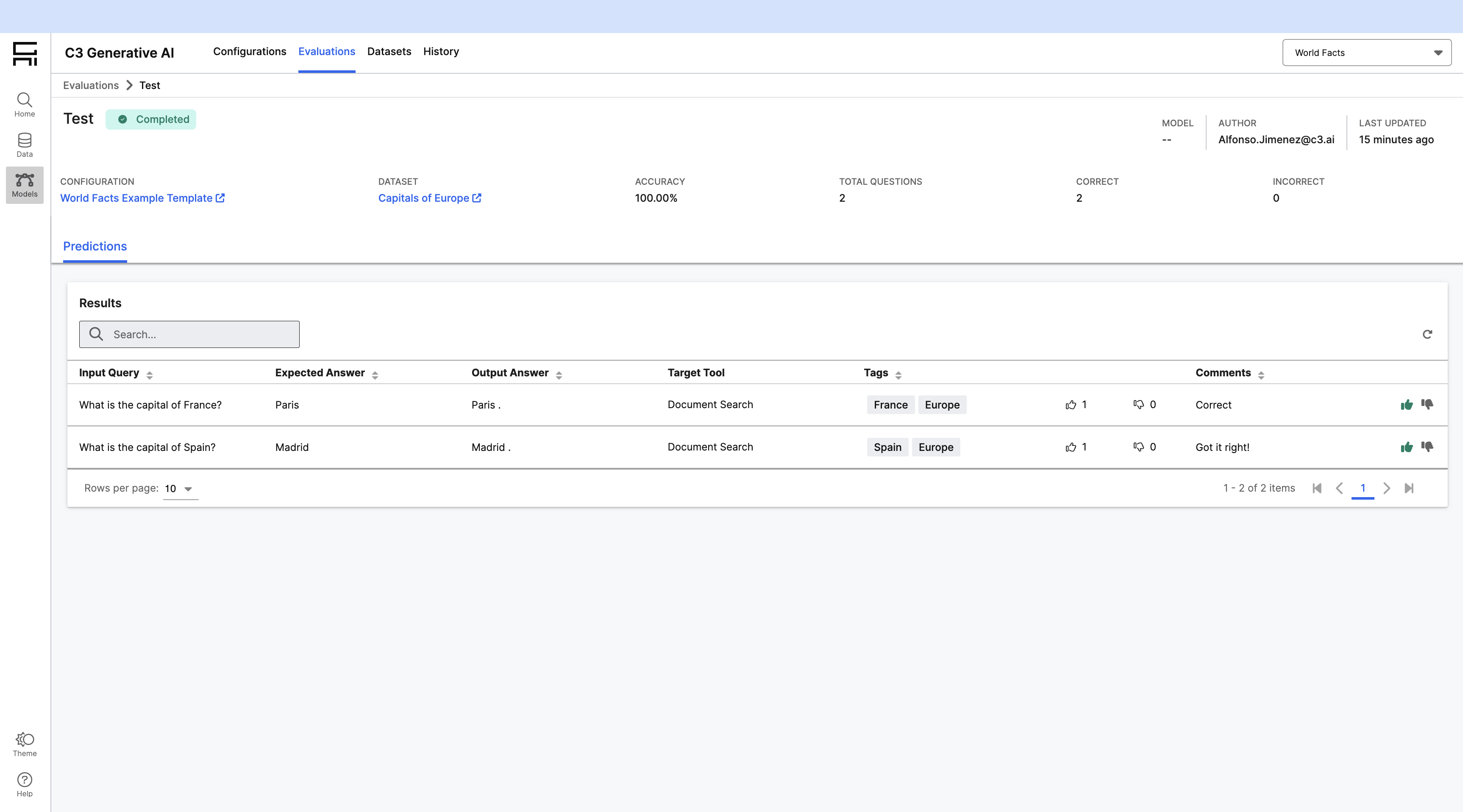
A dataset consists of a set of questions paired with their expected answers and sources. The output of an evaluation allows you to compare the AI generated answers with the expected values from the dataset, and mark them as "positive" or "negative" to compute the accuracy of the model.
Enabling Retrieval Evaluation
Retrieval Evaluation is enabled by default if you are using GenAI Projects in your app. To verify that, you can run:
Genai.ChatBot.Config.isUsingProjects()If the handlerTypeName of the configuration is Genai.Project.QueryRouter, then Retrieval Evaluation will be accessible. If the handler is a different one, you can change the configuration with:
Genai.ChatBot.Config.setConfigValue('handlerTypeName', 'Genai.Project.QueryRouter')You can access the Retrieval Evaluation page by navigating to "Models" in the side navigation bar.
Running an evaluation
Create a dataset
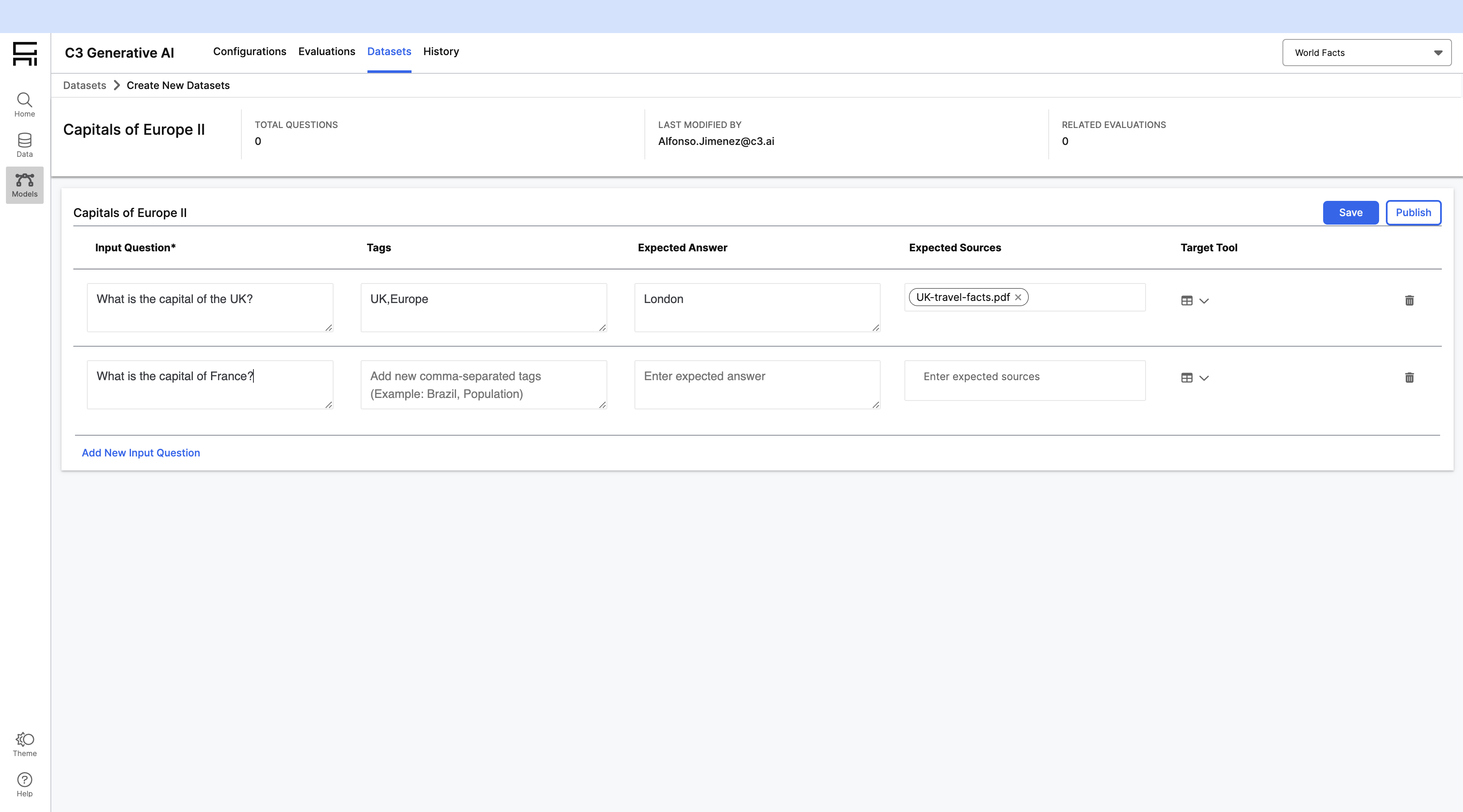
Datasets contain the questions that will be used for the evaluation. In order to create a dataset:
- Navigate to "Models" -> "Datasets"
- Click on "+ Create Manually" and provide a name for your dataset.
- Add the questions for your dataset. For each of them, you can specify:
- Question
- Tags
- Expected Answer
- Expected Sources
- Target Tool
- Save your dataset by clicking on the "Save" button.
Create an evaluation run
In order to create and run an evaluation:
- Navigate to "Models" -> "Evaluation"
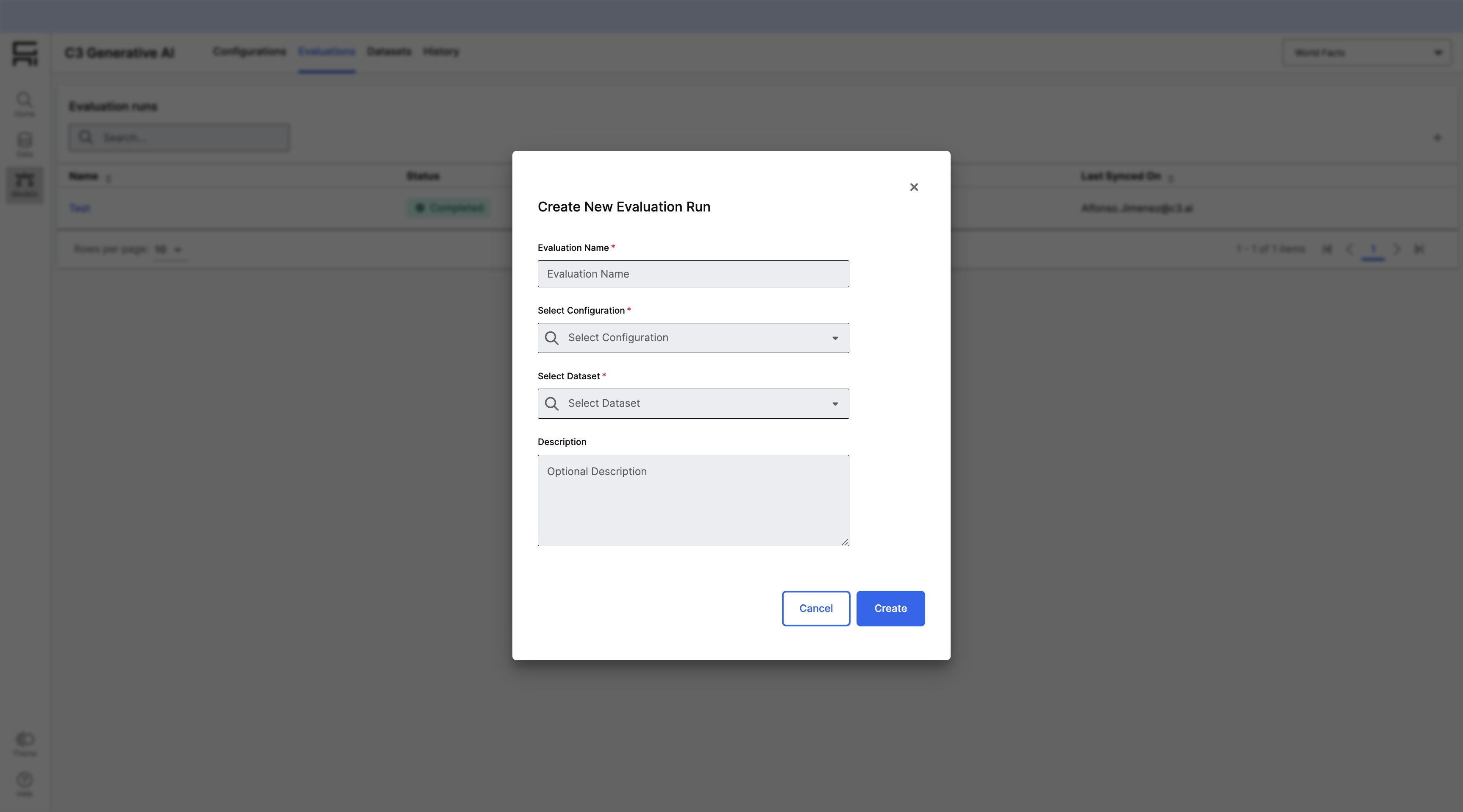
- Click on "+ New Run" on the top right corner of the Evaluations grid
- You will need to provide the following information
- Name
- Description
- Model Configuration
- Dataset
- Click on "Create" and your evaluation will start running. The Evaluations grid will update automatically when the evaluation completes.
Evaluate results
Once the evaluation run is completed, you can click on it and see its results. You can tag each of the results as positive or negative with the feedback buttons that appear an the right end of each row. If you label all of the results, an accuracy will be computed for the evaluation run. You can leave comments while giving feedback to annotate each of the results: