Configure Large Language Models
Overview
C3 Generative AI offers a dedicated section for managing Large Language Models within the application. Before adding a new LLM, the corresponding credentials must first be configured. Once the credentials are set, you can proceed to add a new LLM, utilizing the previously configured credentials.
Enabling LLM and Credentials pages
By default, LLMs and Credentials pages are hidden. To enable them in the app, run:
GenAiUiConfig.setConfigValue('llmPageVisibility', 'full');Managing Credentials
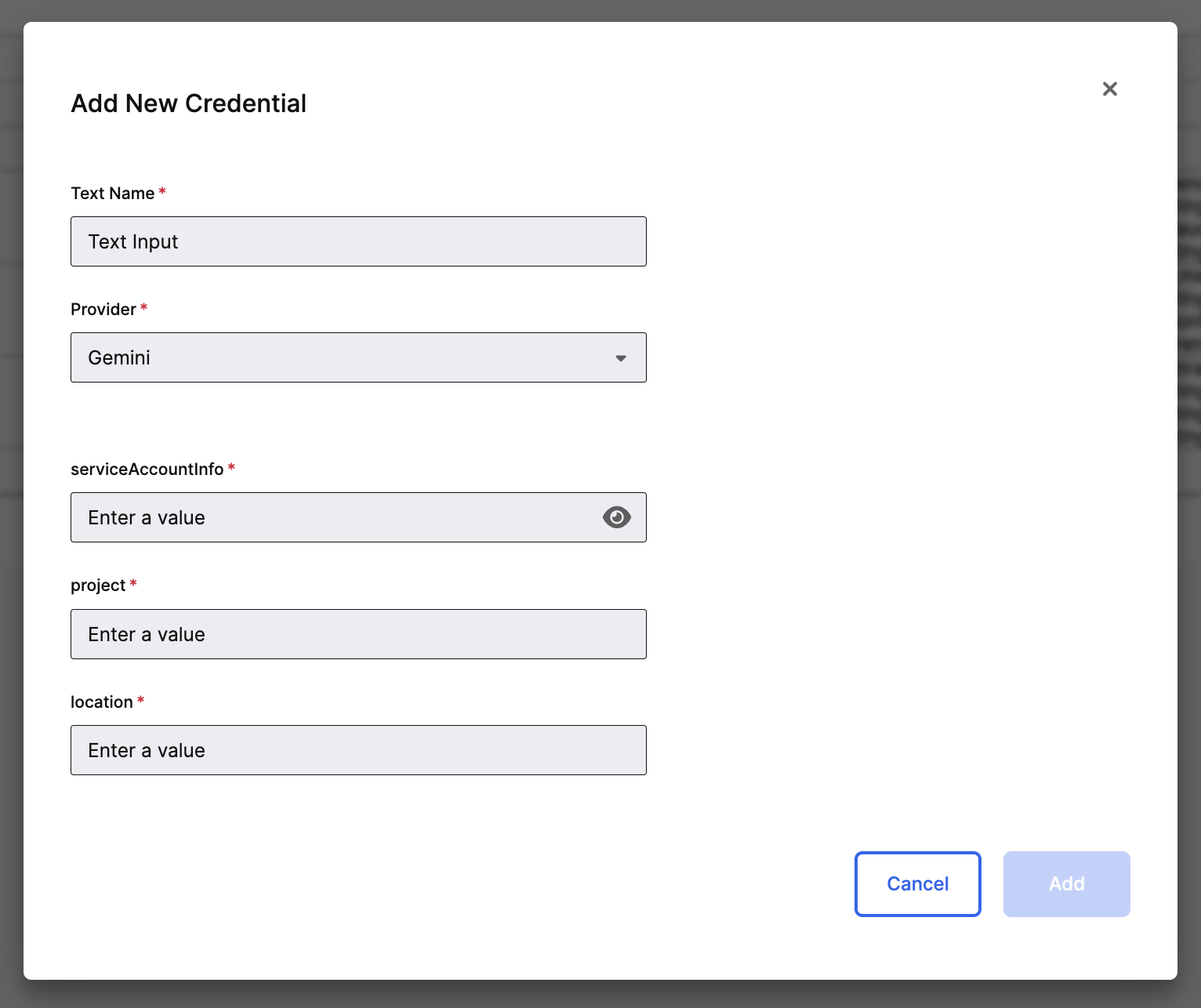
Administrators can add and manage credentials in the application by navigating to Settings + Credentials. In this section, by clicking the plus icon located above the credentials grid, users can initiate the process of adding new credentials. When a new credential is required, the user must provide the necessary parameters for the selected provider. For example, when setting up a new Gemini credential, the required parameters include the Service Account Info, Project, and Location. The form will render the appropriate fields based on the selected provider.
After all the data is filled, two validations run before the addition of the credential. First, a validation of the credentials against the provider to verify that the information is correct. Second, a check to ensure that the name isn't already taken; duplicate names aren't allowed. If both validations pass, the credential is added to the system. Otherwise, an error message is displayed, indicating what must be corrected.
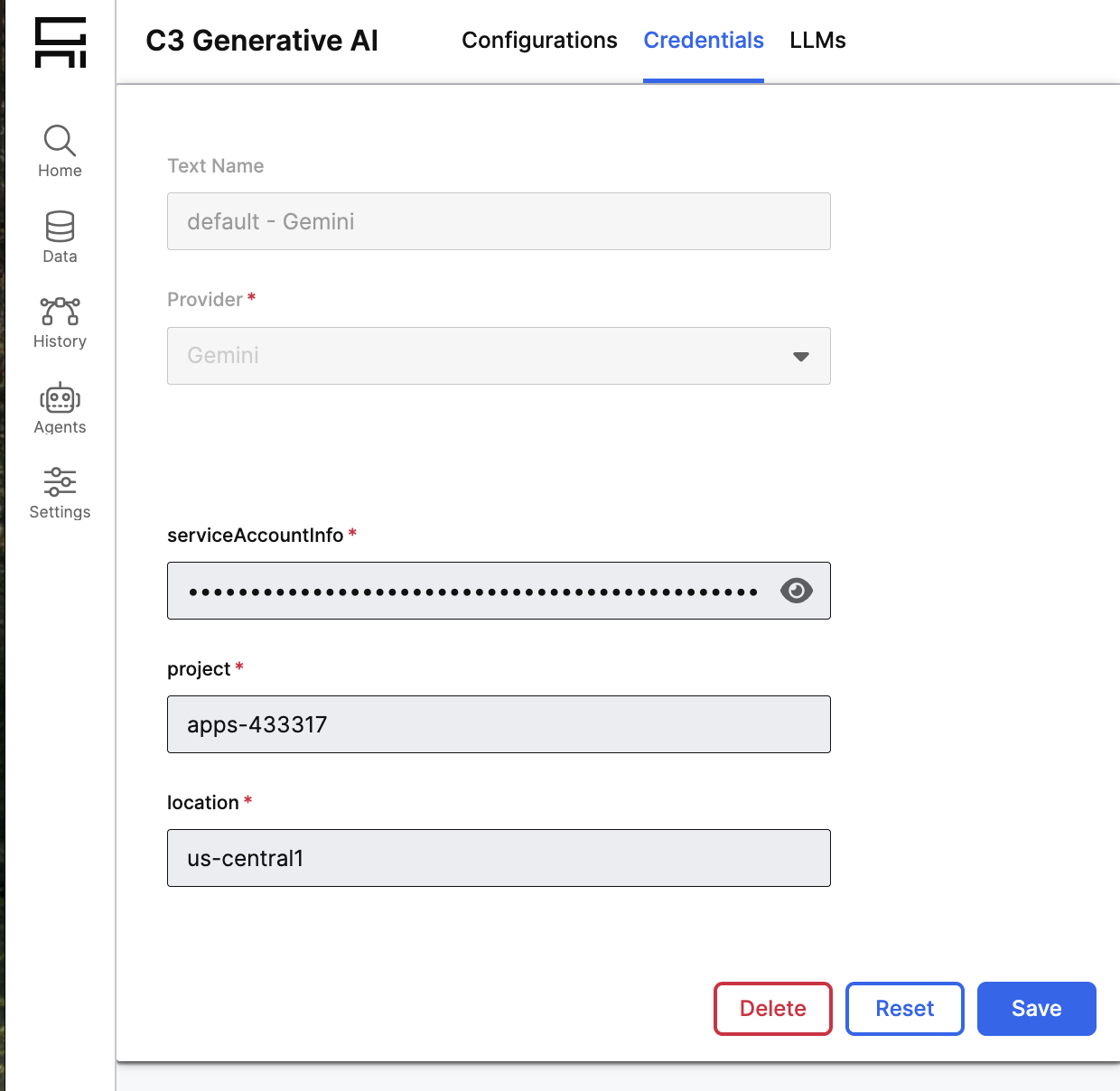
Once a credential is registered, users can modify it later. By selecting the corresponding credential, a form will open with the existing parameters, allowing users to update any desired parameter. After updating the parameters, the process of validation runs again to ensure that the new information is correct and that the name remains unique. If the validation fails, the user is notified and can't save the changes until the issues are resolved.
Managing Large Language Models
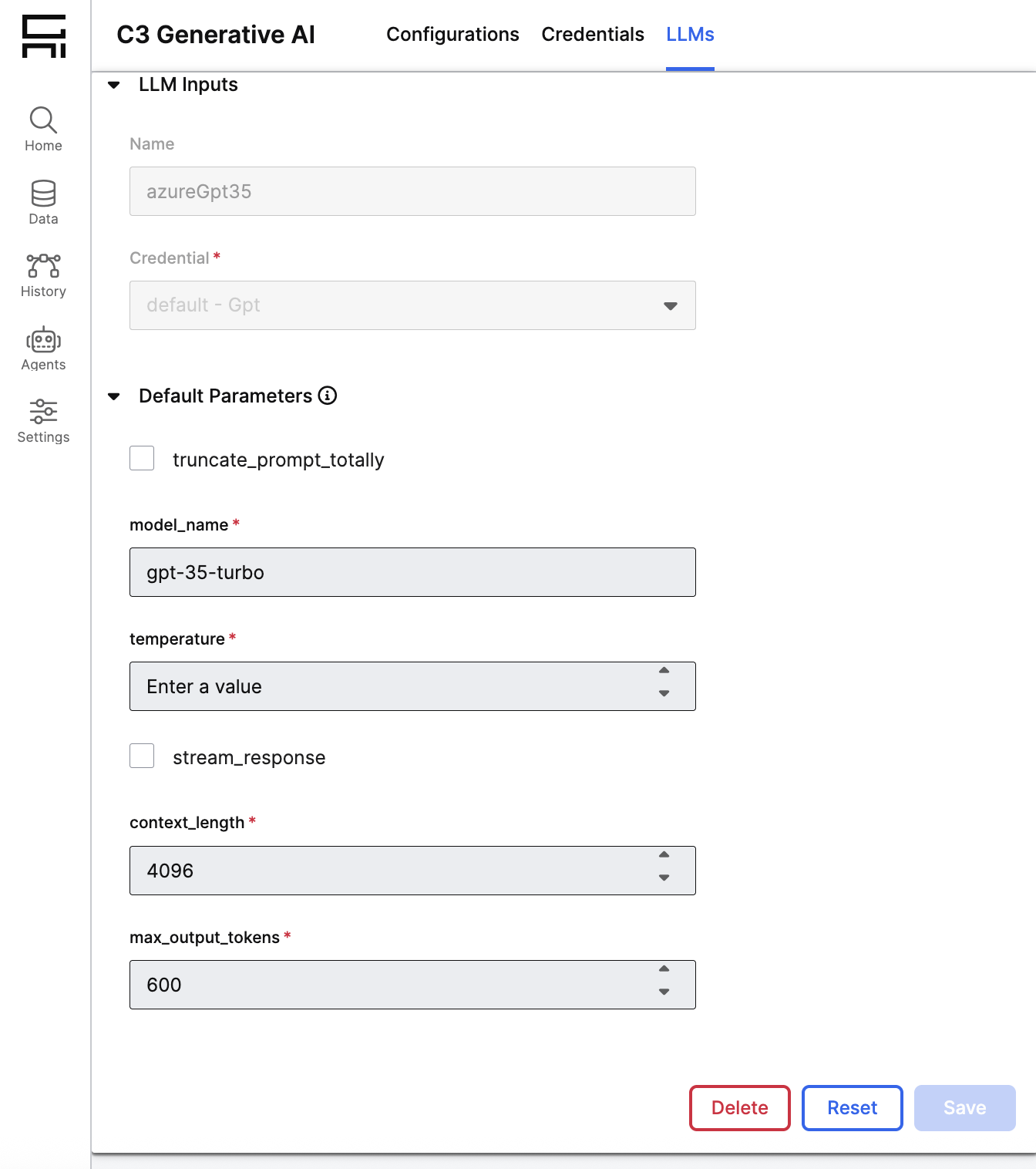
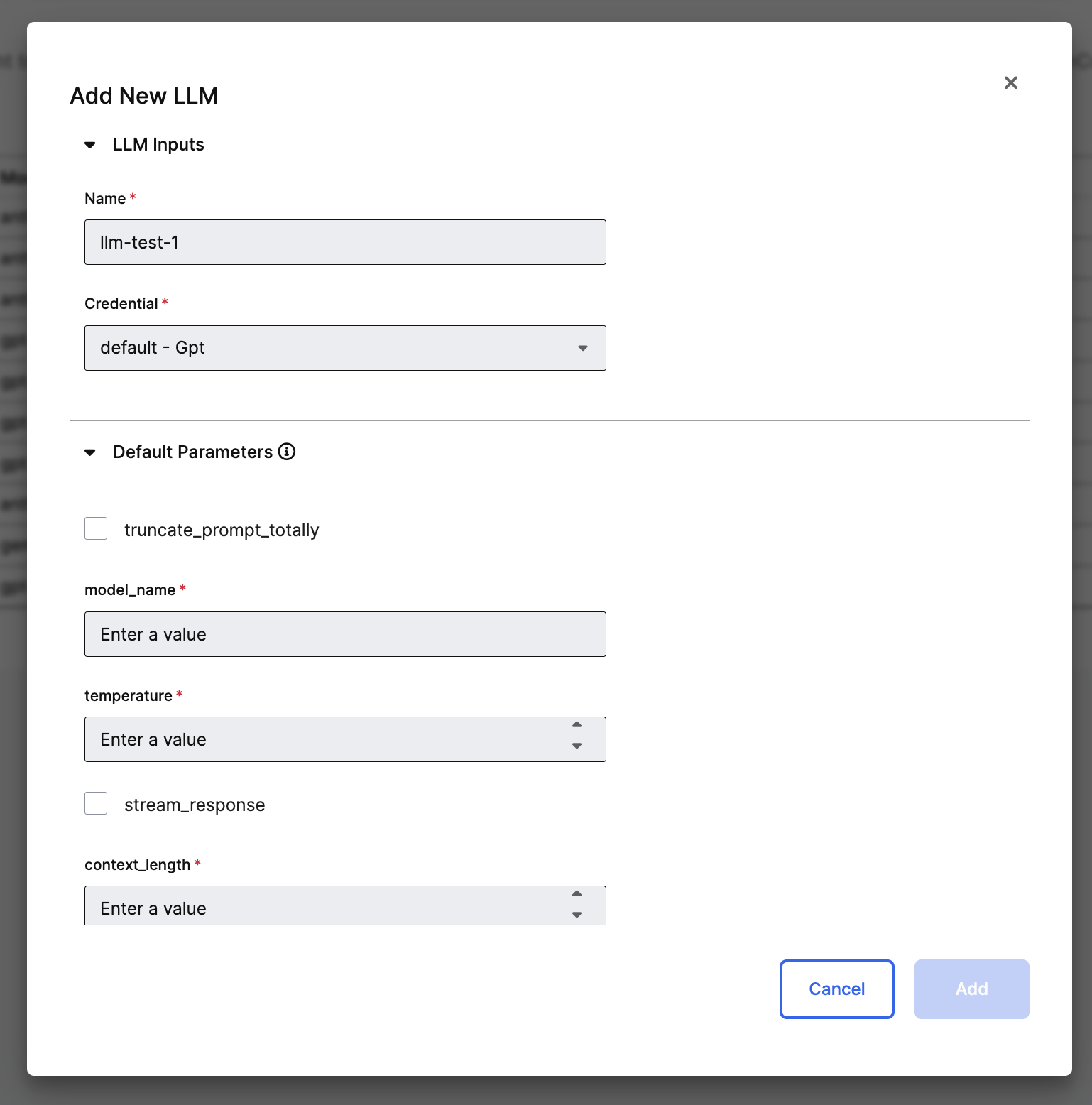
Similar to adding a credential, administrators can add and manage Large Language Models by navigating to Settings + Large Language Models. Here, by clicking the plus icon above the Large Language Models grid, users can add a new LLM. The form will render the necessary parameters to register the LLM (such as max tokens, timeout, etc.). Each LLM will display its specific parameters with default values, which users can modify according to their preferences.
Before a new LLM is added, the system performs two validations. First, it verifies that the provided configuration parameters are valid and correctly formatted. Second, it checks that the name of the LLM is unique within the system. If either validation fails, the user is prompted to correct the issue before proceeding.
Once an LLM is added, it can be modified later. Similar to the credential modification process, by selecting the LLM they want to modify, a form will open displaying the parameters used to register the LLM. Users are free to modify one or more parameters as needed. After making changes, the system performs a validation to ensure that the configuration parameters are valid and correctly formatted. If the validation passes, the changes are saved. Otherwise, the user is notified of the issues and must correct them before the update can be completed.