Configure Models
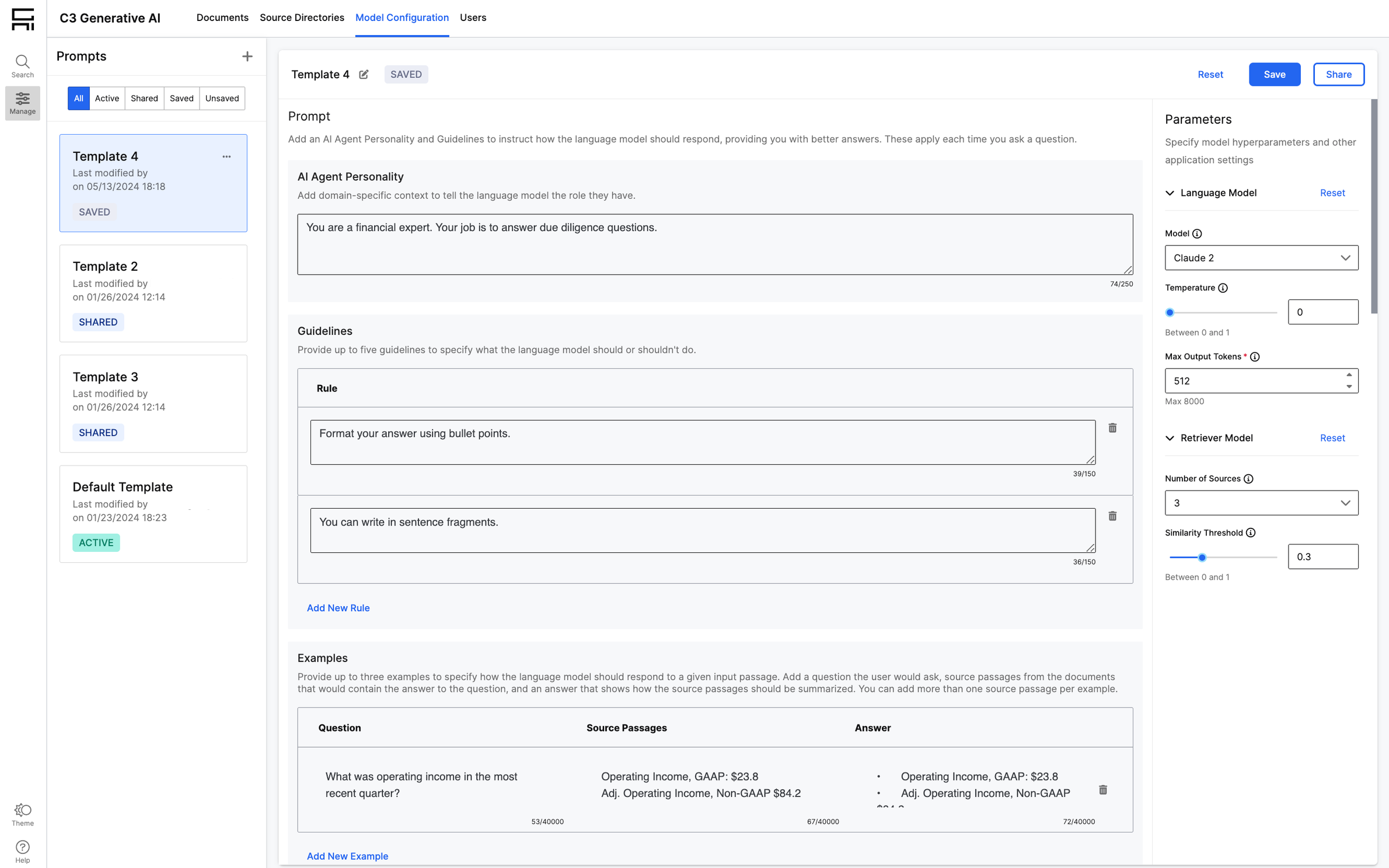
Model Configuration allows administrators to modify prompts and language models and retrieval model parameters. Administrators can create prompt templates to try out different prompts and parameter settings, and evaluate their impact on the language model output.
Create and Manage Templates
Prompt templates allow administrators to experiment with different prompt instructions and retrieval parameters before using a prompt in the production search experience.
To get started, complete the following steps:
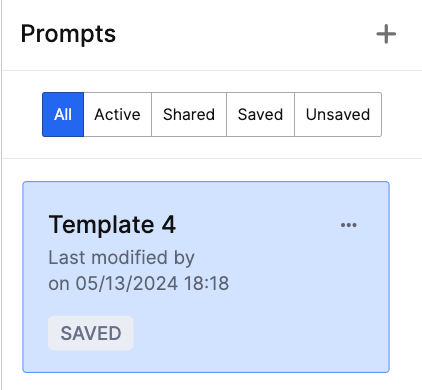
Create a Template: To create a new template, navigate to Model Configuration. Select + in the Prompts panel.
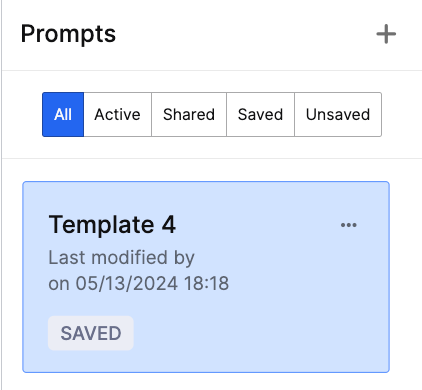
Create a Copy of an Existing Template: To create a copy of an existing template, choose a prompt template, select the breadcrumbs and select Create a Copy.
Save a Template: When creating a new template, select Save to save it before navigating away from the Model Configuration page. You can continue to edit saved templates later.
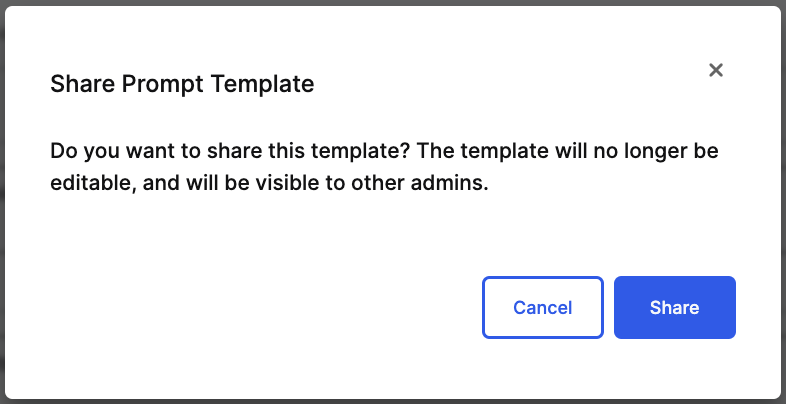
Share a Template: Select Share to share a template. Once a template is shared, it is no longer editable.
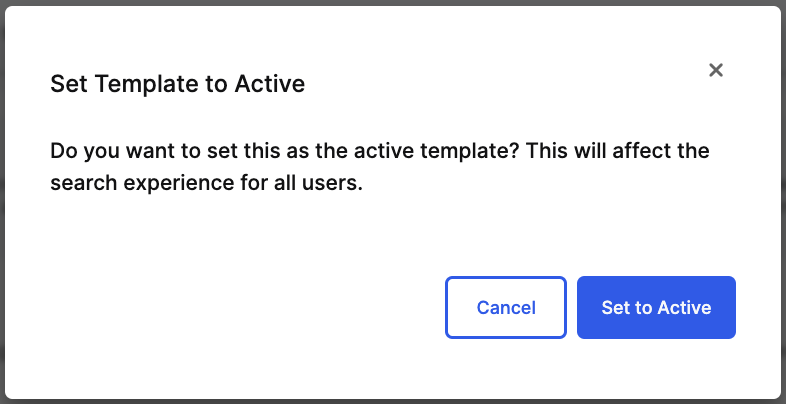
Set a Template to Active: Select Set to Active to set a prompt to be used in the production search experience for end users.
Delete a Template: To delete a template, choose a prompt template. Select the breadcrumbs and select Delete.
Customize Templates
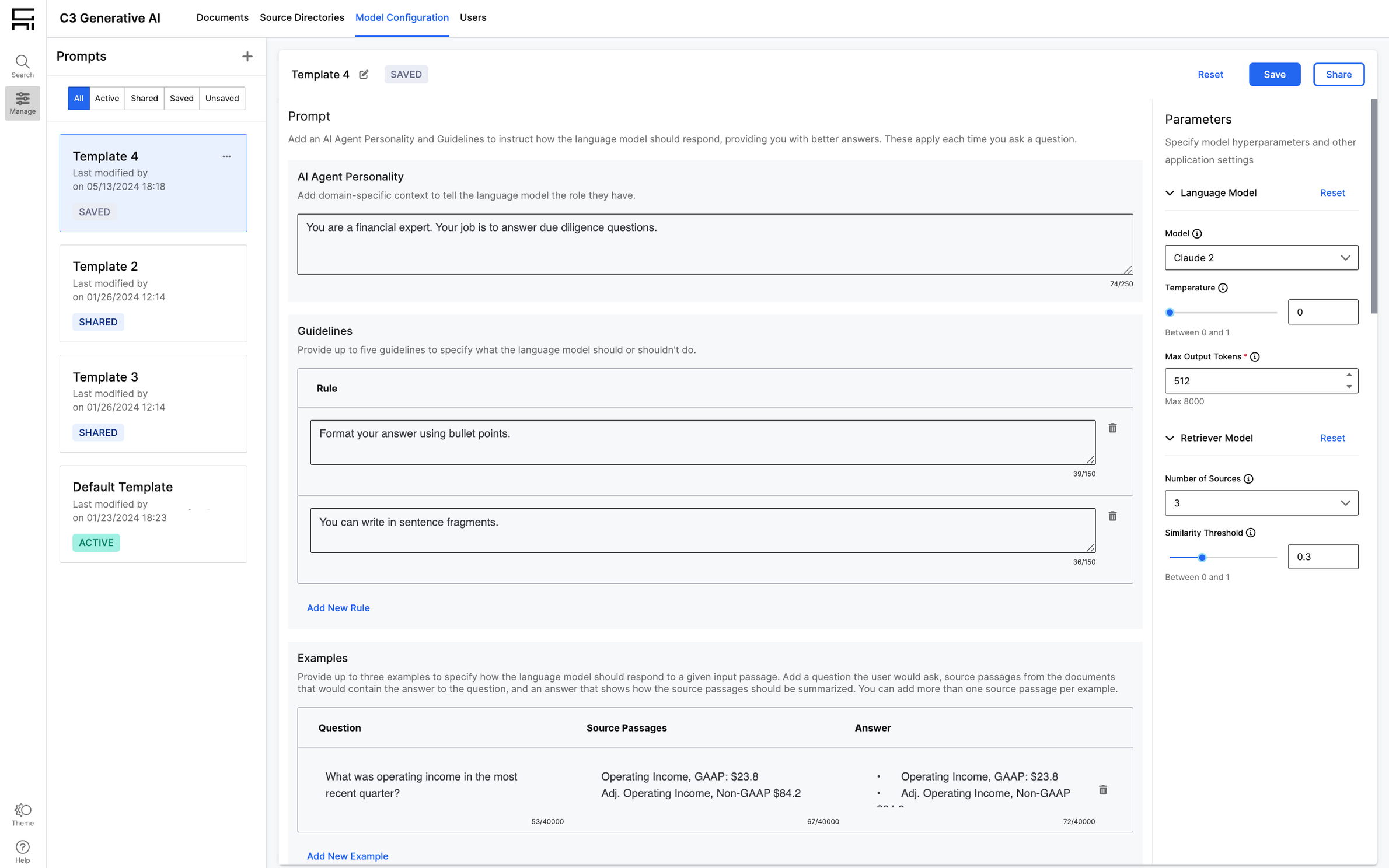
Administrators can customize templates to modify language model output in their application. Navigate to Model Configuration, and choose a Prompt Template.
To get started, complete the following steps:
Add an AI Agent Personality: Add domain-specific context to tell the language model the role it should have.

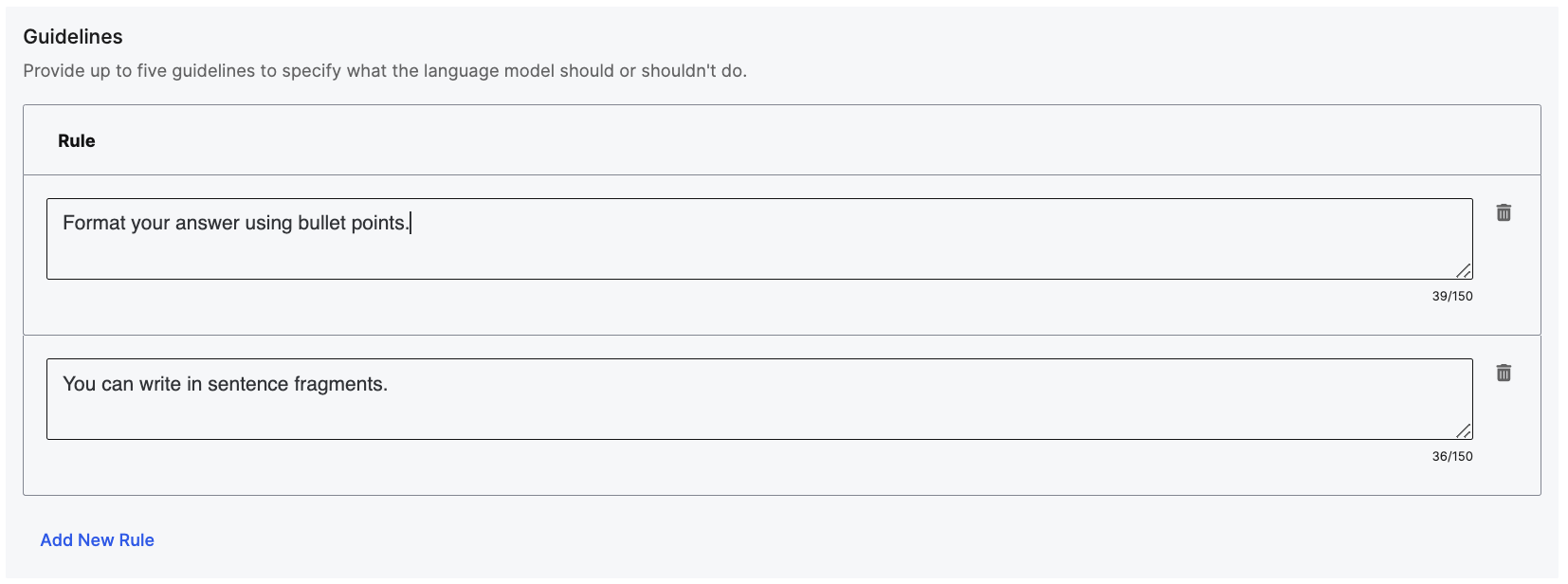
Add Guidelines: Add up to 5 guidelines to instruct the language model how to respond. For better results, tell the language model what it should do, instead of what it shouldn’t do.
Add Examples: Add few-shot examples to the prompt template that demonstrate the AI Agent Personality and Guidelines that you want the language model to observe. This will more effectively shape language model output to exhibit the desired behavior. Administrators can add up to three examples.
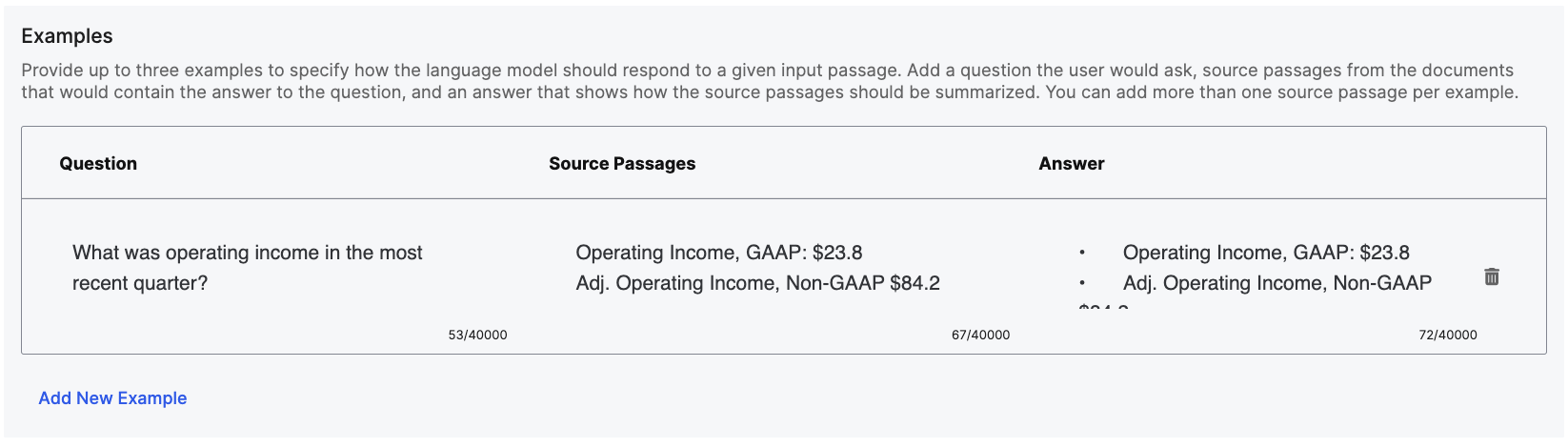
Modify Language and Retrieval Model Parameters
Administrators can modify language and retrieval model parameters to modify C3 Generative AI responses as desired. Navigate to Model Configuration, and choose a Prompt Template.
To get started, complete the following steps:
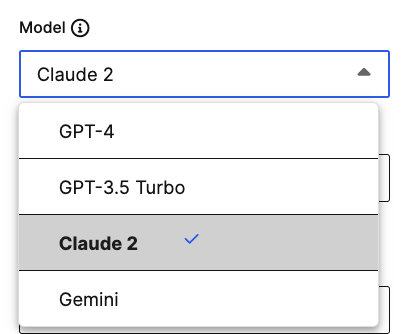
Select Model: Choose from the available models in your deployment to specify which language model is used. Note that you may need to reach out to your C3 AI administrator to request a dedicated API key to access additional language models than the one configured by default. Note that this model will only control responses from document search questions.
Choose Temperature: Temperature controls the degree of randomness in an answer. Lower values closer to 0 produce more deterministic text, while higher values closer to 1 yield more diverse, creative output.
Specify Max Output Tokens: Max Output Tokens controls the maximum length of a generated response. Maximum values vary based on the selected language model. Administrators can choose smaller values to manage generation cost if desired.
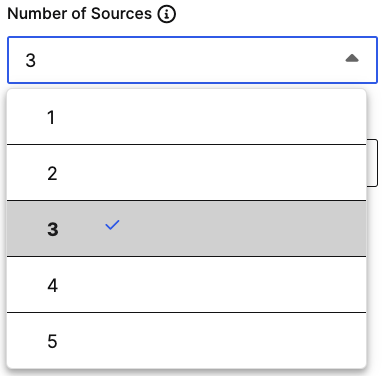
Choose Number of Sources Retrieved: Number of Sources specifies the maximum number of source passages that a generated answer might reference. Administrators can choose a number between 1 and 5. This allows administrators to identify the right balance between robustness of an answer and retrieval time.
Select Similarity Threshold: Similarity Threshold specifies how similar a source passage should be to the user’s question to be included in the AI-generated response. Administrators can choose a value between 0 and 1. This allows administrators the ability to identify the right balance for their implementation in ensuring relevant passages are selected without being overly selective.
Run Tests
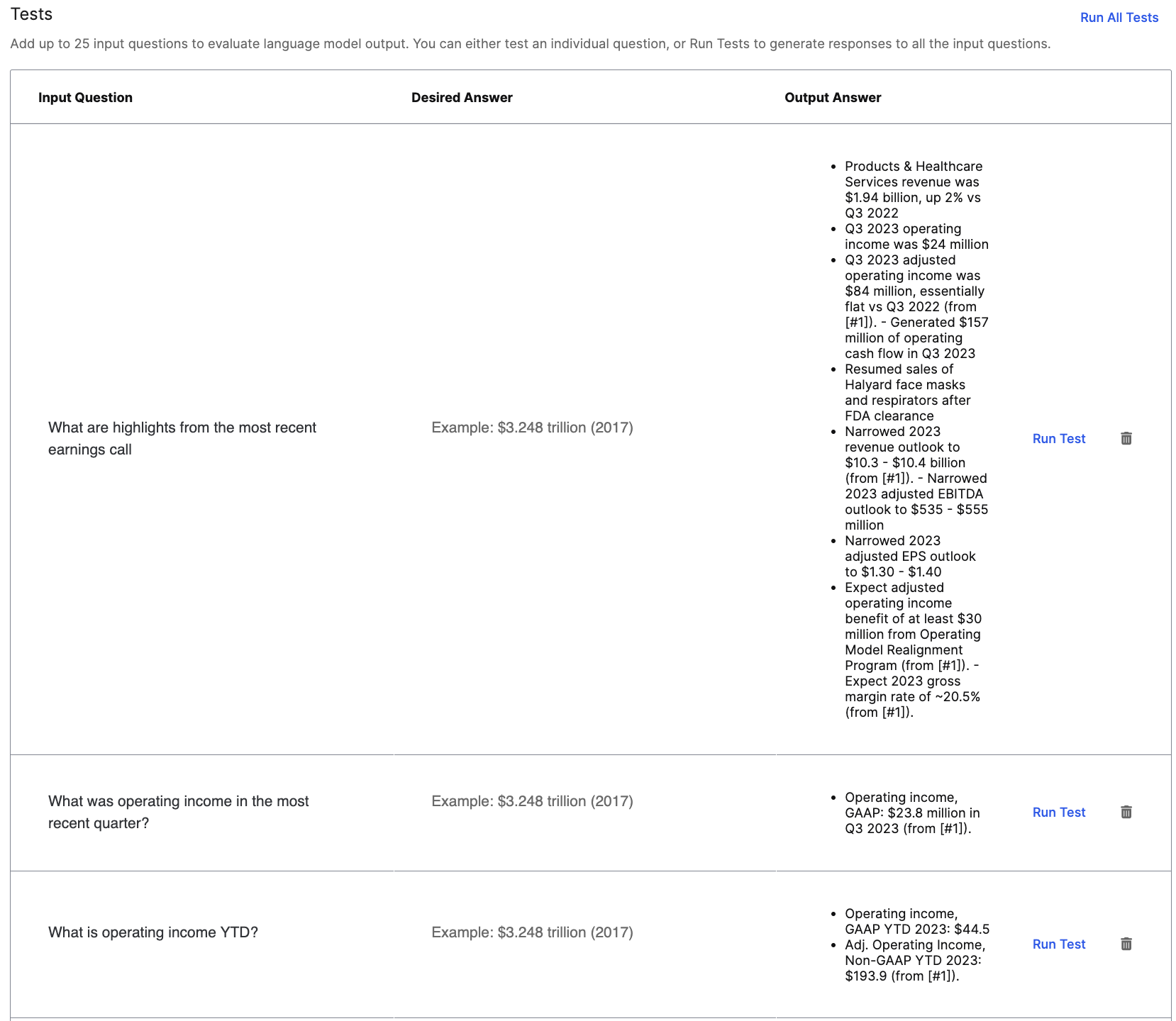
Administrators can run evaluation on a test set of questions to assess accuracy and satisfaction in language model output prior to sharing a template.
To get started, complete the following steps:
Add Test Questions and Desired Answers: Administrators can add up to 25 input questions and desired answers to evaluate output. Desired answers are optional, and will help administrators to efficiently compare responses to the correct answers. To add a new test question, select Add New Input Question.
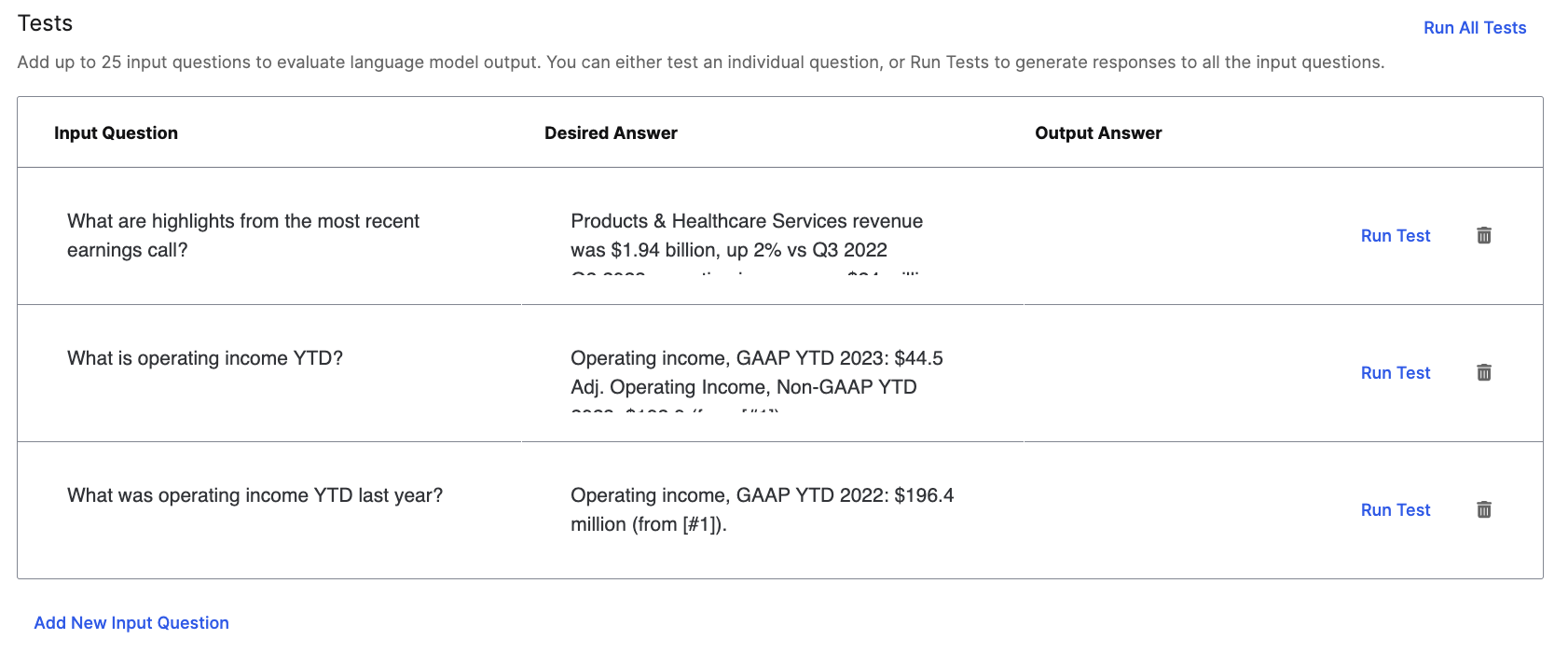
Run Tests: Test an individual question by selecting Run Test in-line, or select Run All Tests to generate responses to the full set of test questions.