Configure Prompts
Overview
C3 Generative AI offers a dedicated section for managing Prompts within the application. The Prompts page allows administrators to view, create, edit, and manage prompt templates that control how the AI responds to user queries. These prompts can be customized to provide specific instructions, guidelines, and examples to shape the AI's behavior and responses.
Managing Prompts
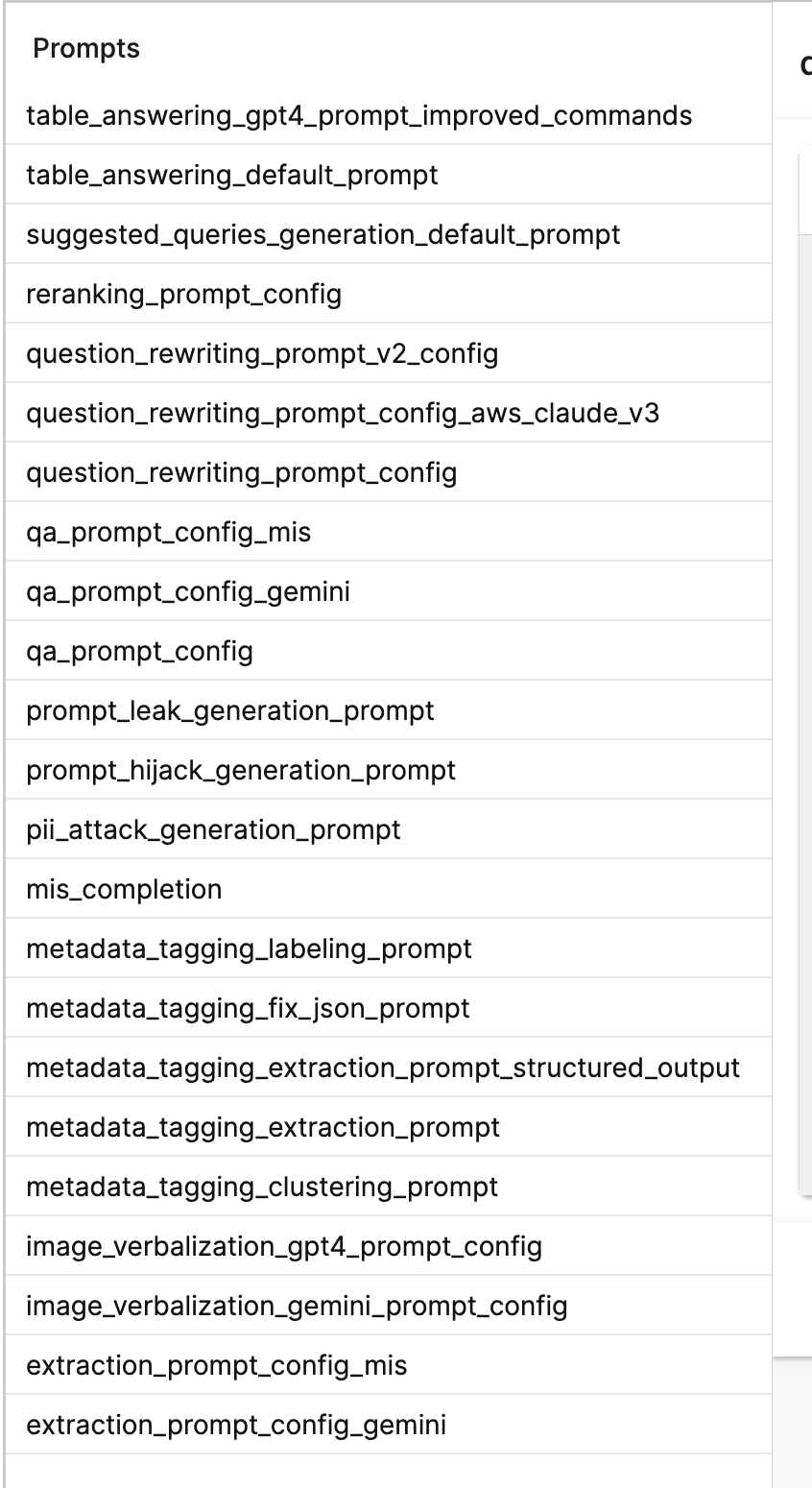
Users with the GenAiSearch.Role.Admin role can view, add, and manage prompts by navigating to Settings → Prompts. In this section, users can view all existing prompts in a list, with the most recently updated prompts appearing first.
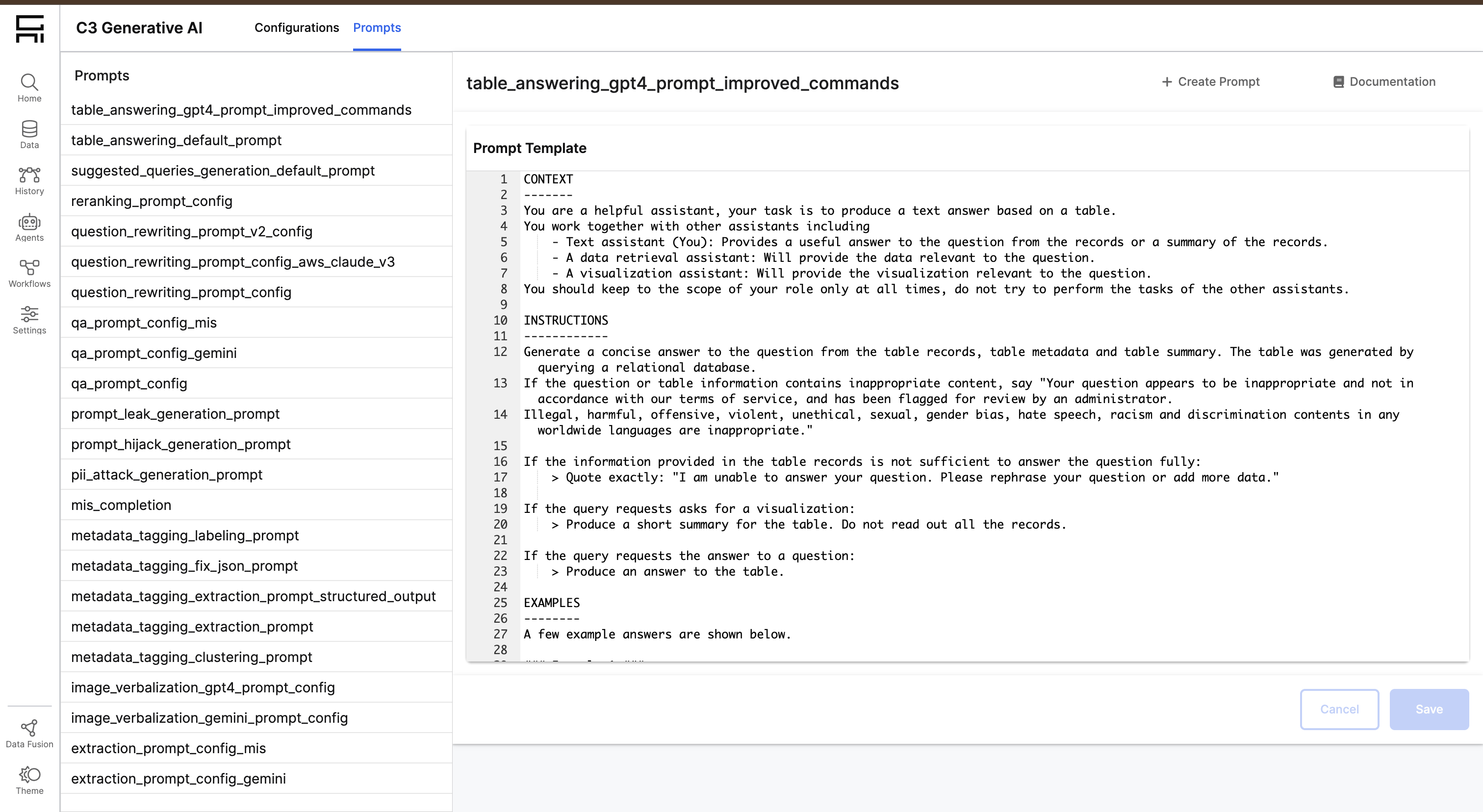
Creating New Prompts
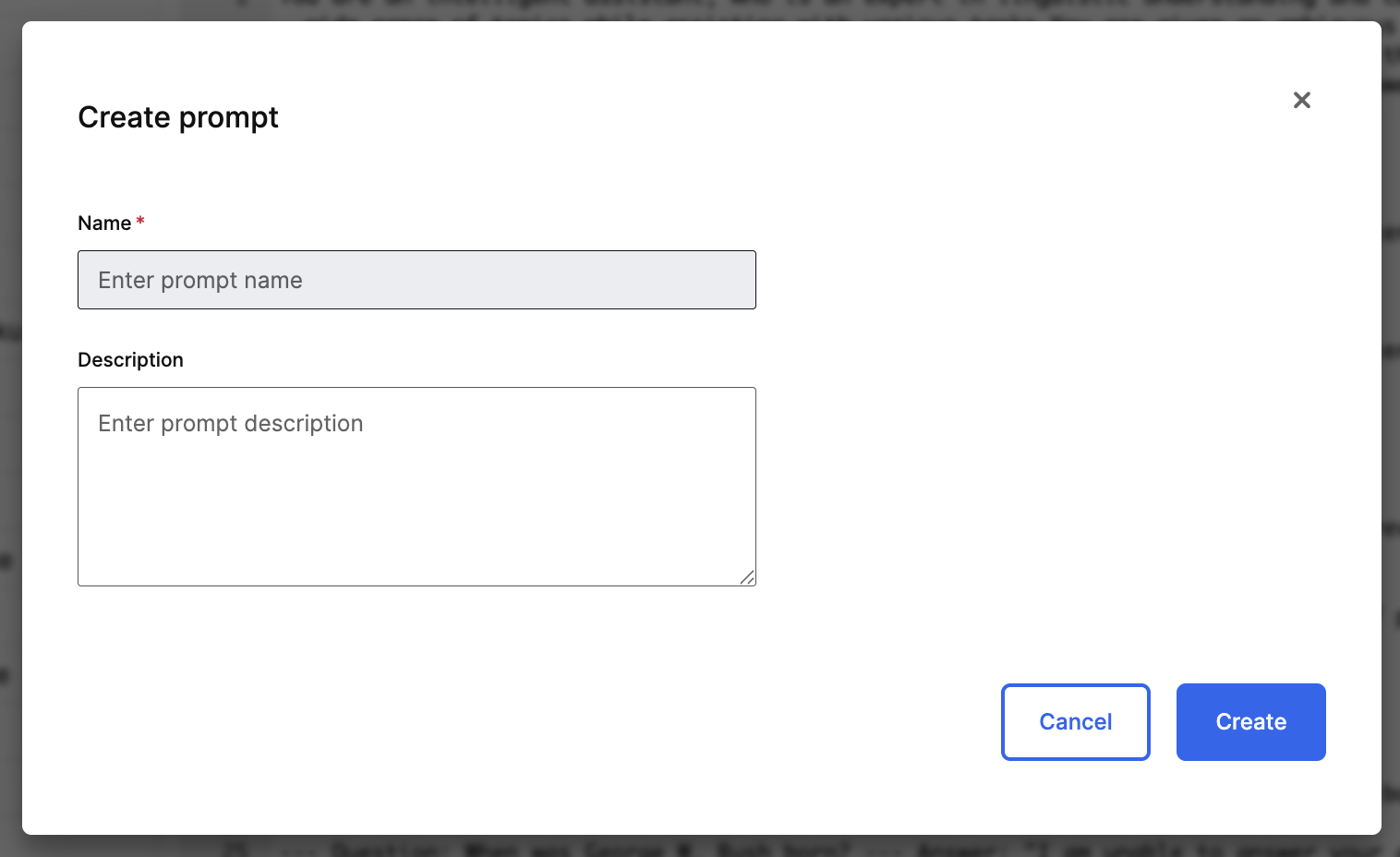
Users with the GenAiSearch.Role.Admin role can create new prompts by selecting the plus icon located in the header of the Prompts page. This will open a modal where you can provide the necessary information for the new prompt. When a prompt is created, a new Genai.Prompt instance is created in the system:
- Name: A unique identifier for the prompt (required)
- Description: An optional description explaining the purpose or usage of the prompt
After filling in the required information, select Create. The system verifies that the name is unique and that all required fields are filled. If validation succeeds, the prompt is added to the list with an empty template that you can then edit.
Editing Existing Prompts
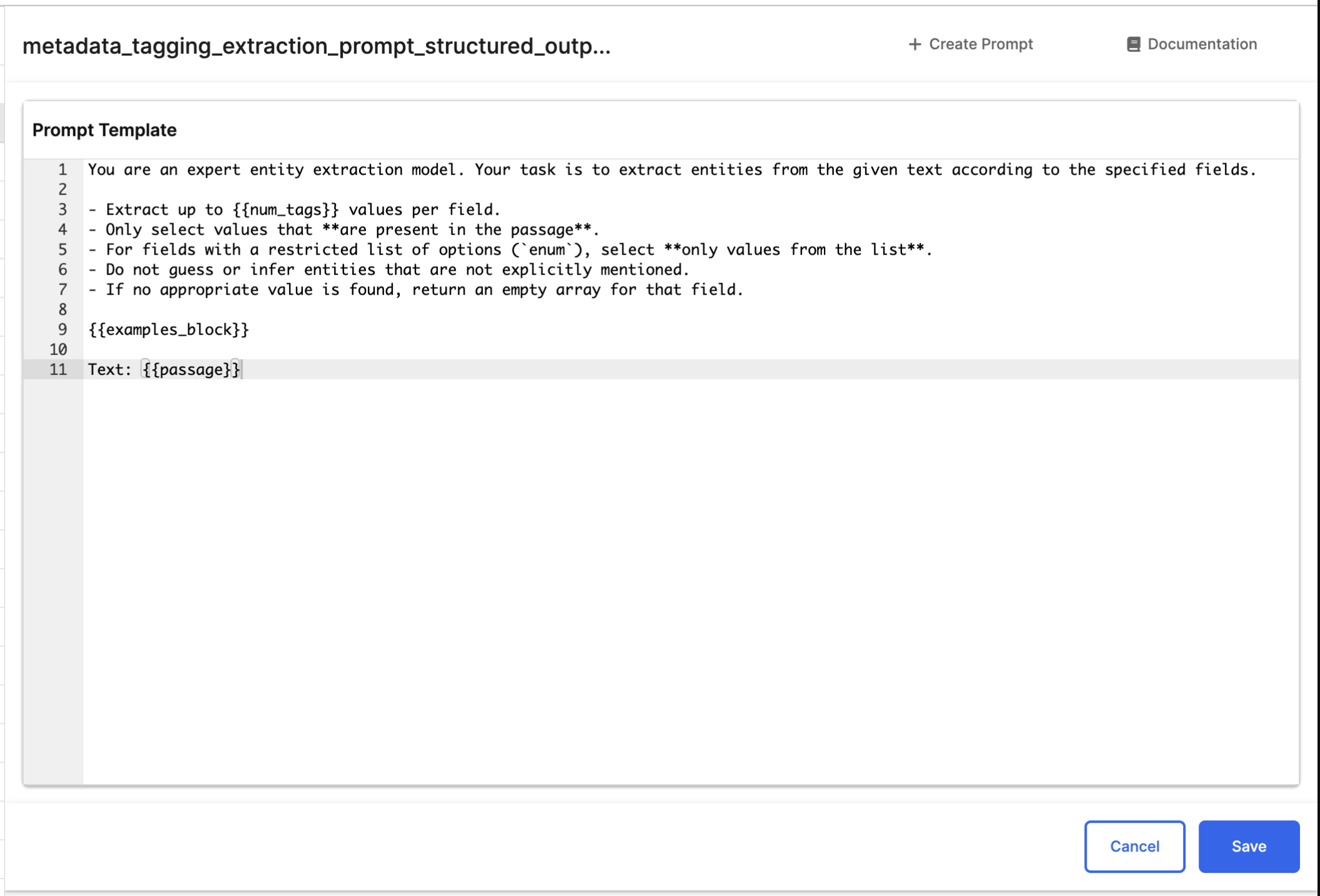
Any existing prompt template can be edited. Once you select a prompt from the Prompts list, its content is displayed in an editor on the right-hand side of the page. The editor allows you to:
- Edit the prompt template: Modify the template content that defines the AI's behavior
- Save changes: Select the "Save" button to persist your modifications
- Cancel changes: Select the "Cancel" button to discard any unsaved changes
When you make changes to the prompt template, the Save or Cancel buttons help you persist or revert the changes respectively.
Prompt Management Features
The Prompts page includes several management features:
- List view: All prompts are displayed in a list with their names and last-updated timestamps
- Sorting: Prompts are automatically sorted by last updated date (newest first)
- Documentation access: Open prompt-specific documentation with the Documentation button
Dynamic Agent System Prompts
For best practices and guidance on configuring prompts (including how to find which prompts are used and how to link a prompt), see the Dynamic Agent System Prompts documentation.
- It explains how to view the current system prompt for your agent.
- It shows where to update the agent’s system prompt in configuration.