Logo Configuration
Overview
C3 Generative AI offers a streamlined method for customizing logos within the application. This feature enables you to set custom logos that align with your business branding. The logos must be stored in an external bucket service, and the URL of the resource must be specified in the application to ensure proper display. Supported image formats include SVG, JPEG, PNG, and WebP.
Currently, you can customize the following logos:
Menu Logo

Home Page Logo
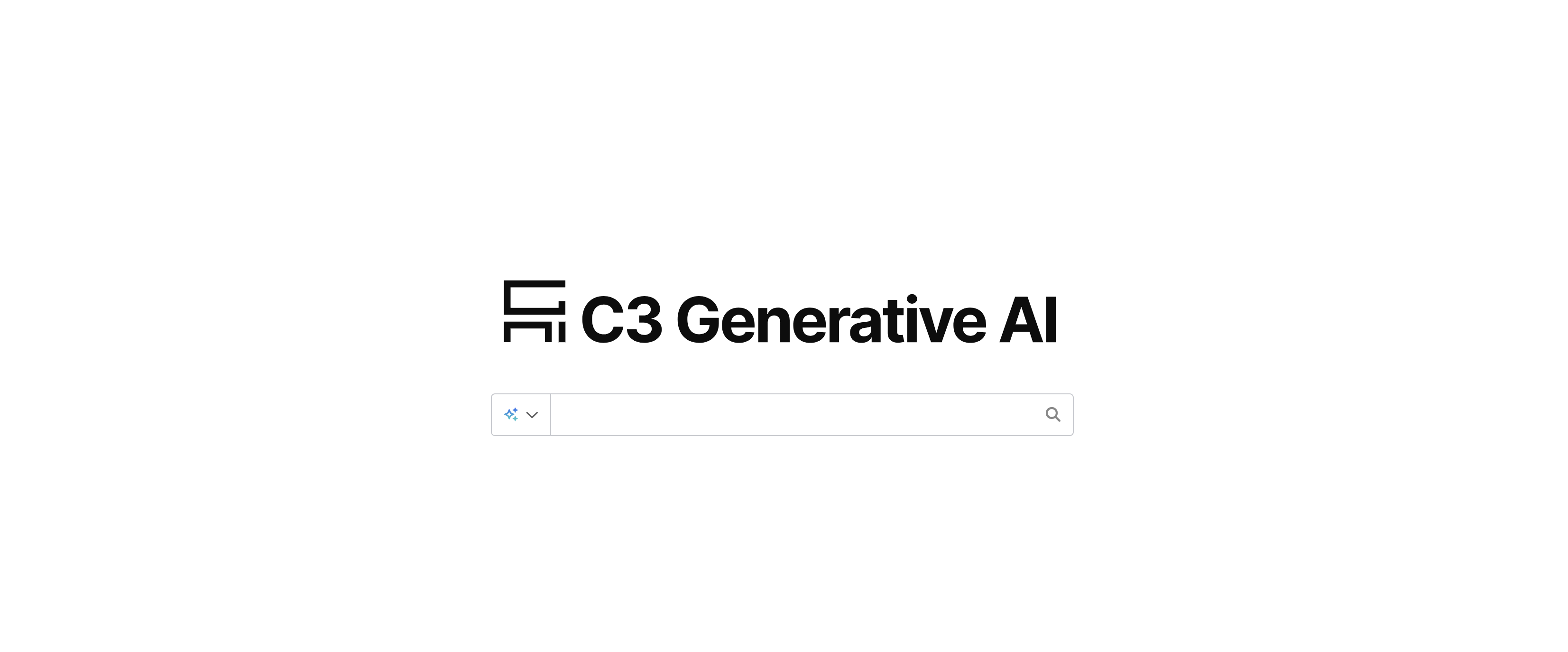
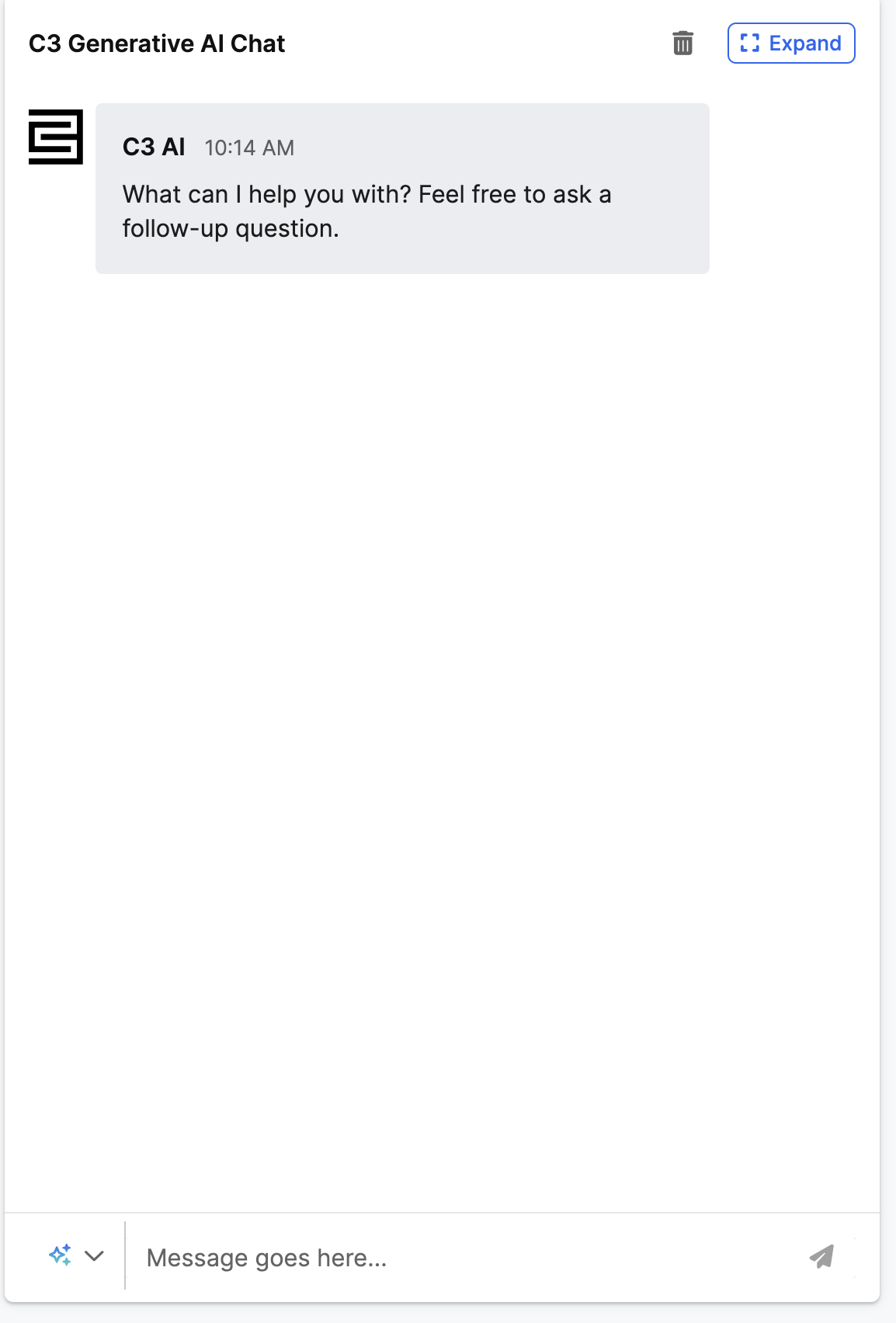
Chat Logo
How to Customize the Logos
C3 Generative AI offers a straightforward function for logo customization. To set a logo, execute the following function from the static console:
Genai.ImagesLogo.Config.setImageForTheme(urlImage, theme, imageLocation)Parameters: urlImage: The URL of the image to be displayed. theme: The theme to be updated with the image. Available options are: 'Light', 'Dark'. imageLocation: The specific image to be updated. Options include: 'menu', 'home', 'chat', 'all'.
Example: To set the menu image for the dark theme, use the following command:
Genai.ImagesLogo.Config.setImageForTheme('https://my.image.png', 'Dark', 'menu', 'all')If the imageLocation is set to all, all images for both themes will be updated with the provided image. In this scenario, the theme parameter can be either Dark or Light, but it must be specified.
Additional Considerations
- The URL must expose the resource and follow the format: https://image.format. This is crucial, as we validate the URL format before setting an image.
- If the URL is invalid or incorrect, the default image will be displayed instead of the specified images.
- To effectively update an image, you must set images for both themes: Dark and Light.