Multiple App MCP Servers
A C3 application can host more than one App MCP server. The application always provides one default server, and you can create additional named servers from Studio. Each named server has its own URL, its own enable state, and its own catalog of tools, prompts, and resources. This lets you tailor what one group of users sees in their IDE without affecting another group.
For example, a single application can expose a developer-tools server with code-generation tools and a customer-support server with reporting prompts. A user who installs only the developer-tools server sees no support prompts in their IDE, even though both servers run in the same application.
Default server and named servers
Every application that includes the genaiPlatform package starts with one default app MCP server. This default server has always existed and continues to serve the path /mcp/server. Existing IDE configurations keep working without changes.
A named app MCP server is an instance of Mcp.Server.App that you create in Studio. Each named server gets its own URL segment under /mcp/servers/{name}. Tools, prompts, and resources are associated with a named server through Mcp.Server.App.AssetRelation, which is the sole source of truth for whether an asset is visible on that server.
Prerequisites
- The application runs on version 8.11 or later.
- The
genaiPlatformpackage is included in the application. This package provides Mcp.Server.App, Mcp.Server.App.AssetRelation, and the App MCP Servers admin page.
Navigate to the App MCP Servers page
Select MCP > App MCP Servers in the left sidebar.
The grid lists every server in the application. The default server appears first and cannot be renamed or deleted. Each row shows the server name, description, and current enable state. Select a server name to open the Access page filtered to that server.
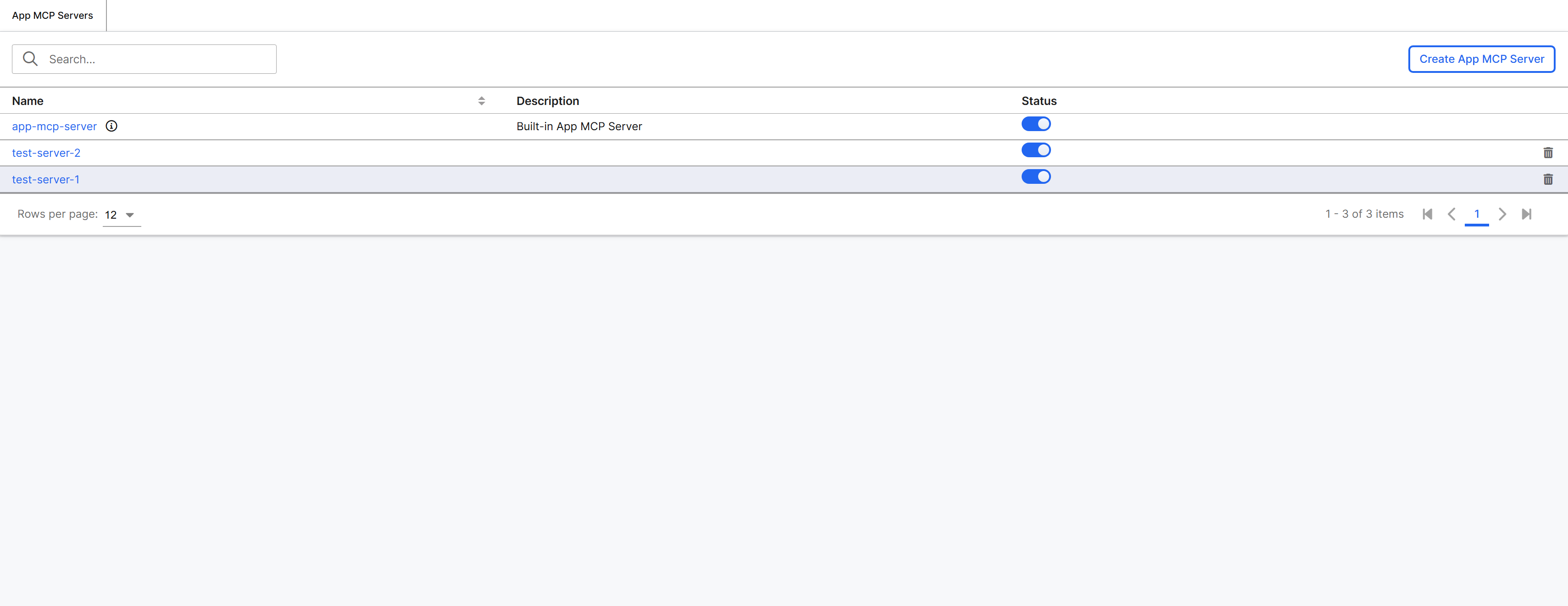
Create an app MCP server
To create an app MCP server, make sure your user has the App Admin role. Only App Admin can create, delete, enable, disable, or assign assets to a named server. Users without App Admin can still use a named server's URL from their IDE if they have a token.
- On the App MCP Servers page, select Create Server.
- Enter a Name for the server. The name becomes the URL segment in
/mcp/servers/{name}, so the value must be a single stable path segment. Studio rejects names that contain spaces, slashes, or characters that are unsafe in a URL. Names must also be unique across the application. - Enter an optional Description so other administrators can tell servers apart.
- Select Create.
The new server is disabled by default. It has no tools, prompts, or resources assigned yet, so an IDE that connects to its URL sees an empty catalog until you assign assets and enable the server.
Switch the active server in MCP pages
The Tools, Prompts, Monitor, and Access pages all show data scoped to one server at a time. The MCP server header at the top of these pages includes a server dropdown that lists the default server and every named server you have created.
Selecting a different server in the dropdown reloads the current page against that server. The selection persists as you move between pages, so you can switch context once and continue administering a single server across all its pages.
Enable or disable a server
You can change a named server's enable state in two ways:
- On the App MCP Servers page, toggle the Enabled switch in the row for the server.
- With a named server selected in the header dropdown, use the enable toggle on the MCP > Tools header.
Disabling a server causes it to reject MCP requests at its URL regardless of which assets it has assigned. Tokens generated for that server still exist but cannot be used until the server is re-enabled.
The default server's toggle is global to the application: turning it off blocks the default URL but does not affect named servers.
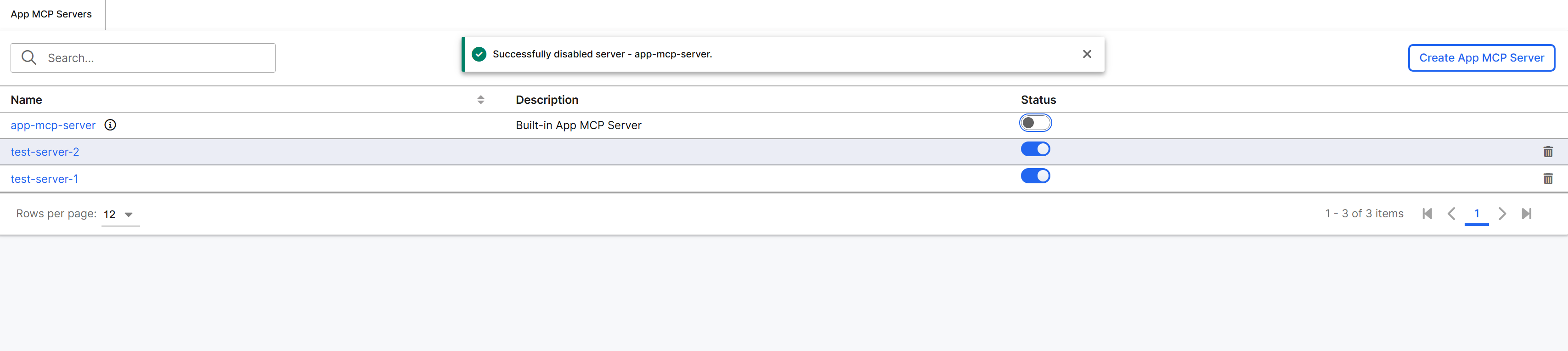
Assign tools, prompts, and resources to a server
Each named server has its own catalog. An asset (a GenaiCore.Tool, Mcp.Prompt, or Mcp.Resource) is visible on a server only when a row exists for that server-asset pair with isEnabled = true.
To assign an asset:
- In the header server dropdown, select the named server you want to assign assets to.
- Open MCP > Tools or MCP > Prompts.
- In the row for the asset, toggle Enabled for MCP.
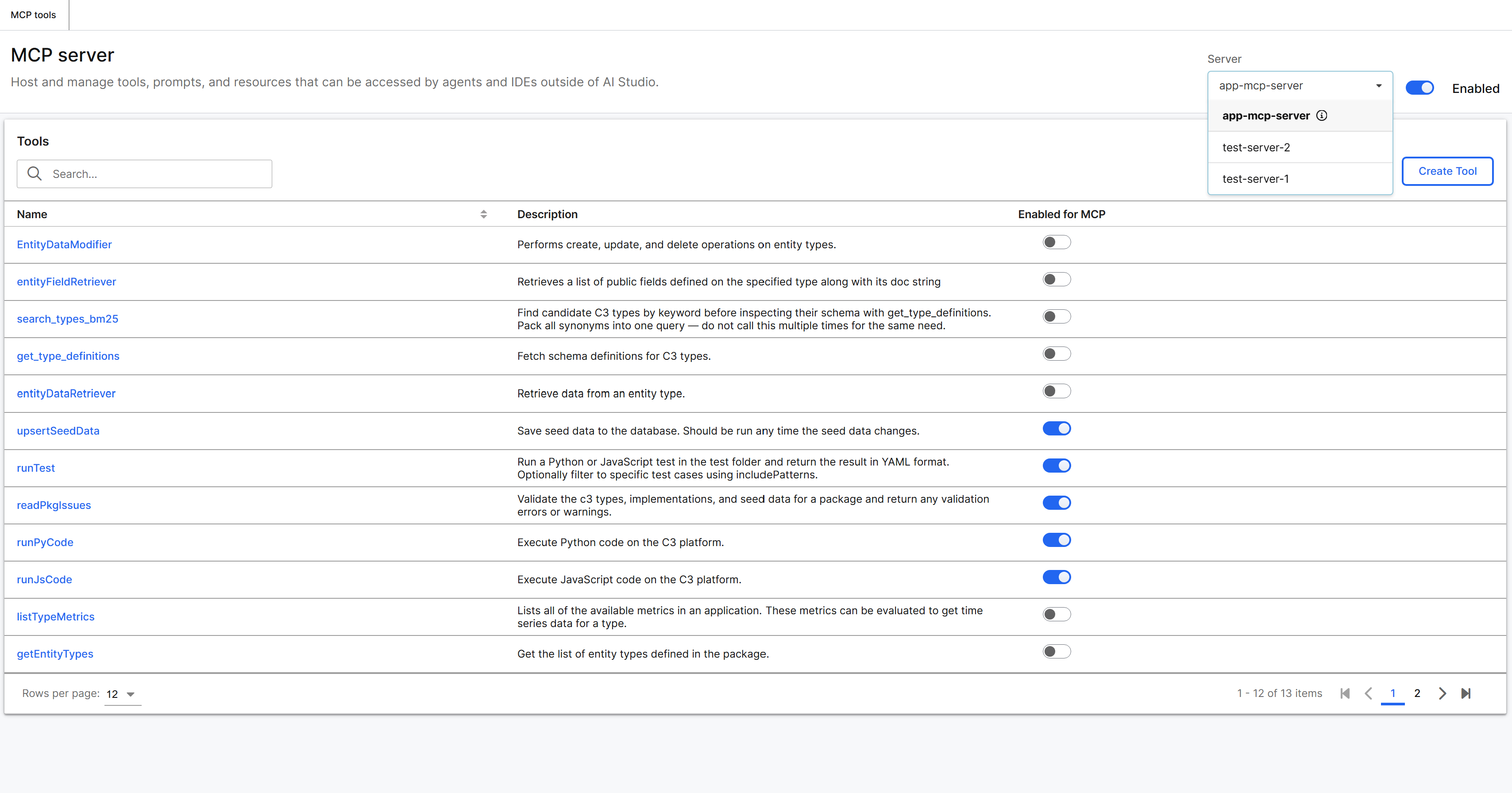
The first toggle for an asset on a server creates the underlying asset row. Subsequent toggles update the existing row. The same asset can be enabled on one named server and disabled on another at the same time.
For prompts, a server dropdown also appears in the create flow so you can choose which server a new prompt belongs to. See Manage MCP Prompts.
Also for tools, a server dropdown appears in the create flow so you can choose which server a new tool belongs to. See Manage MCP Tools.
The default server uses each asset's enabledInMcpServer flag, not Mcp.Server.App.AssetRelation. An asset enabled on the default server does not automatically appear on named servers, and the reverse is also true.
Generate tokens for a specific server
The Access page generates tokens scoped to the server selected in the header dropdown. Selecting a named server before opening MCP > Access produces a token whose mcp.json entry points at that server's URL.
To generate a token for a named server:
- In the header dropdown, select the named server.
- Select MCP > Access.
- Follow the Generate Token flow as described in MCP Access.
The generated mcp.json entry has the form:
{
  "servers": {
    "YourServerName": {
      "url": "https://<cluster>/<env>/<app>/mcp/servers/<serverName>",
      "headers": {
        "Authorization": "C3Bearer <token>"
      }
    }
  }
}
If user revokes a token from a server, then all tokens across all servers are then revoked for that said user.
Track invocations per server
Every tool call and prompt invocation is recorded as an Mcp.Invocation.Record. The record includes a mcpServerName field that captures which server handled the request. The default server uses the dynamic value {cluster}-{env}-{app}-mcp-server (computed by Mcp.Server#defaultServerName); named servers use their declared name. Records written before the rename stored the legacy value app-mcp-server, so readers match both when filtering by the default server.
The MCP > Monitor page filters records by the server selected in the header dropdown so each server's invocation history can be reviewed independently. The detail view of each record shows the same mcpServerName value. See MCP Monitor.
Delete a server
- On the App MCP Servers page, open the row actions for the server.
- Select Delete.
- Confirm the deletion in the modal.
Deleting a server removes the Mcp.Server.App row and every Mcp.Server.App.AssetRelation row that referenced it. The underlying tools, prompts, and resources are not deleted; they remain available to assign to other servers. Tokens issued for the deleted server are invalidated and the server's URL begins returning 404 immediately.
The default server cannot be deleted.
Endpoints
A C3 application that includes the genaiPlatform package serves the following MCP endpoints. Replace {name} with the named server's name value.
| Endpoint | Server | Purpose |
|---|---|---|
/mcp/server | Default | MCP protocol endpoint for the default server |
/mcp/json | Default | Configuration JSON for IDE install |
/mcp/cursor, /mcp/vscode | Default | IDE-specific install handlers |
/mcp/servers/{name} | Named | MCP protocol endpoint for the named server |
/mcp/servers/{name}/json | Named | Configuration JSON for IDE install |
/mcp/servers/{name}/cursor, /mcp/servers/{name}/vscode | Named | IDE-specific install handlers |
A request to a named-server URL is rejected when the corresponding Mcp.Server.App does not exist or its isEnabled field is false.
Programmatic access
You can also work with named servers in Python or JavaScript, which is useful when you seed servers as part of a deployment or build administrative tooling.
server = c3.Mcp.Server.App(
    name="developer-tools",
    description="Code generation and review",
    isEnabled=True,
).create()

c3.Mcp.Server.App.AssetRelation(
    server=server,
    assetType="TOOL",
    assetId="MyTool",
    isEnabled=True,
).create()

tools = server.tools()
result = server.callTool("MyTool", {"arg": "value"})
The Mcp.Server.App type exposes member functions tools, callTool, prompts, getPrompt, resources, and getResource. Each one returns the same MCP-shaped JSON that the server's HTTP endpoints return, so the same enable rules apply.
You can also seed servers and their asset relations from seed/Mcp.Server.App/ and seed/Mcp.Server.App.AssetRelation/. Both types mix SeedData, so values placed there are loaded on application start.