Set User Quotas
The Quotas page shows the four quotas of every C3 Code user: applications, workspaces, deployments, and LLM Budget. Each quota sits next to what that user has used, and the page also holds the default quotas new users start with. Open Admin in the left navigation, then select Quotas.
Use this page to raise or lower a user's quotas without waiting for a request from that user. You also change the quotas every new user starts with here. Opening the Admin section needs administrator access.
For what each quota covers, and why creating a workspace or deployment checks two limits, see Manage User Roles and Quotas.
Read the Quotas page
The page opens on the Default quotas card, the four quotas a new user starts with: Applications, Workspaces, Deployments, and Monthly LLM budget. Monthly LLM budget is the LLM Budget: the dollars a user can spend on large language model (LLM) usage each calendar month.
A table of every C3 Code user follows, with each quota shown as usage against the limit, such as 3 / 5. Usage counts the applications, workspaces, and deployments that user created. The LLM spend (month) column compares the user's LLM spend this calendar month with their LLM Budget. Search by name, email, or user ID to find one person.
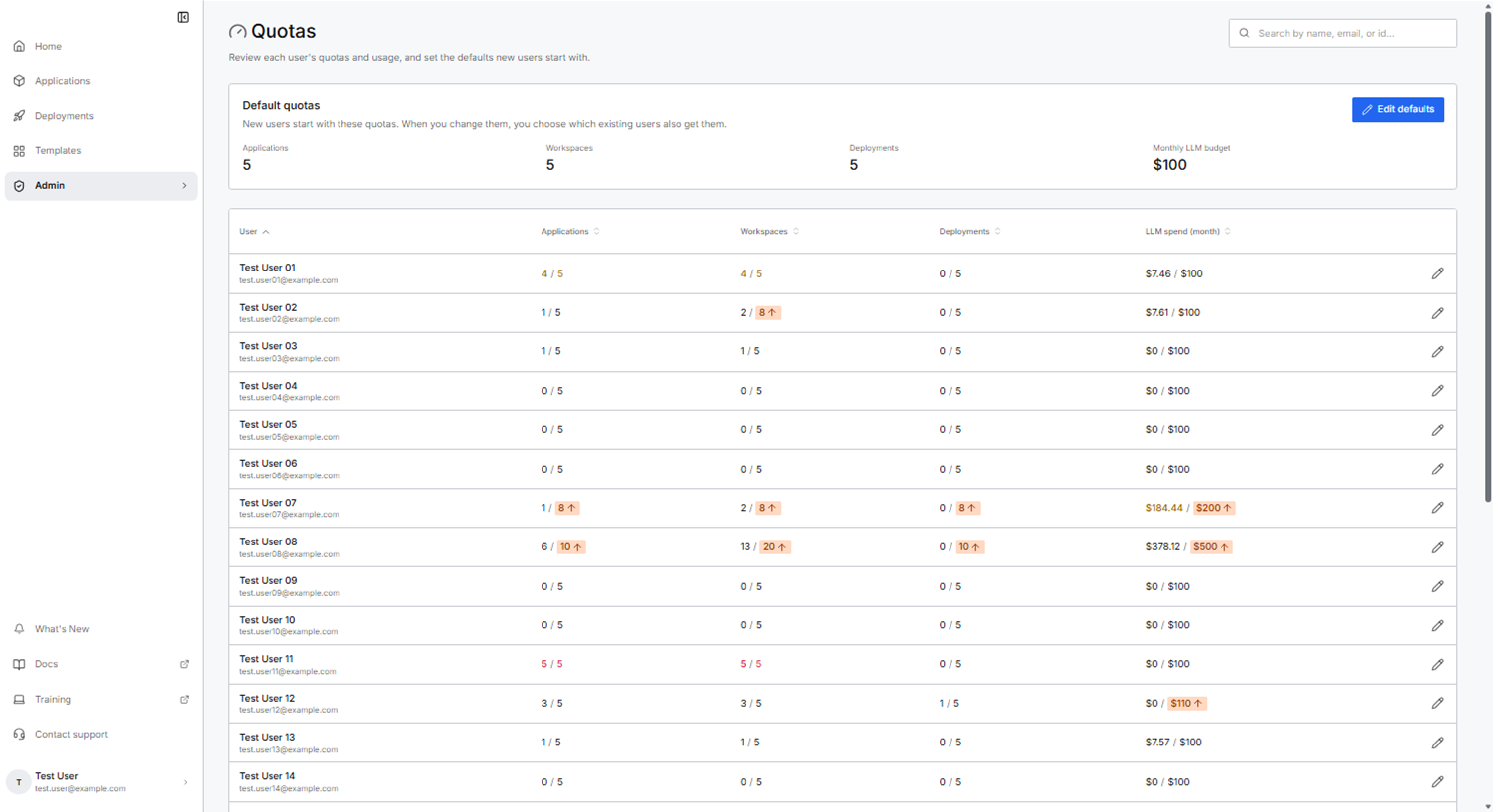
Colors and arrows in the table show which users to check first:
- Red: the user has reached that quota.
- Yellow: the user has used 80% or more of that quota.
- Up or down arrow on the quota: that user's quota is set above or below the current default.
Change one user's quotas
Raise or lower one person's quotas from that person's row, for example to give a user leading a large build more workspaces:
- Select the edit button, the pencil at the end of the user's row. The Edit quotas for dialog opens with the user's name.
- Enter the new values. Each field shows what the user has used and the default.
- Select Save.
Each quota takes a whole number of 0 or more, and the LLM Budget is in whole dollars. C3 Code saves only the values you changed and leaves the user's other quotas as they are.
Lowering a quota keeps the user's existing applications, workspaces, and deployments in place and limits what the user creates next. Raising a workspace or deployment quota also raises the limit on the underlying services to match, as Manage User Roles and Quotas describes.
Change the default quotas
New users always start with the default quotas. When you change a default, you also choose which existing users move to the new value.
- Select Edit defaults.
- Enter the new values.
- Under Apply to, choose who else gets them. All users is selected when the dialog opens, so change it if only some users should move:
- All users: everyone moves to the new defaults, including users whose quota you set above or below the default.
- New users only: existing users keep their current quotas.
- New users and some existing users: select users at, below, or above the current default, the value before your change. Select any combination of the three.
- Review Existing users to update, which lists each user who changes, with the current value and the new value.
- Select Save.
C3 Code compares each quota separately, so a user can be at the default for one quota and above it for another. Only the quotas you change are applied. Existing users outside the option you chose keep the quotas they have now, including users who had the old default.