Build and Run Data Validation Rules in Data Fusion
Validating your data ensures that the information flowing into your C3 AI application is accurate, complete, and reliable. Using the Data Validation tab in C3 AI Studio Data Fusion, you can define and run rules that automatically check your datasets for inconsistencies, missing values, or incorrect relationships between entities. This helps you detect and correct data quality issues early, maintain trustworthy analytics, and ensure that downstream models and workflows operate on clean, validated data.
Example Use Case
Suppose you created an entity from a CSV file containing patient information from a melanoma immunotherapy clinical trial, for example MelanomaImmunotherapyTrialData1.csv. This dataset includes fields such as Patient ID, Age, Treatment Type, Response Status, and Follow-up Duration. Use the following procedure to ensure the integrity of patient age data in clinical trial datasets.
Write a rule that checks whether the age field contains valid positive values.
Deploy and run the rule to identify invalid or missing records.
Review the validation summary and fix any data quality issues in the source file.
Seeded vs. Non-Seeded Data Validation Rules
All data validation rules in C3 are defined using the base type DataValidation.Rule, which can be extended to represent specific rule types such as Foreign Key or Lambda rules. Rather than supporting a single rule type, the platform provides a flexible rule model that can be extended as needed.
The distinction between seeded and non-seeded rules is based on how the rules are created and managed, not on differences in their structure or type:
Seeded rules are defined as part of the application model and include the
SeedDatamixin, which allows them to be packaged and deployed with the application. These rules are typically version-controlled and promoted through environments (Dev → Test → Prod).Non-seeded rules are created dynamically, often at runtime or through the UI or API, and are not included in the application seed data.
While the underlying rule model remains consistent, seeded rules may have restrictions on editing or deletion in Test and Production environments to ensure governance and consistency in validated data models.
Seeded Rules
You create seeded rules as part of your application’s seed data. You do not need to manually author JSON files, you typically create validation rules through the application or UI and then publish them using the publish workflow. As part of this process, Data Fusion exports the rules as JSON files and places them under the application’s seed/ directory, where they become part of the application package.
When you create or deploy the application, Data Fusion automatically seeds these rules in the target application. You typically use seeded rules when you want to reuse the same validation logic across multiple applications. For example, you might create rules in a development environment, publish them, and then deploy them to test and production as part of the application.
Use seeded rules when you want to:
- Initialize validation rules automatically when the application is created
- Reuse the same rules across environments
- Version and deploy validation logic with the application
Non-Seeded Rules
You create non-seeded rules directly in the target environment, primarily through C3 AI Studio. These rules exist only in that environment and are not included in the application’s seed data.
You typically use non-seeded rules for environment-specific validation or experimentation. Because these rules are not published or packaged with the application, they do not automatically appear in other environments.
Use non-seeded rules when you want to:
- Create validation rules specific to a single environment
- Experiment with validation logic without publishing it
- Avoid impacting other environments
Validation Rule Types Overview
This topic provides a high-level overview of validation rule types. For detailed configuration steps and behavior, refer to the specific topics for each rule type:
- Foreign Key (FK) Validation Rules — for validating referential integrity between entities
- Custom (Lambda) Validation Rules — for implementing rule logic using Python or JavaScript
Export Validation Results to Jupyter
After running a data validation rule, you can export the results to Jupyter for deeper analysis. This allows you to work with your validation data using Python and Pandas within your Jupyter notebook environment. Exporting validation results to Jupyter helps you perform advanced data exploration, filtering, and visualization of data issues detected by the validation rule.
Interface Overview
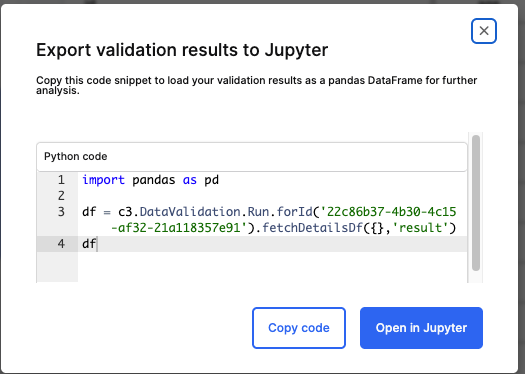
The Export Validation Results to Jupyter dialog provides a pre-generated Python code snippet that retrieves your validation results as a Pandas DataFrame.
Steps to Use This Feature
Select Open in Jupyter from the rule results page.
In the dialog box, review the Python code snippet provided. It typically looks like this:
Pythonimport pandas as pd df = c3.DataValidation.Run.forId('<Run_ID>').fetchDetailsDf({}, 'result') dfRun_ID – Refers to the unique identifier of the validation run.
The code fetches all result details and converts them into a DataFrame for analysis.
Choose one of the following options:
Copy code – Copies the snippet so you can paste it manually into your Jupyter notebook.
Open in Jupyter – Automatically opens a Jupyter notebook session with the snippet preloaded.
Troubleshooting: Understanding Rule Run Results and Code Issues
When you run a Data Validation rule, the editor displays execution feedback in the bottom panel using multiple tabs. These tabs are ordered to help you diagnose issues progressively—from code-level validation to execution results.
The tabs appear in the following order:
Code Issues — Static validation and syntax issues detected before execution
Runtime Errors — Errors encountered during rule execution
Debug Logs — Additional logs when running in debug mode
Results — Output data generated by the rule
This ordering helps you identify and resolve issues systematically before reviewing final results.
Code Issues, Runtime Errors, and Debug Logs Tab Behavior
When a Data Validation rule is executed, the editor displays execution feedback in the bottom panel. The tabs that appear, and the information shown, depend on how the rule is run and whether errors are encountered.
Code Issues Tab
Displays static validation issues such as syntax errors or schema-related problems detected before execution.
If issues are present, the rule may not execute successfully.
When code issues exist, result data is not generated.
Runtime Errors Tab
Displays execution-time failures, such as exceptions thrown while the rule is running.
These errors occur after execution has started and typically indicate issues in logic or data handling.
Debug Logs Tab
Appears only when a rule is executed in debug mode.
Provides additional execution context and intermediate information to help diagnose rule behavior.
You can log messages using run.debug() within your rule logic.
Results Tab Behavior
The Results tab appears after the Code Issues, Runtime Errors, and Debug Logs tabs in the bottom panel.
The Results tab is displayed only after a rule has run successfully. After a successful rule run, the editor may automatically switch to the Results tab.
What the Results Tab Shows
The Results tab displays a single table populated with values added to the rule’s details schema during execution.
Only fields explicitly written to the details schema (via
addDetails) appear in the Results table.
Behavior and Structure
Updates dynamically after each run and always reflects the most recent execution.
The structure of the Results table must be defined before execution in the configuration tab.
Additional tables can be created or extended dynamically at runtime by modifying the details schema programmatically.
Common Scenarios
| Symptom | Likely Cause | What to Check |
|---|---|---|
| Results tab is empty | No values added to the default schema | Ensure your rule emits details using run.addDetails |
| Automatically switched to Code Issues tab | Validation or syntax issue detected | Review Code Issues and fix rule logic |
| Runtime Errors tab shows failures | Exception during execution | Check logic and data handling in your rule |
| Results not updating after edits | Rule was not re-run | Trigger a new run to refresh results |
Notes
The editor always shows data from the most recent run.
Tab ordering ensures that code-level and execution issues are surfaced before results.
Schema updates are reflected automatically without requiring a page refresh.