The Batch Jobs Interface in C3 AI Studio
In C3 AI Studio, the Batch Job runs page provides a historical overview of batch jobs in your application. A job runs logic asynchronously in the C3 Agentic AI Platform. Some long-running operations run as batch jobs, which split a task into multiple parallel processes.
To learn more about jobs in the C3 Agentic AI Platform, see Create Long-Running Jobs. For information on creating batch jobs, see Implement Parallel Batch Jobs.
Navigate to Batch Job runs
Complete the following steps to view Batch Job runs:
- In C3 AI Studio, navigate to the Apps page.
- Select an application.
- Navigate to Monitoring and then select Jobs.
- Select Batch.
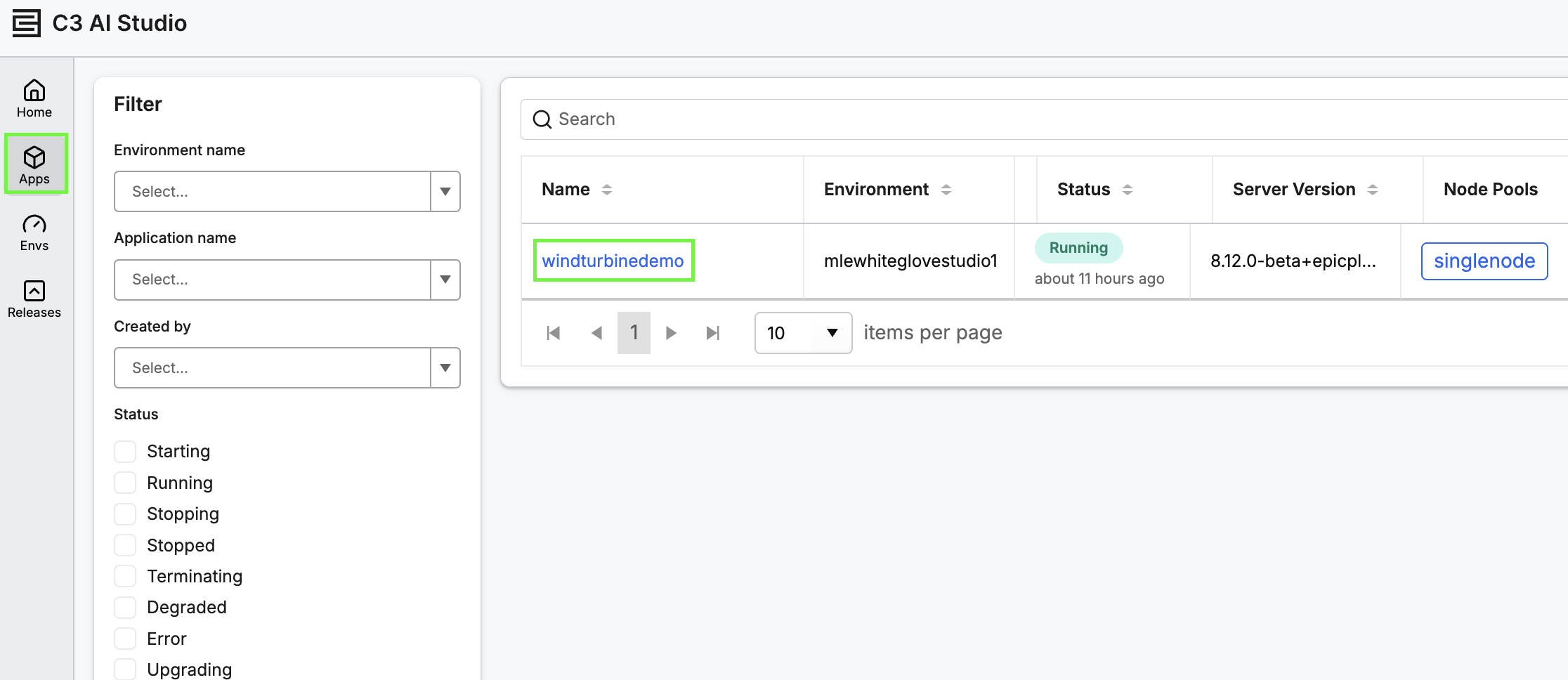 |
| Select an Application |
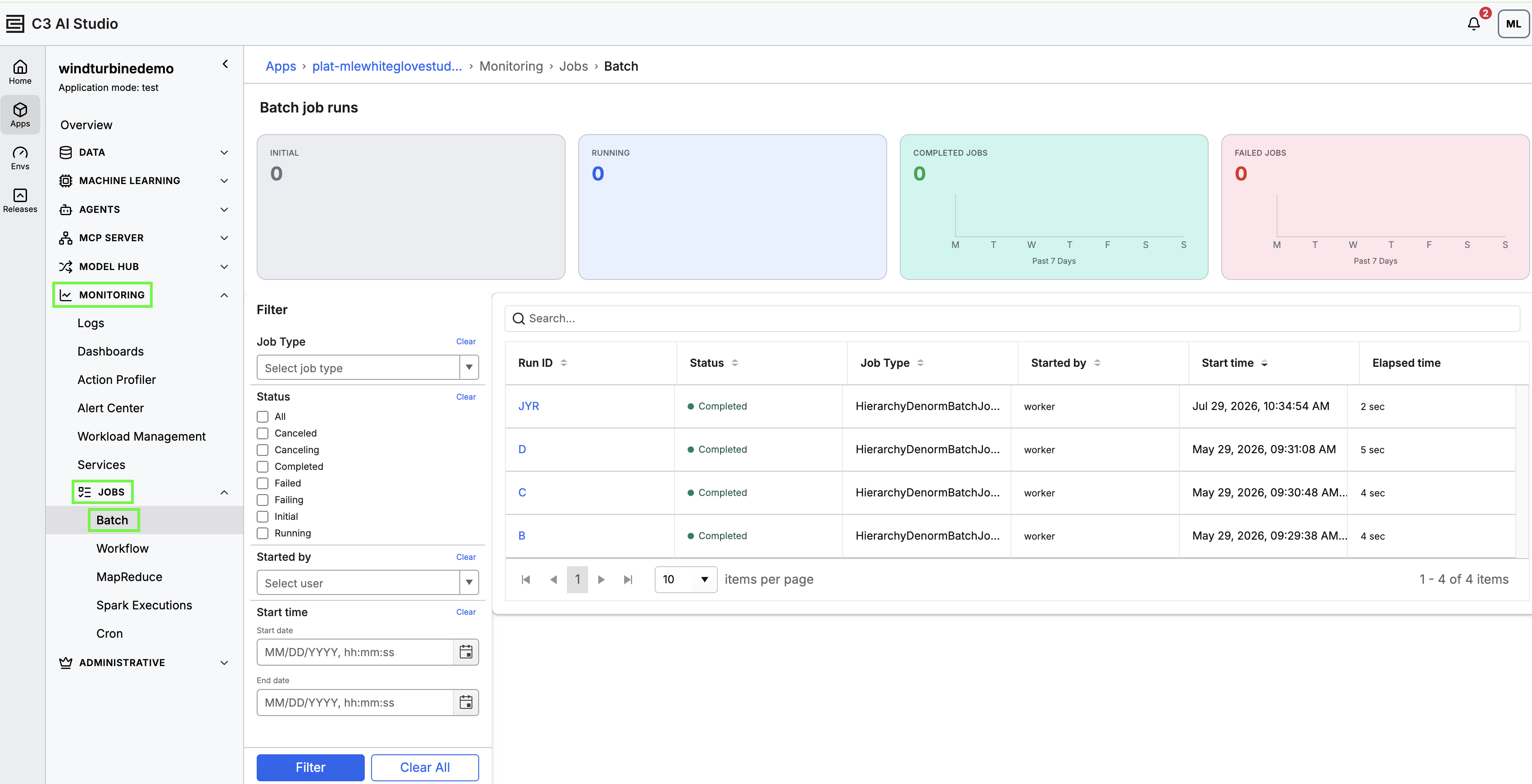 |
| Navigate to Batch Job Runs |
Statistics card list
The statistics card list displays summary statistics for recent jobs:
- INITIAL: Number of jobs currently starting.
- RUNNING: Number of jobs actively processing.
- COMPLETED JOBS: Shows the number and a chart of jobs completed in the last 7 days.
- FAILED JOBS: Shows the number and a chart of jobs that failed in the last 7 days.
Filter panel
The filter panel allows you to isolate specific job runs when monitoring or troubleshooting. You can filter by:
- Job type
- Job status
- Initiating user
- Execution time range (start and end dates)
Batch jobs list
The jobs list displays recent batch job runs, starting with the most recent. Use this list to monitor in*progress jobs and identify failed runs.
Each row includes:
- Run ID: A unique identifier for the job. Select the ID to view job details.
- Status: Current state, such as Running or Completed.
- Job type: The name of the job's C3 Type.
- Started by: The user or process that initiated the job.
- Start time: The time the job began.
- Elapsed time: How long the job has run, or the total duration if completed.