C3 AI Studio Homepage
The C3 AI Studio Home page is your entry-point into your C3 AI Studio cluster. Use it to begin your development process or continue where you left off. The home page contains the following sections:
Environment selector
The environment selector displays your last selected environment.
If no environments exist in the cluster, select Create environment to create the first one. You can access existing environments or create a new one using the Current environment menu.
Select View details to navigate to the Environment details page. To learn more about the environment details page, see Environment Details in C3 AI Studio.
Select ... to access environment lifecycle actions. To manage an existing environment, see Manage Environments and Applications in C3 AI Studio.
Applications
The Applications section lists any applications in the selected environment. General information about each application appears in the grid:
- Application status: The application's current state. For example,
RunningorStarting. - Package: The application’s root package or package artifact source. To learn more, see Package Management Overview.
- Nodes: The number of nodes used by the application. For more information on application and environment nodes, see Overview of Cluster Architecture.
Artifacts
An Artifact is the output of a built application package that contains predefined C3 Types and other application dependencies. The Artifacts section lists quickstart packages that you can use to deploy an application. To learn more about this section, see Artifact Cards for Studio Homepage.
Resources
The Resources panel offers information for learning about the C3 Agentic AI Platform and collaborating with the C3 AI community. It links to documentation that broadens your knowledge of C3 AI Studio or gets you started on application development.
Appearance
Select your avatar in the top-right corner of C3 AI Studio to open the account menu, then select Appearance to open the Appearance dialog. Use this dialog to customize the following display settings:
- Color scheme: Select Light or Dark to change the display theme.
- Density: Select Classic or Dense to change the spacing of UI elements. Select Close to save your changes and close the dialog.
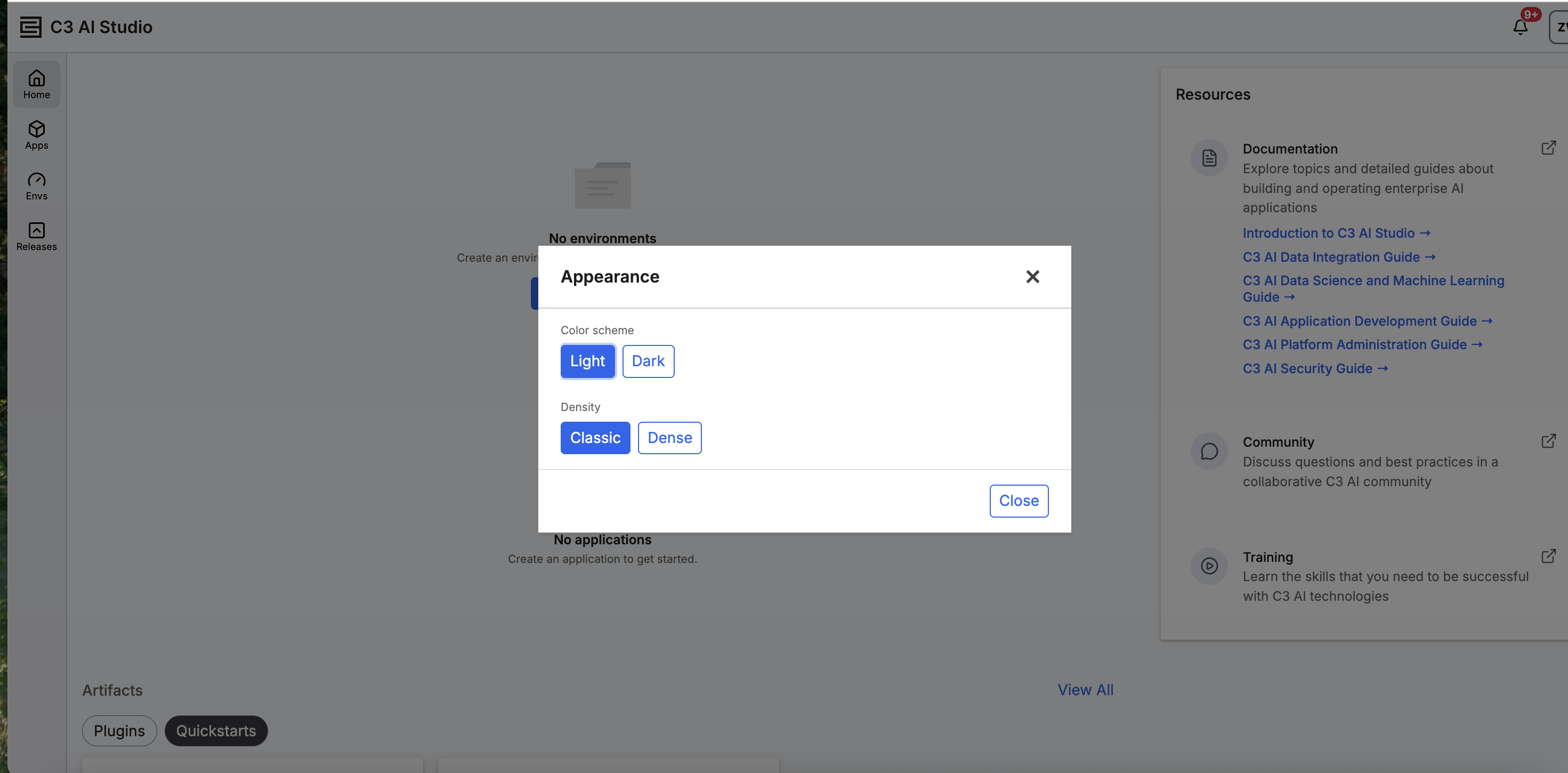 |
| Appearance Dialog Box |
Sign out
Select your avatar in the top-right corner of C3 AI Studio to open the account menu, then select Sign Out to end your current session and return to the sign-in page. After you sign out, C3 AI Studio displays a Logged Out! confirmation page. To start a new session, navigate to your C3 AI Studio URL again.
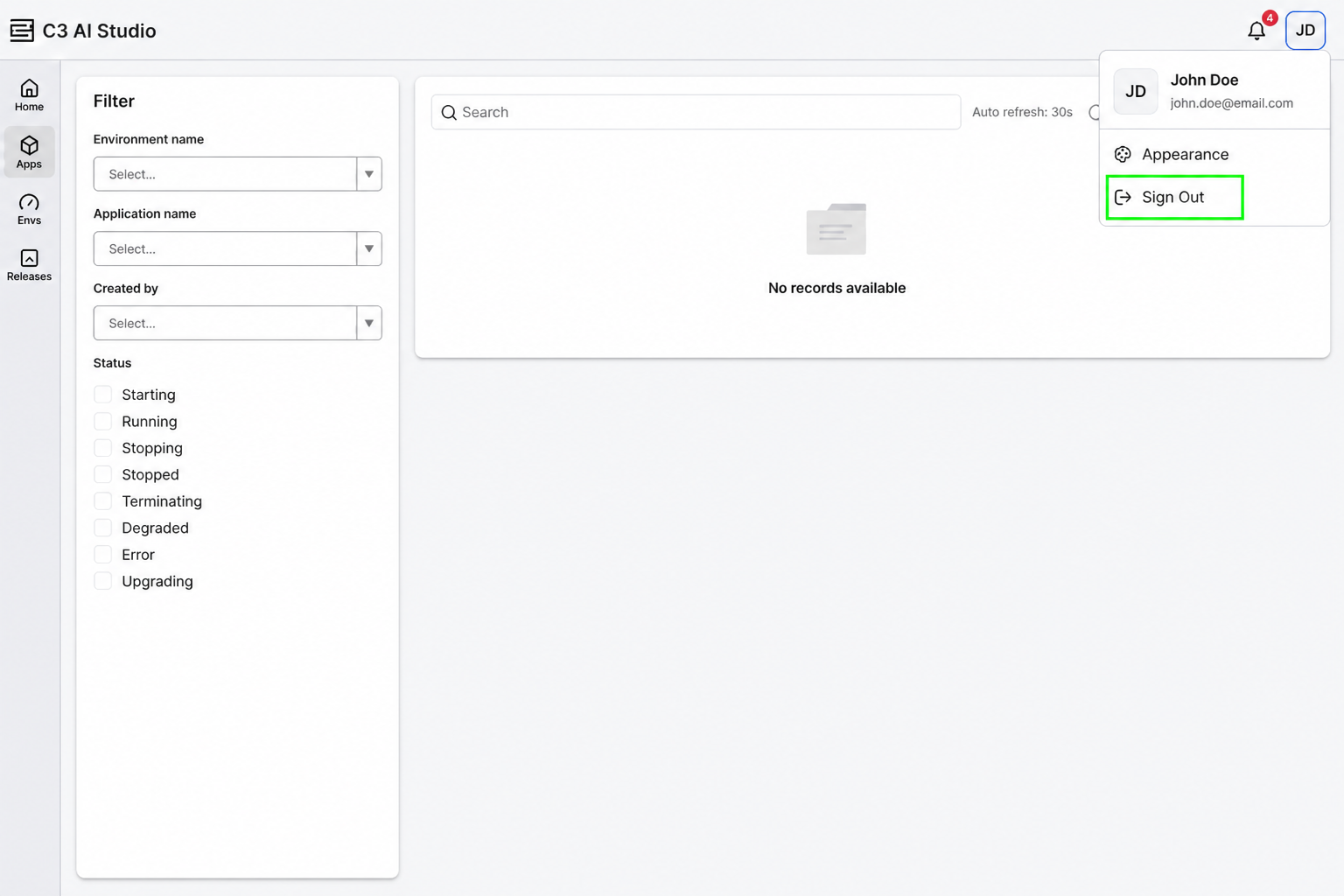 |
| Sign Out Button |
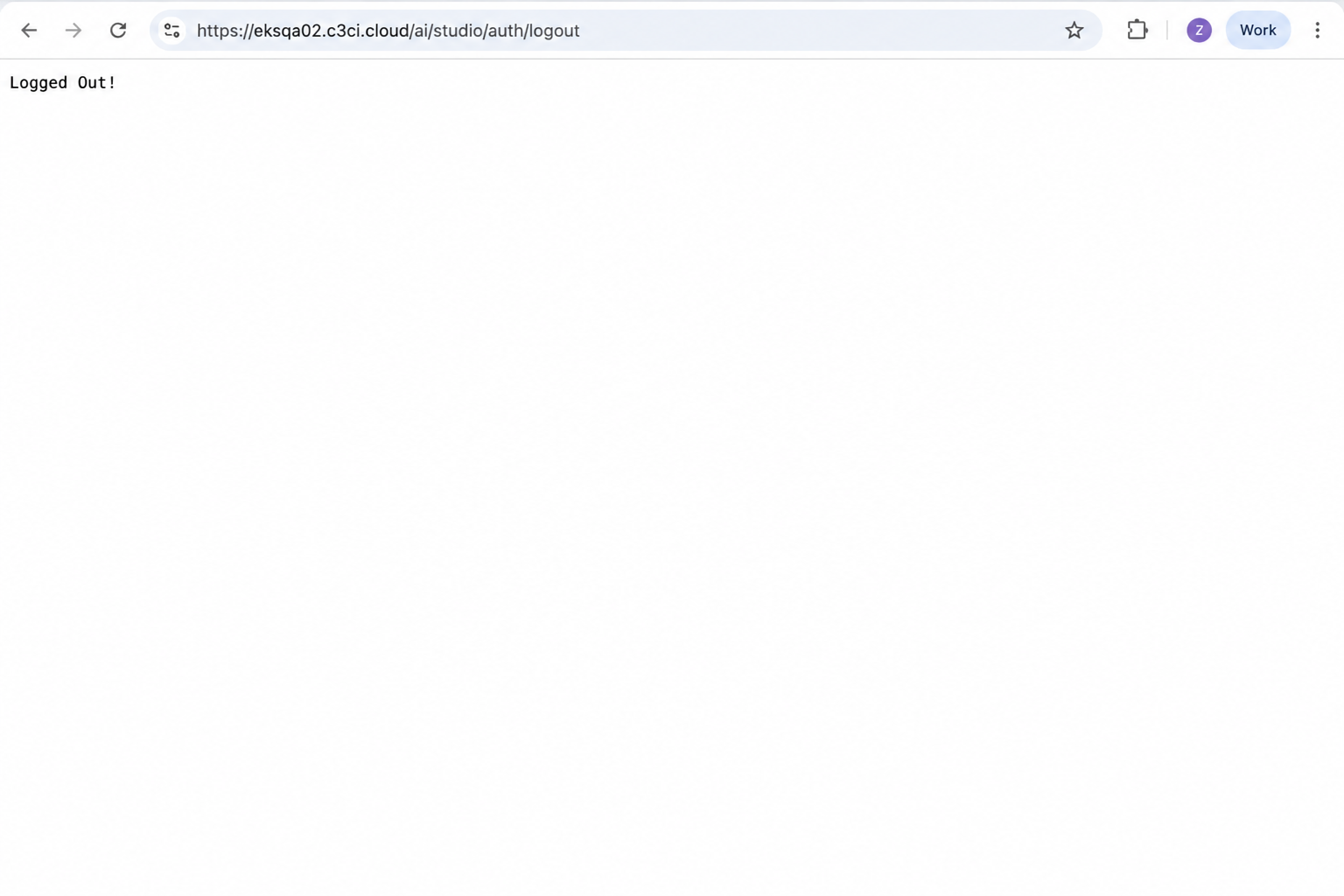 |
| Logged Out Confirmation Page |