Export Python and JavaScript Runtime Artifacts for Use in Air-Gapped Environments
You can deploy Python and JavaScript runtime artifacts in an air-gapped environment for the C3 Agentic AI Platform. Use the C3 AI Artifact Hub microservice to generate and export a ZIP file that you can upload to the file system of the platform in the air-gapped environment.
This topic shows you how to:
- Set up a single node environment (SNE) to run C3 AI Artifact Hub in a non-airgapped C3 AI Studio application to run the C3 AI Artifact Hub microservice.
- Populate C3 AI Artifact Hub with Python and JavaScript libraries and export as ZIP file
- Upload the ZIP file into the file system of the C3 Agentic AI Platform in the air gapped environment using a cURL command.
- Populate the C3 AI Artifact Hub micro service application in the air-gapped environment with the Python and JavaScript library artifacts.
The following diagram describes the process for deploying Python runtime artifacts in an air-gapped environment:
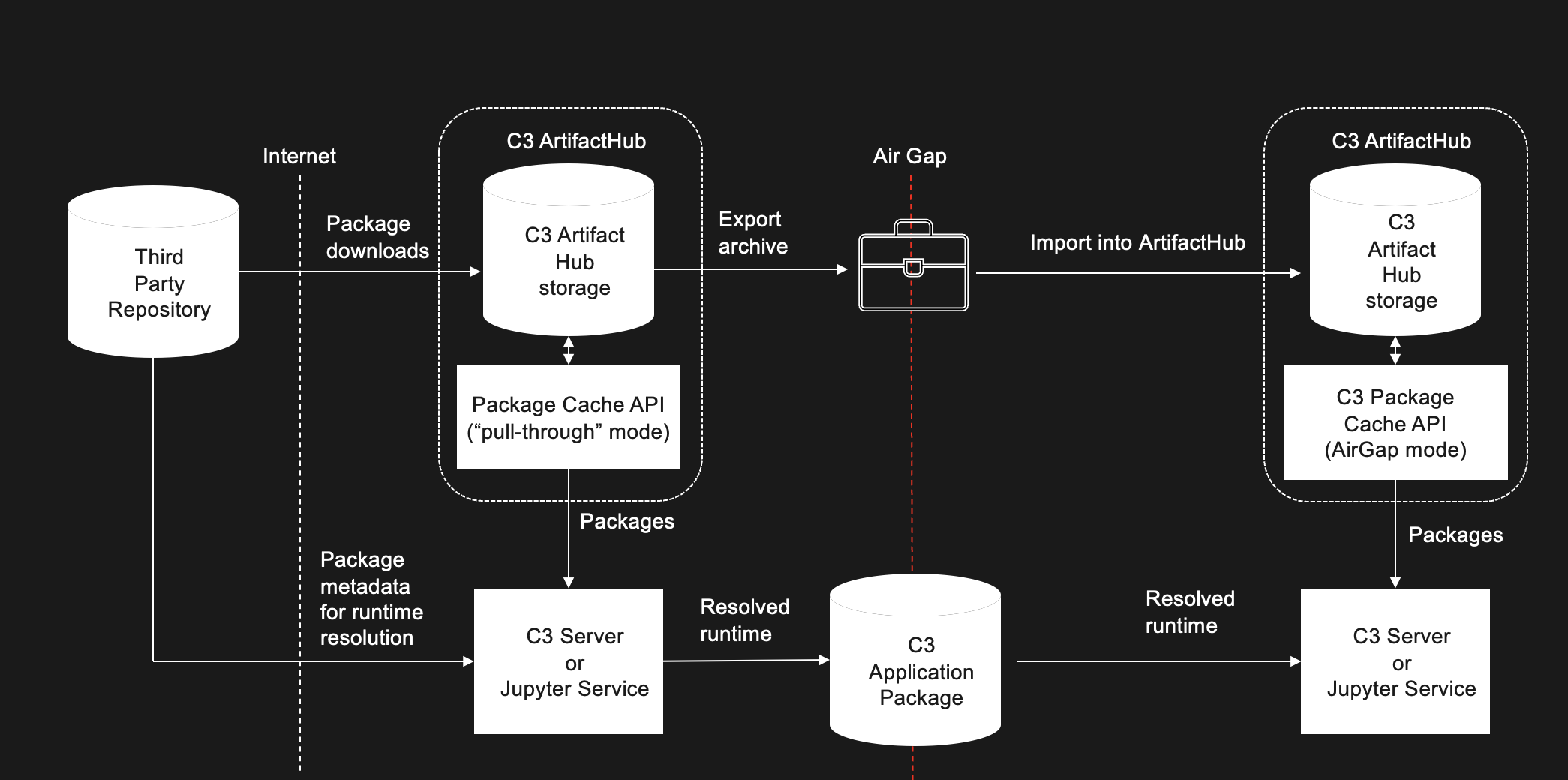
A similar procedure deploys JavaScript runtime artifacts created by UI Bundling.
Requirements
You must have the C3.EnvAdmin role or higher in both the air gapped and non-air gapped clusters. If the C3 AI Artifact Hub is running at the cluster level, you must have the C3.ClusterAdmin role to complete these steps.
Set up SNE to run C3 AI Artifact Hub in non-airgapped environment
To set up and configure a SNE to populate the C3 AI Artifact Hub with Python libraries, do the following steps:
In C3 AI Studio within your non-airgapped cluster, create a SNE. To create a SNE, do the following:
a. From the C3 AI Studio Home page, select Create new environment.
b. In the "Create new environment" modal, enter a name, select Single Node Environment, then click Create.
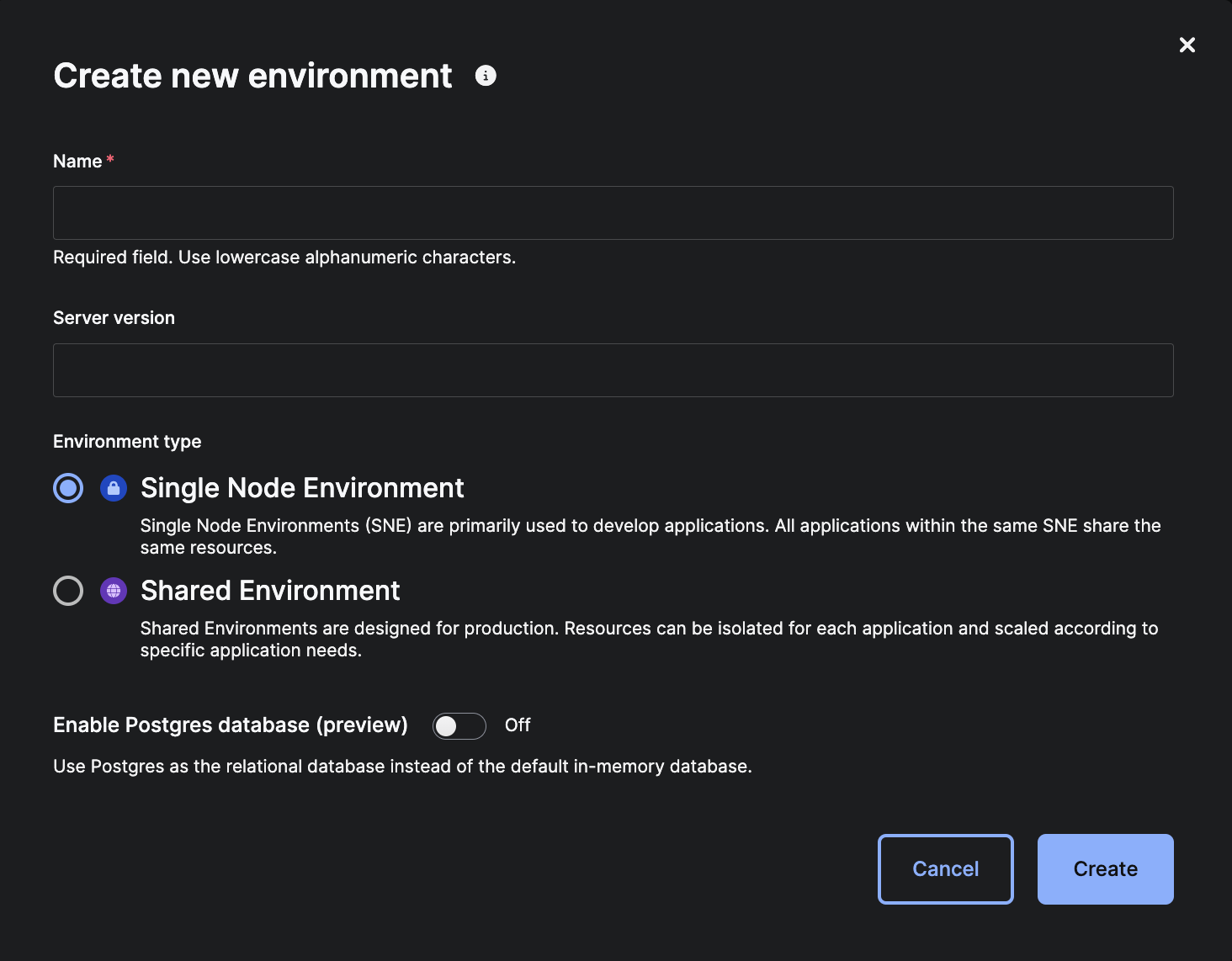
Connect to an SNE and start a C3 AI application. See Develop a C3 AI Application.
On the C3 AI Studio Home page, select your environment in the Current Environment drop-down menu. Then, select the ellipses (...) next to View Details, then select Open console.
This opens the C3 AI static console of the C3 AI Environment Management application (env/c3) in the C3 Agentic AI Platform.
Start the C3 AI Artifact Hub microservice for your environment by using the following example code snippet.
JavaScriptvar serviceApp = C3.env().startApp({name:"artifacthubservice", rootPkg: 'artifactHubService'}); Microservice.Config.forName("ArtifactHub").setConfigValue("appId", serviceApp.id, ConfigOverride.ENV);This creates an application in your environment named
artifacthubservicethat functions as the C3 AI Artifact Hub service application specific to your environment.Set the config for the environment to use the C3 AI Artifact Hub service application by using the following example code snippet.
JavaScript// set config to use artifactHub // Replace Py with Js if we are trying to populate Node.js runtimes var libraryManager = Py.libraryManager(); // Js.libraryManager(); if populating Node.js runtimes libraryManager.config().setConfigValue("useArtifactHub", true, ConfigOverride.ENV);This sets the configuration for the environment to use the C3 AI Artifact Hub service application, which means that any application created within the environment is also configured to use the C3 AI Artifact Hub microservice instead of going to the anaconda repos or pypi.org.
Enable pullThroughCaching in the console of your ArtifactHubService app in the non-airgapped SNE.
JavaScriptArtifactHubService.Config.setConfigValue("pullThroughCachingDisabled", false) ArtifactHubService.Config.configValue("pullThroughCachingDisabled") // should print false
Populate C3 AI Artifact Hub with Python libraries and export as ZIP file
Populating the C3 AI Artifact Hub with runtimes can take a while to complete. For example, populating the C3 AI Artifact Hub with all C3 Agentic AI Platform runtimes can take 3-4 hours. C3 AI recommends running the methods provided in the sections below using asynchronous actions to limit the impact of these times and other actions you might run while the runtimes are populated.
The sections below provide instructions for populating C3 AI Artifact Hub and details for how to run the methods as asynchronous actions, as well as instructions for exporting the runtime artifacts as a ZIP file.
Populate the C3 AI Artifact Hub with Python library artifacts
To populate the C3 AI Artifact Hub with Python library artifacts, do the following:
C3 AI highly recommends to use asynchronous actions when using the populateArtifactHub methods. See the following sections to learn how.
From the Applications page in C3 AI Studio, in the row specific to your application, select the ellipses (...), then select Open console.
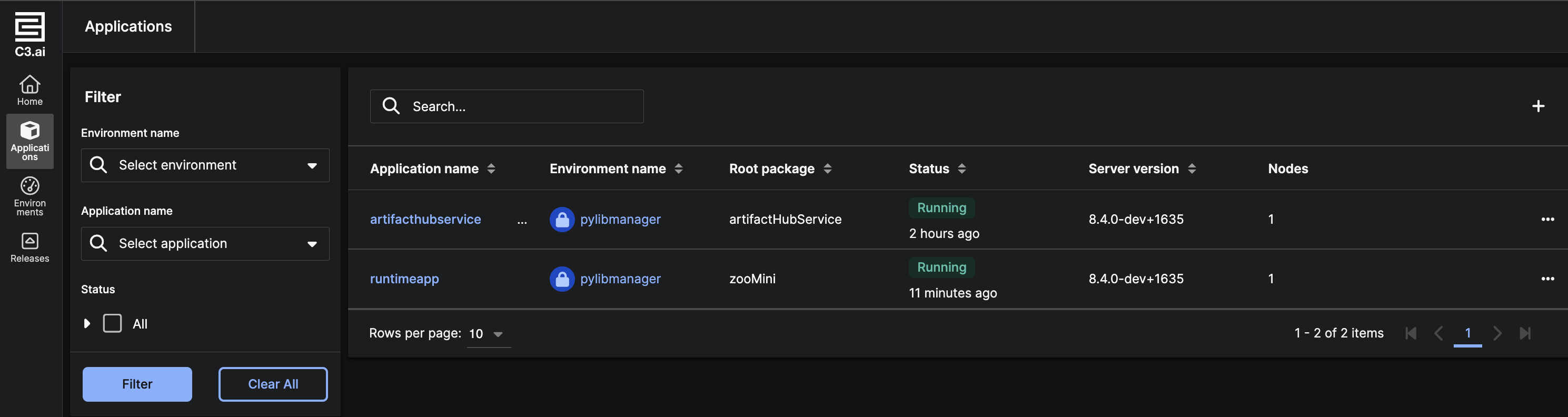
This opens the C3 AI Console for the application in the C3 Agentic AI Platform.
Populate the C3 AI Artifact Hub for the Python library manager environment with runtimes with the following code snippets, depending on whether you prefer to select some or all runtimes. See the following for more information.
Calling the below methods to populateArtifactHub can interfere with concurrently executing Python actions, so only call these method when not running other python actions in an Action.Engine corresponding to one of the supplied runtimes. This may take a while if you populate artifactHub for many runtimes.
- To specify which runtimes you want, use the following example code snippet:
const libraryManager = Py.libraryManager(); // Instantiate the libraryManager variable. Use Js.libraryManager(); for JavaScript runtimes
var output = libraryManager.populateArtifactHubForRuntimes(["py-foo", "py-bar"]); // Or pass JavaScript runtimes- To populate all runtimes in the current package, use the following example code snippet:
const libraryManager = Py.libraryManager(); // Instantiate the libraryManager variable. Use Js.libraryManager(); for JavaScript runtimes
var output1 = libraryManager.populateArtifactHubForPkgRuntimes(false);
Exporting all runtimes and dependencies requires a large amount of memory and will likely cause an error if you run this command on a 64GB SNE.
- To populate all the runtimes in the current package and dependent packages, use the following code snippet. This call takes longer than the other above since it is pulling in more runtimes than the others.
const libraryManager = Py.libraryManager(); // Instantiate the libraryManager variable. Use Js.libraryManager(); for JavaScript runtimes
var output2 = libraryManager.populateArtifactHubForPkgRuntimes(true);
The output will be a C3 AI tuple with the following format: {"populatedRuntimes": [string serialized ImplLanguage.ResolvedRuntime], "errors": {<name of runtime> : <error message>}}
You can check for errors by using the following code snippet:
output["errors"];(Recommended) Run populateArtifactHub methods as asynchronous actions
Prior to running the populateArtifactHub methods as asynchronous actions, it is recommended to wrap them in a lambda rather than calling them directly.
The output of these methods can be large in size, especially in instances in which some error messages are present, which cause the action to fail when attempting to persist them in the database. Using a lambda parses the output and writes the error messages to a different file, returning the location of those files in a tuple.
See the examples below for more detail on wrapping the populateArtifactHub methods in a lambda and running it as an asynchronous action. See also Asynchronous Actions for more information.
Example for wrapping populateArtifactHubForPkgRuntimes in lambda and running as asynchronous actions
To call the method populateArtifactHubForPkgRuntimes as an asynchronous action, the corresponding Python function to wrap the method would look like the following example code snippet:
def populate_artifact_hub(deep=False):
    """
    Populates the ArtifactHub with package runtimes and handles any errors that occur during the process.

    This function attempts to populate the ArtifactHub with the runtimes from the current package.
    If the `deep` parameter is set to True, it also includes dependent packages.
    Any errors encountered are written to individual files, and the paths to these files are returned
    along with the successfully populated runtimes.

    Args:
        deep (bool): If True, includes dependent packages when populating the ArtifactHub. Defaults to False.

    Returns:
        c3.TupleType: A named tuple containing:
            - errors: A dictionary mapping runtime names to the file paths of error messages.
            - populatedRuntimes: A list of successfully populated runtimes.
    """
    from collections import namedtuple

    # Populate ArtifactHub with package runtimes
    result = c3.Py.libraryManager().populateArtifactHubForPkgRuntimes(deep)

    # Function to write error messages to files
    def write_to_file(rt_name, msg):
        file_name = f"{rt_name}-{c3.Uuid.create()}.error"
        f = c3.FileSystem.inst().makeFile(file_name, c3.ContentType.plainText().toString())
        f.writeString(msg)
        return f.toString()

    # Create a dictionary of errors with file paths
    errors = {k: write_to_file(k, result["errors"][k]) for k in result["errors"].keys()}

    # Define a named tuple for the output
    result_tuple = namedtuple("output_runtimes", "errors populatedRuntimes")

    # Return the result in the specified C3 AI TupleType format
    return c3.TupleType.fromString(
        "{errors: map<string serialized Py.Runtime, string serialized File>, "
        "populatedRuntimes: [string serialized ImplLanguage.ResolvedRuntime]}"
    ).makeValue(result_tuple(errors, result["populatedRuntimes"]))
See the following example code snippets for additional actions you can use depending on desired outcome.
var pythonLambdaSrc = `SOURCE_CODE_OF_THE_ABOVE_PYTHON_FUNCTION`
// Create the c3 Lambda using in console using the above python function
var lbd = Lambda.fromPySrc(pythonLambdaSrc);
// Create the arguments for our asynchronous action. The first argument is the lambda we created above converted to a typed json. The second argument is the array of args for method Lambda.apply. In this case, we want to call the method populateArtifactHubForPkgRuntimes with the argument deep set to true. This will populate artifacthub with all
// runtimes in the current package and dependent packages.
var args = MapType.ofStrToAny().makeMap("this", lbd.toTypedJson(), "args", C3.Array.ofAny(true));
// Create AsyncAction spec to call Lambda.apply asynchronously.
var spec = AsyncActionSpec.builder().typeName("Lambda").action("apply").args(args).build();
// Submit the async action
var asyncAction = AsyncAction.submit(spec);
// Check if the action has completed. This can a take a while depending on the number of runtimes.
asyncAction.hasCompleted()
// Check the result of the action
c3Grid(AsyncAction.forId(asyncAction.id).result)
// If the result is undefined, then check for errors
AsyncAction.forId(asyncAction.id).error
// To check if there are any resolved runtimes which were not populated successfully.
c3Grid(AsyncAction.forId(asyncAction.id).result["errors"])
//To get the exact error message for a resolved runtime which was not populated sucessfully
C3.File.fromString(AsyncAction.forId(asyncAction.id).result["errors"].get(RESOLVED_RUNTIME_NAME)).readString();Export the Python runtimes from the C3 AI Artifact Hub
Once you've populated the C3 AI Artifact Hub with the desired Python library artifacts, use exportRuntimeArtifacts to create a ZIP file, which holds the artifact metadata and artifact content. This ZIP file is used to import artifacts into the air-gapped environment.
To avoid cluttering the filesystem with unnecessary files delete the files created in the filesystem after you have read the error messages.
Continue to "Exporting artifacts for JavaScript" section
Populating ArtifactHub for Server-side UI Bundling
This should be done in a brand new environment without any artifacts already in ArtifactHub to ensure proper population. The following steps should be completed in the target app where UI bundling will occur.
Ensure useArtifactHub config properly propagated in target app.
NpmLibraryManager.config().configValue("useArtifactHub", true); // should return trueRemove webpack runtime and clear npm cache to ensure ArtifactHub is fully populated for bundling. Then, run UI bundling.
NpmLibraryManager.uninstallRuntime(Js.Runtime.forName("js-webpack-server-node"));
NpmLibraryManager.clearPackageCache();
UiSdlConfig.inst().setConfigValue('infrastructure.webpackMode', 'development')
UiBundler.generateBundles();
Continue to "Exporting artifacts for JavaScript" section
Populating ArtifactHub for VS Code and Client-side UI Bundling
Start dev app for VS Code connection.
C3.env().startApp({name:'dev', rootPkg: 'ide', mode:'dev', waitForReady: true});In the dev app console, ensure useArtifactHub config set to true.
NpmLibraryManager.config().configValue("useArtifactHub", true); // should return truePopulate artifactHub by installing VS Code runtime.
NpmLibraryManager.populateArtifactHubForRuntimes(["js-ide-vscode"]);In VS Code, start the app to be bundled. Once the app has been started, open it in console and populate ArtifactHub with the ui runtime.
NpmLibraryManager.uninstallRuntime(NpmLibraryManager.mergedRuntime("js-webpack_c3", true));
NpmLibraryManager.clearPackageCache();
NpmLibraryManager.installRuntime(NpmLibraryManager.mergedRuntime("js-webpack_c3", true));Exporting artifacts for Python
// once you've populated artifactHub with the desired python library artifacts, use exportRuntimeArtifacts to create a
// zip file which holds artifact metadata and artifact content. We will use this zip file to import artifacts into the
// air-gapped environment.
var zipFileUrlString = libraryManager.exportRuntimeArtifacts();
var zipFileUrl = C3.File.fromString(zipFileUrlString).apiEndpoint("GET", true);
Paste the url of the zip file into a browser and download.
To avoid cluttering the filesystem with unnecessary files delete the files created in the filesystem after you have read the error messages.
Exporting artifacts for JavaScript
// once you've populated artifactHub with the desired JavaScript library artifacts, in ArtifactHubService app create a
// zip file which holds artifact metadata and artifact content. We will use this zip file to import artifacts into the
// air-gapped environment.
artifactTypes = [ArtifactHub.ArtifactKind.NPM_PKG, ArtifactHub.ArtifactKind.NPM_PKG_METADATA];
filter = Filter.inst().intersects("kind", artifactTypes).toString();
spec = ArtifactHub.FetchSpec.builder().filter(filter).build();
var zipFileUrlString = ArtifactHub.exportArtifacts(spec).content.safeUrl();
var zipFileUrl = C3.File.fromString(zipFileUrlString).apiEndpoint("GET", true);Upload zip file to your Air-Gapped environment file system
Bring the zip file into your Air-Gapped environment (for example using laptop or USB drive).
To export the artifacts into a ZIP file, do the following:
In the C3 AI Console of the environment, use the following code snippet:
JavaScriptvar zipFileUrlString = libraryManager.exportRuntimeArtifacts(); var zipFileUrl = C3.File.fromString(zipFileUrlString).apiEndpoint("GET", true);Paste the URL of the ZIP file into a browser and download.
Delete the ZIP file from the file system after you download it to avoid cluttering the filesystem with unnecessary files.
Upload ZIP file into air-gapped file system using a cURL command
Bring the ZIP file into your air-gapped environment (for example, using a laptop or USB drive).
In any application in your air-gapped environment, run the following example code snippet to produce a cURL command.
var myFile = C3.File.fromString(FileSystem.inst().urlFromMountAndPath(FileSystemMount.ARTIFACT, "artifacts.zip"))
var contentLocation = myFile.url;
// Specifies the MIME type of the file as a zip archive.
var contentType = "application/zip";
var localFilePath = "<local_file_path>"; // for example, "/Users/someuser/Documents/artifacts.zip"
var authToken = User.mySessionToken().signedToken
var authKind = AuthenticationKind.C3
// Generate and Execute cURL Command
Curl.file({
    contentLocation: contentLocation,
    contentType: contentType,
    localFilePath: localFilePath,
    stream: true,
    authenticationToken: authToken,
    authenticationKind: authKind
});
Run the cURL command produced by the above code snippet in a terminal.
Verify the ZIP file uploaded
Verify the file was uploaded by running the following code snippet:
myFile.exists();Verify the length of the file to confirm it was uploaded correctly by running the following code snippet:
myFile.readMetadata().contentLengthPopulate C3 AI Artifact Hub in your air-gapped environment with Python and JavaScript library artifacts
First, configure the Python library manager to install packages from Artifact Hub instead of the anaconda repos. This can be done at the environment level. Run the following example code snippet.
  var libraryManager = Py.libraryManager();
   libraryManager.config().setConfigValue("useArtifactHub", true, ConfigOverride.ENV);
Disable pullThroughCaching in the console of your ArtifactHubService app in the air-gapped environment.
ArtifactHubService.Config.setConfigValue("pullThroughCachingDisabled", true)
ArtifactHubService.Config.configValue("pullThroughCachingDisabled") // should print true
If you do not set pullThroughCachingDisabled to true, you will not be able to install runtimes in the air-gapped environment.
ArtifactHubService should already be running. Now use the code snippet below to populate the C3 AI Artifact Hub application.
var artifacts = ArtifactHub.importArtifacts(contentLocation); // contentLocation is same as aboveFor Python, server-side bundling, and Node actions, steps to use ArtifactHub are completed at this point.
VS Code in air-gapped environment
IMPORTANT: You must follow the following step in terminal to delete local VS Code runtime node_modules, package-lock.json, and package.json for connection to work
rm -rf $HOME/.vscode/extensions/c3ai.c3-ai-dx-v8/extension/out/node_modules
rm $HOME/.vscode/extensions/c3ai.c3-ai-dx-v8/extension/out/package-lock.json
rm $HOME/.vscode/extensions/c3ai.c3-ai-dx-v8/extension/out/package.json
npm cache clean --force
Set NpmLibraryManager config useArtifactHub to true for your environment and connect to VS Code and do UI bundling as usual.
NpmLibraryManager.config().setConfigValue("useArtifactHub", true, ConfigOverride.ENV)