Document Types and Topics
Platform documentation is produced from comments on Types and also separate topic files. This same mechanism is available for documenting applications. This article describes the basics of authoring documentation on the C3 Agentic AI Platform.
Creating documentation from comments in C3 Type files
Within Type declarations, comments that start with /** are extracted to produce documentation on the Type and its fields (JavaDoc/JSDoc style). Here is an example from the DocumentationMarkup Type:
/**
 * A piece of parsed documentation markup.
 * This type is just a marker type; only its sub-types are instantiated.
 * This is a parsed version of the text specified in source code comments
 * (metadata or extension language) or from a stand-alone documentation file.
 *
 * The markup is authored in [Markdown](http://daringfireball.net/projects/markdown/)
 * with [GitHub extensions](https://help.github.com/articles/github-flavored-markdown/).
 *
 * @see DocumentationSpan
 * @see DocumentationReference
 * @see DocumentationBlock
 */
type DocumentationMarkup
Note that tabs should not be used within comments. If hand-formatting lines within a fenced code block or pre-formatted section (indented), use spaces only for alignment:
    User.fetchObjStream().each(function(u) {
      if (u.id == 'BA')
        console.log('found him!');
    });
Type documentation is not inherited from mixins; each Type should have its own documentation. However, it is possible to explicitly inherit documentation from a mixin using the @inheritdoc directive:
/**
 * @inheritdoc B
 */
type X mixes A, B, C
Without an argument to @inheritdoc, documentation is inherited from the first mixin, raising a warning if that Type does not have its own documentation.
When parsing a comment, the @inheritdoc line is replaced with the contents of the documentation from the named type, which means documentation from a mixin can be included and augmented if desired:
/**
 * @inheritdoc B
 *
 * How X differs from B.
 */
type X mixes A, B, C
Other markup from the comments of a mixin are interpolated, including @var and @see declarations.
Hiding comments in Type documentation
While writing documentation for Type files, you may want to write comments for yourself or your coworkers. By noting your comments with /* and //, you can add TODOs or other information not intended for customers.
The following is an example of using hidden comments in Type declarations.
/**
 * This is the Dog Type.
 * He is a good boy.
 */
// You can hide comments with //
/*
 * You can hide comments with /*
 */
type Dog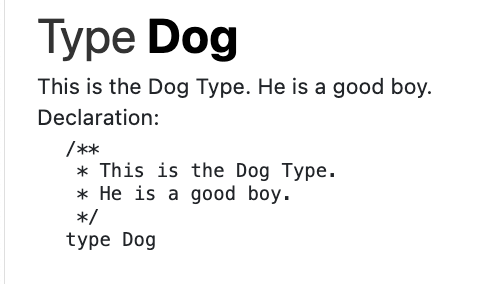
Function documentation
Note the elements of J*Doc above (@see) and also Markdown syntax ([]()).
The comment overall conforms to the J*Doc conventions with the body text supporting Markdown.
Function documentation uses more J*Doc syntax as expected:
/**
 * This type is responsible for executing full-text search queries against the documentation.
 */
type DocumentationSearcher {

  /**
   * Search documentation of types.
   *
   * @param q
   *           the search query
   * @return search results
   */
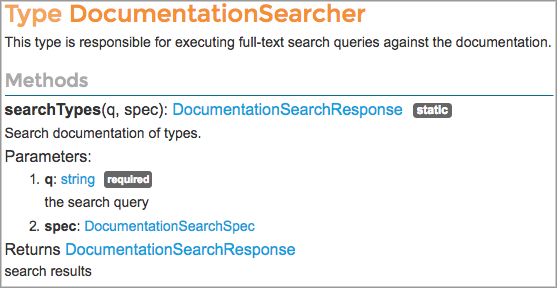
searchTypes: function(q: !string, spec: DocumentationSearchSpec): DocumentationSearchResponseNOTE: @param and @return are used to document the specific function arguments and return value. The text within these sections again supports Markdown formatting. Here's how this might look in HTML:
Links and images
Links to Types and fields use the J*Doc "@link" annotation, such as: {@link DocumentationSearcher#searchTypes}.
Note that this link is by type name, which is globally unique.
The Type may be omitted if the field is in the same Type (or a mixin): {@link #searchTypes}.
A custom anchor may also be specified after the target: ...#searchTypes search method}.
The @see annotation is similar to @link except that it creates a cross-reference as part of its own section in the documentation, while @link creates an in-line link within the description. Also, @see is used at the top level of a type or field comment and without surrounding curlies.
/**
 * A type that contains an {@link #fieldName important field}.
 *
 * @see AnotherType
 */
Images can also be linked using the "@image" annotation: {@image doc/img/documentation-searcher.png}.
Note that this path is relative to the Type file that contains the comment.
In this example, the comment refers to "documentation-searcher.png" within the "doc/img" sub-directory of the directory containing the .c3typ file with the comment.
Much useful documentation is stored in Jupyter notebooks. The link can be the ID of a seeded JupyterNotebook instance or a repository file:
notebook:AutoencoderDeepDiveseeded JupyterNotebook with id "AutoencoderDeepDive"notebook:/notebooks/3-AutoencoderDeepDive.ipynba Jupyter notebook file in the repositorynotebook:hello-world.c3nba Console/VS Code notebook in the repository
Here are two example notebooks:
- hello-world.ipynb - JupyterLab notebook (seeded)
- hello-world.c3nb - Console notebook (file)
Markdown features
The authored documentation text is markup. Markup has both text and formatting information, specified a modified version of the Markdown Common Mark language, plus the GitHub extensions.
In addition, C3 Markdown has additional extensions popularized by various Markdown dialects.
HTML
Bare HTML is not allowed in documentation; use only Markdown. For example, instead of HTML link syntax (<a href="link">anchor</a>), use Markdown link syntax ([anchor](link)).
Tables
Tables from GitHub Flavored Markdown in addition to the original Markdown are supported. Also, JavaDoc syntax for Types and fields is supported.
Image sizes
Image sizes can also be controlled by specifying the width and/or height as a suffix to the file name. For example,  would set the size of the SVG image to 24 "pixels" square. If the height is omitted, the width is scaled proportionally and vice versa for width.
Math equations
LaTeX math expressions can be embedded in documentation as well. These are delimited by double dollar signs ($$). If in a block with other content, inline style will be used and if in a paragraph by itself, display style. For example: $$x \equiv a$$.
Math equations are set off by $$<equation>$$

In line:

Math equations are authored in LaTeX and can be inline: $$k_{n+1} = n^2 + k_n^2 - k_{n-1}$$,

In display:

$$
SBD = \frac{n!}{k!(n-k)!} = \binom{n}{k}
$$Tabbed content
Tabs can be defined with special headings. This can be used for alternate presentations such as details for different implementation languages.
Instead of leading with a hash mark (#), headings that lead with an equal sign behave similarly, except that they define tabs. A sequence of tab headings (at the same level) render as a tab group with the contents of each section as a tab and the title of the heading as the tab text. Tab groups may not nest, but it is fine to have normal headings within a tab (at deeper levels of nesting).
Creating tabbed content
=== First ===
Content of tab 1.

=== Second ===
Content of tab 2.
* fiddle
* faddle
* fuddle
==== ====
=== First ===
Content of tab 1.

=== Second ===
Content of tab 2.
* fiddle
* faddle
* fuddle
==== ====
Mermaid diagrams
Diagrams authored in code blocks are supported using the Mermaid syntax. For example:
```mermaid
flowchart
    hungry["Are you hungry?"]
    healthy["Do you want to eat healthy?"]
    no["No you don't"]
    yes["Yes you are"]
    cake(("CAKE!"))
    hungry-- yes --> healthy
    healthy-- yes --> no
    no-- oh, right --> cake
    hungry-- no --> yes
    yes --> cake
```Courtesy of 12 Funny Flowcharts.
Footnotes
There is a limited ability to have numbered footnote references in the text with corresponding paragraphs at the bottom. This mostly makes sense in topic documentation, but is supported by our Markdown (see MarkdownFootnoteLink).
For example: 1
_Don't worry, be Happy_[^1] won a Song of the Year [Grammy] in 1989.

[^1]: 1988 song by _Bobby McFerrin_.

[Grammy]: https://en.wikipedia.org/wiki/31st_Annual_Grammy_Awards

The song title became a meme before "meme" was a common term.
These work similarly to link reference definitions (where the URL for a link is declared on another line). In the example above, the ^1 link is "footnote number 1" while the Grammy link is to the URL specified by the later definition. (Link definitions will not appear in the output.)
It is also possible to have "inline" footnotes. In this case, the body is declared right in the reference.
For example: 2
For example: ^[Declared in the reference.]Callouts
Special block quotes also support colored callouts (or "alerts"). For example:
> [!TIP]
> Always tip your waiter.
Will produce a block quote with a green theme and with a header saying "Tip".
The types with special appearance are:
NOTETIPIMPORTANTWARNINGCAUTION
Useful information that users should know, even when skimming content.
Helpful advice for doing things better or more easily.
Key information users need to know to achieve their goal.
Urgent info that needs immediate user attention to avoid problems.
Advises about risks or negative outcomes of certain actions.
It's also possible to specify a custom title for the block with text on the same line as the type:
> [!TIP] Performance
> This operation is costly and should be called only when necessary.
Performance
This operation is costly and should be called only when necessary.
And here is a normal block quote:
It's kind of fun to do the impossible.
— Walt Disney
Collapsible and Accordion
A section that can be hidden/expanded can be defined with the +++ syntax:
+++ Spoiler
The _butler_ did it.
+++A series of these with no intervening markup nor explicit separator lines between makes an "accordion":
+++ Cake
The pie is a lie!
+++ Pie
The cake is a fake!
+++Note that the closing +++ line must be omitted on all but the last section for an exclusive accordion. Otherwise a series of collapsibles is just that (i.e., non-exclusive).
For both collapsibles and accordions, the section will be open initially if the last character of the leader is > (such as ++>).
Cards
A Markdown card is a section displayed with a rectangular border and arranged across the page in rows and columns. This is a way to highlight a small amount of information about a set of topics that are visually distinct. Each card body may link to another topic, type documentation, or an external link.
[[[ Ace ]]]
### Ace
A playing card, die or domino with a single pip.
[[[ Deuce ]]]
### Deuce
The word _Daus_ as a description of the two pips on a die has been in use since the 12th century.
[[[ King ]]]
### King
A playing card with a picture of a king displayed on it.
[[[ ]]]The default is three columns, but this can be adjusted by specifying the number of cols (from 1 through 6) as an attribute of the first card:
[[[ title ]]] {cols=4}It is also possible to assign a link so that when the card itself is clicked the page navigates to another topic or external link using the href attribute:
[[[ MarkdownCard ]]] {cols=1 href="MarkdownCard"}
### MarkdownCard
This type represents the parsed Markdown node for a single "card".

[[[ ]]]
Sets of cards do not nest, and all sequences of cards will be collected into a single set regardless of whether there are separating lines between them or not.
The number of open and close brackets used does not matter since cards cannot nest. However, at least three must be used.
The text between the brackets of the opening lines is simply a title and does not appear in the card, however it must be present to distinguish the closing and opening lines. It may be used for a link tooltip, alt text or similar. Any content to appear in the card must be put into the body.
Topics documentation
Topics are for higher-level concepts than a Type.
Reference documentation for a type and its fields should be documented within the type itself for maximal re-use.
This article is an example of a stand-alone "topic." It is not part of any Type, but a file on its own (documentation-features.c3doc.md) that lives in the repository in the src category.
Unlike JDoc style comments, a topic documentation file is entirely Markdown. It should not contain a code comment (/**) nor the JDoc @param and similar annotations, which require a Type as context.
If you have documentation that is specific to a Type, put it into the Type as comments. If you have documentation that is a higher-level concept and spans multiple Types, put it in a topic.
Topics also support custom pre-processors. If you want to produce the documentation dynamically, or provide custom massaging of what is in the file, invoke a DocumentationPreprocessor in the metadata. For example, glossaries can be managed as a spreadsheet, but rendered using the DocumentationGlossary pre-processor.
Structuring conventions
Topic files support MultiMarkdown metadata, typically used for organization. For example, this document starts with metadata (before the blank line):
Topic Type: Reference
Audience: Customer
Category: Documentation
Title: Document Types and Topics
Abstract: Commenting in Type files and writing topic documentation.

Platform documentation is produced...
If there is no metadata, the first heading becomes the title and the first paragraph becomes the abstract of the topic. Note that the metadata must be separated from the content by a blank line. If the tile is specified in the metadata, it should not also be specified as an explicit heading since an h1 will be generated for the declared title.
Naming the topic files
Use all lower-case words separated by dashes when naming topic files.
For example, this topic document is properly named as documentation-features.c3doc.md. Examples for incorrect naming are: DocumentationFeatures.c3doc or Documentation-Features.c3doc.
Filenames starting with uppercase letter will be interpreted by the C3 Agentic AI Platform as a Type document. A topic .c3doc.md file with the filename DocumentationFeatures.c3doc.md would result in a broken link when rendered in HTML because the C3 Agentic AI Platform will look for the Type named DocumentationFeatures.c3doc.md to render this file as a Type document and fails.
File locations
Topics can be placed along with their related Type files or in a separate structure.
The convention is for topics to be located in a doc directory.
For example, this file lives with the source for the documentation types that implement it:
documentation/
├── AnnotatedDocumentation.c3typ
├── AnnotationDocumentation.c3typ
├── DataFieldDocumentation.c3typ
├── DataTypeDocumentation.c3typ
├── ...
└── doc/
    ├── documentation-features.c3doc.md
    └── img/
        ├── documentation-searcher.png
        └── topic-list-item.png
The image links are relative to the current page, for example topic-list-item.png is linked via , which is the relative path from this topic.
Code examples
When writing code examples, make sure that:
- the language is specified and
- the code executes.
For example, using the fenced code block notation, specify the language: JavaScript (js) or Python (py) and type for C3 type files.
    ```py
    import random
    values = random.sample(xrange(100), 10)
    ```
If you want to indicate the result of execution, put it into a comment so it doesn't cause a syntax error:
    ```js
    var v = Type.method();
    // 17
```Links and images in topic documentation
Regular links in topic documentation use Markdown link syntax. For example:
[Markdown](http://daringfireball.net/projects/markdown/)produces the normal web link Markdown.
For links to C3 Types and topics, use Markdown-style links: [](DocumentationSearcher) or J*Doc style link syntax: {@link DocumentationSearcher}. Both will render as: DocumentationSearcher.
Topics are similar, with the link specifying the file name: [](documentation-features.c3doc.md).
Image files may be placed along with the documentation, typically in an img sub-directory.
These are referenced in topics through the normal Markdown image syntax: .
Categories
In the documentation site, topics and types are broken down into "categories". For example, the topic below is in the "Tutorial" category because of the declaration at the top:
Category: Tutorial
Title: How to Do Something
The set of categories are defined by the instances of DocumentationCategory in the current environment.
Parsed documentation
There are two hierarchies of objects related to documentation: structure and markup.
Structure is used to tie documentation into a logical hierarchy and adds structure-specific documentation. For example, a Type contains fields, and data fields have a data type. All this is "structure" because it corresponds to underlying metadata structure. All structure objects inherit from the Documentation Type.
Within the structure, the authored documentation text is markup. Markup has both text and formatting information, specified by a modified version of the popular Markdown language, plus the GitHub extensions. All parsed markup objects inherit from the DocumentationMarkup Type.
For example, the piece of structure representing a function would be contained within another piece of structure representing the Type. The function would have a markup tree for its description. Plus, the function would have structure for its arguments, which in turn would have markup for their descriptions and data types.
The DocumentationParser Type is used to produce documentation for a C3 Type or topic and return the parsed documentation structure and the DocumentationRenderer Type is used to build an HTML page to present the documentation.
Markdown preview
Since there are many enhancements to traditional Markdown (and even GitHub-flavored Markdown), the server provides a way to preview/edit documentation Markdown. Try it out. (Link is only available in Console.)