Service Catalog
C3 AI Studio can show how you're using your resources, and gives you the option to configure your computing power. You can see services and compute usage for each environment, and scale resources appropriately for your use case.
Admin users have visibility for all environments and applications in the cluster, and can monitor compute resources for each individual environment within the cluster.
Services for individual environments
If you have access to an environment, you are able to access the Services tab for the environment. You can also access the Services tab for each application in the environment.
Navigate to C3 AI Studio.
On the left of your screen, select the Apps or Envs tab.
Select your environment or application.
Select the Services option on the left. You may have to expand the options available if the options tab is minimized.
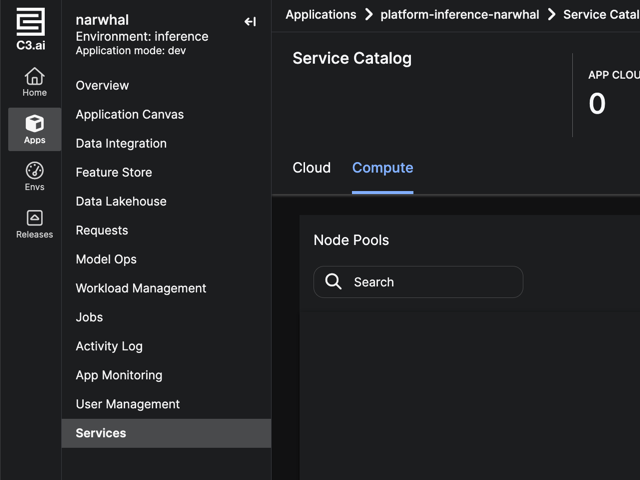
You can view Cloud services and Compute resources for your environment or application on this page.
Configure compute resources
It's possible to configure your node pools within the Compute tab depending on your use case.
In the Compute tab, select your node pool to see more details. Select the node pool by clicking on the row of the node pool, not the location.
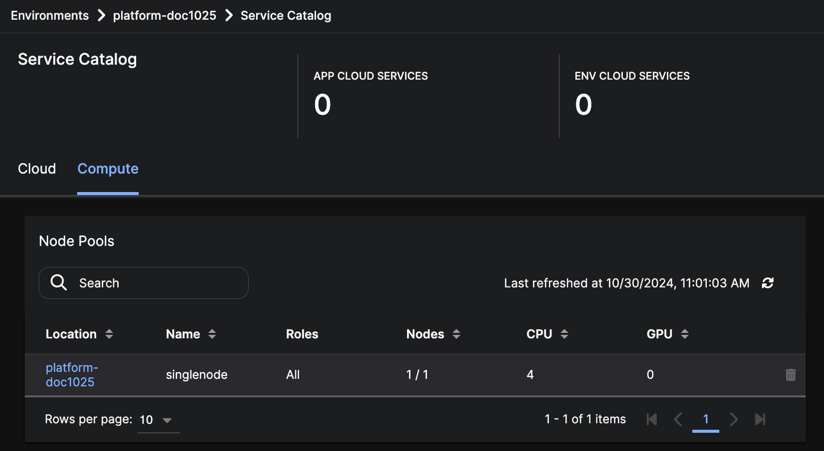
The details menu that appears shows more information about the node pool. You can select Configure to customize your computing power for that node pool.
After adjusting your desired options, select Confirm to finish configuring your node pool.
Studio admin users
Studio admins have access to view all the services for environments and applications across their cluster. In addition, they have the same ability to configure and view resources for any node pool, the same way that other users can. This can be especially helpful for managing cluster resources.
- Navigate to C3 AI Studio.
- Admin only: on the left of your screen, select the Services tab.
- You can choose individual services and node pools, similarly to how regular users can see details for their own environments and applications.