Troubleshoot translations
A best practice that ensures your applications are easy to translate, is to never hard-code strings in the frontend of the application, and always use unique translation keys. This ensures your application can be easily translated to a new language without having to make changes to the application logic.
UI Framework comes out of the box with two pseudo-locales, which make it easy to visually audit the application and find hard-coded strings, text overflow, and other problems that arise from translating the application to different languages.
When the application is configured to use one of these pseudo-locales, ASCII characters are replaced with visually distinct Unicode characters, making it easy to spot hard-coded strings.
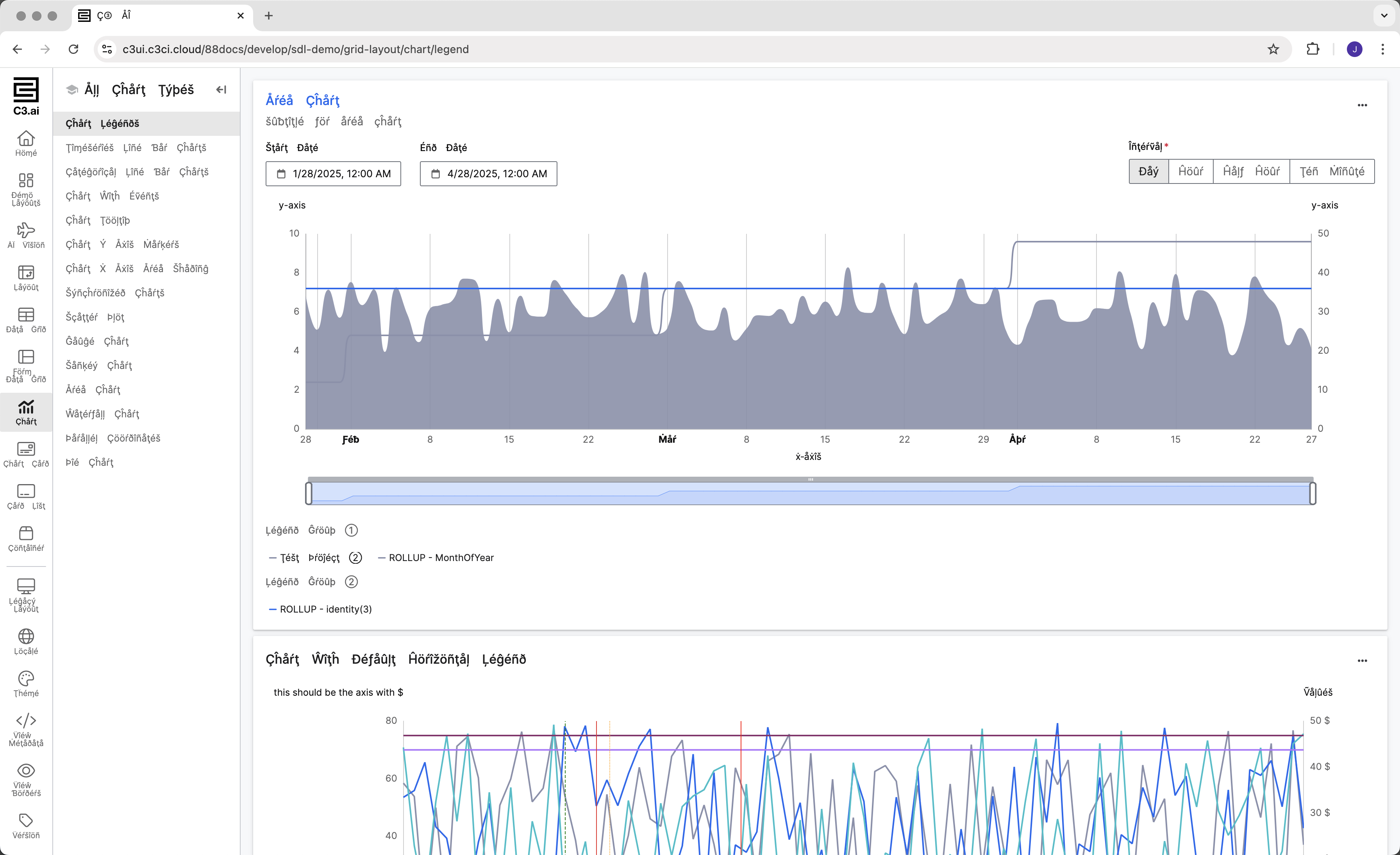
Available pseudo-locales
UI Framework has two built-in pseudo-locales:
| Locale id | Locale name | Description |
|---|---|---|
en_XA | English (Pseudo-accents) | Replaces Latin letters with accented Unicode conterparts, making it easy to spot hard-coded strings. |
ar_XB | Arabic (Pseudo-Bidi) | Simulates a right-to-left (RTL) language by reversing words and using RTL Unicode formatting, making it easy to spot styling problems with RTL languages. |
Use a pseudo-locale
Since pseudo-locales are available out of the box, you can just enable them. You don't need to declare them or create translation strings for them:
In your application console run:
let locale = `en_XA`;

UiSdlUserPreference.inst().setConfigValue('preferredLocale', locale)
Refresh the tab where the application is being served for the changes to take effect.