Deploying an application in production mode
There are two possible application modes: development and production.
By default, your application serves UI assets in development mode. Development mode is easier to debug, but less performant. When a new page is selected in development mode, the UI files for that page are imported and bundled. The bundled files can be found in the ui/content folder of your package.
When deploying your application to end-users, make sure you switch to production mode. In production mode, the code is compressed (or minified), which makes pages and components load faster. Because the code is compressed in production mode, debugging is limited.
To learn more about app modes, see the AppMode Type documentation.
To verify the mode of your application
There are several ways you can verify the mode of your application.
- On C3 AI Studio, select the ellipses to select the Open Console option. Ensure you are doing this action with the desired application.
- Go to the application's console and next to the mode field. It indicates if the application is in the production or development mode.
- Or in the application console, open your developer tools and run:
App.inst().mode.
To deploy an application in production mode
- To start the application in
prodmode, runC3.env().startApp({name: 'ExampleName', rootPkg: 'uiDemo', mode: 'prod'})from the environment consoles.- The
rootPkgis the base package for the application you are starting. For the previous command, the base package for the starting application isuiDemo. - To get the environment ID, run
Env.forName('ENVIRONMENT_NAME')from your environment static console. - The UI bundles will be served in
productionmode by default.
- The
Note: If you would like to use development mode, change the application mode to development mode by running C3.app().setMode(AppMode.DEV) from the app's static console.
Verify bundles are served in production mode
After running the previous command, you should see a noticeable improvement in your application's performance, but there's more you can do to verify that the correct bundles are server. You can try to see the source code for one of your components in the Chrome DevTools. In this first image, our App is in development mode, so upon searching for HomePage, the source code for UiDemoHomePageReact: 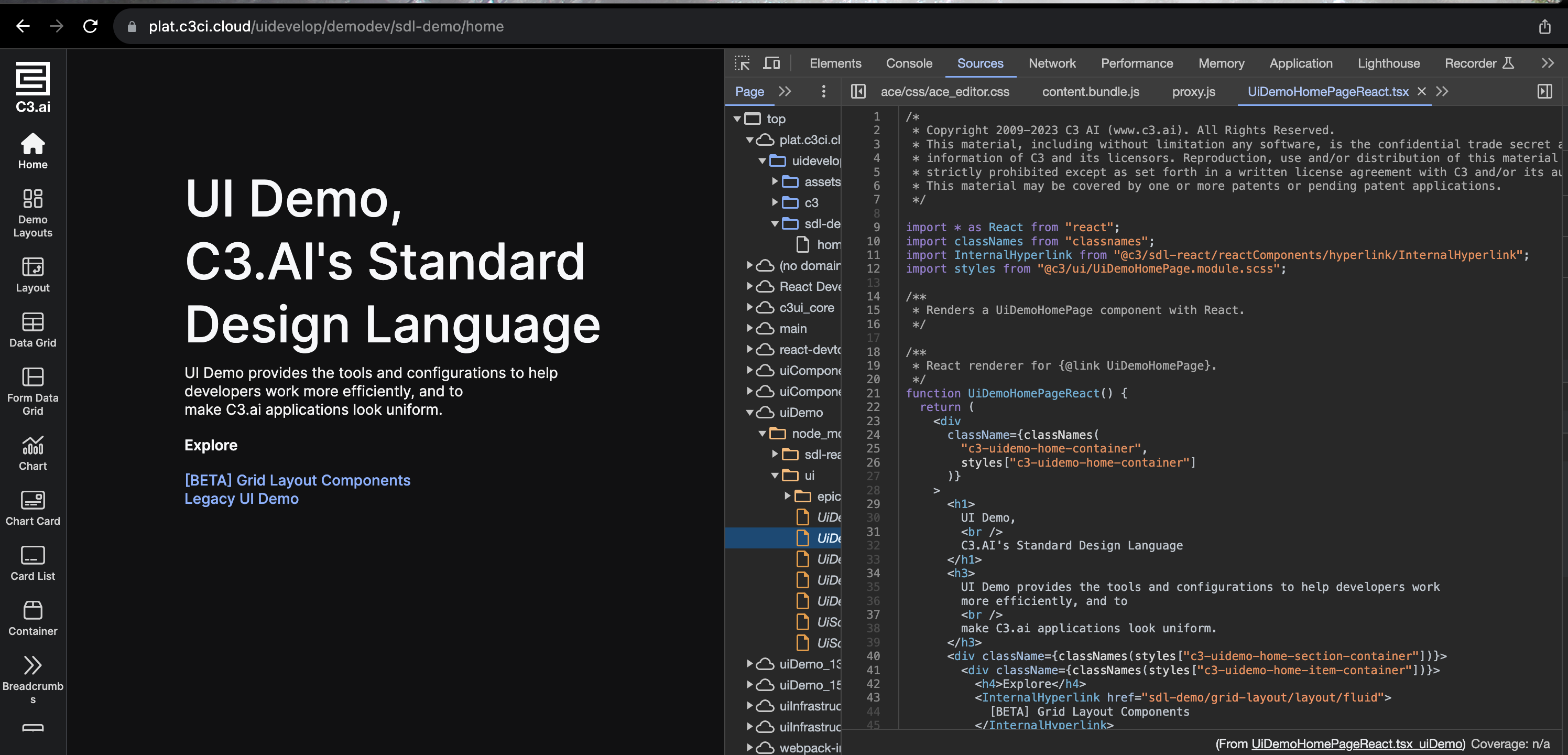
Comparitively, in production mode, nothing will appear when searching for that source code: