UI Data Flow
Overview
C3 AI UI Stack makes it easy to build reactive applications. When a user performs an action on a UI component, other UI components can react to that change and automatically re-render. This allows creating rich interactions between components.
As an example, when a user clicks a button, a modal is notified of that click. The modal can then use this information to update it's visibility, allowing the user to open and close the modal when the button is clicked.
Definitions
Store
UI Framework stores the current data and state of your front-end application in a centralized data store that's running in the user's web browser. This allows UI components to read and write to this store, and use this store to indirectly interact with one another.
By default UI components are not connected to the store, but you can connect them. When a component is connected, it stores data in a specific slice of the store. The image below shows how the store associates data to individual components to their IDs such as 'ExampleApp.DynamicallyRenderedDataGrid'. This is the ID of a data grid, and all of its associated data is under that label. 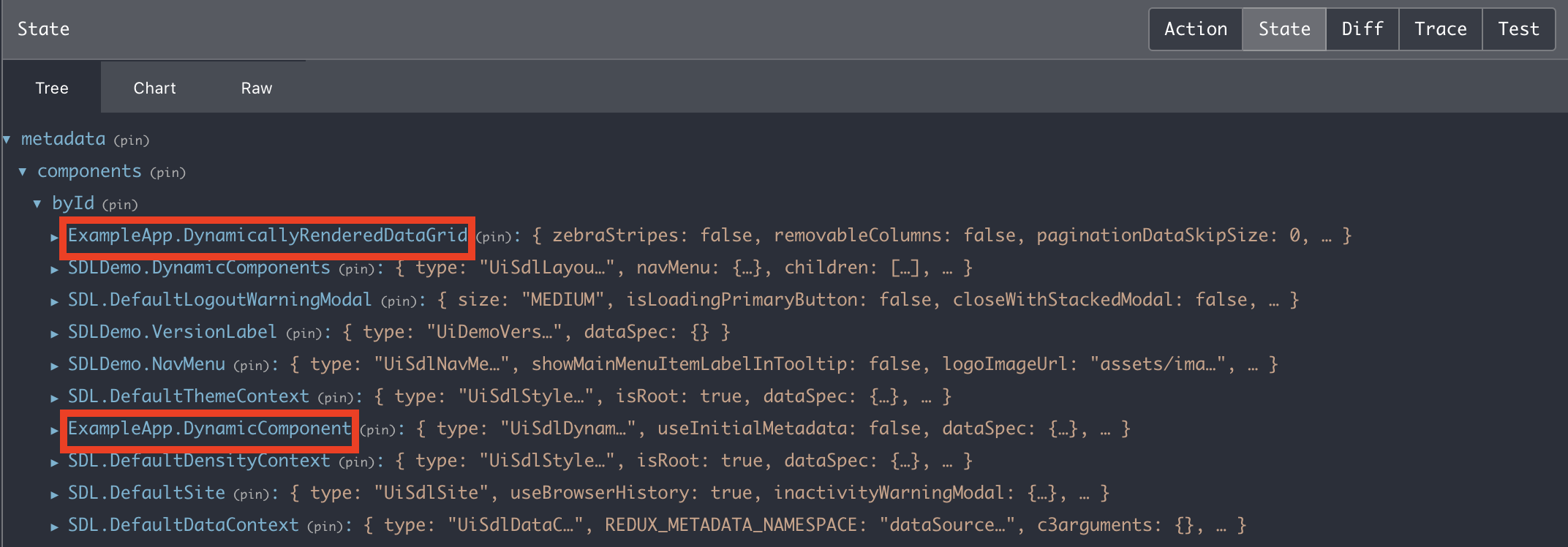
Action
An Action is just an object with a type that dictates the purpose of the action and a payload that carries information along with the action. The action's use is to pass information from a component to a Reducer or to other actions in order to eventually change something in the store.
Reducer
A reducer is a function that takes in the an action and the current state of the store in order to change something in the store based on the action type and its payload. In the C3 AI UI Framework, reducers will only be listening for certain actions. These actions are either defined directly on c3typs or through effectTriggers in component json.
Component relationship to store and data binding
In the UI Framework, there is a concept of components that are wrapped in UiSdlConnected or "connected" components. These components are the only ones that will actually have their information held in the store. This is largely due to the need for identifiers in the store that relate components to their data, as this allows for good maintenance of data binding, or how data is related directly to the UI. Since the store holds the data for all components in an application, the UI framework uses component IDs that come from json files or that are generated to directly relate individual components to their data. Once this relationship is established, a component "subscribes" or listens to the store so that it can re-render whenever its data is updated in the store.
General flow for single component
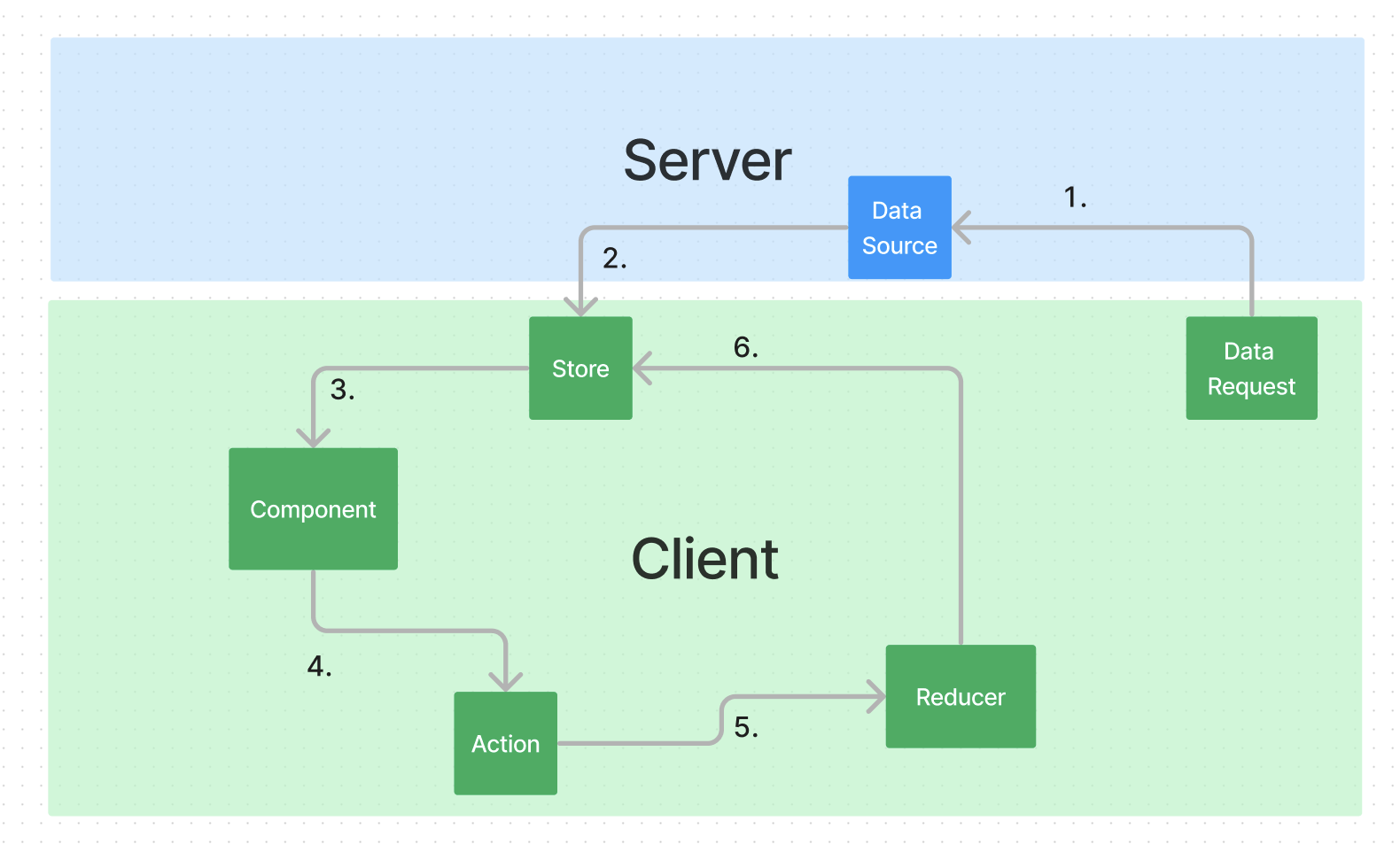
The image below shows the unidirectional data flow for UI. See the following steps for an outline of the flow shown in the image.
Step 1
The UI component calls an API on the server to get data:
If you're using deep-code (TSX) you make this API call directly. If you're using low-code (JSON), UI framework will take the declarative dataSpec specified in the UI component, and generate an API call
Step 2
C3 AI Platform receives the API request and returns a response with the data requested. On the client-side (browser), the data is received and persisted in the store.
Step 3
Due to the relationship between components and the store already described, once the store receives data related to the component, the component is then sent that data in order to update it's internal state, which will lead to visual changes in the component.
Step 4
After a user interacts with the component, it gives the component new information that must then be updated in the store. It is unable to directly update the store due to the unidirectional flow of data. Instead, it will dispatch an action, providing identifying information about itself and the data that needs to be updated in the action's payload.
Step 5
After the action is dispatched, it is then passed along to a corresponding reducer.
Step 6
Based on the information in the action's payload, the reducer then updates the store to keep the store up-to-date (this then triggers step 3 again).
Simple data flow between two components
This section provides a basic example of how the communication between a UiSdlButton and UiSdlModal can take place within the UI Framework. The following diagram provides the flow for using a UiSdlButton click to open a UiSdlModal. 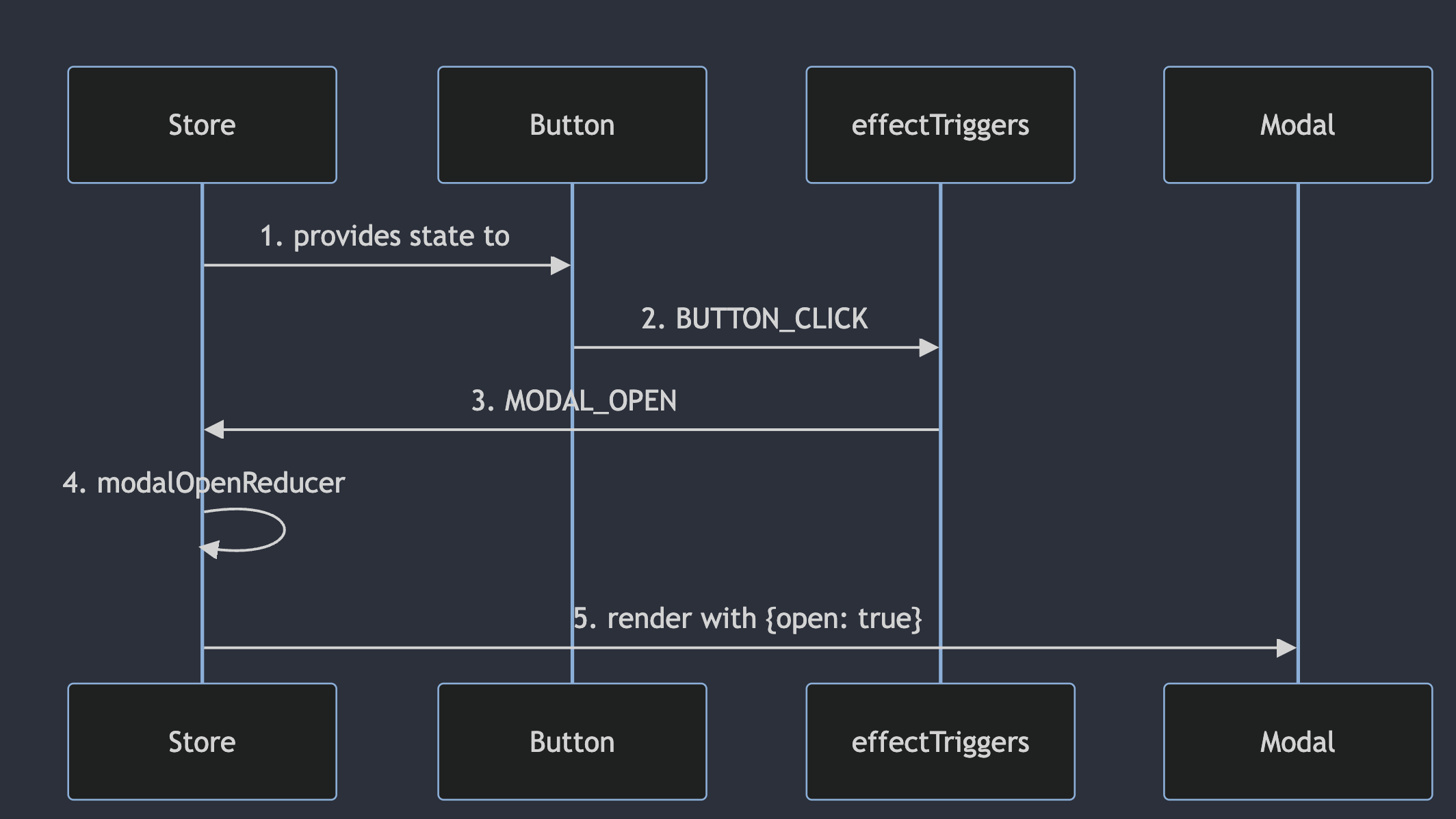
Step 1
When adding the button to your application, make sure to make it a connected button, so it is connected to the store.
Step 2
With a user interaction (clicking), the UiSdlButton will dispatch a UiSdlButton#clickButtonAction with the suffix BUTTON_CLICK. This is built into the functionality for UiSdlButton. On the c3typ for each component, you can see what actions and reducers are available. Fields with @uiSdlActionCreator create an action with a certain suffix, and fields with @uiSdlReducer are reducers and the action they are listening for is defined in the tag, ex. @uiSdlReducer(actionType='MODAL_OPEN')
Step 3
If the UiSdlButton is defined as so,
{
  "type": "UiSdlConnected<UiSdlButton>",
  "component": {
    "content": "Click Me!"
  },
  "effectTriggers": [
    {
      "trigger": "MyApplication.SidePanelUpdateStatusButton.BUTTON_CLICK",
      "actions": [
        {
          "type": "MyApplication.SidePanelUpdateAlertStatusModal.MODAL_OPEN",
          "payload": {
            "componentId": "MyApplication.SidePanelUpdateAlertStatusModal"
          }
        }
      ]
    }
  ]
}
Then, the BUTTON_CLICK will actually also trigger the MODAL_OPEN action from UiSdlModal as defined in the EffectTriggers portion of the json. EffectTriggers in this case has 3 fields that need to be defined (these are not all of the possible fields for UiSdlEffectTrigger).
| Field | Description |
|---|---|
trigger | The action to listen to (BUTTON_CLICK) |
actions | The action(s) to be dispatched after the trigger is dispatched |
payload | The payload to pass along with the new dispatched action |
Step 4
UiSdlModal has a reducer that listens for MODAL_OPEN, UiSdlModal#modalOpenReducer. Since its associated action was dispatched it will then be called.
NOTE: If multiple actions are listening to the same trigger (MODAL_OPEN), their order of execution is not guaranteed. If the actions need to be executed in a certain order, you should use a UiSdlEpic
Step 5
modalOpenReducer then modifies the store to change the state of the modal to be open. The store passes this information to the modal and it becomes visible.
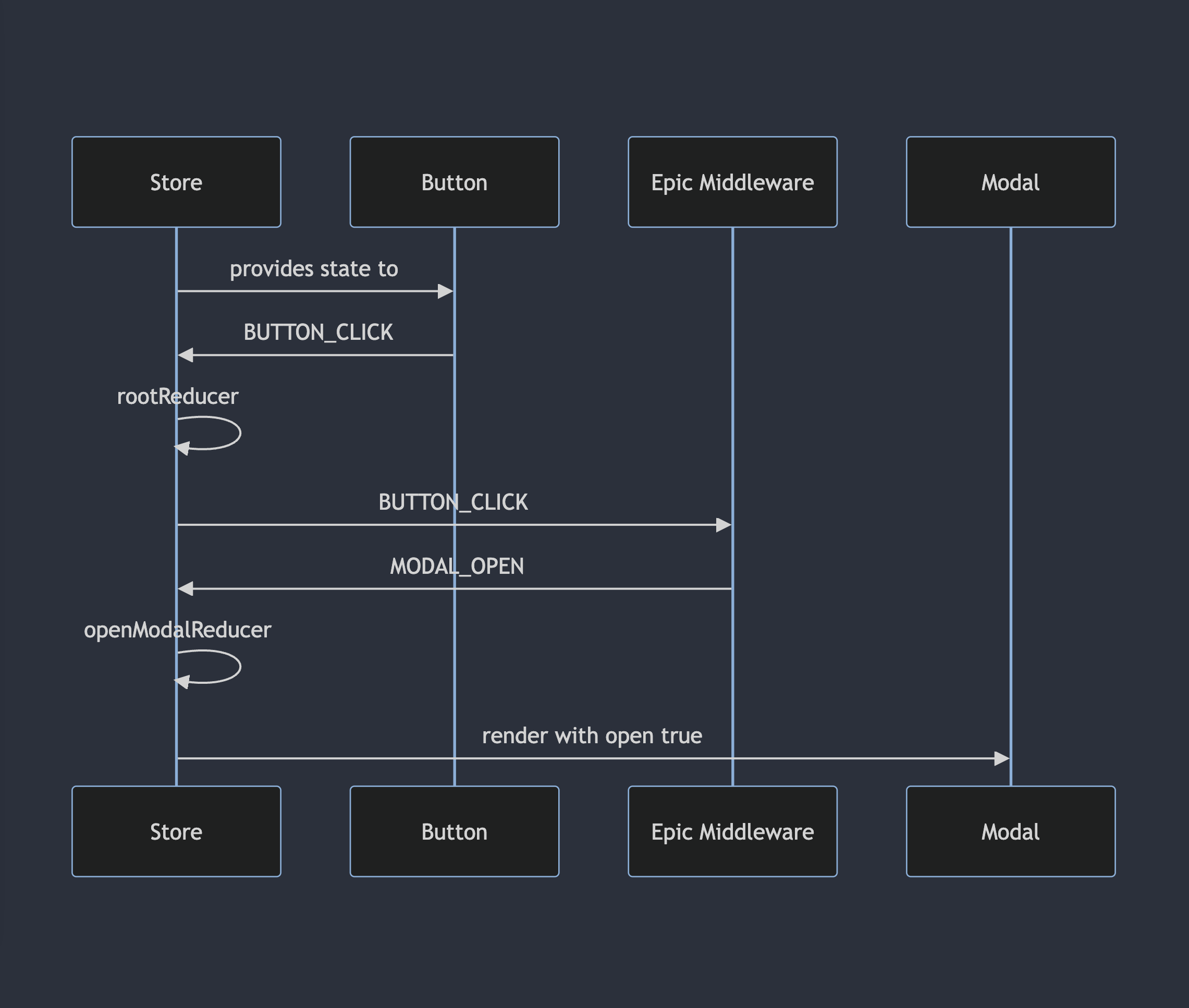
For those interested in what is going on outside of UI Framework terms when this process happens, this diagram shows a more accurate depiction of how the redux store is communicating with components as well as "Epic Middleware" (https://medium.com/kevin-salters-blog/epic-middleware-in-redux-e4385b6ff7c6), a tool used to enact extra functionality with actions as well as dispatch new actions, to get the exact same effect.