Routes
With the C3 AI Platform, you define the URL of a page by specifying a route. A route maps a unique URL to a UI component that is displayed to users when they access that URL in their browser.
Since a UI component can have multiple child components, a route can be mapped to a component which has nested sub-components, giving you the flexibility to design complex pages.
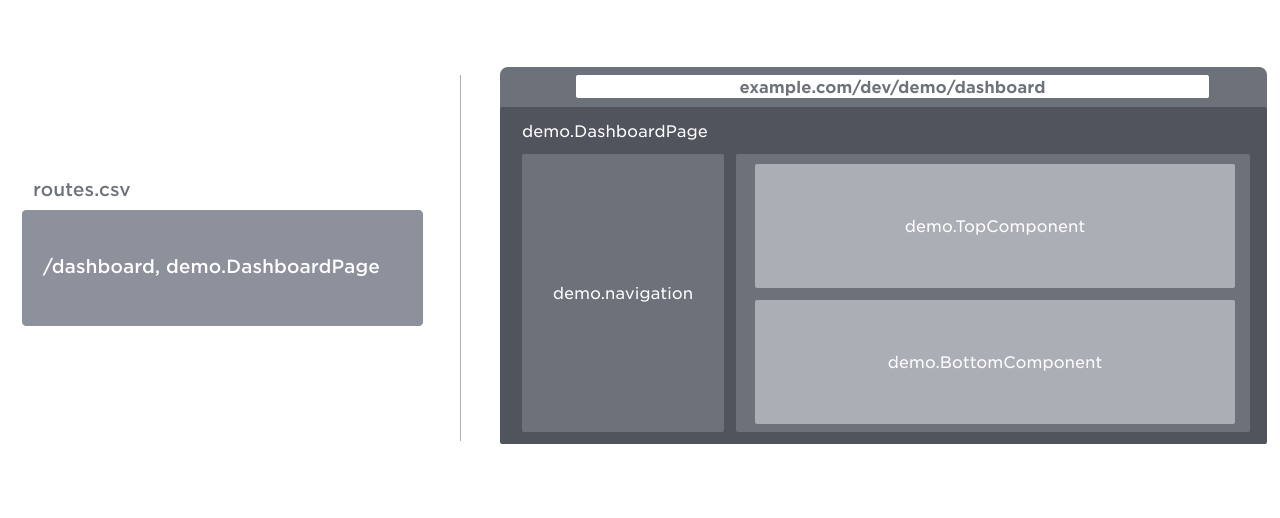
Create a simple route
To create a simple route:
- Create the following directory structure:
packageName/metadata/UiSdlRoute. - Under the newly created folder, create the file for routes. This can be done in two ways:
- A single CSV file for all the routes. This is the best practice.
- A single JSON file that has an array of JSONs for all the routes.
For example, if you have a component in your application called: examplePackage.HomePage.json, you can create a routes.csv file and with that route file declare a route as shown in the following code block:
targetModuleName,targetPageName,name,urlPath
examplePackage,HomePage,/home,/home
If you prefer JSON, you can declare a route with a JSON:
{
  "targetModuleName": "examplePackage",
  "targetPageName" : "HomePage",
  "name": "/home",
  "urlPath": "/home"
}| Field Name | Description |
|---|---|
"targetModuleName" | Package Name |
"targetPageName" | Component Name |
"name" | Specific endpoint in the URL |
"urlPath" | Specific endpoint in the URL |
Since components are highly reusable, it's normal to have two different routes that point to the same component. When this happens, the two different URLs will render the same component.
Go to UiSdlRoute, to learn more about the fields for a route.
Default route
Make sure to create a default route for your applications. This allows users to navigate to https://{domain} and have a page being rendered.
Here is an example of a default route:
targetModuleName,targetPageName,name,urlPath
examplePackage,HomePage,/,/Nested routes
Routes can be nested to support a URL structure that matches your information architecture. For example, you can define multiple routes to form a navigation structure that looks like this:
/US
/US/California
/US/California/RedwoodCityDynamic routes and page parameters
There are scenarios when you want a URL to display the same component but with different data. For example:
/edit-user/dave.lauper@example.comdisplays a form and allows editing information about Dave,/edit-user/jane.hopper@example.comdisplays the same form but fetches information for Jane.
Dynamic routes allow you to specify which portions of the route are variable. When the user navigates to the URL, the variable value is stored. The UI component uses this value as part of its logic.
There are three steps to define and use page parameters:
- Declare a dynamic route.
- Update any UI components that need to be aware of the actual value the user specified in the URL:
- Declare a component-specific variable to store the value.
- Use the component-specific variable in the component logic.
Create a dynamic route
To create a dynamic route, use {{variableName}}. For example:
targetModuleName, targetPageName, name, urlPath
examplePackage,EditUserPage,/edit-user/{{id}},/edit-user/{{id}}
Note the following:
- If the user navigates to the URL
https://CLUSTER/ENV/APP/edit-user/dave.lauper@example.com, the route matches, and the variableidis set todave.lauper@example.com. - If the user navigates to either
/edit-user, or/edit-user/the route does not match. If there is no other route defined, the user gets a blank page.
You can combine nested and dynamic routes, to create a route that looks like /alerts/{{facilityId}}/{{equipmentId}}.
Use page parameters in a component
Once you define a dynamic route, any component that is used on that route can read the specific value the user used in the URL, and store that in a component-specific variable.
If you have a dynamic route that allows editing information about users:
targetModuleName,targetPageName,name,urlPath
examplePackage,EditUserPage,/edit-user/{{id}},/edit-user/{{id}}
You can configure the form component on the page to read the value matched by the route:
{
  "type" : "UiSdlConnected<UiSdlForm>",
  "component" : {
    "dataSpec" : {
      "contextVars" : {
        "userId" : {
          "type" : "UiSdlPageParam",
          "path" : "id"
        }
      },
With this for component.dataSpec.contextVars, the form component declares a variable named userId, which is bound to the id variable of the dynamic route. Since the form's userId variable is bound to the route id variable, when the form component renders, userId is set to dave.lauper@example.com.
In scenarios where your route has multiple parameters, it might make sense to have components with multiple context variables.
Use component context variables
Once a component declares the userId variable, you can use that variable in other fields of the component configuration. In this example, you can use it to fetch a user with that ID from the backend and populate the form with the user data if it exists:
{
  "type" : "UiSdlConnected<UiSdlForm>",
  "component" : {
    "dataSpec" : {
    "contextVars" : {
        "userId" : {
          "type" : "UiSdlPageParam",
          "path" : "id"
        }
      },
    "dataType" : "SDLDemoUser",
    "actionName" : "get",
    "actionArgs" : {
        "this" : {
        "id" : "${userId}"
    }
    },
Notice how the form component uses ${userId} to refer to the component context variable.
Special use case for dynamic routes - Global Filter
The global filter is an application-level feature that applies the filter globally across the application. Subscribed components listen and react to the global filter.
The global filter shows up as the page title and as part of the URL.

The user inputs a global filter value of PF-193. The URL's page param is SDLDemo.GlobalFilterInputValue=PF-193 and the page title is filtered with PF-193.
Configure the global filter
The following code block:
- Creates the visual search bar for the global filter.
- Uses a multiple search component, the UiSdlMultipleSearch Type.
This does not include the context of the global filter.
Note: The following code block is in a file called SDLDemo.GlobalFilterInput which is referenced in the next section.
{
  "type" : "UiSdlConnected<UiSdlMultipleSearch>",
  "component" : {
    "dataSpec" : {
      "dataType" : "SDLDemoMachine",
      "actionName" : "fetch",
      "dataPath" : "objs",
      "valueField" : "name",
      "displayField" : "name"
    },
    "displayField" : "id",
    "valueField" : "id",
  }
}Add the global filter to the title page
To do so, plug the global filter into the page title component. We also explicitly indicate that the component is a global filter with the globalInputField.
  "type" : "UiSdlConnected<UiSdlPageTitle>",
  "component" : {
    "title" : "Some Page Title",
    "globalInputField" : {
      "id" : "SDLDemo.GlobalFilterInput"
    },
The filter value is the value of the input that is going to be used as a filter.
We incorporate the filter value to the URL bar as a page param, syntax as: ?<componentName>Value=<inputValue>. If the user input global filter value is PF-193, the URL bar has the page param as SDLDemo.GlobalFilterInputValue=PF-193. This page param shows up on every page that has a page title with the globalInputField of a SDLDemo.GlobalFilterInput.
Subscribe components to the filter. Because it is already part of the page parameters, you can retrieve it the same way you receive any other page parameter.
{
  "type" : "UiSdlConnected<UiSdlCategoricalLineBarChart>",
  "component" : {
    "dataSpec" : {
      "dataType" : "SDLDemoMachine",
      "contextVars" : {
        "name" : {
          "type" : "UiSdlPageParam",
          "path" : "SDLDemo.GlobalFilterInputValue"
        }
      },
When a user changes the input using the dropdown menu, the URL path and the chart reflects the change with the new filtered value.
Redirect link
If the field is a UiSdlLinkTemplate Type, the field can be configured as a redirect link. The redirect link can either point to an internal or external URL.
Internal route
Internal routing means the redirect link is pointing to a page inside the application which means that the route must be configured in the UiSdlRoute file.
Troubleshooting tip: If the internal route does not work, check that the route is configured in the route file.
To define an internal route, use the correct UiSdlLinkTemplate field.
In the following example, the dataSpec field of UiSdlCollectionList has a field called redirectLink which is a UiSdlLinkTemplate.
We configure the redirectLink to point to an internal route.
{
  "type" : "UiSdlConnected<UiSdlDefinitionList>",
  "component" : {
    "dataSpec" : {
      "fields" : [{
        "label" : "Link to User Detail",
        "fieldName" : "userId",
        "redirectLink" : {
          "internal" : true,
          "href" : "/sdl-demo/user-detail/{{id}}",
          "pageVariable" : "id",
          "pageVariableFilterField" : "userId"
        }
      }]
},| Field | Description |
|---|---|
href | relative path to the page |
pageVariable | indicates the dynamic variable |
pageVariableFilterField | indicates the value of the dynamic variable |
The redirect link will be <appUrl>/sdl-demo/user-detail/{{id}}.
External routing through a redirect Link
External routing means the redirect link is pointing to an external URL.
To point to an external URL, define the href field to be a full URL path from http:// or https://.
{
  "type" : "UiSdlConnected<UiSdlMetricTile>",
  "component" : {
    "header" : {
      "title" : "SDLDemo.Tiles4.title",
      "redirectLink" : {
        "href" : "https://www.google.com/",
        "opensNewTab" : true
      }
    },
To learn more about using redirect links, read UiSdlLinkTemplate.