Side Panel C3 Agent
It's possible to integrate a side panel to chat with an agent in any SDL page. Side panels can be collapsed or expanded, allowing AI interactions without interfering with existing UX. Follow the steps below to configure a side panel agent in your C3 Application.
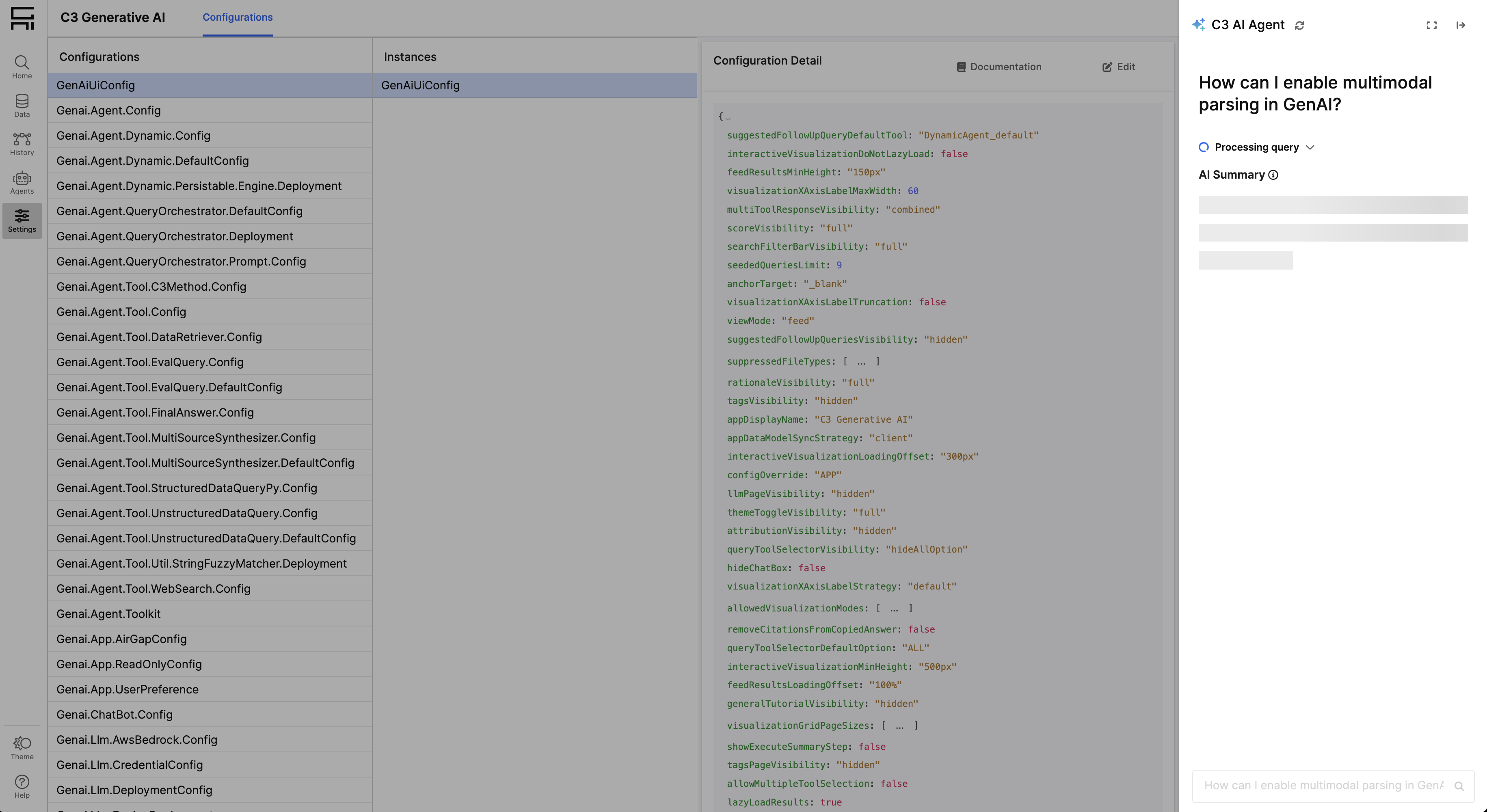
Configuring a Side Panel Chat
In this example, we will assume we're configuring a Side Panel Chat for a "LightBulbs" application.
1. Prerequisites
To successfully configure the chat, ensure that:
- Your app must use the SDL Framework (at least at page level)
- Have a dependency on
genAiSearch
2. Create the JSON instance of the Side Panel Application State
File name: LightBulbsSidePanelAgentApplicationState.json:
{
  "type": "GenAiUiFeedApplicationState",
  "effectTriggers": [
    {
      "trigger": "LightBulbsSidePanelAgentApplicationState.POLL_RESULT",
      "payloadStrategy": "MERGE",
      "effectType": "GenAiUiEpicPollFeedQuery",
      "payload": {
        "applicationStateId": "EnterpriseSearch.GenAiUiApplicationState",
        "feedApplicationStateId": "LightBulbsSidePanelAgentApplicationState"
      }
    },
    {
      "trigger": "LightBulbsSidePanelAgentApplicationState.LOAD_RESULT_RESOURCES",
      "payloadStrategy": "MERGE",
      "effectType": "GenAiUiLoadFeedResourcesEpic",
      "payload": {
        "applicationStateId": "EnterpriseSearch.GenAiUiApplicationState",
        "feedApplicationStateId": "LightBulbsSidePanelAgentApplicationState"
      }
    }
  ]
}
You can use the following script to copy the metadata for the application state directly, with the name of your choice:
const APPLICATION_STATE_NAME = '<name of you application state>';
const getApplicationStateMetadata = (feedApplicationStateId) => {
  return `{
  "type": "GenAiUiFeedApplicationState",
  "effectTriggers": [
    {
      "trigger": "${feedApplicationStateId}.POLL_RESULT",
      "payloadStrategy": "MERGE",
      "effectType": "GenAiUiEpicPollFeedQuery",
      "payload": {
        "applicationStateId": "EnterpriseSearch.GenAiUiApplicationState",
        "feedApplicationStateId": "${feedApplicationStateId}"
      }
    },
    {
      "trigger": "${feedApplicationStateId}.LOAD_RESULT_RESOURCES",
      "payloadStrategy": "MERGE",
      "effectType": "GenAiUiLoadFeedResourcesEpic",
      "payload": {
        "applicationStateId": "EnterpriseSearch.GenAiUiApplicationState",
        "feedApplicationStateId": "${feedApplicationStateId}"
      }
    }
  ]
}`;
};

copy(getApplicationStateMetadata(APPLICATION_STATE_NAME));3. Create the JSON file for the Side Panel Chat
File name: LightBulbsSidePanelAgent.json:
{
  "type": "UiSdlConnected<GenAiUiFeedSidePanel>",
  "derivedProps": {
    "uiSettings": {
      "type": "UiSdlApplicationStateValueParam",
      "id": "EnterpriseSearch.GenAiUiApplicationState",
      "path": "uiSettings"
    },
    "plannerOptions": {
      "type": "UiSdlApplicationStateValueParam",
      "id": "EnterpriseSearch.GenAiUiApplicationState",
      "path": "plannerOptions"
    }
  },
  "component": {
    "applicationStateId": "EnterpriseSearch.GenAiUiApplicationState",
    "feedApplicationStateId": "LightBulbsSidePanelAgentApplicationState",
    "wrapWithMetadataId": true,
    "initialExpandedWidth": "380px",
    "fullyExpandedWidth": "900px",
    "searchPlaceholder": "Ask anything about C3 AI",
    "headerTitle": "C3 AI Agent",
    "headerIcon": "sparkles",
    "initiallyExpanded": true,
    "agentConfigName": "Light Bulbs Agent",
    "addResultIdQueryParam": true,
    "welcomeMessage": "Welcome to C3 AI! Ready to get started?"
  },
  "effectTriggers": [
    {
      "trigger": "LightBulbsSidePanelAgentApplicationState.SEARCH_QUERY_SUBMIT",
      "effectType": "GenAiUiEpicSubmitFeedQuery",
      "payloadStrategy": "MERGE",
      "payload": {
        "doNotRedirect": true,
        "applicationStateId": "EnterpriseSearch.GenAiUiApplicationState",
        "feedApplicationStateId": "LightBulbsSidePanelAgentApplicationState",
        "feedId": "GenAiUi.FeedSidePanel",
        "queryEntityTypeName": "Genai.Query.EnterpriseSearchQuery",
        "queryEntityActionName": "createAndRankQuery"
      }
    },
    {
      "trigger": "SDL.DefaultSite.CURRENT_PATH_SET",
      "effectType": "GenAiUiEpicTrackResultOnRedirect",
      "payload": {
        "feedId": "GenAiUi.FeedSidePanel",
        "applicationStateId": "EnterpriseSearch.GenAiUiApplicationState",
        "feedApplicationStateId": "LightBulbsSidePanelAgentApplicationState"
      }
    },
    {
      "trigger": "GenAiUi.FeedSidePanel.INITIAL_RENDER",
      "effectType": "GenAiUiEpicGetConversation",
      "payloadStrategy": "MERGE",
      "payload": {
        "feedId": "GenAiUi.FeedSidePanel",
        "applicationStateId": "EnterpriseSearch.GenAiUiApplicationState",
        "feedApplicationStateId": "LightBulbsSidePanelAgentApplicationState"
      }
    }
  ]
}
You can use the following script to copy the metadata from your component directly:
const COMPONENT_NAME = '<name of you side panel component>';
const APPLICATION_STATE_NAME = '<name of you application state from previous step>';
const getComponentMetadata = (feedApplicationStateId, componentId) => {
  return `{
  "type": "UiSdlConnected<GenAiUiFeedSidePanel>",
  "derivedProps": {
    "uiSettings": {
      "type": "UiSdlApplicationStateValueParam",
      "id": "EnterpriseSearch.GenAiUiApplicationState",
      "path": "uiSettings"
    },
    "plannerOptions": {
      "type": "UiSdlApplicationStateValueParam",
      "id": "EnterpriseSearch.GenAiUiApplicationState",
      "path": "plannerOptions"
    }
  },
  "component": {
    "applicationStateId": "EnterpriseSearch.GenAiUiApplicationState",
    "feedApplicationStateId": "${APPLICATION_STATE_NAME}",
    "wrapWithMetadataId": true,
    "initialExpandedWidth": "380px",
    "fullyExpandedWidth": "900px",
    "searchPlaceholder": "Ask anything about C3 AI",
    "headerTitle": "C3 AI Agent",
    "headerIcon": "sparkles",
    "initiallyExpanded": true,
    "agentConfigName": "Light Bulbs Agent",
    "addResultIdQueryParam": true,
    "welcomeMessage": "Welcome to C3 AI! Ask me questions"
  },
  "effectTriggers": [
    {
      "trigger": "${APPLICATION_STATE_NAME}.SEARCH_QUERY_SUBMIT",
      "effectType": "GenAiUiEpicSubmitFeedQuery",
      "payloadStrategy": "MERGE",
      "payload": {
        "doNotRedirect": true,
        "applicationStateId": "EnterpriseSearch.GenAiUiApplicationState",
        "feedApplicationStateId": "${APPLICATION_STATE_NAME}",
        "feedId": "${COMPONENT_NAME}",
        "queryEntityTypeName": "Genai.Query.EnterpriseSearchQuery",
        "queryEntityActionName": "createAndRankQuery"
      }
    },
    {
      "trigger" : "SDL.DefaultSite.CURRENT_PATH_SET",
      "effectType": "GenAiUiEpicTrackResultOnRedirect",
      "payload": {
        "feedId": "${COMPONENT_NAME}",
        "applicationStateId": "EnterpriseSearch.GenAiUiApplicationState",
        "feedApplicationStateId": "${APPLICATION_STATE_NAME}"
      }
    },
    {
      "trigger": "${COMPONENT_NAME}.INITIAL_RENDER",
      "effectType": "GenAiUiEpicGetConversation",
      "payloadStrategy": "MERGE",
      "payload": {
        "feedId": "${COMPONENT_NAME}",
        "applicationStateId": "EnterpriseSearch.GenAiUiApplicationState",
        "feedApplicationStateId": "${APPLICATION_STATE_NAME}"
      }
    }
  ]
}`;
};

copy(getComponentMetadata(APPLICATION_STATE_NAME, COMPONENT_NAME));4. Instantiate the Side Panel Chat in the pages where you want to use it
- If your page is using a layout different than
UiSdlGridLayout, the recommended approach is to add the side panel as a child (similar to how modals are instantiated). Make sure the application state you instantiated for the side panel is references, and also the GenAI base application state ("EnterpriseSearch.GenAiUiApplicationState"). Example:
{
  "type": "UiSdlConnected<LightBulbsLayoutPage>",
  "applicationStateRef": {
    "type": "[UiSdlApplicationStateRef]",
    "value": [
      {
        // Base GenAI Application State instance
        "type": "UiSdlApplicationStateRef",
        "id": "EnterpriseSearch.GenAiUiApplicationState"
      },
      {
        // Side Panel Chat Application instance
        "type": "UiSdlApplicationStateRef",
        "id": "LightBulbsSidePanelAgentApplicationState"
      }
    ]
  },
  "component": {
    "className": "light-bulbs-page",
    "navigation": {
      "id": "LightBulbsDynamicNavMenuRenderer"
    },
    "pageTitle": {
      "id": "LightBulbsPageTitleDynamicRenderer"
    },
    "content": {
      "id": "LightBulbsPageContent"
    },
    "children": [
      {
        // Side Panel instance
        "id": "LightBulbsSidePanelAgent"
      }
    ]
  }
}- If your page is using
UiSdlGridLayout, the recommended approach is to add the side panel as a detached field. Make sure the application state you instantiated for the side panel is references, and also the GenAI base application state ("EnterpriseSearch.GenAiUiApplicationState"). Example:
{
  "type": "UiSdlConnected<UiSdlGridLayout>",
  "applicationStateRef": {
    "type": "[UiSdlApplicationStateRef]",
    "value": [
      {
        // Base GenAI Application State instance
        "type": "UiSdlApplicationStateRef",
        "id": "EnterpriseSearch.GenAiUiApplicationState"
      },
      {
        // Side Panel Chat Application instance
        "type": "UiSdlApplicationStateRef",
        "id": "LightBulbsSidePanelAgentApplicationState"
      }
    ]
  },
  "component": {
    "gridStyle": "FIXED",
    "fixedSize": "MEDIUM",
    "wrapWithMetadataId": true,
    "header": {
      "type": "UiSdlGridLayoutHeader",
      "children": [
        {
          "type": "UiSdlComponentContainer",
          "childComponent": {
            "id": "LightBulbsPageTitleDynamicRenderer"
          }
        }
      ]
    },
    "navMenu": {
      "id": "LightBulbsDynamicNavMenuRenderer"
    },
    "children": [
      {
        "id": "LightBulbsPageContent"
      }
    ],
    "detachedFields": [
      {
        // Side Panel instance
        "id": "LightBulbsSidePanelAgent"
      }
    ]
  }
}Advanced Configurations
The side panel component is highly customizable, and all the options are documented in GenAiUiFeedSidePanel. Below we introduce a few common scenarios where several options are offered for customization.
Expand behavior of Side Panel
The Side Panel has three different collapse states:
- Collapsed: The side panel is closed and the user can't interact with the agents. When the user clicks the expand button, the side panel goes to the expanded state.
- Expanded: The side panel is open and the user can interact with the agent. The width of the expanded side panel is determined by the
initialExpandedWidthprop of the JSON instance ofGenAiUiFeedSidePanel. From this state, the user can either collapse the side panel, or fully expand it. - Fully Expanded: The side panel is open and the user can interact with the agent. The width of the expanded side panel is determined by the
fullyExpandedWidthprop of the JSON instance ofGenAiUiFeedSidePanel. From this state, the user can either collapse the side panel, or go back to the expanded state. This state is recommended for consumption of complex grids and visualizations.
Side panel behavior
The behavior prop controls how the side panel interacts with the page layout. Pass it in the JSON instance of GenAiUiFeedSidePanel. It accepts two values:
overlay(default): The side panel appears on top of the page content without shifting the layout. Use this for complex dashboards where layout disruption would be problematic.block: The page content shifts with an animation when the side panel opens or closes. Use this when you want users to see all page content while interacting with the agent.
The tutorial examples in this guide do not set a behavior prop, so they use the overlay default.
Track side panel session across page refresh and navigation
You can preserve the current conversation across page refreshes and navigation. Two options are available:
addResultIdQueryParam: When set totrue, adds aresultIdquery parameter to the route each time a conversation starts. The parameter reloads the conversation after a page refresh.addResultIdSessionStorage: When set totrue, stores theresultIdin session storage instead of the URL. Use this when query parameter tracking is not suitable (for example, in apps with strict URL management). If both are set, the query parameter takes priority.
When addResultIdQueryParam is set to true, the effect trigger for GenAiUiEpicTrackResultOnRedirect must be present in the JSON, as shown in the tutorial example:
// LightBulbsSidePanelAgentApplicationState.json
"effectTriggers": [
  // ...
    {
      "trigger": "SDL.DefaultSite.CURRENT_PATH_SET",
      "effectType": "GenAiUiEpicTrackResultOnRedirect",
      "payload": {
        "feedId": "GenAiUi.FeedSidePanel",
        "applicationStateId": "EnterpriseSearch.GenAiUiApplicationState",
        "feedApplicationStateId": "LightBulbsSidePanelAgentApplicationState"
      }
    }
]
// ...Customize the agent used for queries from the side panel
You can define a specific agent to which queries from the side panel should be routed. To do so, define an agentConfigName in the GenAiUiFeedSidePanel JSON instance. If none is defined, the search bar will render the agent selector and the user can choose the agent manually.
Notice agentConfigName works both when the app is using GenaiCore.Agent.Deployment and when it's using GenaiCore.Agent agents, which is driven by useGenaiCoreAgents in GenAiUiConfig.
To learn more about how to configure agents, see Dynamic Agent Overview. To learn how agents produce and render structured outputs (forms, documents, charts) in the feed, see GenAI Agent Resources.
Customize UI elements of the Side Panel
You can customize these elements from the Side Panel UI just with props in the GenAiUiFeedSidePanel JSON instance.
- Title: determined by
headerTitle. It can be a translation key, in which case translation will be handled automatically. - Icon: determined by
headerIcon.It should be an icon available on SDL (Font Awesome). - Search Bar placeholder: determined by the
searchPlaceholder. It can be a translation key, in which case translation will be handled automatically. - Welcome Message: determined by
welcomeMessage. This message is displayed when there are no results in the feed, providing a friendly introduction to users.
Configure Suggested Queries for the Side Panel
You can configure suggested queries to appear in the side panel to help users get started with common or recommended queries. To enable this feature, add the dataSpec configuration in your GenAiUiFeedSidePanel JSON instance:
{
  "type": "UiSdlConnected<GenAiUiFeedSidePanel>",
  "component": {
    // ... other configurations ...
    "dataSpec": {
      "dataType": "Genai.SeededQuery",
      "advancedDataSpec": {
        "actionName": "fetch",
        "actionArgs": {
          "spec": {
            "include": "baseQuery, nonTranslatedQuery, category",
            "filter": "intersects()"
          }
        }
      },
      "dataTransforms": ["UiSdlTransformFetchResultToArray"]
    }
  }
}
This configuration will:
- Fetch suggested queries from your
Genai.SeededQueryentities - Display them in the side panel when appropriate
- Transform the results into an array format for display
The suggested queries feature provides users with quick access to common queries and helps them discover the capabilities of your AI agent.
Add custom styling for the side panel
To add custom CSS styling to the side panel, pass a className prop to the GenAiUiFeedSidePanel JSON instance. Reference that class name in your stylesheet to apply additional CSS rules.
Additional configuration options
The following props are available on GenAiUiFeedSidePanel for less common scenarios:
disableScrollButton: Set totrueto hide the scroll-to-bottom button. Defaults tofalse. Recommended for workflow-style side panels.hideRefreshButton: Set totrueto hide the refresh button in the header.disableFileUpload: Set totrueto disable the file upload option in the input bar.isHidden: Set totrueto prevent the side panel from rendering entirely. Defaults tofalse.customRenderers: An array ofGenAiUiCustomRendererinstances to apply custom rendering to the side panel's markdown content.queryToolOptions: An array ofGenai.Agent.Tool.Config.UiOptionsinstances that lets users target a specific agent tool when submitting a query.