Application Initialization
This guide describes how to deploy the C3 Generative AI Application in a C3 AI Studio environment. Complete these steps to initialize the application without editing code or creating artifacts manually.
Initialization overview
Complete the following tasks:
- Create an environment and application in C3 AI Studio
- Deploy application from Environment C3 AI Console
- Initialize application from Application C3 AI Console
Complete this setup before ingesting data or issuing queries.
You must have access to a customer-specific cluster and use a delivery-managed deployment package. Don't create artifacts manually.
Before starting, review the Application Prerequisites topic to confirm prerequisites.
Create an environment and application in C3 AI Studio
The C3 Generative AI Application runs inside a C3 AI Studio environment. Before you deploy genAiSearch, make sure you have a running environment and a placeholder application that uses it. These steps are covered in the platform documentation. For C3 Generative AI, use a Shared Environment (MNE) for production deployments and create the application in that environment:
- To create the environment, see Create an Environment in C3 AI Studio.
- To create the application that will host
genAiSearch, see Create an Application in C3 AI Studio. - To monitor, stop, resume, or terminate your environment and application, see Manage Environments and Applications in C3 AI Studio.
The C3 Generative AI Application is deployed in trial mode through the Environment C3 AI Console script described in the next section, not through the Studio Create application modal. Use the platform application-creation flow only to provision the application shell that the script then populates with the genAiSearch package.
Deploy application from Environment C3 AI Console
You must use the Environment C3 AI Console to deploy the application. Run a script that starts the application with the pre-built genAiSearch package.
Start the application in trial mode because production mode does not support structured data sources.
1. Open the Environment C3 AI Console
To open the Environment C3 AI Console:
- On the C3 AI Studio homepage, find your environment under Environments.
- Alternatively, select the Environment tab in the left sidebar to view all environments.
- Find your current running environment in the list.
- Select the three-dot menu (⋮) next to the environment name.
- Select Open Console.
2. Open the browser developer tools
To open the browser developer tools:
- In the new tab, open the context menu and select Inspect.
- In the developer tools panel, go to the Console tab.
3. Deploy the C3 Generative AI Application
Paste the following script into the browser developer console:
let appVersion = '<your_version_string>'; // Use the full version string from Artifact Hub
let rootPkg = '<your_package_name>';
let appName = '<your_app_name>';

// Create trial mode app with bundled UI
Pkg.Store.configureDevStore(true);

Pkg.Store.createPkg(
  Pkg.Decl.make({
    name: rootPkg,
    dependencies: { genAiSearch: appVersion },
    version: '1.0.0',
  }),
  Pkg.Store.WriteSpec.builder().dependenciesResolved(true).build()
);

Pkg.Store.configureNestedFromArtifactHub('genAiSearch', appVersion);

C3.env().startApp({
  name: appName,
  rootPkg: rootPkg,
  mode: 'trial', // Enables developer features in the C3 AI Console
  waitForReady: true,
});
Replace the following placeholders with your values:
- App version: Use the version string corresponding to the artifact build uploaded to your Artifact Hub. You can locate the version string by navigating to the Release section in Artifact Hub, selecting Artifacts, and searching for
genAiSearch. Copy the version string displayed next to the package. - Root package: Package names must be unique. Each application requires a distinct package name.
- App name: A unique, lowercase name for the app (no spaces or non-alphanumeric characters).
- mode: "trial" enables internal C3 AI Console based access.
Setup takes a few minutes, depending on system load. After setup completes, the application appears in the Running state in your C3 AI Studio workspace environment.
Initialize application from Application C3 AI Console
After deploying the application, complete the following setup tasks to prepare the app for data ingestion, retrieval, and query execution.
Complete the following steps:
- Open the Application C3 AI Console
- Open the browser developer console
- Verify LLM clients
- Verify node status
- Enable multimodal parsing for rich PDF files (optional)
The C3 Generative AI Application package includes a Dynamic assistant canvas preconfigured to handle natural language queries.
1. Open the Application C3 AI Console
This step uses a different C3 AI Console than the one used earlier. Previously, you accessed the Environment C3 AI Console to deploy the application. Now, you open the Application C3 AI Console to configure and initialize the application.
You can close the Environment C3 AI Console if it is still open.
To open the Application C3 AI Console:
- From the C3 AI Studio homepage, locate your application directly under Applications.
- Hover over the application card and select the Open Console icon.
Alternatively, you can open the application console by first opening the environment, then selecting the application from there.
This opens the Application C3 AI Console. Run all setup and configuration commands in this console.
2. Open the browser developer console
In the Application C3 AI Console tab you just opened:
- Open the context menu and select Inspect.
- In the developer tools panel, select the Console tab.
3. Verify LLM clients
The application comes with pre-configured LLM clients and authentication at the cluster level. Verify that your LLM clients are available by running the following command in the Application C3 AI Console:
GenaiCore.Llm.Completion.Client.listConfigKeys().collect();For a full list of pre-configured models and authentication objects, see Default LLMs and Embedders.
To configure additional LLM clients, see Set Up LLMs and Embedders Via UI or Set Up LLMs and Embedders Programmatically.
4. Verify node status
To check whether the leader or the task node is running correctly, run this command in the Application C3 AI Console:
c3Grid(C3.app().nodes());The console displays output that confirms the app is active, with node/nodes in the Running state.
5. Multimodal parsing
Multimodal parsing extracts structured elements such as images, tables, and text from supported file types including PDF files, PPTX, and DOCX.
The application is pre-configured with the following default chunking components:
- PDF files: Genai.SourceFile.Chunker.Mew3
- PPTX/DOCX: Genai.SourceFile.Chunker.MsftX.Config
For multimodal parsing, the default-completions client is automatically selected as the default large language model.
To customize the model or chunking configuration, refer to:
- Configure Mew3 for PDF parsing
- Genai.SourceFile.Chunker.MsftX.Config for PPTX and DOCX parsing
For details about multimodal parsing capabilities and best practices, see Multimodal parsing.
Open the C3 Generative AI Application UI
After completing setup:
- Go back to the C3 AI Studio homepage.
- Find your app again in the environment list.
- Select Open Application.
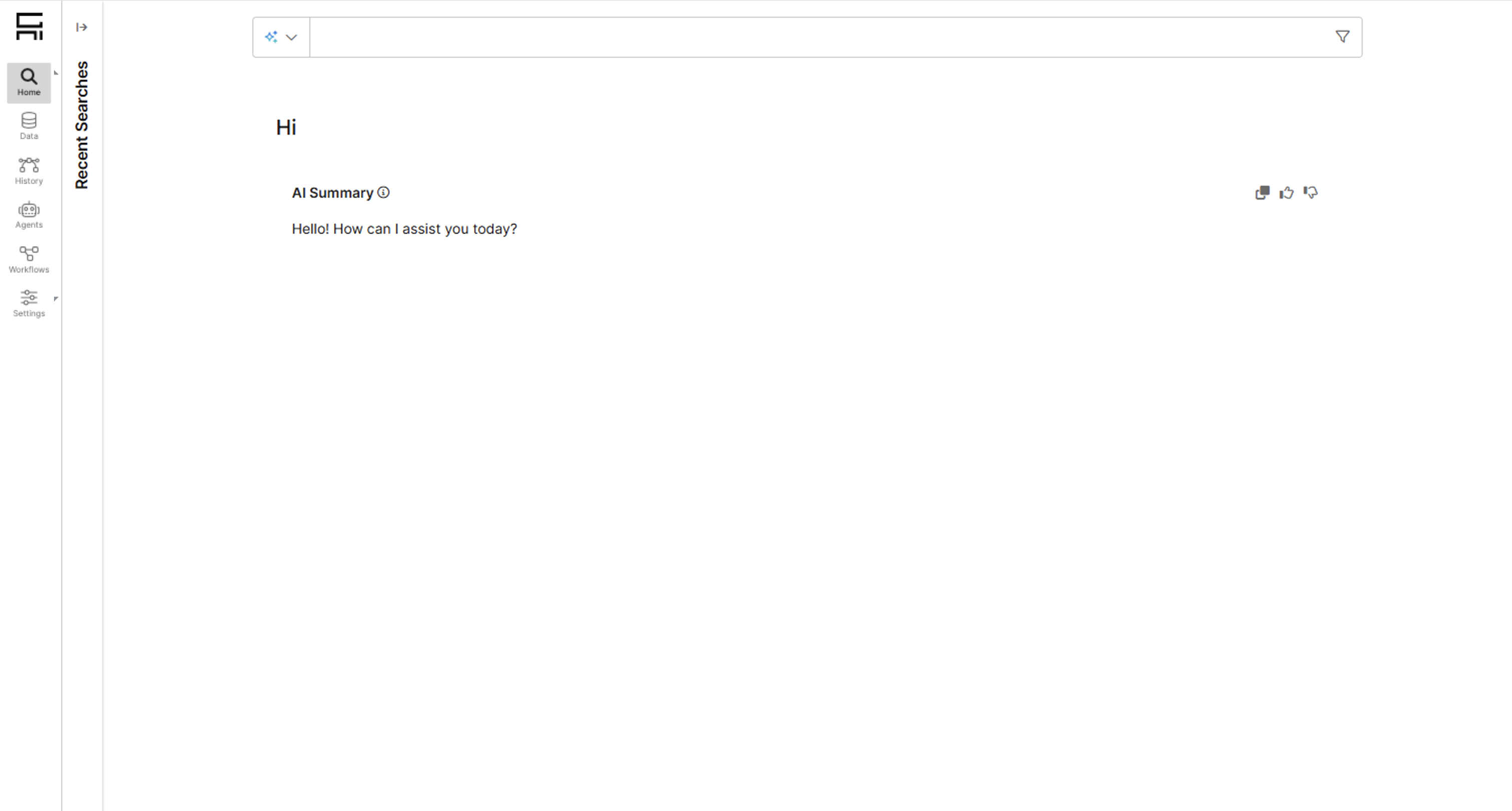
This launches the full C3 Generative AI Application UI, where you can start uploading data, running queries, and customizing your workspace.
Upgrade application
To upgrade the genAiSearch package version or the server version used by your application, use the standard C3 AI Studio upgrade workflow. The platform supports both a Studio UI flow and a scripted flow from the Environment C3 AI Console, and the procedure is the same for the C3 Generative AI Application as for any other C3 AI application.
For complete instructions, see Upgrade Your Environment and Application.