Multimodal Parsing
When you process different files, you often need to extract more than just text. Key information may appear in tables, images, or page layouts. To handle this, multimodal parsing combines layout detection with content segmentation. A layout parser first analyzes the visual structure of each page. It then uses bounding boxes to identify and separate different types of content. This approach enables accurate extraction of diverse content types and supports advanced indexing, retrieval, and search workflows.
Introduction to Mew3
Mew3 Genai.SourceFile.Chunker.Mew3 is a chunking component that supports multimodal parsing. It segments documents into structured, meaningful units using the layout structure to extract text, images, and tables. Mew3 improves the quality and consistency of parsing by integrating layout-based segmentation directly into the parsing pipeline.
By default, Mew3 uses the Docling parser to perform layout analysis. Docling is an open-source toolkit that supports various document formats, including PDF, DOCX, HTML, and images. It uses models such as DocLayNet and TableFormer to detect visual structures and identify tables. This enables Mew3 to obtain accurate bounding boxes and use them to segment content for indexing and search.
Mew3 operates as a modular pipeline. It uses producers to extract layout elements and executors to apply additional processing. This design makes Mew3 easy to configure, debug, and extend for different use cases.
Setting up Mew3
Ensure the environment and application are running with valid large language model credentials. To set the credentials, see Application Initialization.
When you run the quick start with the required model, the platform automatically enables Genai.SourceFile.Chunker.Mew3 as the default chunking component for unstructured files.
To confirm that the application is using Mew3 as the chunking component for unstructured files, run the following command in the Application C3 AI Console:
var chunkerConfig = Genai.SourceFile.Chunker.UniversalChunker.Config.forConfigKey('default');
var fileExtToChunkerSpecMap = C3.Map.fromJson(chunkerConfig.fileExtToChunkerSpecMap);
fileExtToChunkerSpecMap.get('.pdf').get('chunker');
The output should display Genai.SourceFile.Chunker.Mew3, confirming that the configured chunking component is active.
If the Mew3 chunking component is not set up by default, you can follow the steps below.
Enable Mew3
Run the following in the Application C3 AI Console to enable Genai.SourceFile.Chunker.Mew3 for multimodal parsing:
Genai.QuickStart.enableMew3();This command sets Mew3 as the default chunking component for the files. It uses all default settings required for operation.
Build Mew3 Documentation
Run the following in the Application C3 AI Console to build the documentation for the Mew3 library. This command will take a few minutes to complete.
Genai.SourceFile.Chunker.Mew3.showDocs();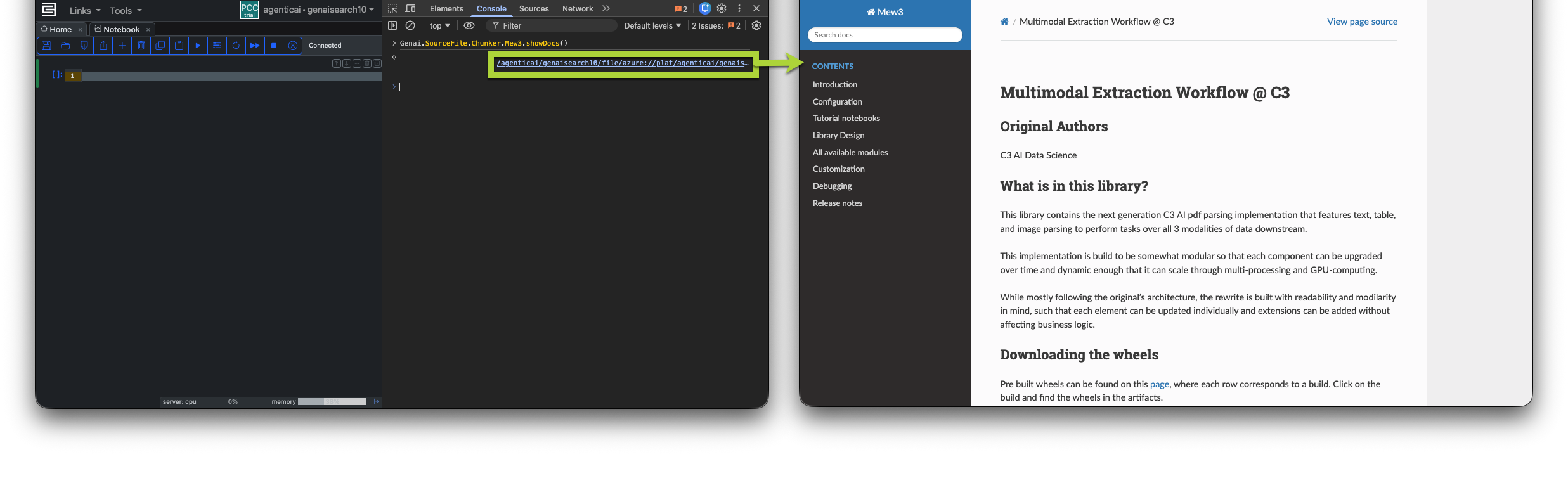
Verify configuration
var chunkerConfig = Genai.SourceFile.Chunker.UniversalChunker.Config.forConfigKey('default');
var fileExtToChunkerSpecMap = C3.Map.fromJson(chunkerConfig.fileExtToChunkerSpecMap);
fileExtToChunkerSpecMap.get('.pdf').get('chunker');
The output should display Genai.SourceFile.Chunker.Mew3, confirming that the configured chunker is active.
Node Pool Configuration
Mew3 automatically uses a GPU if one is available in your cluster. Run the following command in the Application C3 AI Console to verify GPU access on a task node:
C3.app().nodePool('task').config();Review the value under the hardwareProfile.gpu field. The system sets this field to 0 when no GPU is configured on the task node.
If a GPU is not available, Mew3 automatically uses the CPU. Chunking is ~25% slower when running on a CPU, but you can increase performance by scaling the number of task nodes. For guidance on scaling task nodes and distributing chunking across nodes, refer to the Environment Sizing Guide.
Configuring Mew3
Mew3 supports more than 90 configuration options. However the default should be powerful enough for most use cases and you should only need to modify a few key settings to control model selection, update behavior, or resource usage.
Perform all configuration steps in this section using JupyterLab. To open a notebook, hover over the application card in C3 AI Studio and select Jupyter. Ensure the notebook runs with the py-mew3 runtime environment.
Access the Configuration
The following command returns the current configuration object:
settings = c3.Genai.ParserSettings.make({'parsingPreset': 'default'})
c3.Genai.ParserSettings.getParserSettings(settings)
The configuration is organized into three main areas:
pipelineSpec— Controls all parser and chunker behavior for text, images, tables, and layout.documentSpec- Specifies document processing and cropping strategiesskipParsing— Flags to enable or skip text, table, or image parsing.
Note: As of version 8.11,
Genai.SourceFile.Chunker.Mew3.Configis deprecated in favor ofGenai.ParserSettings. The examples below useGenai.ParserSettingswhere possible to reflect the recommended long-term API.
The following sections describe how to update specific parameters to customize Mew3 behavior for your environment. Each parameter includes examples and expected values.
Updating pipeline specs
Before you update the pipeline spec, read the Mew3 API documentation with the Genai.SourceFile.Chunker.Mew3.showDocs() command in the C3 AI Console of your application and read the How to change your configs section on the left-hand navigation.
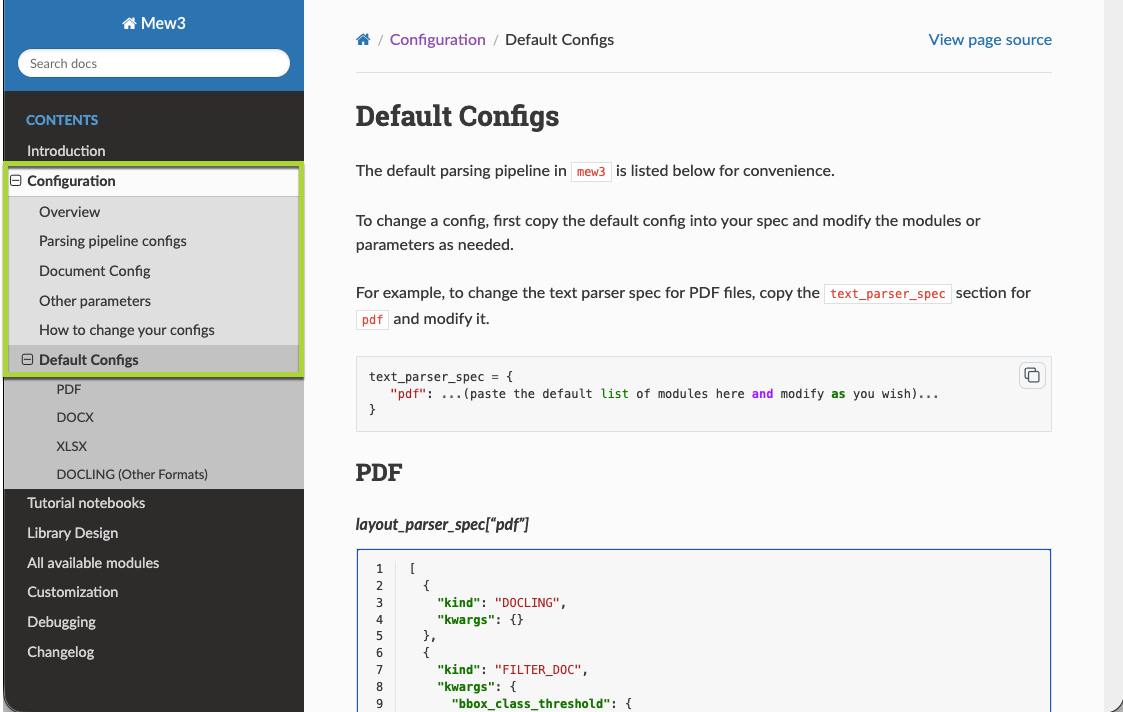
Understanding the pipeline spec structure is crucial for customizing how Mew3 processes different document types. The pipelineSpec field on Genai.ParserSettings defines the complete parsing workflow, organized hierarchically:
Pipeline Specification → Component Specification (layout parser, image parser, text parser, table parser) → File Type (pdf, docx, xlsx) → Processing Steps (modules like DOCLING, FILTER_DOC, etc.)
- Pipeline Specification
- Component Specification
- Text Parser
- Layout Parser
- Image Parser
- Table Parser
- File Type
- DOCX
- XLSX
- Processing Steps
- DOCLING
- FILTER_DOC
- ...
- Processing Steps
- File Type
- Component Specification
Each component specification maps file formats to sequential processing steps. For example, the layout parser processes PDFs through steps like "DOCLING" for structure detection, "FILTER_DOC" for confidence filtering, "UNION_BOX" for merging overlapping elements, and "ORDER_BY_COLUMN" for reading order. Processing steps can be defined as simple strings like "UNION_BOX" or as dictionaries with "kind" (module name) and "kwargs" (parameters) for complex configurations.
Layout Parser spec
This pipeline determines how the system detects and processes layout elements on each page, including headers, text, tables, lists, and their positions and uses DOCLING under the hood.
Set bounding box thresholds
Mew3 uses a confidence threshold (through the FILTER_DOC step) to decide which layout elements to keep from the layout parser. By default, FILTER_DOC uses built-in thresholds. To customize these thresholds, replace the "FILTER_DOC" string with a dictionary that specifies bbox_class_threshold:
{
    "kind": "FILTER_DOC",
    "kwargs": {
        "bbox_class_threshold": {
            "Caption": 0.2,
            "Footnote": 0.2,
            "Formula": 0.2,
            "List-item": 0.2,
            "Page-footer": 0.2,
            "Page-header": 0.3,
            "Picture": 0.5,
            "Section-header": 0.2,
            "Table": 0.2,
            "Text": 0.2,
            "Title": 0.2
        }
    }
}
These values set the minimum prediction confidence required to keep a bounding box for each layout class. You can adjust them if you observe unwanted content removal or retention:
- Lower a value to keep more boxes of that type (for example, Picture: 0.6 → 0.4).
- Raise a value to remove noisy or low-confidence elements (for example, Page-footer: 0.2 → 0.5).
layout_parser_spec = {
    "pdf": [
    {
        "kind": "DOCLING",
        "kwargs": {}
    },
    "FILTER_DOC",
    "FILTER_EMPTY_TEXT_BBOXES",
    "UNION_BOX",  # Union boxes of same class
    "NO_OVERLAP",  # Remove overlapping boxes of same class
    "ORDER_BY_COLUMN(grid_step=150)",  # Specify column spacing
    "TO_MARKDOWN_CLASS",  # Convert raw layout classifications to standardized markdown types
    "MERGE_LIST",  # Combine consecutive list items into unified list blocks
    "MERGE_MANY_THINGS_BY_COLUMN",  # Group related content elements within the same column layout
    "RESOLVE_CLASS_CONFLICT(iou_threshold=0.85)", # merge two bbox of different class if IoU is large.
    "REMOVE_CONTAINED_BOXES(containment_threshold=0.9)", # when small bboxes are contained inside one large bbox, remove the small ones if overlapping area is large.
    "MERGE_TEXT_UNDER_HEADER", # For a given HEADER, merge all PLAIN below. Operates on per-pages level.
    "TREAT_IMAGE_FILLED_WITH_TEXT_AS_TEXT(threshold=0.7)",
    "GROW_BOX(markdown_class=['PLAIN', 'LIST', 'HEADER', 'CAPTION', 'TABLE', 'FIGURE'], rel_to='pixel', pixel_upper=2, pixel_lower=2, pixel_left=2, pixel_right=2)", # increase size of TABLE, FIGURE, or OTHER bbox
    "RANGE(column='global_idx')"
    ]
}
Use top-level threshold fields
As an alternative to modifying the FILTER_DOC step in the pipeline spec, Mew3 provides three top-level fields that set detection thresholds directly:
| Field | Default | Applies to |
|---|---|---|
layoutDetectionThresholdPicture | 0.5 | Picture elements |
layoutDetectionThresholdTable | 0.2 | Table elements |
layoutDetectionThresholdText | 0.2 | Body text only (not headers, captions, or footnotes) |
Genai.UnstructuredPipeline.forId('myPipeline').mergeSettings({
    parserSettings: {
        layoutDetectionThresholdPicture: 0.6,
        layoutDetectionThresholdTable: 0.3
    }
});
layoutDetectionThresholdText applies only to detected body text. To tune thresholds for other text-based layout elements such as section headers, captions, or footnotes, configure the FILTER_DOC step in the pipelineSpec directly as described above.
Text parser spec
This pipeline parses text content such as plain text, headers, lists, and captions from the files. It filters relevant blocks and assigns structural context, including header hierarchy.
text_parser_spec = {
    "pdf": [
        {
            "kind": "FILTER",  # only keep text
            "kwargs": {
                "column": "markdown_class",
                "include": ["HEADER", "PLAIN", "LIST", "CAPTION"],
            },
        },
        "TEXT_EXTRACTOR.DEFAULT",  # default: use cropping method
        {
            "kind": "GET_PARENT_HEADER_CACHED",  # get parent header for text by searching for previous bboxes
            "kwargs": {
                "extract_header_for_type": ["PLAIN", "LIST"],
                "header_parent_types": ["HEADER"],
                "enable_cross_page_search": true
            },
        },
        "TAG(column='parser', tag='TEXT')",  # add 'parser' field to bbox
    ]
}
This setup extracts useful text from the document, including headings, paragraphs, lists, and captions. It determines the appropriate heading for each part, removes elements that are not text, and labels the result so later steps recognize it as output from a text parser.
You usually do not need to change this unless you are creating a custom setup.
Image parser spec
This pipeline detects and processes images in documents. It extracts each image, collects nearby text such as captions, and uses a language model to generate a description of the image. The image and its description are saved for further use.
image_parser_spec = {
    "pdf": [
        {
            "kind": "GET_SURROUNDING_TEXT_CACHED",  # extract text around image using adjacent bboxes
            "kwargs": {
                "current_bbox_typ": "FIGURE",
                "extract_bbox_with_offsets": [-3, -2, -1, 1, 2, 3],
                "extract_bbox_with_type": ["CAPTION", "PLAIN", "HEADER", "LIST"],
                "enable_cross_page_search": false
            }
        },
        {
            "kind": "CAPTION_FINDER.LOCALITY_CACHED",  # search for caption in adjacent bboxes
            "kwargs": {
                "current_bbox_typ": ["FIGURE"],
                "search_bbox_with_offsets": [-1, 1, -2, 2, -3, 3],  # represents the relative index to search for caption in sequence. Elements at front have higher priorities.
                "target_bbox_type": "CAPTION",
                "bbox_types_to_search_for": ["CAPTION", "PLAIN", "HEADER"],
                "enable_cross_page_search": false
            }
        },
        {
            "kind": "GET_PARENT_HEADER_CACHED",  # extract parent header information for context
            "kwargs": {
                "extract_header_for_type": ["FIGURE"],
                "header_parent_types": ["HEADER"],
                "enable_cross_page_search": true
            }
        },
        {
            "kind": "FILTER",  # only keep FIGURE
            "kwargs": {
                "column": "markdown_class",
                "include": ["FIGURE"]
            }
        },
        "IMAGE_EXTRACT",
        "IMAGE_VERBAL.LLM",  # disable verbalization: "IMAGE_VERBAL.NULL"
        "SAVE_IMAGE_C3",  # save image to FileSystem
        {
            "kind": "TAG",  # add 'parser' field to bbox
            "kwargs": {
                "column": "parser",
                "tag": "IMAGE"
            }
        }
    ]
}
Table parser spec
This pipeline finds tables in documents and uses a language model to summarize the contents of each table. It also captures surrounding text to provide context for each table and saves the output as a table image.
table_parser_spec = {
    "pdf": [
        {
            "kind": "GET_SURROUNDING_TEXT_CACHED",  # extract text around table using adjacent bboxes
            "kwargs": {
                "current_bbox_typ": "TABLE",
                "extract_bbox_with_offsets": [-3, -2, -1, 1, 2, 3],
                "extract_bbox_with_type": ["CAPTION", "PLAIN", "HEADER", "LIST"],
                "enable_cross_page_search": false
            }
        },
        {
            "kind": "CAPTION_FINDER.LOCALITY_CACHED",  # search for caption in adjacent bboxes
            "kwargs": {
                "current_bbox_typ": ["TABLE"],
                "search_bbox_with_offsets": [-1, 1, -2, 2, -3, 3],  # represents the relative index to search for caption in sequence. Elements at front have higher priorities.
                "target_bbox_type": "HEADER",
                "bbox_types_to_search_for": ["HEADER", "CAPTION", "PLAIN"],
                "enable_cross_page_search": false
            }
        },
        {
            "kind": "GET_PARENT_HEADER_CACHED",  # extract parent header information for context
            "kwargs": {
                "extract_header_for_type": ["TABLE"],
                "header_parent_types": ["HEADER"],
                "enable_cross_page_search": true
            }
        },
        "RENAME(source='caption', target='title')",  # rename field on bbox
        {
            "kind": "FILTER",  # only keep TABLE
            "kwargs": {
                "column": "markdown_class",
                "include": ["TABLE"]
            }
        },
        "TABLE_IMAGE_EXTRACT",  # crop image from page
        "TABLE_VERBAL.LLM",  # non-LLM options: "TABLE_VERBAL.TITLE_AND_CONTENT", "TABLE_VERBAL.NULL"
        "SAVE_TABLE_IMAGE_C3",  # save table image to FileSystem
        "TAG(column='parser', tag='TABLE')"  # add 'parser' field to bbox
    ]
}
Text chunker spec
Splits long text blocks into smaller chunks so they can be indexed, searched, or used by language models more effectively.
text_chunker_spec = {
    "pdf": [
        {
            "kind": "LONG_CHAIN",  # splits long text into overlapping chunks
            "kwargs": {
                "column_to_chunk": "text",
                "split_overlap": 200  # overlap between consecutive chunks in characters
            }
        }
    ]
}split_overlap— Controls character overlap between chunks. Higher values (like 200) provide more context continuity but increase duplication. Lower values reduce duplication but may lose context at chunk boundaries.
Table chunker spec
Splits the LLM-generated description of a table into smaller chunks. This helps improve retrieval performance and allows language models to process long table summaries more efficiently.
table_chunker_spec = {
    "pdf":[
        {
            "kind": "LONG_CHAIN",  # splits table verbalization into overlapping chunks
            "kwargs": {
                "column_to_chunk": "verbalization",
                "split_overlap": 200,  # overlap between consecutive chunks in characters
                "split_length": 1000   # maximum chunk size in characters
            }
        }
    ]
}split_length— Set to 1000 characters to create larger chunks for table descriptions. Increase this to produce fewer, longer chunks for better performance, or decrease for more granular search precision.split_overlap— Set to 200 characters for good context continuity between chunks. Decrease this to reduce content duplication and save storage space.
Configure chunk overlap and merging
chunkOverlap
Controls the number of characters that overlap between consecutive text chunks. Higher overlap preserves context across chunk boundaries but increases the embedding index size.
- Default:
200
Genai.UnstructuredPipeline.forId('myPipeline').mergeSettings({ parserSettings: { chunkOverlap: 100 } });doMergeChunksWithSizeLimit
When set, Mew3 merges adjacent small chunks into larger ones up to the specified character limit. This reduces fragmentation when documents contain many short paragraphs or list items. Enabled by default with a value of 1000. To change this attribute, see the code below.
Genai.UnstructuredPipeline.forId('myPipeline').mergeSettings({ parserSettings: { doMergeChunksWithSizeLimit: 750 } });Update pipeline configurations
To configure Mew3, always follow this sequence:
- Copy the configuration block for the section you want to change (for example,
text_parser_spec,image_parser_spec,table_parser_spec, orlayout_parser_spec). - Edit only the parameters you want to change.
- When applying changes, always pass all updated specs together using
setConfigValue(). Each update must include every previously customized spec to avoid losing earlier changes. This ensures the configuration stays consistent and prevents accidental resets. - After updating, restart the chunker engines to apply the new configuration.
- You may need to restart your kernel for changes to be returned as modified.
Step 1: Copy the parser specs to your notebook
Copy the parser spec blocks you want to change from the sections below into your Jupyter notebook.
text_parser_spec = {
    # (Insert your custom text_parser pipeline here)
}Step 2: Edit only the values you want to change
Modify parameters in the copied specs as needed for your environment or use case.
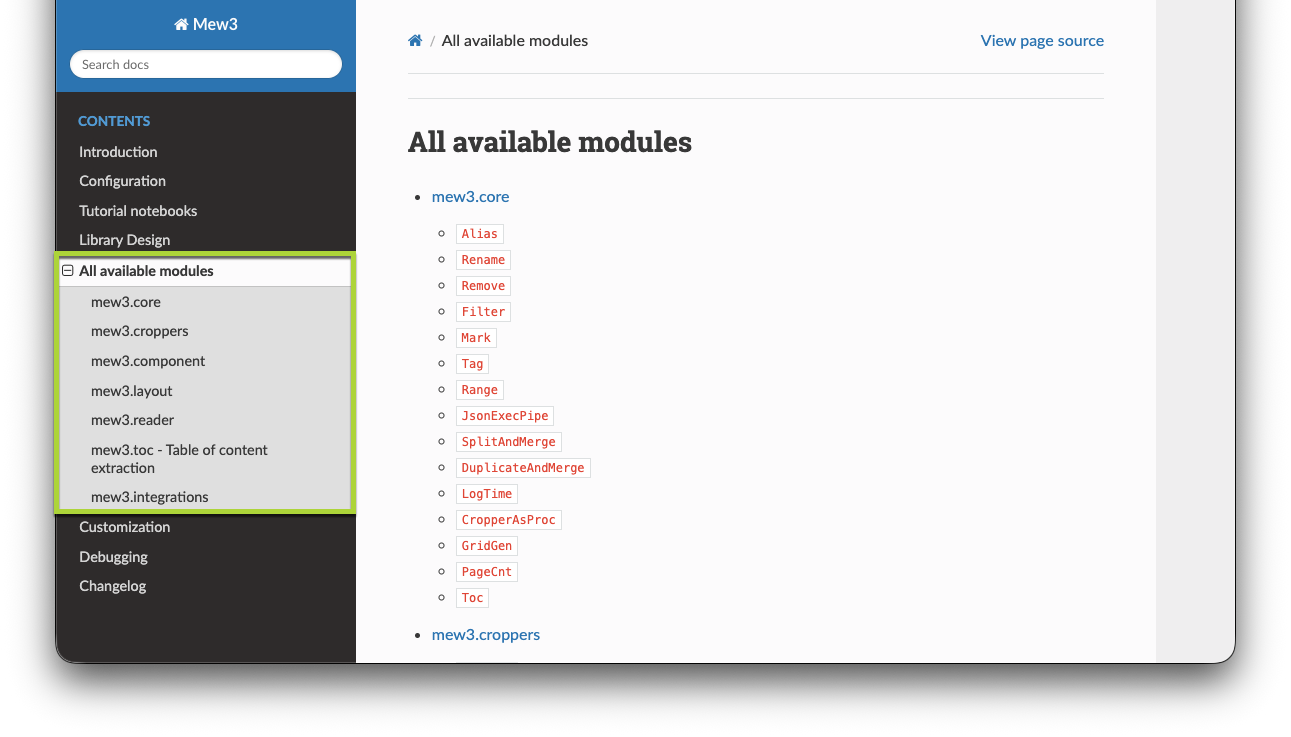
Go to the How to change your configs section in the left-hand side bar under Configurations for a detailed explanation of how to change specific mew3 configurations. For each spec, you must specify the file format keys first. A file format maps to a list of dictionaries, where each dictionary represents a processing step. During parsing, this list of steps is run sequentially. Those steps are modules. Select All available modules in the left-hand sidebar for the corresponding module to specify.
Step 3: Apply all changes together
Apply your changes by passing all updated specs at once to mergeSettings().
c3.Genai.UnstructuredPipeline.forId('myPipeline').mergeSettings({
    'parserSettings': {
        'pipelineSpec': {
            'text_parser_spec': text_parser_spec
        }
    }
})Step 4: Add new or updated specs in future updates
When you update another spec later (for example, layout_parser_spec), include all specs you want to set in the same call:
c3.Genai.UnstructuredPipeline.forId('myPipeline').mergeSettings({
    'parserSettings': {
        'pipelineSpec': {
            'text_parser_spec': text_parser_spec,
            'image_parser_spec': image_parser_spec,
            'layout_parser_spec': layout_parser_spec
        }
    }
})
This method ensures the configuration remains consistent and avoids accidental resets.
Updating what content Mew3 parses
Mew3 supports selective parsing of text, tables, and images. By default, it processes all content types. To skip specific types, update the following configuration fields:
"skipImageParsing": false,
"skipTableParsing": false,
"skipTextParsing": false
Set a field to true to skip that content type:
skipImageParsing: Skips image extraction.skipTableParsing: Skips table parsing.skipTextParsing: Skips text extraction.
For example, to extract only tables and images:
"skipTextParsing": true,
"skipTableParsing": false,
"skipImageParsing": false
Adjust these settings to reduce processing time or focus on specific content types that are more relevant for your use case.
Steps to update
Run the following in the Application C3 AI Console, adjusting the values for your use case:
```js
Genai.UnstructuredPipeline.forId('myPipeline').mergeSettings({ parserSettings: { skipTextParsing: true, skipTableParsing: false, skipImageParsing: false } });
```Parsing Presets
Mew3 provides built-in presets that let you select a parsing strategy suited to your document type without manually constructing a pipeline spec. Each preset configures the pipelineSpec and documentSpec together as a starting point. Any individual fields you set explicitly, such as llmClient or chunkSize, always take precedence over the preset values.
| Preset | Best for | CPU cost | Token cost |
|---|---|---|---|
default | Most documents — balanced extraction with table and image verbalization | 4/5 | 2/5 |
table_focused | Table-heavy documents requiring full CSV and HTML extraction | 4/5 | 5/5 |
text_heavy | Text-dominant PDFs — uses PLUMBER for text instead of OCR | 2/5 | 2/5 |
pure_vlm | Environments without Docling — LLM-only layout parsing | 1/5 | 5/5 |
no_verbalization | Speed-first processing — skips all LLM calls for images and tables | 4/5 | 0/5 |
To apply a preset, run the following in the Application C3 AI Console:
```js
Genai.UnstructuredPipeline.forId('myPipeline').mergeSettings({ parserSettings: { parsingPreset: 'text_heavy' } });
```
To inspect what the preset resolves to without persisting it, use Genai.ParserSettings#getParserSettings:
settings = c3.Genai.ParserSettings.make({'parsingPreset': 'text_heavy'})
resolved = c3.Genai.ParserSettings.getParserSettings(settings)
print(resolved['pipelineSpec'])
print(resolved['documentSpec'])Example: Table-heavy documents
Use the table_focused preset for documents with complex tables, such as financial reports or manufacturing specifications. This preset runs full CSV and HTML extraction alongside LLM verbalization, giving the most complete table representation at a higher token cost.
```js
    Genai.UnstructuredPipeline.forId('myPipeline').mergeSettings({ parserSettings: { parsingPreset: 'table_focused' } });
```
table_focused runs both CSV_EXTRACT.DOCLING and CSV_EXTRACT.LLM in sequence. This produces the most accurate structured data extraction but has the highest token cost of all presets and is a very time costly operation.
Example: Simple text and PDF documents
Use the text_heavy preset for documents that are primarily text with minimal tables or images. This preset uses PLUMBER for text extraction instead of OCR, which is faster and reduces both CPU and token usage. On CPU-only nodes, combine it with disableOcrOnCpu to avoid OCR overhead entirely.
```js
Genai.UnstructuredPipeline.forId('myPipeline').mergeSettings({ parserSettings: { parsingPreset: 'text_heavy' }});
```Combining presets with manual overrides
You can use a preset as a baseline and override individual sub-specs without losing the rest of the preset. Preset merging operates per key: your value takes precedence if non-empty, otherwise the preset fills it in. This applies to both pipelineSpec and documentSpec.
Use Genai.ParserSettings#resolvePreset to see the merged result of a preset and your overrides:
# Use pure_vlm preset but use a minimal table parser
settings = c3.Genai.ParserSettings.make({
    'parsingPreset': 'pure_vlm',
    'pipelineSpec': {
        'table_parser_spec': {
            'pdf': [
                {'kind': 'FILTER', 'kwargs': {'column': 'markdown_class', 'include': ['TABLE']}}
            ]
        }
        # image_parser_spec, text_parser_spec, etc. are inherited from pure_vlm
    }
})
resolved_settings = c3.Genai.ParserSettings.resolvePreset(settings)
The same per-key rule applies to documentSpec. To override only text cropping while inheriting the rest from text_heavy:
settings = c3.Genai.ParserSettings.make({
    'parsingPreset': 'text_heavy',
    'documentSpec': {'cropping': {'text': 'OCR'}}
    # image and table cropping are inherited from text_heavy
})
resolved_settings = c3.Genai.ParserSettings.resolvePreset(settings)
This per-key merge is a change from earlier behavior, where setting any value in pipelineSpec caused the entire preset section to be ignored. Partial overrides now work as expected.
Performance Tuning
Benchmarks by document type
Based on profiling across representative document sets on a GPU node:
| Document type | GPU (per page) |
|---|---|
| PSR / mixed documents | ~8.3 seconds |
| Table-heavy documents | ~11.8 seconds |
The table-heavy path is slower because table processing involves multiple sequential steps: layout detection, CSV extraction, and LLM verbalization. CPU-only nodes run approximately 25% slower than the GPU figures above.
The top bottlenecks on table-heavy documents, from profiling data, are:
1) CSV_EXTRACT.DOCLING    26.8%
2) LAYOUT_MODEL.DOCLING   15.6%
3) CSV_EXTRACT.OPENAI     14.5%
4) TABLE_VERBAL.OPENAI    13.0%
5) TEXT_EXTRACTOR.DEFAULT 8.3%Quick wins
The most impactful single change is choosing the right preset for your document type. Beyond that:
Lower
llmTokenLimit— The default is 4096 tokens. Table verbalizations average around 350 tokens and image verbalizations around 200. Reducing this limit cuts LLM call latency by approximately 10% on table-heavy documents. Only use this whenCSV_EXTRACT.DOCLINGis not in your pipeline, because the same token limit applies to CSV extraction and a lower value may truncate long tables.JavaScriptGenai.UnstructuredPipeline.forId('myPipeline').mergeSettings({ parserSettings: { llmTokenLimit: 512 } });Disable OCR on CPU — Setting
disableOcrOnCpuskips OCR when no GPU is available and falls back to available text extraction methods. This avoids the significant CPU overhead of running OCR and is recommended for CPU-only environments.JavaScriptGenai.UnstructuredPipeline.forId('myPipeline').mergeSettings({ parserSettings: { disableOcrOnCpu: true } });Tune LLM thread count —
maxTaskThreads(default 13) controls how many LLM calls run in parallel. Increase this value if your LLM endpoint supports higher concurrency. Decrease it if you encounter rate limit errors.JavaScriptGenai.UnstructuredPipeline.forId('myPipeline').mergeSettings({ parserSettings: { maxTaskThreads: 20 } });Increase Docling parallelism with
maxTaskProcesses— Controls how many parallel processes Docling uses internally. The default is1(no parallelism). Increasing this can speed up layout parsing on multi-core machines but raises memory consumption. Set to a negative number to let Docling manage the process count automatically.JavaScriptGenai.UnstructuredPipeline.forId('myPipeline').mergeSettings({ parserSettings: { maxTaskProcesses: 4 } });Tune PDF page batch size with
pdfPageChunksSize— Controls how many pages are grouped into a single parallel task when processing PDFs. The default is8. Increase to reduce task-dispatch overhead on large documents, or decrease for more fine-grained parallelism on documents with heavy per-page processing.JavaScriptGenai.UnstructuredPipeline.forId('myPipeline').mergeSettings({ parserSettings: { pdfPageChunksSize: 4 } });
GPU vs CPU
GPU is strongly recommended when using the default Docling-based layout parsing. Layout parsing benchmarks show approximately 3.1 pages per second on an L40S GPU. T4 GPUs, which are common in standard cluster environments, achieve approximately 0.56 pages per second on the same step — still significantly faster than CPU. For cost-sensitive or CPU-only environments, the pure_vlm preset eliminates Docling entirely by using LLM-only layout parsing, which reduces CPU load at the cost of higher token usage.
On CPU-only nodes, the most reliable way to improve throughput is to scale the number of task nodes so that chunking is distributed across them. For guidance on scaling, see Troubleshoot Multimodal Parsing.
Image and Table Verbalization
Mew3 calls an LLM to generate text descriptions (verbalizations) of images and tables. The following fields control image preparation and verbalization behavior.
imageExtractionDpi
Sets the resolution used when extracting images from PDFs. Higher values produce sharper images, which improves LLM verbalization accuracy for diagrams and charts, but increases processing time and storage.
| DPI | Quality |
|---|---|
72 | Low |
144 | Standard (default) |
170 | Good |
300 | High |
Genai.UnstructuredPipeline.forId('myPipeline').mergeSettings({ parserSettings: { imageExtractionDpi: 300 } });llmMaxImageBytes
Sets the maximum byte size of an image sent to the LLM for verbalization. Images larger than this threshold are automatically downsampled before being passed to the model. The default is 7000000 (7 MB). Reduce this value if your LLM model enforces a lower image size limit.
Genai.UnstructuredPipeline.forId('myPipeline').mergeSettings({ parserSettings: { llmMaxImageBytes: 3000000 } });imageVerbalizationPrompt and tableVerbalizationPrompt
Control the prompts used for LLM-based verbalization of images and tables. The defaults reference the named prompts image_verbalization_mew3_prompt and table_verbalization_mew3_prompt. Override these to customize the verbalization instructions for your document domain.
Genai.UnstructuredPipeline.forId('myPipeline').mergeSettings({
    parserSettings: {
        imageVerbalizationPrompt: { id: 'my_custom_image_prompt' },
        tableVerbalizationPrompt: { id: 'my_custom_table_prompt' }
    }
});Inspecting the Active Parser Configuration
Before customizing the pipeline or triggering a chunking run, you can inspect the fully resolved configuration that Mew3 will use at runtime. This is useful for verifying that your preset and any manual overrides are applied correctly.
Use Genai.ParserSettings#getParserSettings in a JupyterLab notebook with the py-mew3 runtime to retrieve the complete, effective configuration:
settings = c3.Genai.ParserSettings.make({'parsingPreset': 'default'})
resolved = c3.Genai.ParserSettings.getParserSettings(settings)
The returned object has two keys:
pipelineSpec— The fully hydrated pipeline configuration, organized by component (LayoutParserCfg,TextParserCfg,ImageParserCfg,TableParserCfg,TextChunkerCfg,ImageChunkerCfg,TableChunkerCfg) and then by file type (pdf,docx, and so on). All default values are expanded.documentSpec— The effective document-level options such as cropping strategies, with all preset defaults resolved.
Example output:
{
  "pipelineSpec": {
    "LayoutParserCfg": {
      "pdf": {
        "pipeline": [
          "DOCLING_OR_VLM",
          {
            "kind": "FILTER_DOC",
            "kwargs": {
              "bbox_class_threshold": {
                "Caption": 0.2,
                "Picture": 0.5,
                "Table": 0.2,
                "Text": 0.2,
                "..."
              }
            }
          },
          "FILTER_EMPTY_TEXT_BBOXES",
          "UNION_BOX",
          "NO_OVERLAP",
          "ORDER_BY_COLUMN(grid_step=150)",
          "TO_MARKDOWN_CLASS",
          "MERGE_LIST",
          "..."
        ]
      },
      "docx": { "..." },
      "..."
    },
    "TextParserCfg": { "..." },
    "TableParserCfg": { "..." },
    "ImageParserCfg": { "..." },
    "TextChunkerCfg": { "..." },
    "TableChunkerCfg": { "..." },
    "ImageChunkerCfg": { "..." }
  },
  "documentSpec": {
    "image_crop": "AUTO",
    "text_crop": "AUTO",
    "table_crop": "AUTO",
    "link_crop": "AUTO",
    "page_cnt": "AUTO",
    "grid_gen": "AUTO",
    "toc": "AUTO"
  }
}Filter by file type
To inspect the configuration for a specific file type, pass the file extension as the second argument:
resolved_pdf = c3.Genai.ParserSettings.getParserSettings(settings, 'pdf')
resolved_docx = c3.Genai.ParserSettings.getParserSettings(settings, 'docx')
When filtered, each component in pipelineSpec returns the settings for that file type directly rather than a per-file-type map. Passing an unsupported extension raises a ValueError listing the supported types.
Verify preset and override resolution
If your configuration uses a parsingPreset with manual overrides, getParserSettings() shows the exact merged result. This is the recommended way to confirm your overrides took effect before running a chunking job:
settings = c3.Genai.ParserSettings.make({
    'parsingPreset': 'text_heavy',
    'documentSpec': {'cropping': {'text': 'OCR'}}
})
resolved = c3.Genai.ParserSettings.getParserSettings(settings)

# text_crop is 'OCR'           (user override wins)
# table_crop is 'PLUMBER_TEXT' (inherited from text_heavy preset)
# image_crop is 'AUTO'         (inherited from text_heavy preset)
print(resolved['documentSpec'])Resolve preset without full inspection
If you need the resolved Genai.ParserSettings object itself rather than the introspection JSON, use Genai.ParserSettings#resolvePreset directly:
resolved_settings = c3.Genai.ParserSettings.resolvePreset(settings)This returns the same type as the input with the preset merged in. The chunker calls this automatically at runtime; use it manually when you need to pass the merged settings object to another API.
Advanced Configuration
doHierarchyExtraction
When enabled, Mew3 extracts the hierarchical document structure during parsing, capturing parent-child relationships between headings and content blocks. Disabled by default.
Genai.UnstructuredPipeline.forId('myPipeline').mergeSettings({ parserSettings: { doHierarchyExtraction: true } });disableComponentOnFailure
When set to true, if a pipeline component fails (for example, a parser step throws an exception), Mew3 disables that component and continues processing rather than stopping entirely. This is useful in production environments where partial results are preferable to a complete processing failure. Disabled by default.
Genai.UnstructuredPipeline.forId('myPipeline').mergeSettings({ parserSettings: { disableComponentOnFailure: true } });airgapCacheLocalToRemote
Maps local file system paths to remote storage locations. On startup, Mew3 copies files from the specified remote locations to the corresponding local paths. This allows airgapped environments (without external internet access) to cache models and data from an internal object store such as GCS or S3.
The value is a JSON object mapping local paths to remote URIs:
Genai.UnstructuredPipeline.forId('myPipeline').mergeSettings({
    parserSettings: {
        airgapCacheLocalToRemote: {
            '/home/c3/nltk_data': 'gcs://my-bucket/nltk_data/'
        }
    }
});