Metadata Extraction
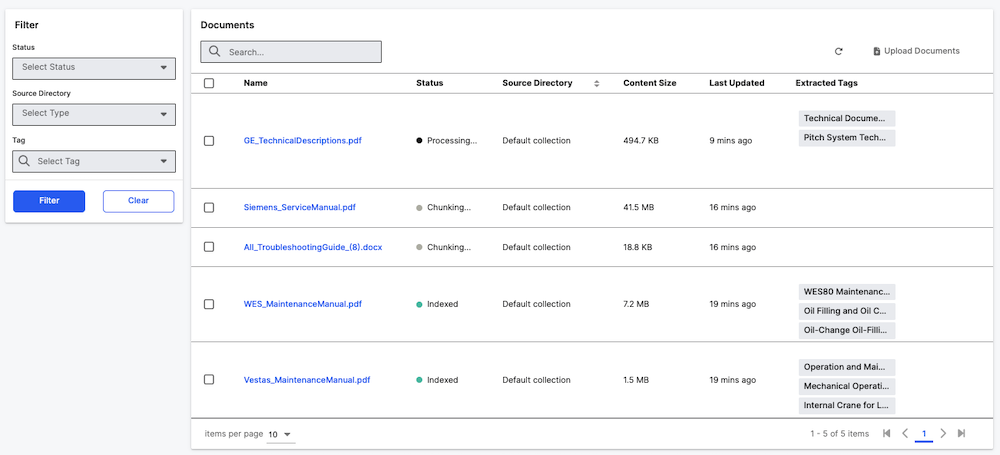
Metadata tagging adds descriptive tags to uploaded documents making it easier for more accurate and efficient responses during retrieval by the LLM.
The two methods in which Metadata tags are added are Automatic Metadata Extraction and Manual Addition and Removal of Metadata Tags
Automatic Metadata Extraction
Automatic Metadata Extraction (AME) is a process that automatically identifies, extracts, and organizes metadata from the content of files. AME offers several advantages such as:
- Metadata-filtered search - search across unstructured documents which have been tagged with the relevant information
- Richer embeddings - allow better contextual retrieval
For more information on unstructured data retrieval, refer to Unstructured Data Ingestion.
Tagging works in two modes:
- Seeded categories - the LLM identifies metadata values for pre-defined categories that you specify (recommended)
- Discovery of categories - the LLM in the first pass extracts entities, from which categories are inferred and the metadata extracted for those.
Configure automatic metadata extraction
Metadata tagging is configured through the Genai.UnstructuredPipeline#metadataTaggingSettings. Each source collection references a pipeline, and the pipeline's metadata tagging settings control how metadata is extracted.
To change the LLM client used for metadata extraction:
var pipeline = Genai.UnstructuredPipeline.forId('default-unstructured-pipeline');
pipeline.mergeSettings({
  metadataTaggingSettings: {
    completionClientName: '<completion_client_name>',
  },
});Additional configuration options
The text that's used for tagging is controlled by Genai.MetadataTaggingSettings#textExtractionLambda. The user can define custom logic for example specific to file type or size. The user is responsible for specifying the runtime the lambda will execute in and any additional caching that may be required for usage in air-gapped environments.
In the absence of a configured lambda, text from the first and last few passages extracted while chunking will be used, controlled by the following configuration variables:
- numInitialPassages: The number of initial passages to process. The default value is 16.
- numFinalPassages: The number of final passages to process. The default value is 8.
The user can also specify the mechanism by which metadata is to be populated for a set of categories from a given text by setting the Genai.MetadataTaggingSettings#metadataExtractionLambda.
In the absence of a configured lambda, the behavior will default to querying an LLM using the Genai.MetadataTaggingSettings#completionClientName using the prompt template in Genai.MetadataTaggingSettings#metadataExtractionPrompt for Genai.MetadataTaggingSettings#numTags tags per category.
The configurable flag retagPreindexedFiles controls whether to re-tag files that were previously indexed. When set to false (default), re-computation load is reduced by not extracting categories and tags from files which were previously indexed. allowRetaggingWithoutReindexing enables updating tags on previously indexed files without requiring full reindexing or re-embedding, allowing for more efficient metadata updates. allowOverlapInExtractedText controls whether overlapping chunks are permitted when merging extracted text. Setting it to false enforces strict overlap computation between chunks, which may be more accurate but can impact performance for large inputs. Genai.QuickStart#setup will set the following recommended configuration through the default pipeline.
var pipeline = Genai.UnstructuredPipeline.forId('default-unstructured-pipeline');
pipeline.mergeSettings({
  metadataTaggingSettings: {
    retagPreindexedFiles: false,
    allowRetaggingWithoutReindexing: true,
  },
});Configuration parameters reference
The following table shows all configuration parameters with their default values and descriptions. These are fields on Genai.MetadataTaggingSettings that can be configured through the pipeline's mergeSettings function.
Core metadata tagging configuration
| Parameter | Default | Description |
|---|---|---|
completionClientName | "default-completions" | LLM client used for metadata extraction |
disableMetadataTagging | false | Disable metadata tagging for the app |
retagPreindexedFiles | false | Re-tag files that were previously indexed |
allowRetaggingWithoutReindexing | false | Allow updating tags without full reindexing |
manualCategories | ["title"] | Pre-defined categories for seeded tagging (note: "title" is pre-seeded by default) |
Text processing configuration
| Parameter | Default | Description |
|---|---|---|
numInitialPassages | 16 | Number of initial passages to process from document |
numFinalPassages | 8 | Number of final passages to process from document |
numMaxTokens | 2000 | Maximum tokens for text extraction |
nlp | "en_core_web_sm" | NLP model for entity extraction |
allowOverlapInExtractedText | false | Allow overlapping chunks when merging extracted text |
Entity and topic discovery
| Parameter | Default | Description |
|---|---|---|
numEntities | 5 | Number of entities to extract for topic discovery |
numTags | 3 | Number of tags to extract per category |
themes | 6 | Number of themes to identify |
examples | 2 | Number of examples per category |
numKeywords | 2 | Number of keywords per topic |
enableTopicLabeling | false | Enable automatic category discovery from document entities |
filterEntityCategories | ["DATE", "EVENT", "FAC", "GPE", "LANGUAGE", "LOC", "NORP", "ORDINAL", "ORG", "PERSON", "PRODUCT"] | Entity types to filter during extraction |
Processing and performance
| Parameter | Default | Description |
|---|---|---|
documentSampleSize | 10 | Number of documents to sample for category preview |
documentBatchSize | 2000 | Number of documents to process in each batch |
maxNumWorkersForParallelMetadataExtraction | 10 | Maximum number of parallel workers for extraction |
Prompt configuration
The system uses several configurable prompts for different stages:
topicLabelingPrompt: Used for discovering new categories (whenenableTopicLabelingis true).metadataExtractionPrompt: Used for extracting tags from predefined categories.clusteringPrompt: Used for grouping similar entities and topics.
To customize prompts, select the Prompts page in Settings in the application.
Manual addition and removal of metadata tags
Manual metadata tagging offers several advantages such as:
Accuracy and precision - ensure tags correctly reflect document content and organizational needs, avoiding errors that automated extraction might introduce Domain-specific knowledge - apply human expertise and business context that LLMs may miss, such as confidentiality levels or internal project classifications Custom categorization - create organization-specific tags and categories tailored to your unique business requirements
C3 Generative AI provides multiple ways to manage metadata tags associated with a specific Genai.SourceFile. The available operations are:
- Add a new metadata tag (from document upload form or tags modal).
- Edit an existing metadata tag.
- Remove a metadata tag from a source file.
Tag categories system
The system supports two types of tag categories:
Open Categories - For open categories, users can enter custom tag values in a text input field.
Closed Categories - For closed categories, users must select from predefined tag values in a dropdown menu. If you have a potentially large amount of possible tags (high cardinality), it is better to used closed categories to have an organized set of values.
Enabling the manage popover UX
To enable the full-page search, run the following command from the static console:
GenAiUiConfig.setConfigValue('tagsPageVisibility', 'full');After enabling this setting, you can navigate to the Documents page, where the metadata cell in the grid will become active.
Using manage metadata tag popover UX
Adding a new tag
There are two ways to add a new tag:
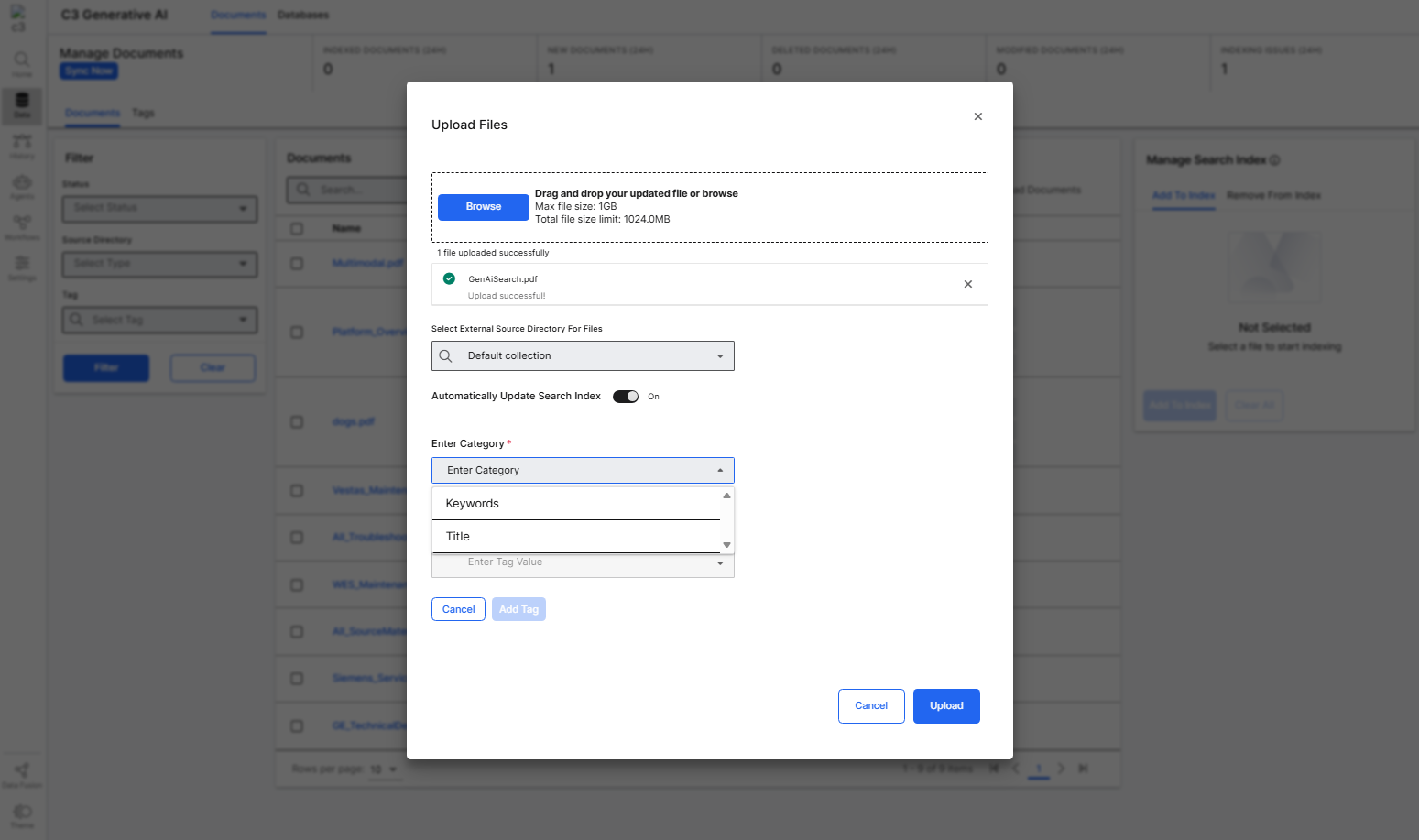
Method 1: Document upload form
When uploading documents, you can add tags directly from the Document Modal. The tag input field appears as an optional section where you can:
- Browse and select documents (mandatory - the "Add Tag" button will be disabled until documents are selected)
- Select a category
- Enter or select a tag value based on the category type (Add a new value for open category type and select existing set value for closed category type)
- Select "Add Tag" to add the tag to your document
Method 2: Tags modal
To add a tag to an existing document, hover your mouse over the tag cell for the Genai.SourceFile. A (+) button will appear in the top-left corner of the row. Selecting this button opens the tags modal.
In the modal, you can add a new tag by:
- Selecting a category from the dropdown (required)
- For open categories: Entering a custom tag value in the text field
- For closed categories: Selecting a predefined tag value from the dropdown
- Selecting "Add Tag" to save the tag
The category selection is mandatory when adding tags from the modal, ensuring proper organization of metadata.
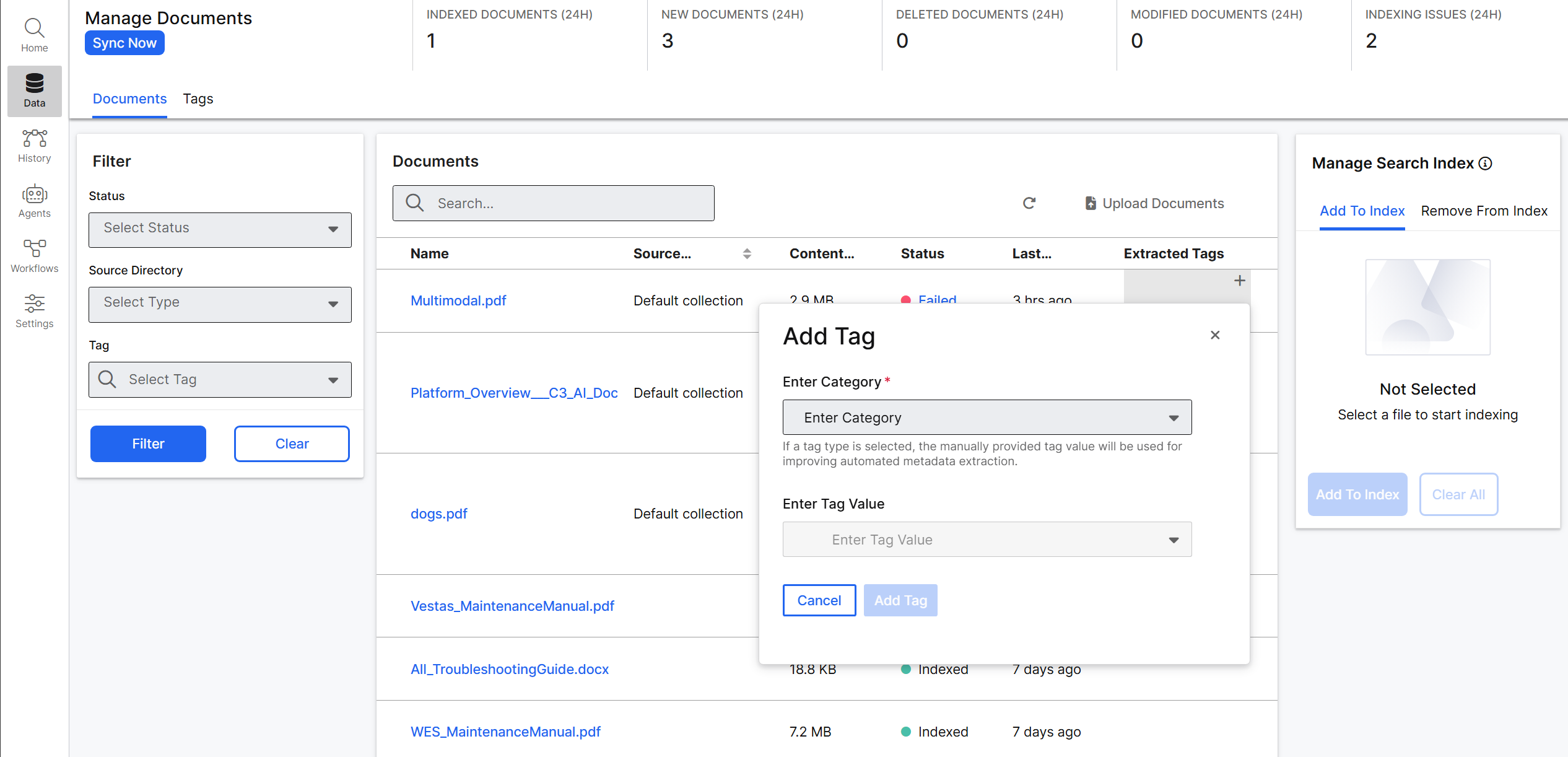
In the screenshots above, you see that categories show up as Keyword or Title. The following section explains these categories in more detail.
Understand Keyword vs Title categories
Keywords and Title are different categories of metadata tags that serve distinct purposes:
Title Category:
- Purpose: Represents the document's title or main subject.
- Usage: Extracts the document's main title or heading.
- Example: For a research paper on "Large Language Models in Healthcare", the title tag could be "Large Language Models in Healthcare".
Keyword Category:
- Purpose: Represents topic-related keywords from the document content
- Usage: Extracts key terms and concepts that describe the document's content.
- Example: For the same research paper, keyword tags might be "machine learning", "medical AI", "natural language processing".
Both categories work together to organize document content: Title tags identify what the document is about (its main subject), while Keyword tags identify the key concepts and topics within the document.
Example for a document about "Wind Turbine Maintenance Guidelines":
- Title tag: "Wind Turbine Maintenance Guidelines".
- Keyword tags: "maintenance", "turbines", "renewable energy", "operations."
Editing a tag
To edit an existing tag, hover over the tag you want to edit, then select the pencil icon. A popover will appear, displaying the current tag information. You can then update the tag value. Once you've made your changes, select the "Save Changes" button to finalize the update.
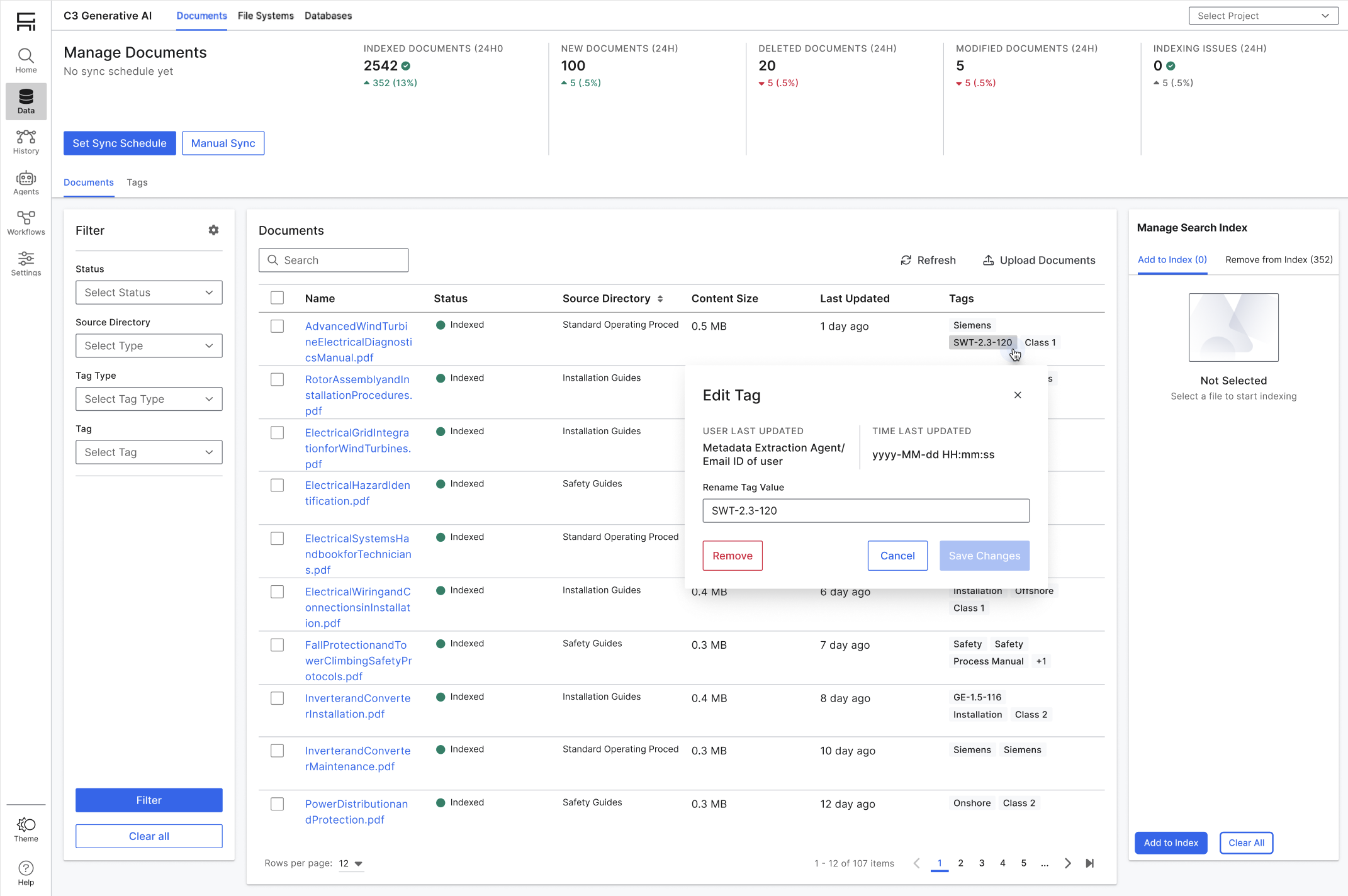
Removing a tag
To remove a tag, hover over the tag you want to delete, then select the dustbin icon. A confirmation message will appear. If you confirm the removal, the tag will be deleted from the source file.