Application Initialization
This guide describes how to deploy the C3 Generative AI Application in a C3 AI Studio environment. Complete these steps to initialize the application without editing code or creating artifacts manually.
Initialization overview
Complete the following tasks:
Complete this setup before ingesting data or issuing queries.
You must have access to a customer-specific cluster and use a delivery-managed deployment package. Don't create artifacts manually.
Before starting, review the Application Prerequisites topic to confirm prerequisites.
Create and deploy the application in C3 AI Studio
From version 8.11 onward, you deploy the C3 Generative AI Application directly from C3 AI Studio using the pre-built genAiSearch package, the same way you deploy any other C3 AI application. You no longer run a deployment script in the Environment C3 AI Console.
The C3 Generative AI Application runs inside a C3 AI Studio environment. For C3 Generative AI, use a Shared Environment (MNE) for production deployments and create the application in that environment:
- To create the environment, see Create an Environment in C3 AI Studio.
- To create and deploy the application, follow Create an Application in C3 AI Studio, using the
genAiSearch-specific settings below. - To monitor, stop, resume, or terminate your environment and application, see Manage Environments and Applications in C3 AI Studio.
When you complete the Create application modal, use the following settings for the C3 Generative AI Application:
- Package: Select Use existing package, then Download from Artifact Hub. In the Package field, select
genAiSearch, and choose the Package version that corresponds to the artifact build registered to your cluster. To locate the version string, open the Release section in Artifact Hub, select Artifacts, and search forgenAiSearch. - Application name: Enter a unique, lowercase name for the app (up to 28 alphanumeric characters, no spaces).
After the application reaches the Running state in your C3 AI Studio environment, continue to Open the C3 Generative AI Application UI.
As an advanced alternative, you can deploy the application by running a script in the Environment C3 AI Console. See Deploy from the Environment C3 AI Console.
Open the C3 Generative AI Application UI
After the application is deployed and running:
- Go back to the C3 AI Studio homepage.
- Find your app again in the environment list.
- Select Open Application.
This launches the full C3 Generative AI Application UI, where you can start uploading data, running queries, and customizing your workspace.
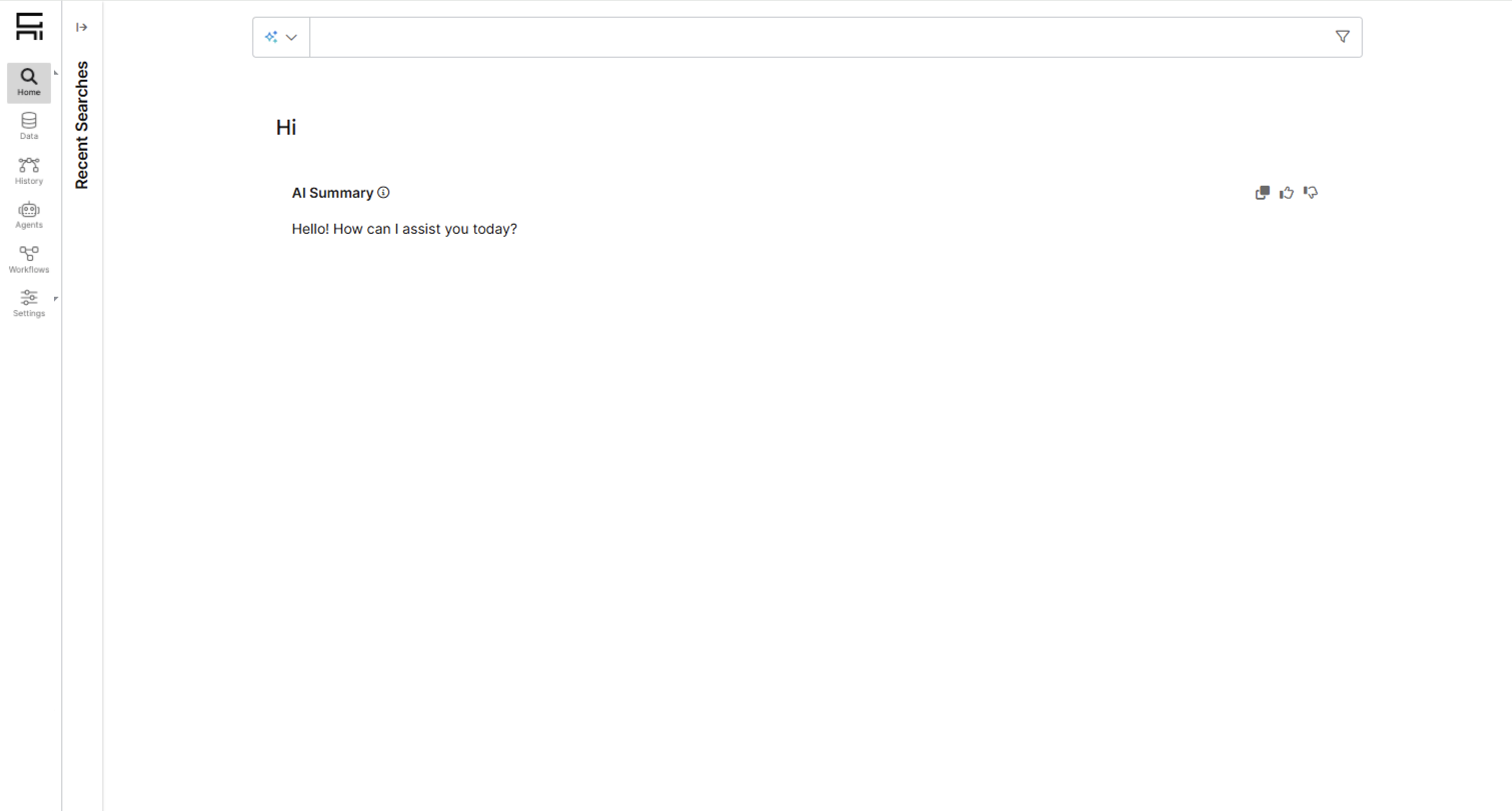
Upgrade application
To upgrade the genAiSearch package version or the server version used by your application, use the standard C3 AI Studio upgrade workflow. The platform supports both a Studio UI flow and a scripted flow from the Environment C3 AI Console, and the procedure is the same for the C3 Generative AI Application as for any other C3 AI application.
For complete instructions, see Upgrade Your Environment and Application.