Unstructured Data Ingestion
The C3 Generative AI Application supports ingestion of unstructured data from documents, text files, and images. The application uses this data to answer user questions.
The application supports a wide range of unstructured content such as product manuals, scanned documents, meeting notes, and chat logs, in various file formats:
.c3doc.md.c3doc.md.ipynb.pdf.c3typ.doc.docx.html.pptx.txt.rtf.png.jpeg
See the Genai.SourceFileTypes Type for supported formats and extension options.
You can add unstructured data in two ways:
The application chunks and indexes documents automatically after upload.
Upload documents from local machine
You can upload unstructured files directly into the application for immediate indexing.
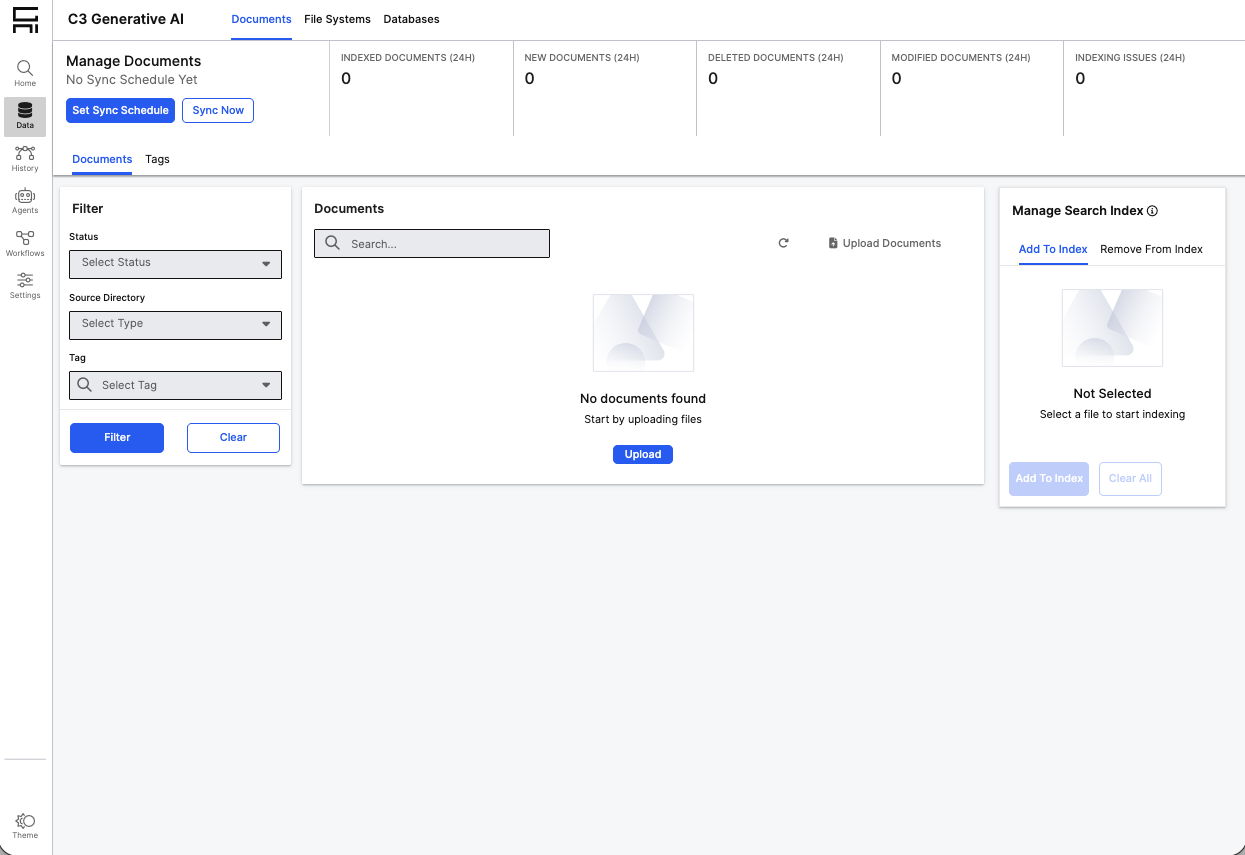
Open the documents tab
- In the C3 Generative AI Application, select the Data icon.
- Select the Documents tab.
- Select Upload, then choose Upload files manually.
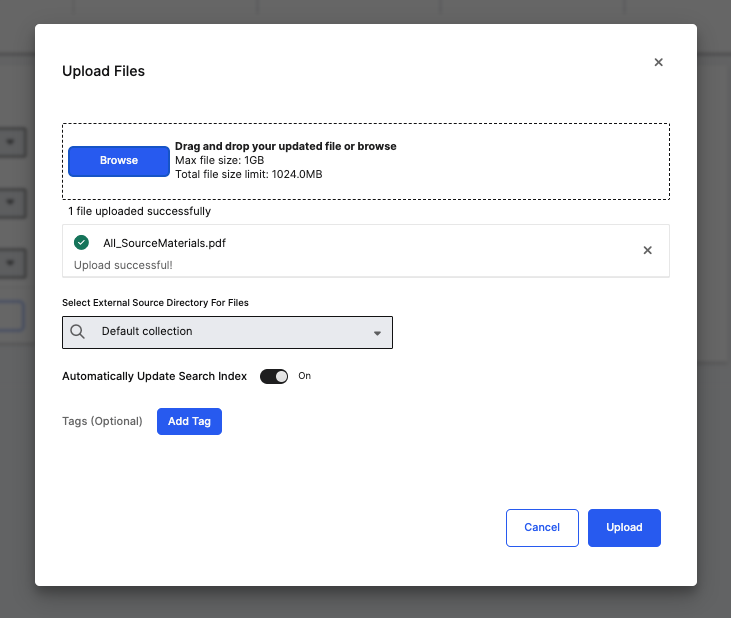
Upload your files
Select the files from your local machine. Example files include:
product_manual.pdf.compliance_policy.docx.customer_notes.txt.support_chat_transcript.txt.setup_guide.pdf.
Review upload settings
Before you confirm the upload:
- Leave Automatically update search index enabled to ensure the application immediately chunks, embeds, and indexes your documents.
- Use the default Directory unless you created a custom data source.
If you don't enable automatic indexing, you can manually start the indexing process by selecting the uploaded files and selecting Add to index.
Select Upload to start processing.
Monitor chunking and indexing
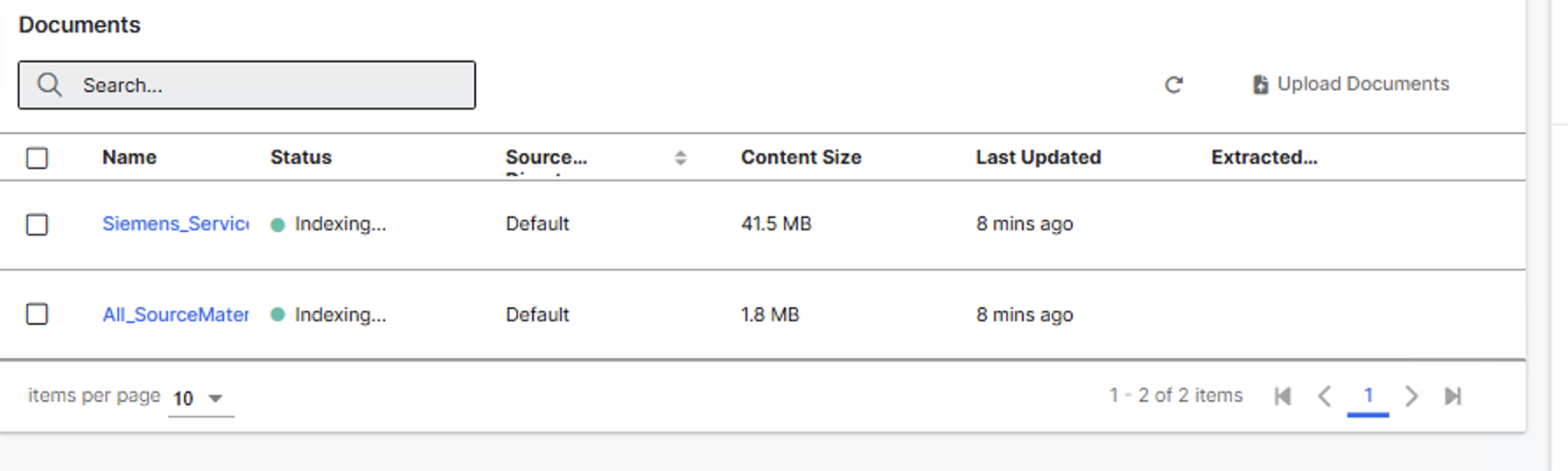
Each uploaded document corresponds to a Genai.SourceFile instance within a Genai.SourceCollection. This object tracks the file's ingestion status, including Chunked, Indexed, and Needs Reindexing states.
To delete a document, select the file and then select the Trash icon. This action removes the document from the index and prevents future syncing or reindexing.
After you complete the upload:
- The application chunks the documents into smaller passages.
- It then indexes these passages into the vector store.
- The application marks documents as Indexed when it finishes processing them.
If a document is modified after it's indexed, it enters a Needs Reindexing state. You must reindex the document to update the vector store.
Processing time varies based on file size and compute resources.
You can track progress in the Documents tab.
If documents fail to index or get stuck in processing, see Troubleshoot Common Issues for resolution steps.
Connect an external blob store
To connect an external data source and for all other unstructured data ingestion features, see Understanding Unstructured Data Integration Pipelines.