List and Run Workflows via C3 AI Studio
After creating workflows via the C3 Code agent, you can view the list of all your workflows in C3 AI Studio, select a workflow and run it.
Find and run a workflow in C3 AI Studio
The Workflows view in C3 AI Studio lists every workflow in your application. From that list, select a workflow, open its canvas, and start a run.
Find a workflow in the list
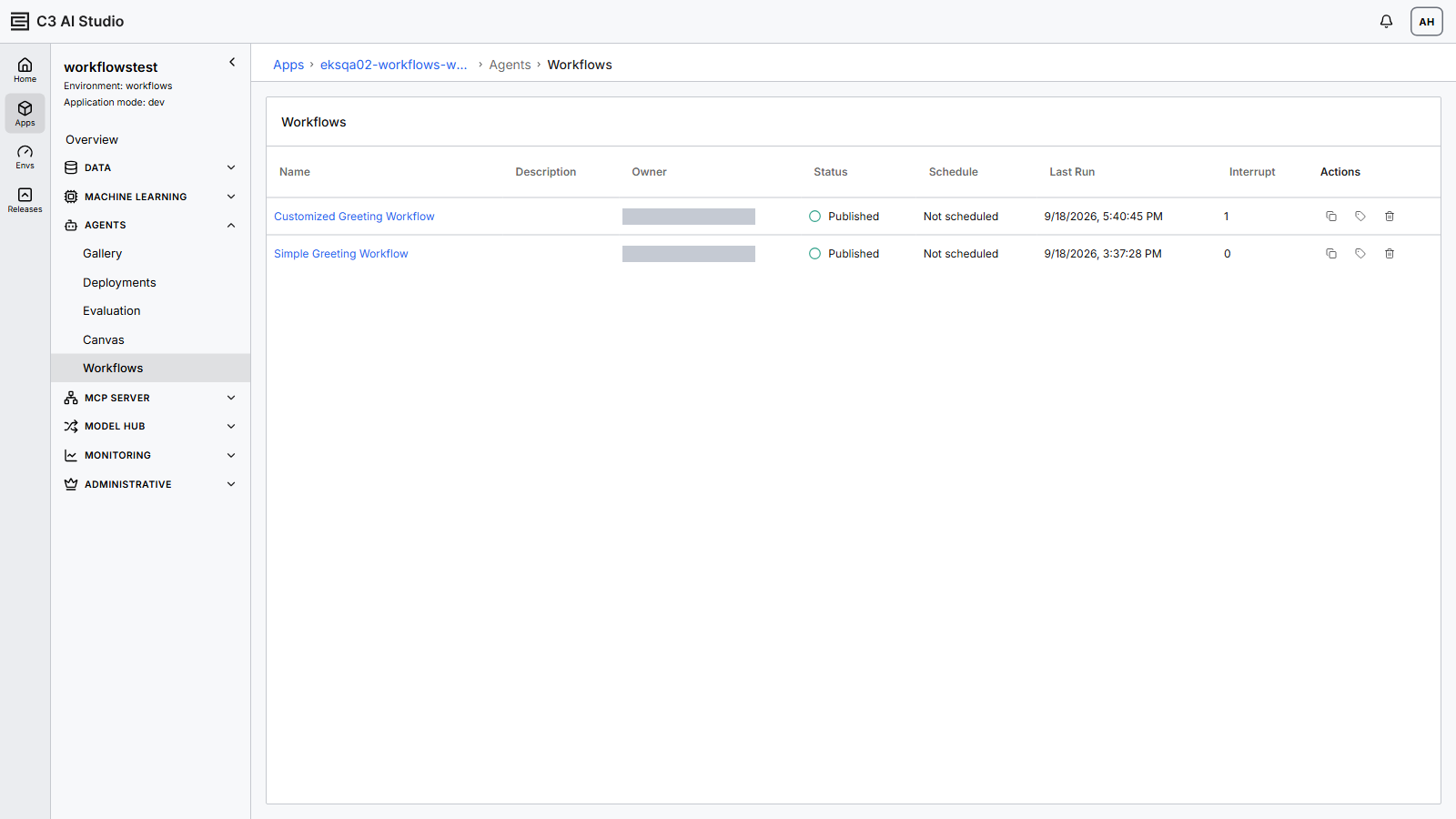
Open the Workflows view to see each workflow in your application:
- Open your application in C3 AI Studio.
- In the navigation, expand Agents and select Workflows.
In the list, Status reads Published for each workflow the agent has published, Schedule shows any recurring run, and Last Run shows when the workflow last ran:
Run a workflow from its canvas
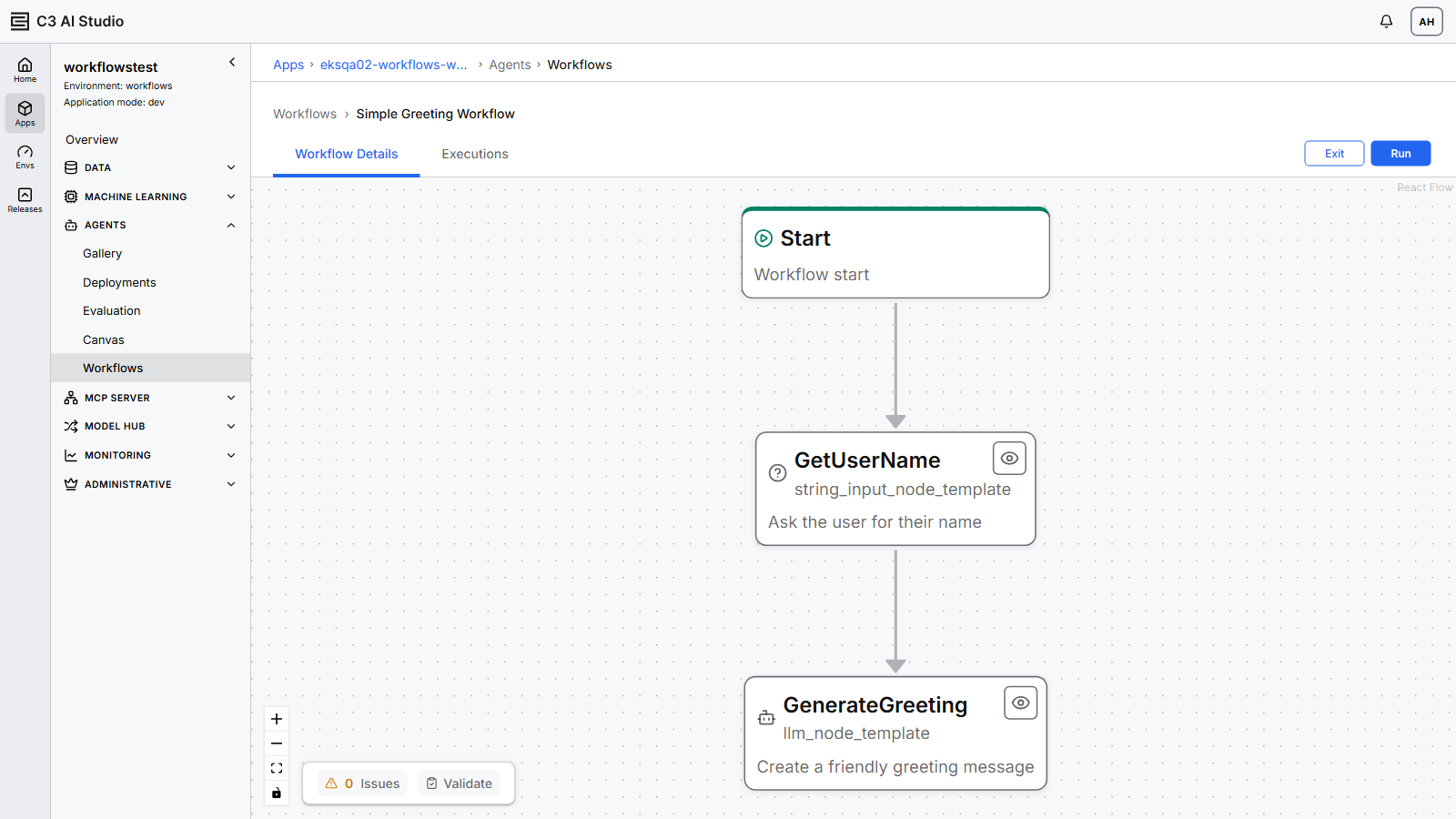
Selecting a workflow opens its canvas, which draws the workflow as a graph of connected nodes.
Open the workflow and start a run:
- Select the workflow's name in the Name column. The workflow opens on the Workflow Details tab, which shows its canvas.
- Select Run to start a run.
Running a workflow needs at least WorkflowViewer access. Without it, Run stays disabled with a message naming the access you need. Ask someone with that access to run the workflow, or ask the agent to run it for you in a conversation.
To learn more about roles that govern workflows, see Author a Workflow with the Agent.