Author a Workflow with the Agent
You have an application open in C3 Code and a process you want automated, such as a report you generate every week or a request that needs the same checks before approval. A workflow runs that process as a series of steps. Each step is a node, and the graph of nodes and the connections between them sets the order the steps run in. Describe the process to the C3 Code agent, and it builds and publishes the workflow for you. From there, you can skip the agent's questions with a detailed prompt, change the workflow in later messages, and find it in your application's list. The roles that control who can view, run, and change a workflow come last.
Before you begin
The C3 Code agent creates and changes every workflow, so you build workflows only in a C3 Code application. To use an application built outside C3 Code, bring it in from its Git repository first.
Your application also needs the genAiUi dependency, the package that provides the Agentic Workflows pages. If Agentic Workflows shows a disabled card reading "Requires the genAiUi dependency," ask the C3 Code agent to add the dependency, or add it yourself in the Code tab. The agent also resyncs your application's packages for you.
Describe a new workflow
Start a conversation with the agent and describe what you want, then let it build and confirm the result:
Open your application in C3 Code, select + next to your open tabs, select View all, then select Agentic Workflows.
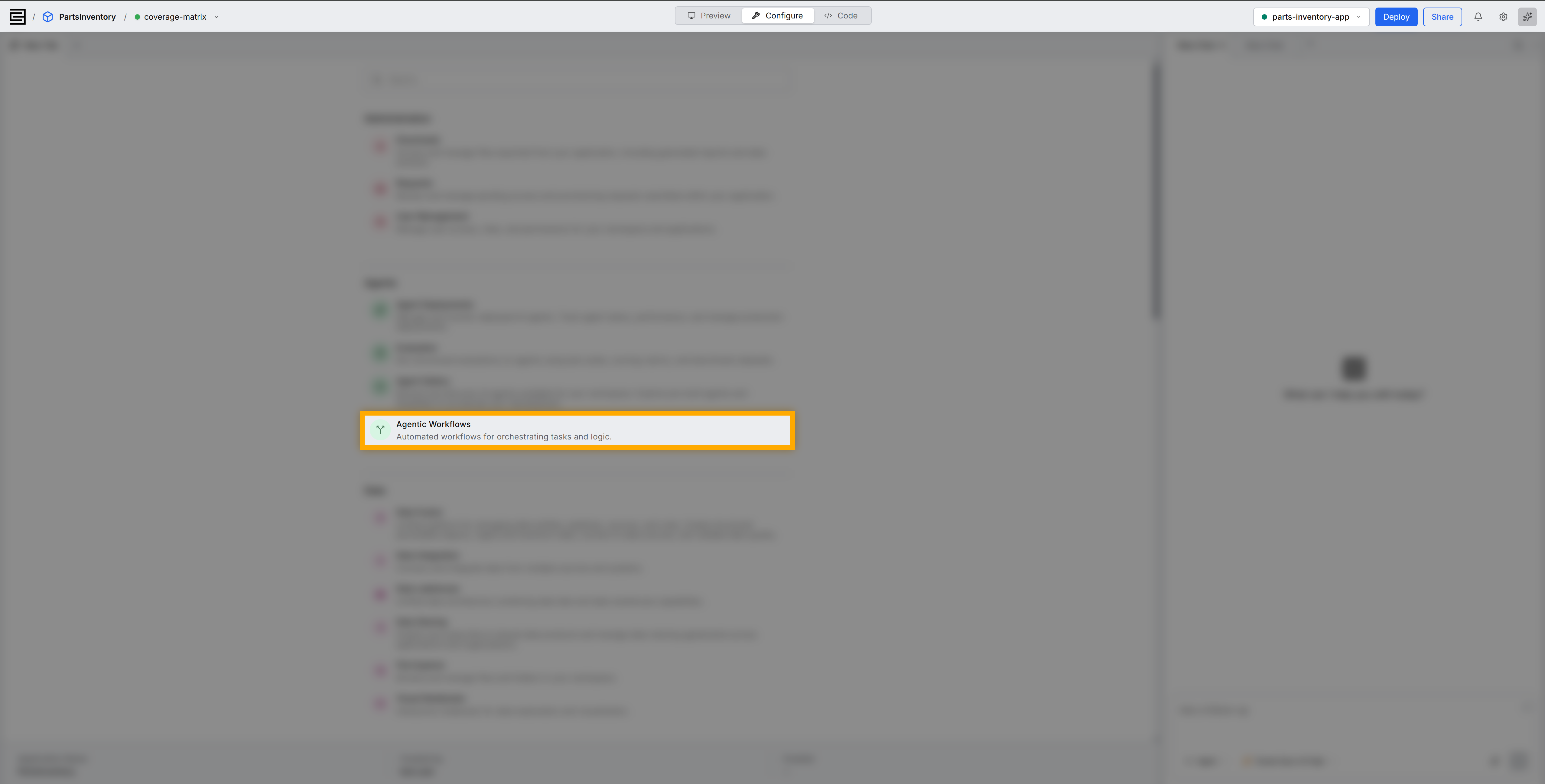
After the Agentic Workflows page loads, describe your workflow in the C3 Code agent chat. Name each step and what it produces, for example:
TextCreate a new APA workflow that asks for a customer name, looks up their account, and emails them a summary.Answer the agent's questions about the workflow's name and structure. If your description already covers them, tell the agent to build immediately.
Wait for the agent to finish. It builds the graph, checks the graph for issues, publishes the workflow, and then summarizes what it built.
Open the published workflow to confirm the graph matches your description.
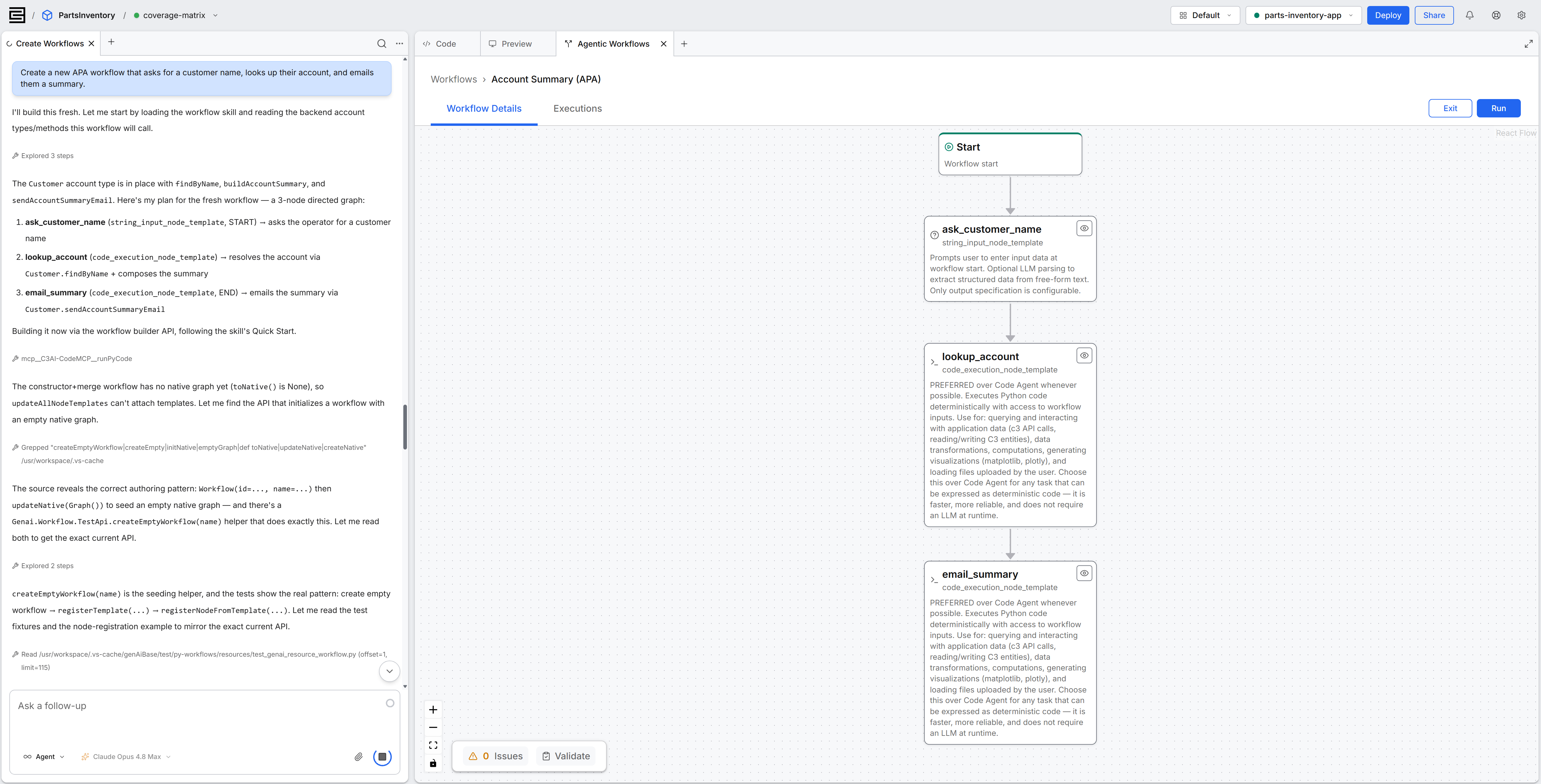
The agent's summary names the workflow and its nodes but carries no link to the workflow. To open the workflow, find it by name on the Agentic Workflows page.
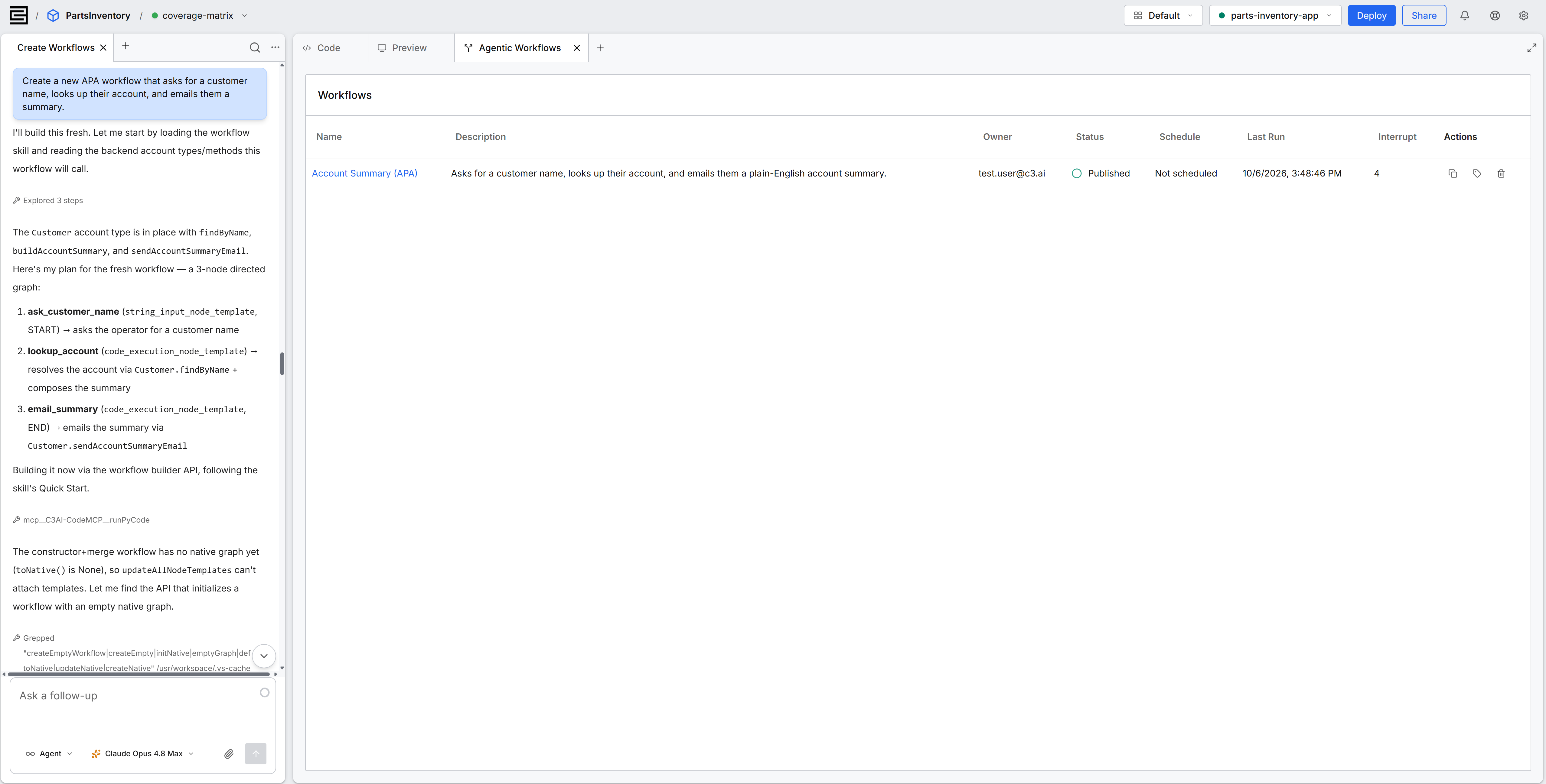
The canvas is the workflow's detail view, where you read its graph.
See Workflows Canvas.
Skip the questions with an explicit prompt
Give the agent every detail up front, and it builds directly instead of asking first. Name each node, what it does, and how the nodes connect, then tell the agent not to ask follow-up questions:
Create a workflow with exactly 3 nodes: 1) an input node that prompts
"Please enter a numeric value", 2) a code node that multiplies the input by
a parameter (set the parameter to 5), 3) a result node that outputs the
result. Connect them. Build immediately, do not ask follow-up questions.
The agent builds the graph you described and skips its usual questions about the workflow's name and structure.
Change a workflow that already exists
Open the workflow from the Agentic Workflows list, then describe the change in the same conversation. Ask the agent to add a node, remove a node, or reconnect the nodes, and it applies the change and reports what it did. Open the workflow's canvas afterward to confirm the graph shows the change.
Refine the workflow over as many messages as you need. Each message applies on top of the workflow's current state, so you do not need a complete description on the first try.
While a workflow is unpublished, you can also edit a node's variables and parameters directly on the canvas, without the agent.
See Workflows Canvas.
Find a published workflow
After the agent publishes a workflow, the workflow appears in your application's Agentic Workflows list with every workflow your teammates have published. Open the workflow from the list to inspect its graph, start a run, and review what past runs produced.
Roles that control workflow access
Your role decides which workflow actions you can take. Each role includes everything the role before it can do:
- WorkflowViewer: open a published workflow, read its graph, and review its run history and results.
- WorkflowEditor: build, change, publish, run, schedule, clone, and delete workflows.
- WorkflowOwner: manage every user's workflows and their runs.
An application administrator has full workflow access. A user with only WorkflowViewer sees Run disabled. To start a run, ask someone with WorkflowEditor access, or ask the agent in a conversation to start the run for you.