Generate Documents in a Workflow
You have a C3 Code application with Agentic Workflows, and you want a workflow that produces a formatted document, such as a report or a summary, instead of plain text. Describe the workflow to the agent, start a run, review and edit the document the run produces, then export the document. You can also ask the agent for a downloadable file in the conversation.
Describe a document-producing workflow
Describe the document to the agent the same way you describe any workflow. Name the data the document needs, the sections it should contain, and which sections should come directly from that data instead of from text the agent writes. The agent adds a code node, a step that runs code, to assemble the sections into the finished document.
See Author a Workflow with the Agent.
Review the generated document
Run the workflow, then open the run's output to review the document:
- Select Run on the workflow's detail page, and fill in any input the workflow asks for.
- Open the Executions tab and select the run.
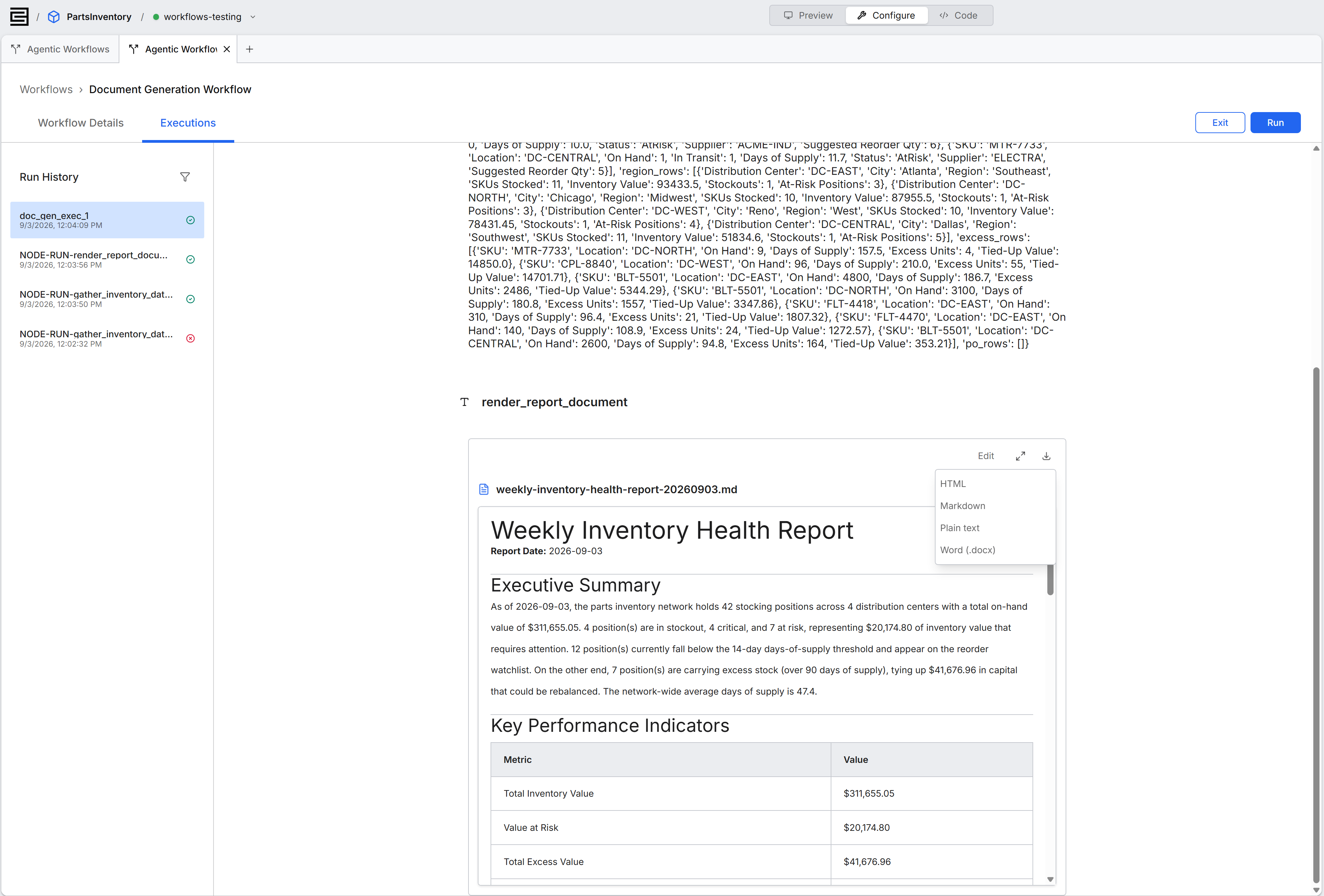
- Select Expand output on the node that produced the document.
The document opens in a rich text editor. To change the document before exporting, select Edit.
A document attached to a node, such as a document template, stays editable in the node's Configuration panel until you publish the workflow. Make any changes to it before you publish.
Export or download the document
To save the document as a file, select Export and choose a format: HTML, Markdown, Word (.docx), or Plain text.
To get a file without opening the run, ask the agent in the conversation for a Markdown or CSV summary of the workflow or its output. The agent returns a download link.