Start from a Git Repository
Your team already wrote an application, and that application is held in a Git repository. Importing brings the application into C3 Code, so the agent, the configuration tools, and deployment all apply to code your team wrote elsewhere.
You point C3 Code at a repository and a branch, then choose your application's package. For a GitHub repository, you pick the package from the packages C3 Code finds in that branch. For a GitLab repository, you type the package name. C3 Code copies the code into a new workspace.
What the import expects from that repository decides whether this route suits your code.
What the import needs
The import expects a repository that already holds a C3 AI application. C3 Code looks for a package, which is a unit of C3 AI software. Every package folder holds a .c3pkg.json file. For a GitHub repository, C3 Code scans the branch for those files and lists each package, and you pick yours. For a GitLab repository, you name the package, and C3 Code checks that its .c3pkg.json file exists in the branch.
Code written outside the C3 Agentic AI Platform works differently. A React application with its own back-end services carries no C3 AI package, so the import has no package to find.
The agent converts that code instead. Create an application in C3 Code, bring your existing code into the workspace, then ask the agent to rewrite the front end and the back end into the patterns C3 AI uses. Describe what the application does today, and what must behave the same afterward. The agent works through that conversion like any other change. Expect a conversion to take several requests, and check the behavior yourself in Preview as the conversion proceeds.
For writing a first prompt and refining the result, see Start from Scratch.
Before you begin
Confirm both of the following before you import:
- Your GitHub or GitLab account is connected. C3 Code reads the repository list from your account, so the list stays empty until you connect an account.
- You know which package holds your application, when the repository holds more than one. For a GitLab repository, also know the folder that holds the package.
For connecting your account, see Connect GitHub and Connect GitLab.
Import the repository
Complete the import dialog with the repository, the branch, and the package:
- On the Applications page, start creating an application and choose the Git source. The Import from Git repository dialog opens.
- Select GitHub or GitLab. Only the providers you connected are available.
- Select a Repository. The list is searchable, and shows each repository as owner and name.
- Select a Branch. Your first workspace starts on the branch you select.
- Select a Package. C3 Code scans the branch and lists each package by the path to its
.c3pkg.jsonfile, such asmyPackage/myPackage.c3pkg.json. For a GitLab repository, fill in the package fields as Name the package in a GitLab repository describes. - Check the Application name. C3 Code fills it in from the package name, and you can change it.
- Select Create.
The Package list is searchable, which helps when the branch holds several packages:
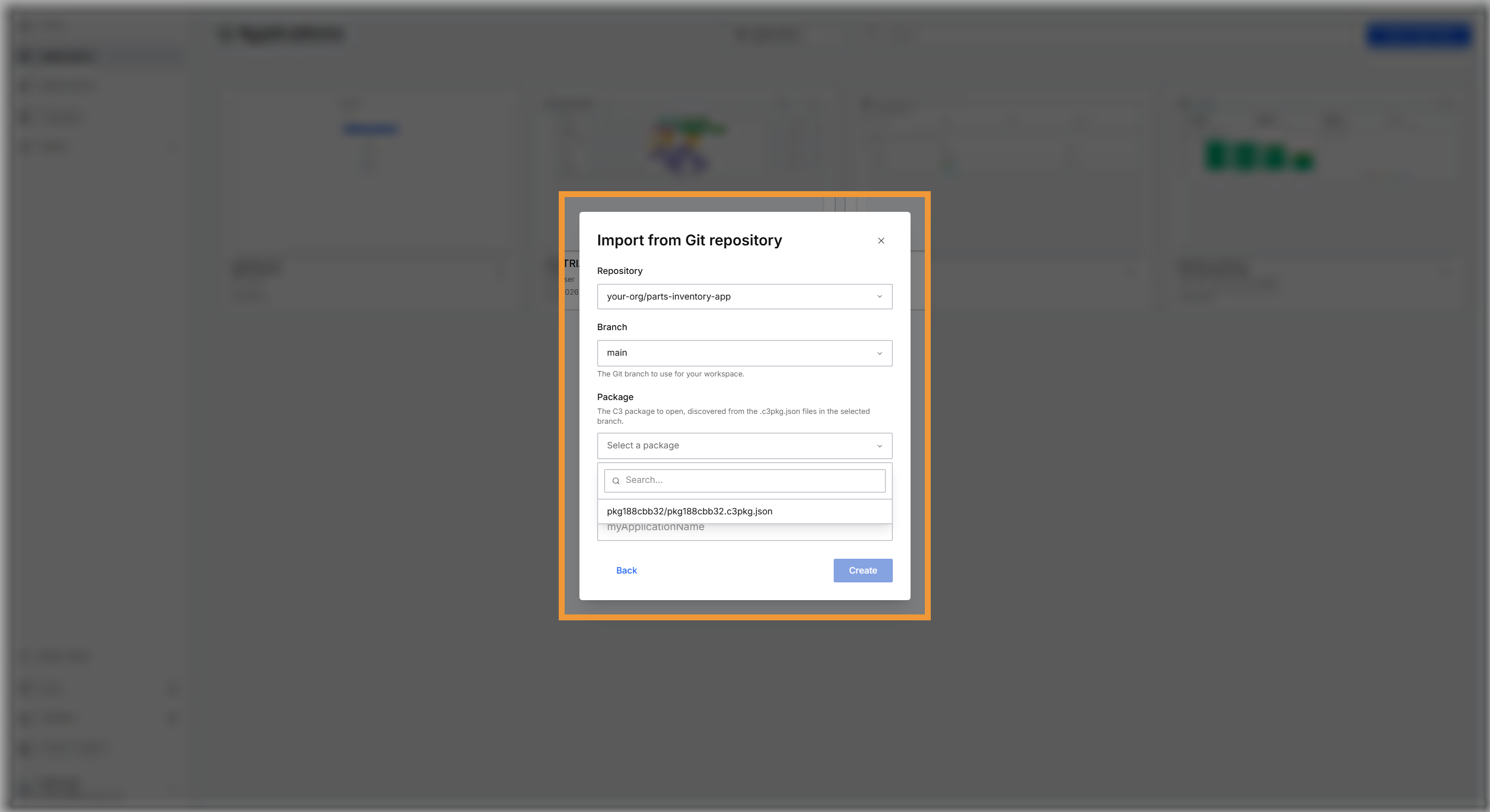
C3 Code creates the application, copies the repository into the first workspace on the branch you chose, and opens that workspace.
Name the package in a GitLab repository
C3 Code lists no packages for a GitLab repository, so you name the package yourself. After you select the repository and the branch, the dialog shows two fields in place of the Package list:
- Application Path: the folder that holds your package folder, relative to the top of the repository, such as
apps. Leave it blank when the package folder is at the top of the repository. - Package: the package name, which starts with a letter and holds only letters and numbers. C3 Code also fills in Application name from it.
When you select Create, C3 Code checks the branch for the file <Application Path>/<Package>/<Package>.c3pkg.json, such as apps/inventory/inventory.c3pkg.json. If the file is missing, the dialog names the path it looked for, so you can correct either field and try again.
What the import changes
The repository becomes the shared copy for the application. Every workspace you create later uses that same repository, and each workspace works on a branch.
C3 Code copies the repository as the repository stands. Your folder structure, your branches, and your history all survive the import unchanged.
For saving, branching, and reviewing your code, see Review Code and Manage Branches.
When to import and when to connect
Two routes leave you with an application and a connected repository, and they differ in which exists first.
Import from a Git repository starts with code that already exists, and creates an application around that code.
Connecting a repository starts with an application you already built in C3 Code, and publishes that application into a repository.
Import when the code came first. Connect when the application came first.
Join an application another person built
You can join a colleague's application directly, with no import and no new application of your own.
An administrator of that application adds you as a collaborator. The application then appears in your Applications list, and you create a workspace of your own inside that application.
For adding people and sharing a preview link, see Share with Collaborators.
Where to go next
These pages cover working with the code once the import finishes: