Connect GitLab
Connect GitLab when your team keeps its code in GitLab, on gitlab.com or on a self-managed instance, which is a GitLab server that your company runs. A connected repository puts your code outside your workspace, where your team can review it, and it lets one application have more than one workspace.
Connecting takes two steps:
- Connect your own GitLab account one time, with a personal access token.
- Link a repository to each application you want to store in GitLab.
Your account connection is personal, so every colleague connects an account of their own. The repository belongs to the application, so every workspace in that application uses the same repository.
GitLab works like GitHub for most of what you do in C3 Code. You commit, push, pull, and switch branches the same way, and you can import an application from a GitLab repository. A few behaviors differ, and they are listed in How GitLab differs from GitHub.
Create a personal access token
C3 Code connects to GitLab with a personal access token. A token is a credential that programs use in place of a password. A scope sets what a token may do. Create the token in GitLab with the api scope, which lets C3 Code list your projects, create a project, and push to it.
Copy the token when GitLab shows it, because GitLab shows the token only one time.
Connect your account
Open your settings and save the token in the GitLab card:
- Open Settings from your profile menu.
- Find GitLab under Git Providers. The status reads Not connected.
- Select Connect via Personal Access Token.
- For a self-managed GitLab instance, enter its API address in Self-managed GitLab API URL (optional). The API address is where programs reach your instance, for example
https://gitlab.example.com/api/v4. The address starts withhttps://and ends in/api/v4. Leave the field blank for gitlab.com. - Paste the token, then select Save.
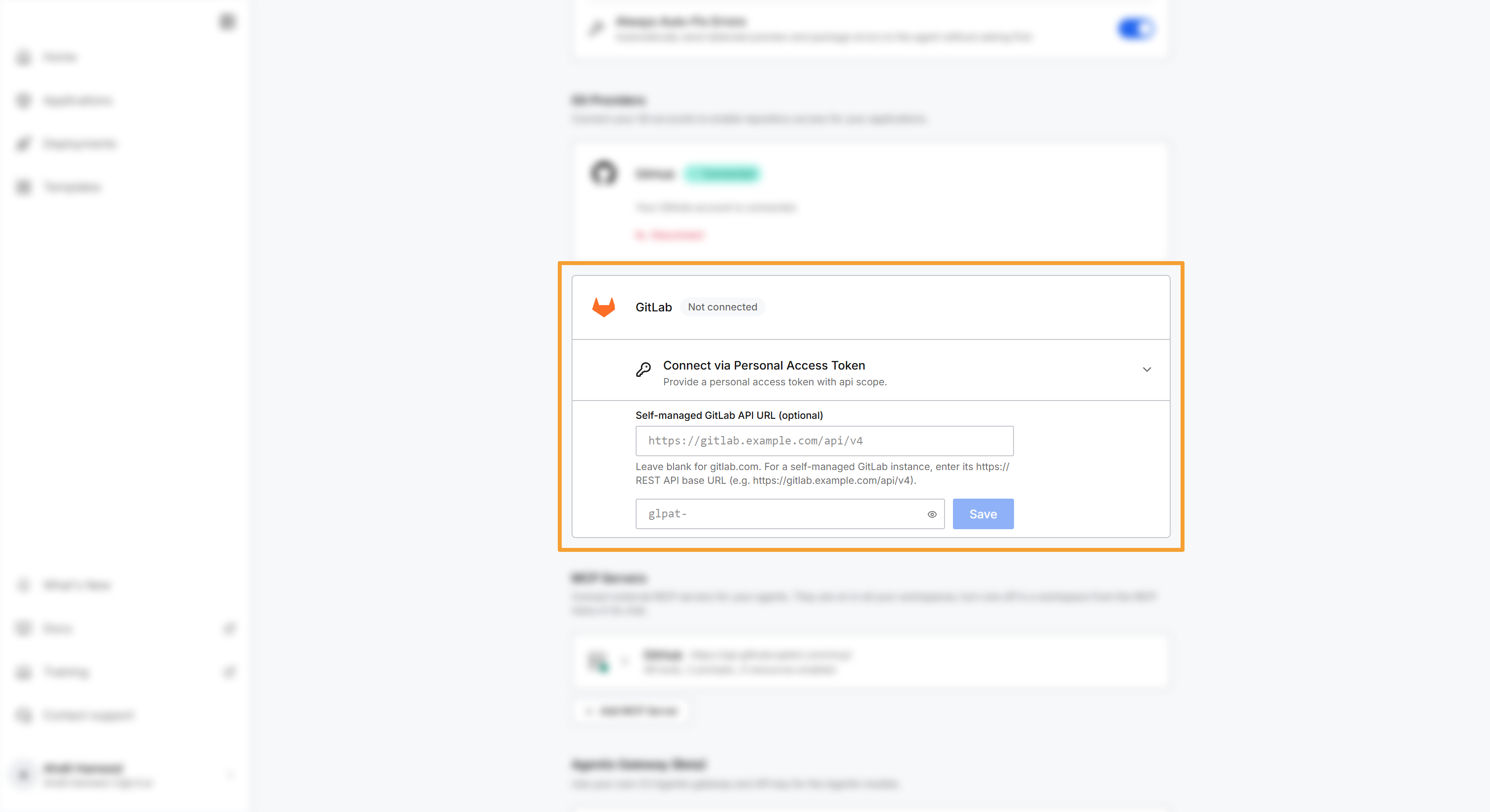
C3 Code checks the token with that GitLab instance before it saves anything. When the check passes, the status changes to Connected and a Disconnect action appears. When the check fails, C3 Code saves neither the token nor the address, and it shows the reason under the token field.
Your connection covers one GitLab instance. C3 Code sends your token only to that instance, so you can use repositories on that instance and no other. To use a repository on another instance, select Disconnect, then connect again with a token and an address for that instance.
The connection belongs to your account. Every colleague connects an account of their own, and a repository your colleague linked remains inaccessible until you connect your own.
Link a repository to your application
With your account connected, an application Admin links a repository to the application from the workspace header:
- In the workspace header, select Connect to GitHub. The button keeps this label for every Git provider, and it takes the place of the Git status control until the application has a repository.
- If you connected both GitHub and GitLab, select GitLab at the top of the popover.
- Select Create Repository to start a new repository from your workspace, or Select Existing Repository to link one you already have.
Create Repository creates a private project in your personal namespace, which is the part of GitLab under your own user name. The project has a main branch, and copies your current workspace code into the project. To keep the project in a group instead, create the project in GitLab first, then link it with Select Existing Repository.
Select Existing Repository lists the GitLab projects you can push to. These are the projects where you hold the Developer role or higher, directly or through a group. The list shows the most recently active projects first, and it holds up to 1,000 projects. Projects in subgroups appear with their full path, such as acme/platform/inventory.
For saving, branching, and reviewing your code, see Review Code and Manage Branches.
How GitLab differs from GitHub
Most of C3 Code treats a GitLab repository like a GitHub repository. These behaviors differ:
- Connection method: GitLab connects only with a personal access token. GitHub also offers Connect via OAuth, which adds GitHub tools for the agent.
- One instance at a time: your GitLab token works on the instance you connected and no other, while a GitHub connection covers all of GitHub.
- Import from a repository: C3 Code finds the packages in a GitHub branch for you. For a GitLab repository, you type the package name, and the folder that holds it when the package is not at the top of the repository. See Start from a Git Repository.
- Continuous deployment: a build pipeline builds only from a GitHub repository. An application linked to a GitLab repository deploys from a workspace. See Deploy to Staging and Production.
Fix a connection problem
Each entry starts with the message or behavior you see:
Save reports "This GitLab token is invalid or expired": GitLab declined the token. Check that you copied the whole token, or create a new token in GitLab and save it again.
Save reports that GitLab rejected the token (403): the token is missing the api scope. Create a new token with the api scope and save it again.
Save reports that the GitLab URL must end in /api/v4: the address in Self-managed GitLab API URL (optional) is not a REST API address. Enter the address of your instance followed by /api/v4, starting with https://.
C3 Code reports that a project is on another host than your GitLab connection: the repository is on a different GitLab instance from the one you connected. Select Disconnect under GitLab. Then connect with a token and an address for the instance that holds the repository.
A push fails after you reconnect GitLab to another instance: your token no longer covers the instance that holds the repository, so C3 Code pushes without your token. Connect GitLab again to the instance that holds the repository.
Creating a repository reports that the name already exists: a project with that name already exists in your namespace. Enter a different name, or choose Select Existing Repository to link the project you already have.
Creating a repository reports a default branch other than main: your GitLab instance created the project on its own default branch. In GitLab, rename that branch to main, then link the project with Select Existing Repository.
Where to go next
These pages cover working with the repository you linked: