Manage Documents
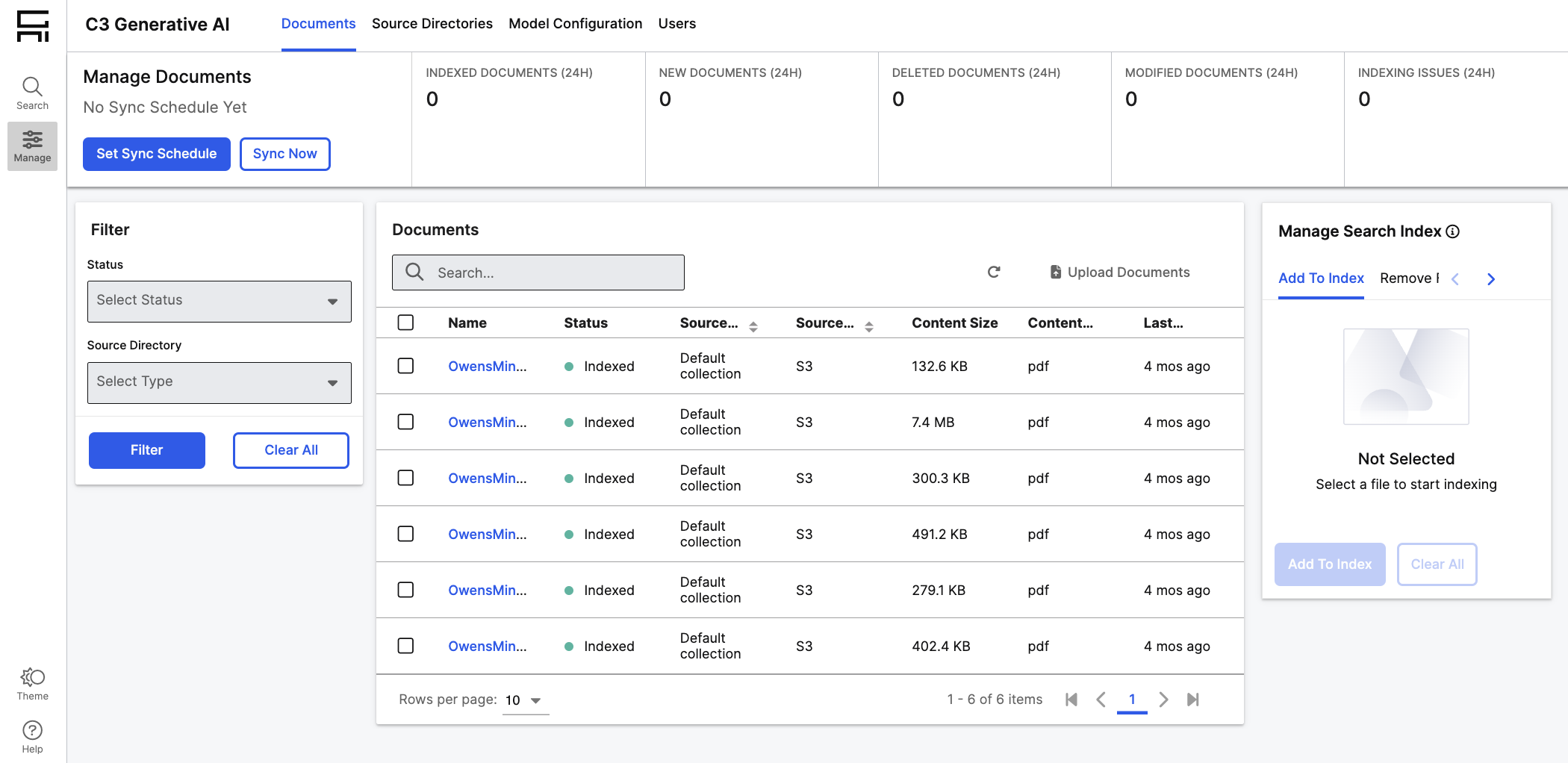
Document Management allows administrators to manage documents made available to end users to search. You can add documents to your search index, set a recurring sync that will refresh documents and indexed content on a scheduled basis, and upload documents available locally.
Add Documents to Search Index
If you’ve already connected to an external file repository and specified which file directories you want to import, files will appear in the Documents grid. If you want to connect to an external file repository, see Connect Document Source Directories for more instructions.
To get started, complete the following steps:
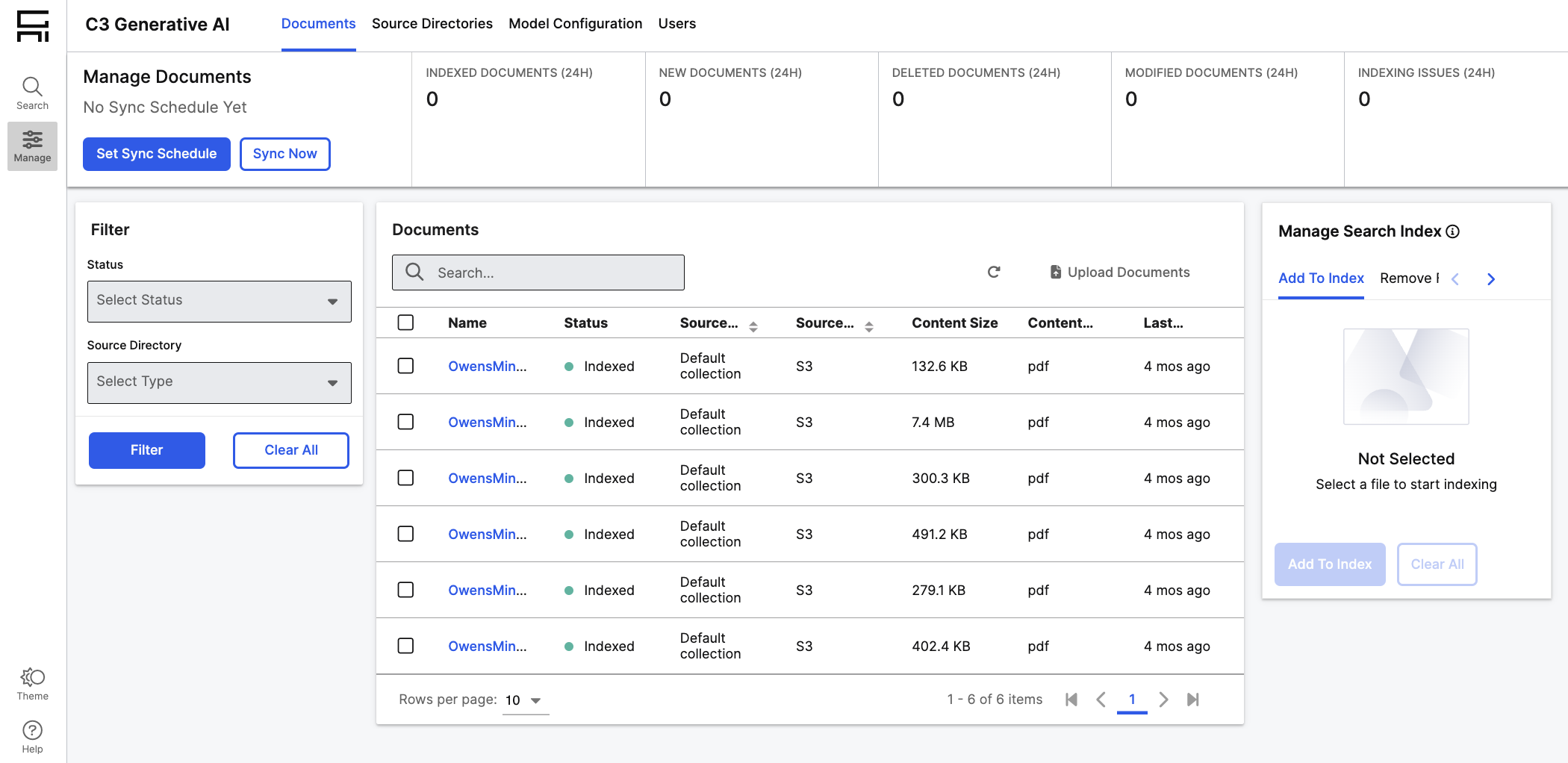
Select Documents: Navigate to Documents, and select rows in the Documents grid for files you want to index.
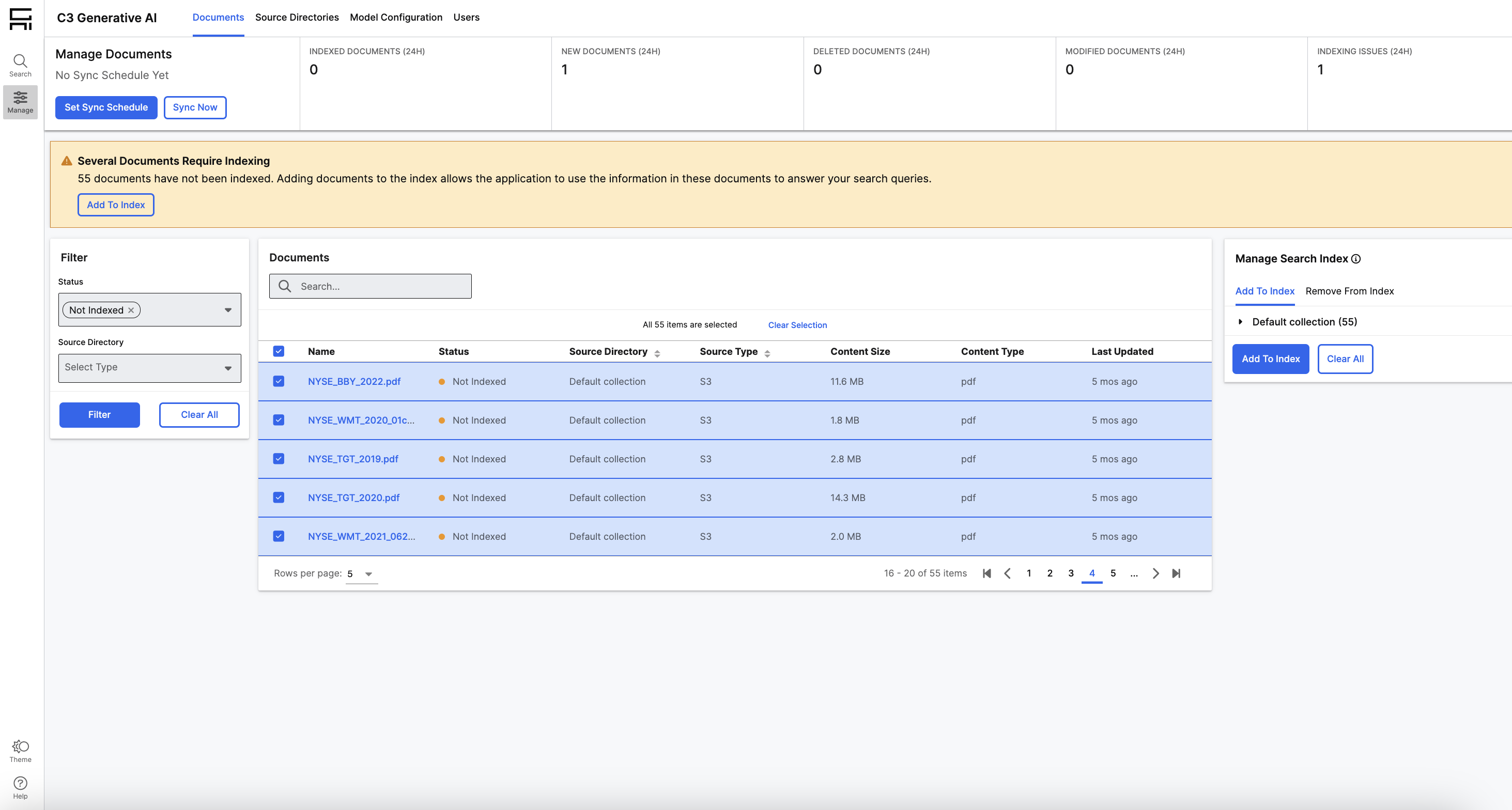
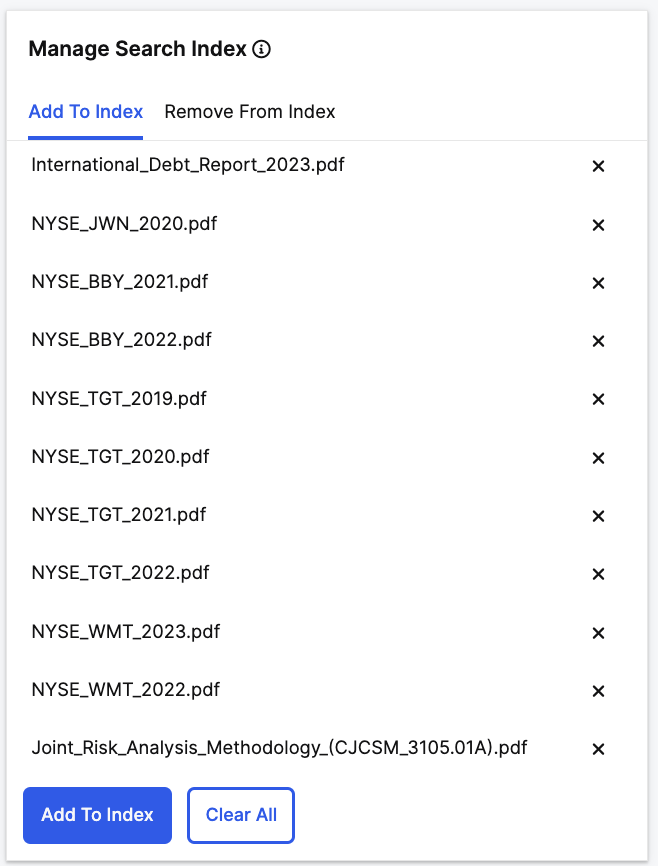
Add Documents to Index: Once desired files are selected, select Add to Index.
Set Sync Schedule
If you’ve connected to an external file repository, you can set a recurring sync where files and their content will be updated.
To get started, complete the following steps:
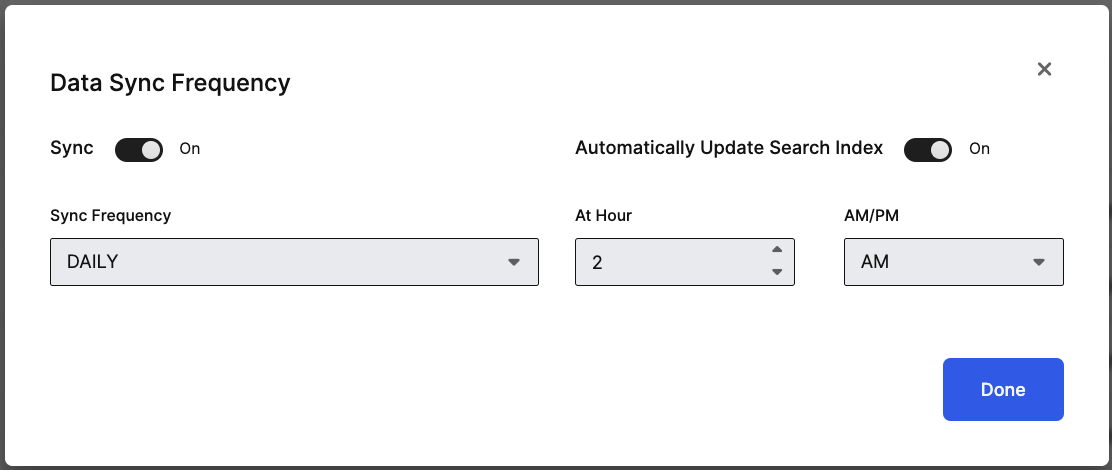
Select Set Sync Schedule: Navigate to Documents, and select Set Sync Schedule.
Select Frequency and Time of Day: Identify how frequently you want to update your search index. Administrators can sync daily, and can specify what time of the day the sync should occur.
Sync Now: If you want to perform a one-time sync to refresh your search index, navigate to the Documents grid and select Sync Now.
Upload Local Files
In addition to ingesting files and their contents from an integrated file repository, administrators can upload files hosted locally.
To get started, complete the following steps:
Select Upload Documents: Navigate to Documents, and select Upload Documents in the Documents grid.
Browse Files to Upload: Select local files to upload. Administrators can upload files with a maximum size of 1 GB.
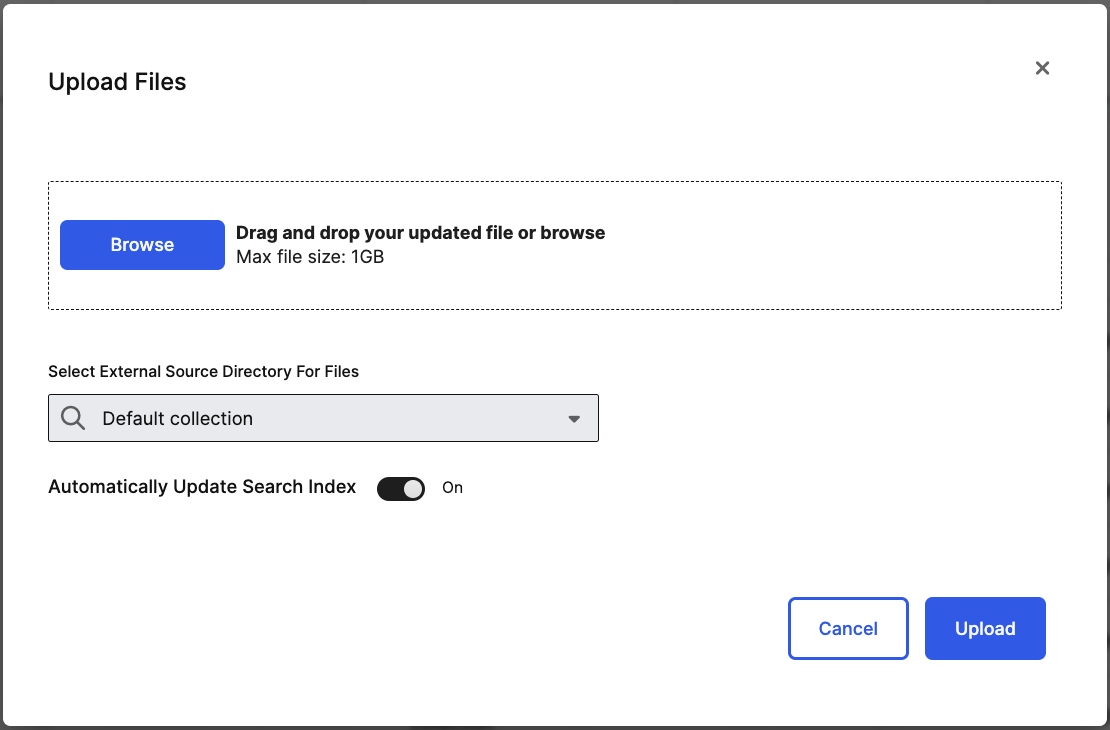
Select Target Directory: Select which file directory to upload local files to. If a connection to an external file system has not been established, choose Default Collection.
Automatically Update Search Index: To start adding the uploaded files to the search index, choose to Automatically Update Search Index. Otherwise, you can manually add documents to the search index at a later time. See Add Documents to Search Index for more instructions.
Remove Documents
Administrators can remove documents from the search index that were imported from a file repository or uploaded locally.
To get started, complete the following steps:
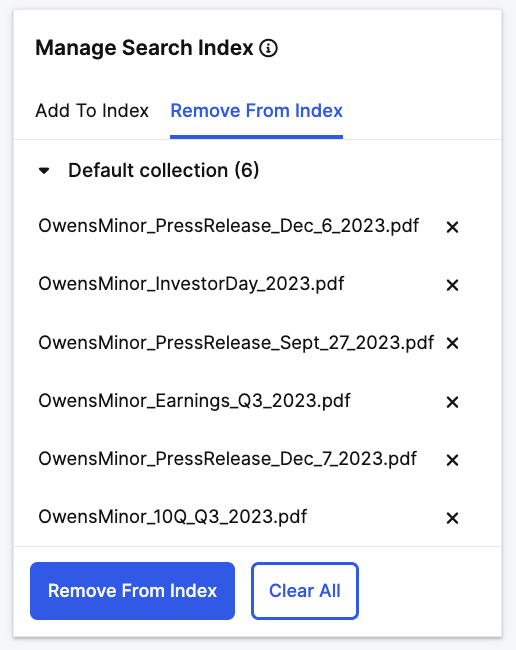
Select Files to Remove: Navigate to Documents, and select rows in the Documents grid for files you want to remove.
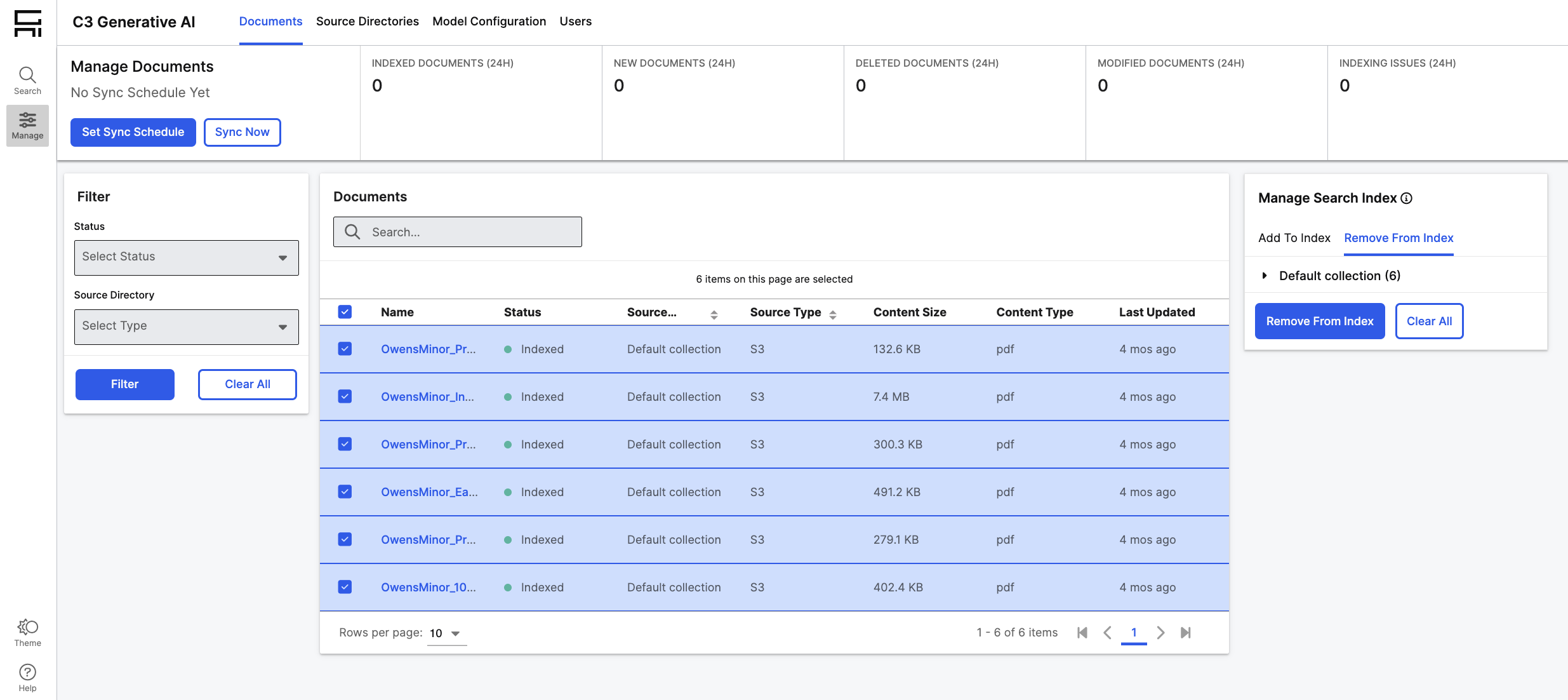
Remove from Index: Once desired files are selected, select Remove from Index.