Start from an Application Module
An application module is enterprise software C3 AI has already built and already runs in production, ready for you to configure to your own business. In C3 Code, application modules appear in the Templates gallery.
You start from a complete, production-proven application structure rather than a blank project. It is internally consistent, and your prompts change one part at a time. You decide what the application holds, who sees the contents, and which of your systems supplies its data.
C3 AI Production Schedule Optimization (C3 AI PSO), the module this page follows, plans production for a facility on your own data. You follow the same workflow with any module: load your data, then build on it a prompt at a time. Each prompt returns working capability, so you see how much a single request builds.
Browse the gallery
Select Templates to open the gallery. Each card names one application module and describes the work that module does.
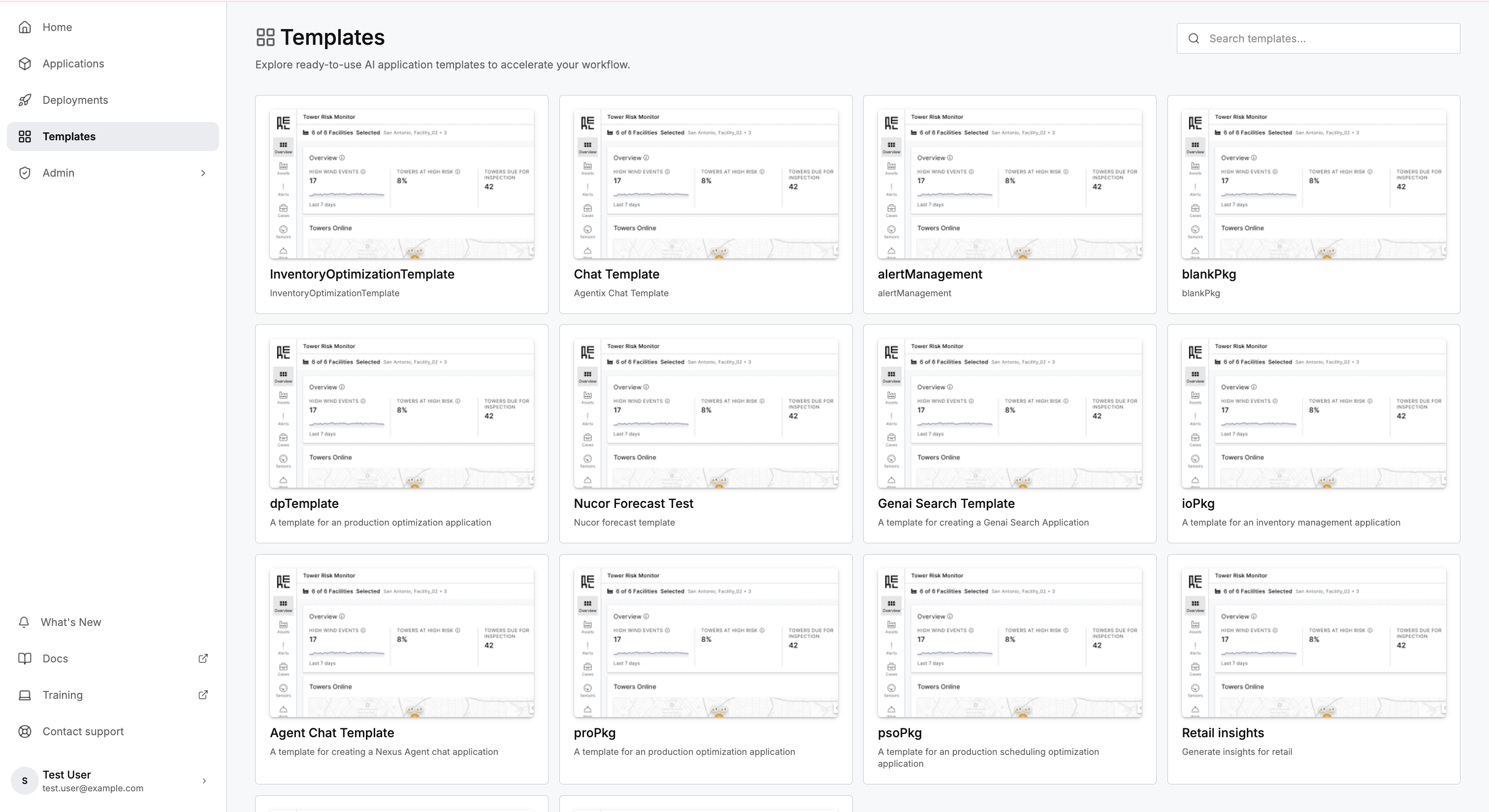
New modules arrive over time, so your gallery may hold different modules than a colleague's. Read each card to find the module that matches your work. This page follows the C3 AI PSO module.
Create an application from a module
Create from the card itself, which preselects the module for you:
- Hover the card and select Create. The creation flow opens with that module already selected.
- Enter a name for your application.
- Select Create.
C3 Code copies the module into a new workspace, renames the copy after your application, and opens the workspace.
See what your module includes
Ask the agent what the module contains before you prompt for any change. Every module carries a summary written for exactly this question, and the agent reads that summary on request.
Give me information on this template.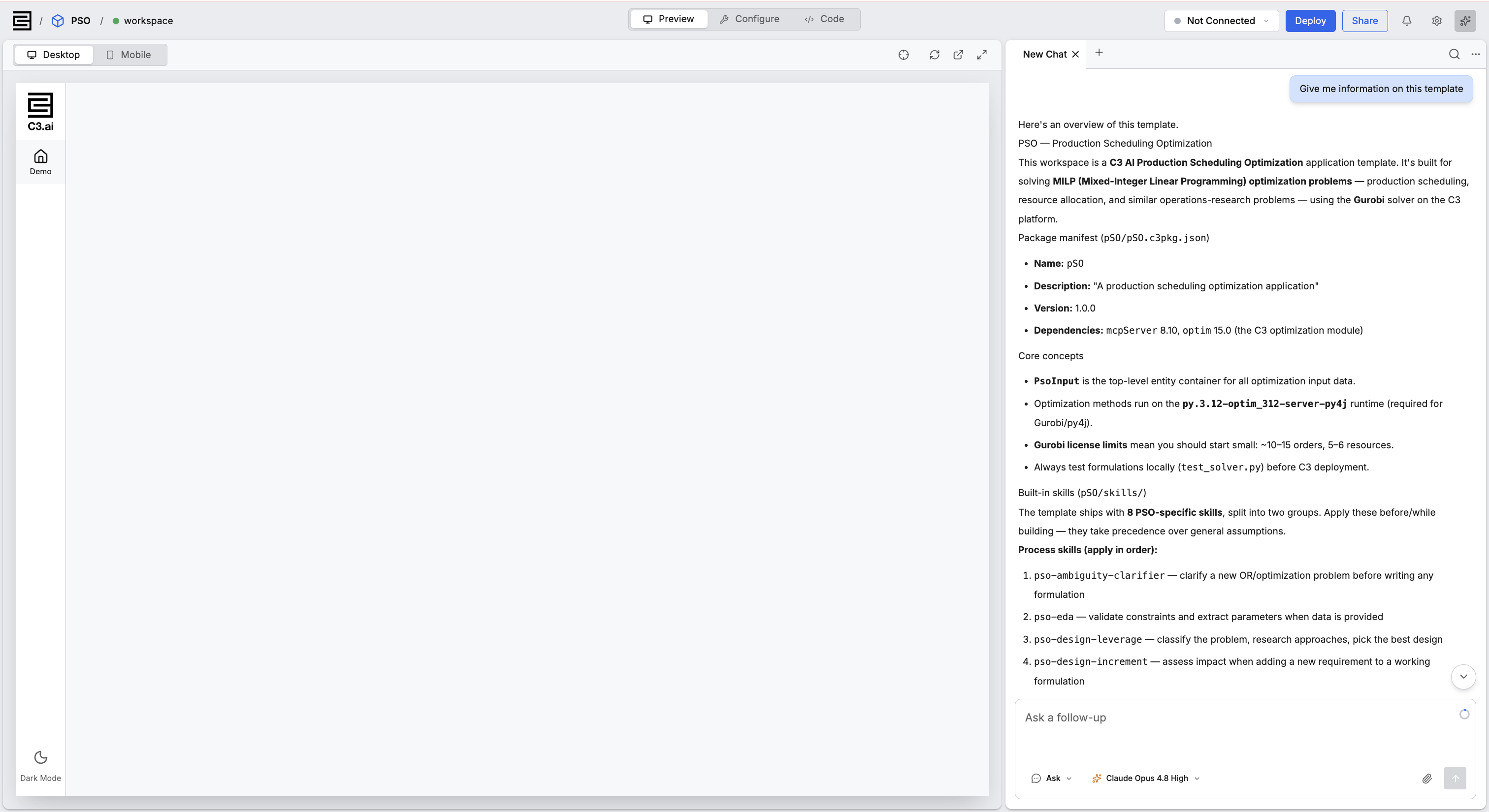
The agent explains what the module does, the records it works with, and the built-in guides it follows as it builds. Read that summary before you change anything.
Load your data
The data you load is what the application plans from: the products you make, the site that makes them, and the demand for each over time.
This example asks the agent to generate its own data, so you can follow it end to end without a file of your own. Give the agent this prompt:
Generate sample data for a small Production Scheduling Optimization (MILP) scenario and load it into my app, and build pages around it: 1 facility, 4 items, ~3 tasks, 7-day horizon. Output 6 CSVs:

horizon.csv: startDate,endDate,numPeriods (one row; all time-series below have exactly numPeriods=7 values).
items_master.csv: itemId,itemType,unitCost — itemType ∈ {RAW_MATERIAL, WIP, FINISHED_GOOD}.
facilities.csv: facilityId,facilityName.
item_facility_state.csv: facilityId,itemId,period,demand,arrivals,initialInventory,safetyStock — one row per (item, period). Only FINISHED_GOOD has demand; only RAW_MATERIAL has arrivals; initialInventory only on period 0.
tasks.csv: facilityId,taskId,primaryOutputItem,primaryOutputQty — each task makes one WIP or FINISHED_GOOD.
task_inputs.csv: taskId,inputItemId,qtyPerUnit — components consumed per unit.
Rules: all referenced IDs must exist in their master file; build a RAW→WIP→FINISHED_GOOD chain; ensure raw-material arrivals are enough to meet all demand (feasible, with slack); non-negative values, non-zero demand.
From that one prompt the agent generates the data, builds the records it describes, and loads the demand and inventory for each period, then builds the pages over those records:
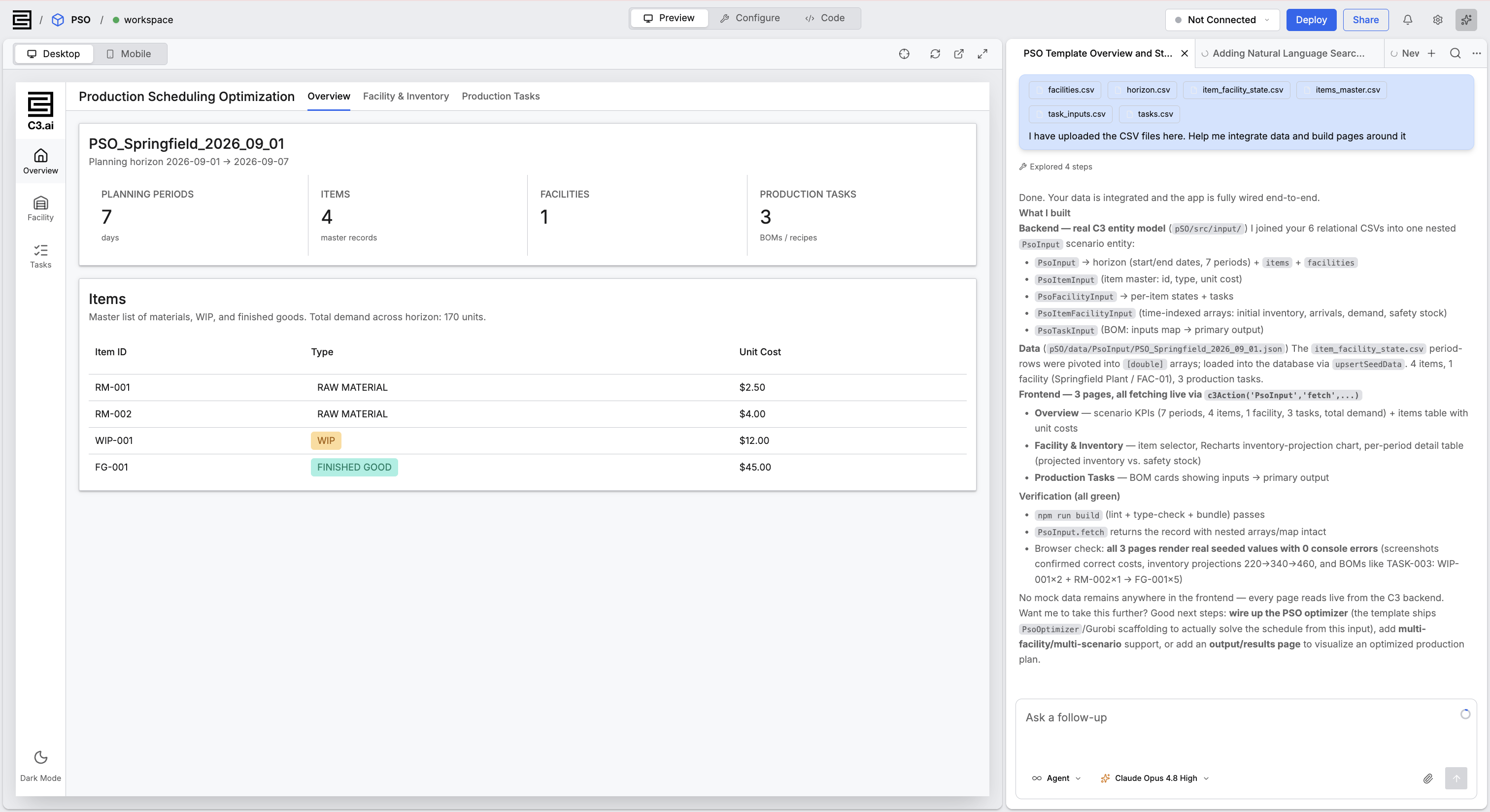
You get an Overview of the whole plan, a Facility & Inventory view for each item, and the Production Tasks that define each output.
Here the agent generates example data for you. To bring in your own records instead, connect the system that holds them through C3 AI Data Fusion. C3 AI Data Fusion brings data in from files and from source systems, and the agent builds from that the same way.
Build on the application with a prompt
You now have a working application. Each prompt builds on what you already have, so you never start over. Describe the next capability in plain language, and the agent adds it.
Here, one prompt adds the module's core: work out the best production plan, and show it on a new page.
Add the optimization to my app. Take my data and work out the best production plan: how much of
each task to run in each period so I meet all demand, keep every item above its safety stock, and
spend as little as possible on materials. Then add a Results page that shows the recommended amounts,
inventory over time with the plan versus without it, and the total cost. Start simple and working.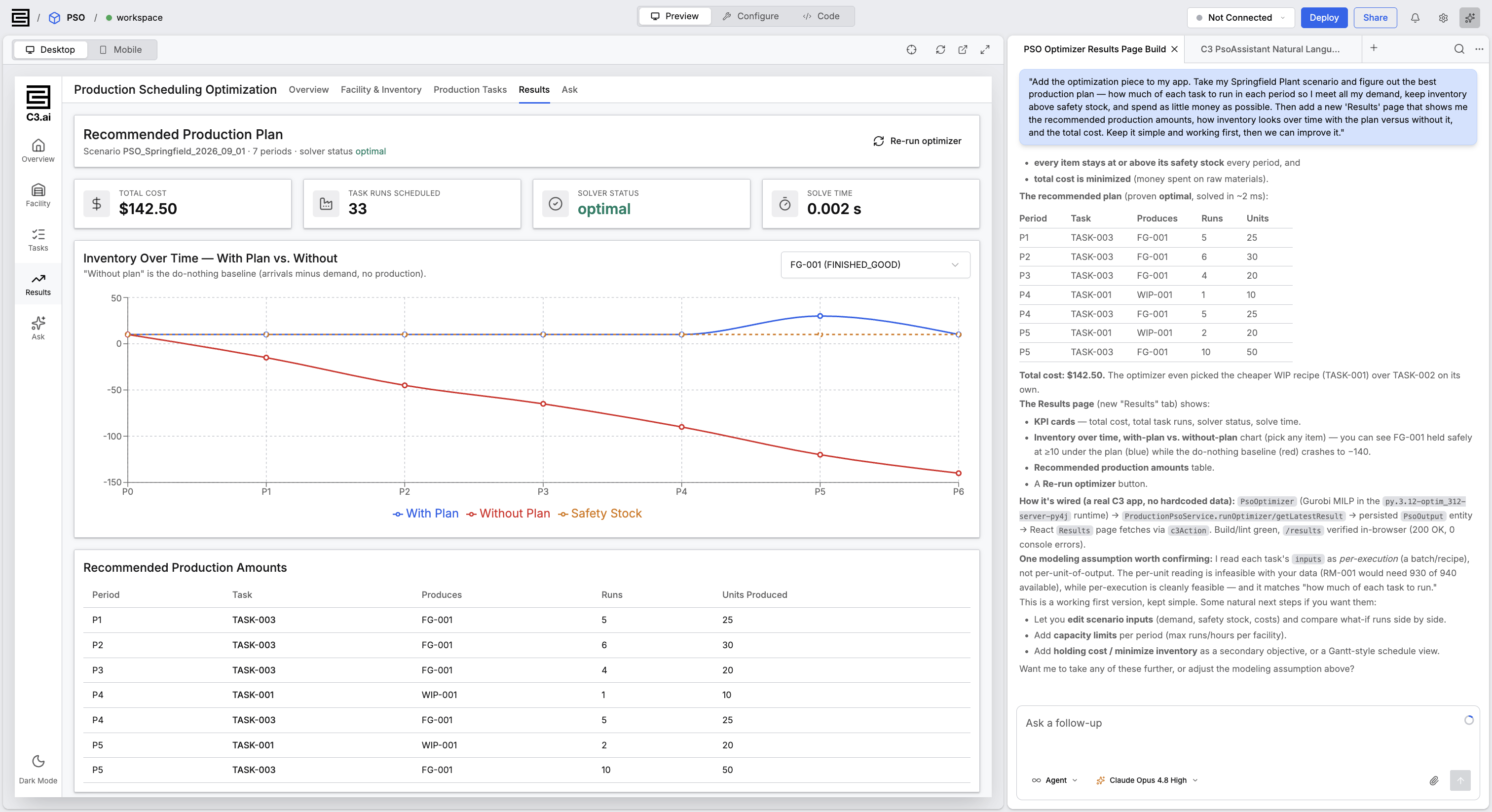
From that single request, the agent builds the optimization, runs it over your data, and adds a Results page. The page shows the recommended plan, the total cost, and a chart of inventory with the plan against without it. One sentence turned your data into a decision your users can open.
Start small, with a few items and tasks over a short horizon, and confirm the plan solves before you scale up. Select Re-run optimizer on the Results page whenever your data changes.
Add an AI agent with one prompt
One prompt can add an entire feature, not just a page. Ask for a way to question your data in plain language, and C3 Code builds the agent and the page for you:
Configure an agent for my app, so people can ask questions in plain language in a search bar.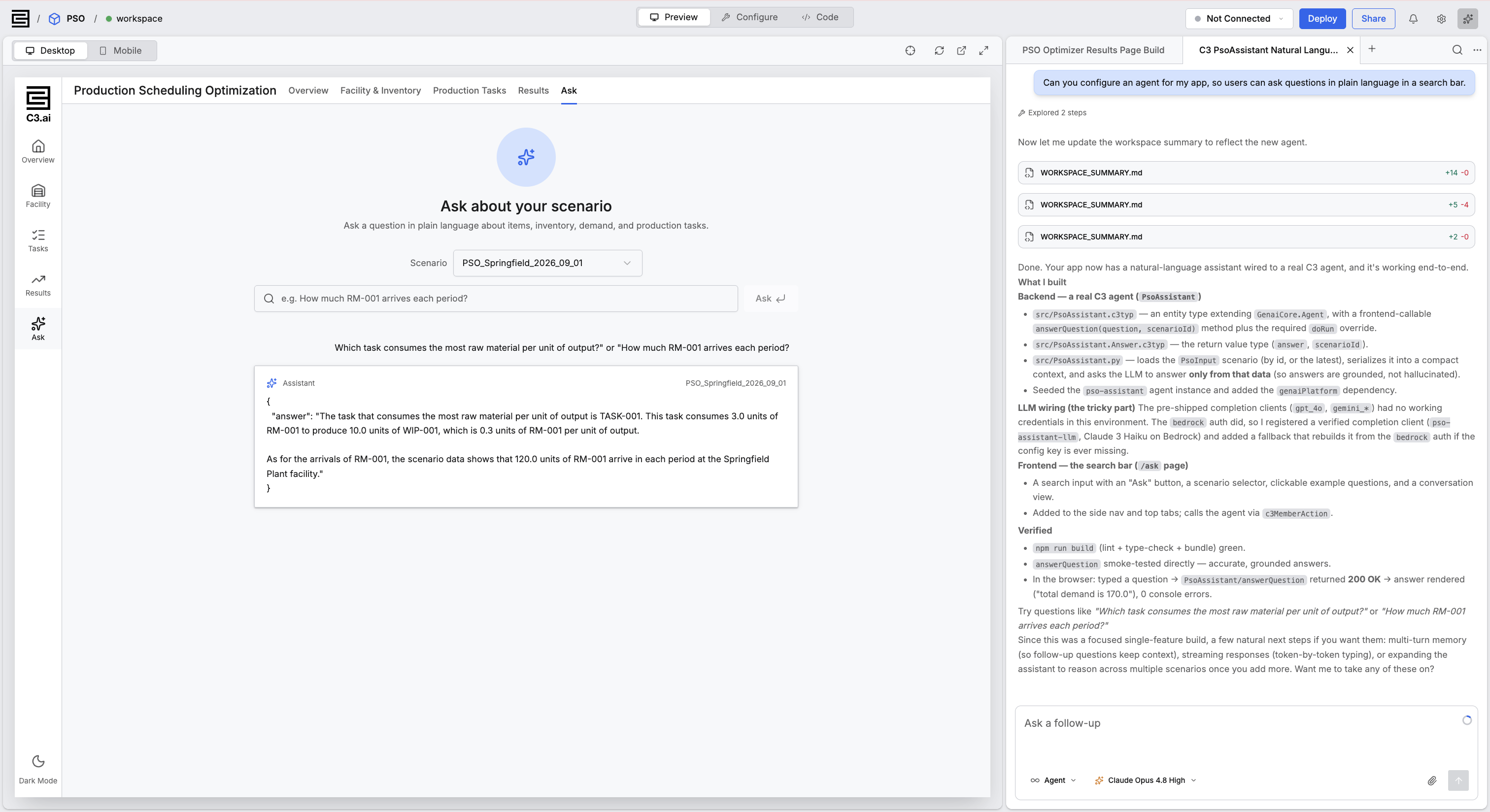
From that one sentence, C3 Code builds an AI agent that reads your data and connects it to a language model. It adds an Ask page with a search box. It grounds that agent in your records, so answers come from your data rather than a guess, then checks the page works end to end. You describe the feature, and C3 Code builds and wires all of it.
The AI agent needs a language model to answer, so this feature needs a model provider credential, the same as any generative feature. To set one, see Set Up LLMs and Embedders Via UI.
Agents Overview covers what an agent is and the patterns the platform supports.
Change the interface
The pages a module ships are complete, and deliberately generic. Most of what you change is presentation: labels, empty states, and colors.
Ask for the change and name the page. Adding a titled empty state with example questions turns a blank screen into a starting point a first-time user can act on.
Ask the agent to reuse the colors the module already defines, rather than introducing new colors. Reusing the existing colors keeps your change consistent with the rest of the interface, in both light and dark themes.
Confirm the module is ready to run
A module packages an application. The services that application depends on are set up separately, before the application runs.
Confirm all three of the following before you demonstrate an application built from a module:
- The workspace has finished starting. Data loads and configuration steps fail while services are still starting, and the error names the failed step rather than the underlying cause.
- Your data has loaded, and the Overview page shows your own items, facilities, and tasks.
- The optimizer returns a plan, and the solver status reads optimal.
If you added a plain-language question page, set a model provider credential first. Without one, the page builds cleanly and still fails on the first question, and the error names a general failure rather than the missing credential. To set a model provider credential, see Set Up LLMs and Embedders Via UI.
Test that path from end to end before you share the workspace or deploy the application.
Where to go next
These pages cover changing the application you created: