C3 AI MCP Quickstart
This tutorial takes you from a fresh IDE to a working loop where your coding assistant writes a new method, generates tests, runs them, and fixes failures automatically. You connect to both MCP servers that C3 AI provides along the way.
By the end, you have:
- C3 Central MCP Server connected so your assistant can answer C3 questions, generate Types, and apply coding standards.
- Your application's MCP server with
runTestandgetC3TypeInformationenabled so the assistant can run tests and inspect Types on your live application. - A short feedback loop where the assistant writes code, writes tests, runs them, and iterates.
Before you start
Confirm the following before you begin:
- IDE: VS Code 1.102 or later with GitHub Copilot, Cursor 1.2.1 or later, or Claude Code.
- Node.js: installed and available on your PATH.
- App Admin role: required on your application to generate tokens, enable tools, and publish prompts.
- An application that depends on the
mcpServerpackage: the package is included by default in 8.9 and later.
For best results, use a model with strong tool-calling capabilities, such as Claude Sonnet 4.5, GPT-5.2, Gemini 3, or a model with similar or better tool-calling performance. Weaker models may fail to invoke MCP tools correctly or stall during the write-test-fix loop.
Step 1 - Connect to the C3 Central MCP Server
The Central MCP Server is hosted at https://mcp.c3.ai and shared across all C3 AI developers. It provides tools, prompts, and skills that help your assistant work with C3 Types, Transforms, and platform conventions.
Go to https://mcp.c3.ai.
Authenticate with your C3 AI Developer Portal credentials.
On the configuration page, select Install for VS Code, Install for Cursor, or Install for Claude Code based on your IDE.
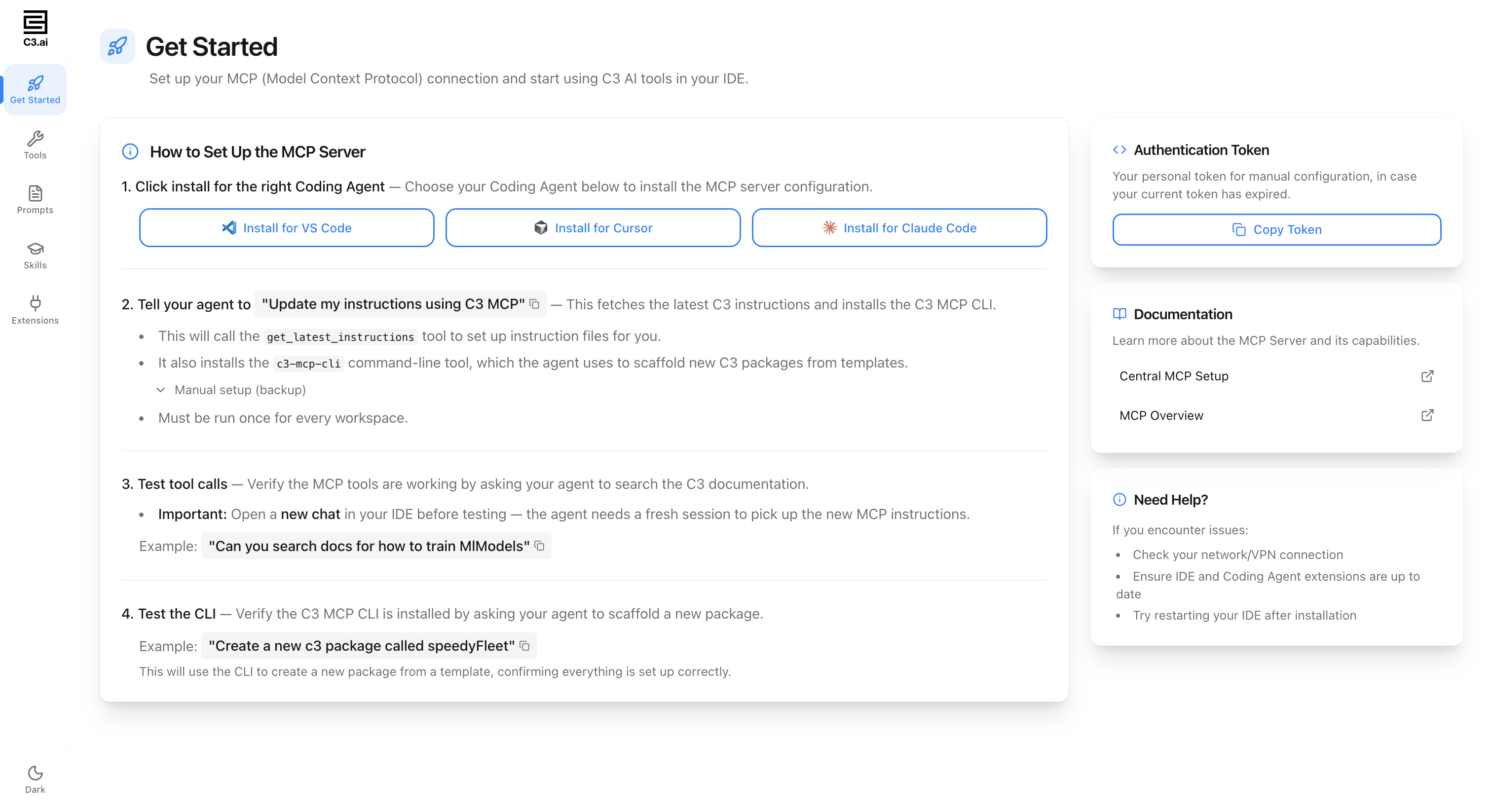
For VS Code or Cursor, the editor launches and shows an install prompt. Select Install. For Claude Code, copy the displayed command and run it in your terminal:
Command Lineclaude mcp add \ --transport http \ C3AI-MCP-Server \ https://mcp.c3.ai/mcp/server \ --header "Authorization: C3Bearer <your-token>"Verify the connection:
- VS Code: open the Command Palette and search for MCP: Open User Configuration. Confirm
C3AI-MCPappears. - Cursor: open the Command Palette and search for View: Open MCP Settings. Confirm tool and prompt counts appear.
- Claude Code: run
claude mcp listand confirmC3AI-MCP-Serveris listed.
- VS Code: open the Command Palette and search for MCP: Open User Configuration. Confirm
For the full setup reference and troubleshooting, see Connect to the C3 Central MCP Server.
Step 2 - Install the C3 instruction files
Instruction files give your assistant persistent context about C3 conventions, Type patterns, and file structure. Without them, generated code does not match C3 standards.
Open a chat with your assistant.
Enter:
Update my instructions using C3 MCP.The assistant calls
get_latest_instructionsand installs thec3-mcp-clicommand-line tool.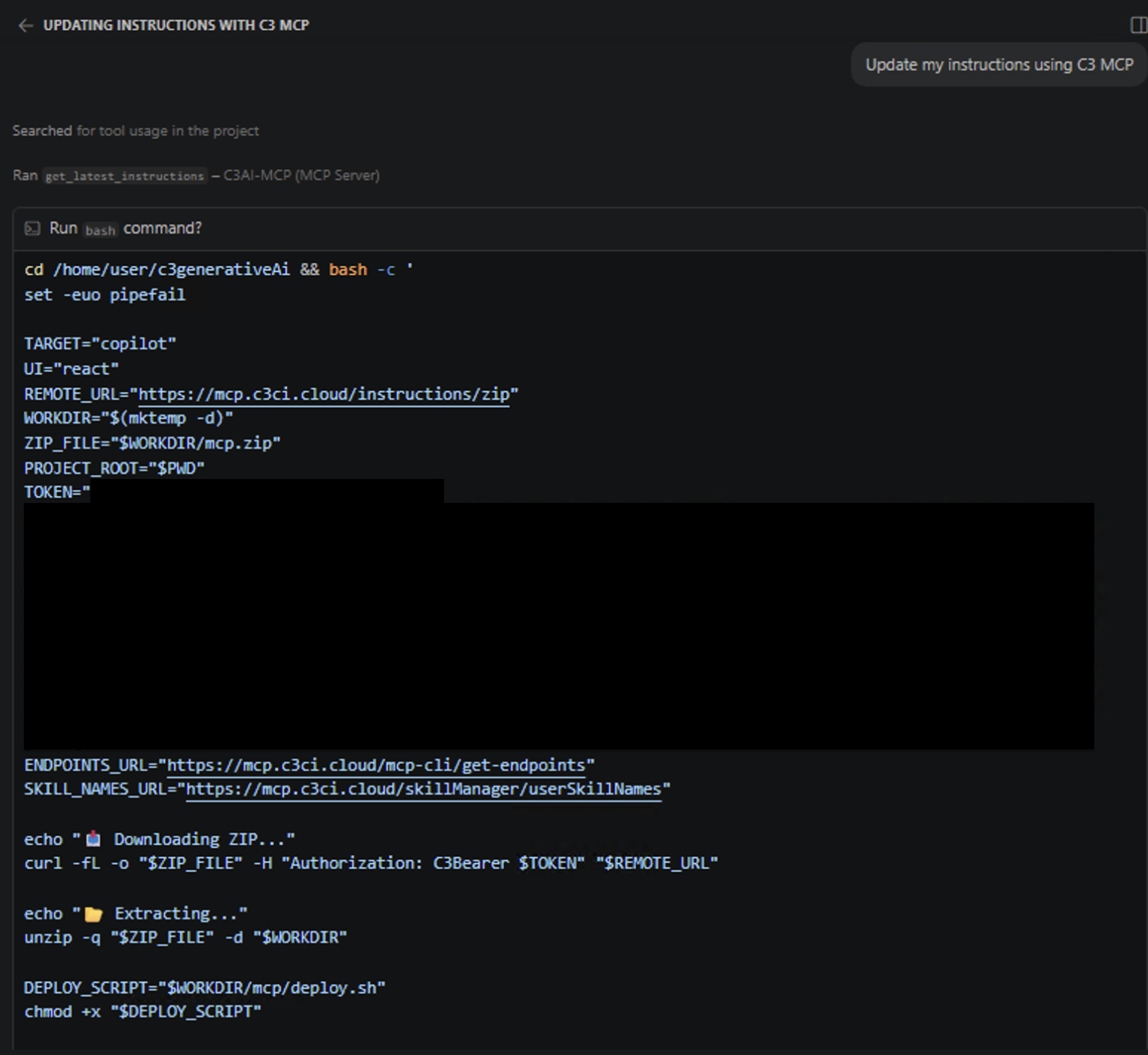
Wait for the setup script to finish. The script installs both C3 instruction files and skills (reusable workflows such as vault encryption, type generation, and test automation) into the folder that matches your IDE:
- VS Code:
.github/instructions/,.github/skills/folders. - Cursor:
.cursor/rules/,.cursor/skillsfolders.
- VS Code:
If the command does not run on its own, copy it from the chat and paste it into your terminal. On Windows, use Bash.
With Central MCP connected and instruction files installed, your assistant can already generate C3 Types, create Python and JavaScript implementations, search C3 documentation, and use guided prompts for common tasks like writing tests and designing data models.
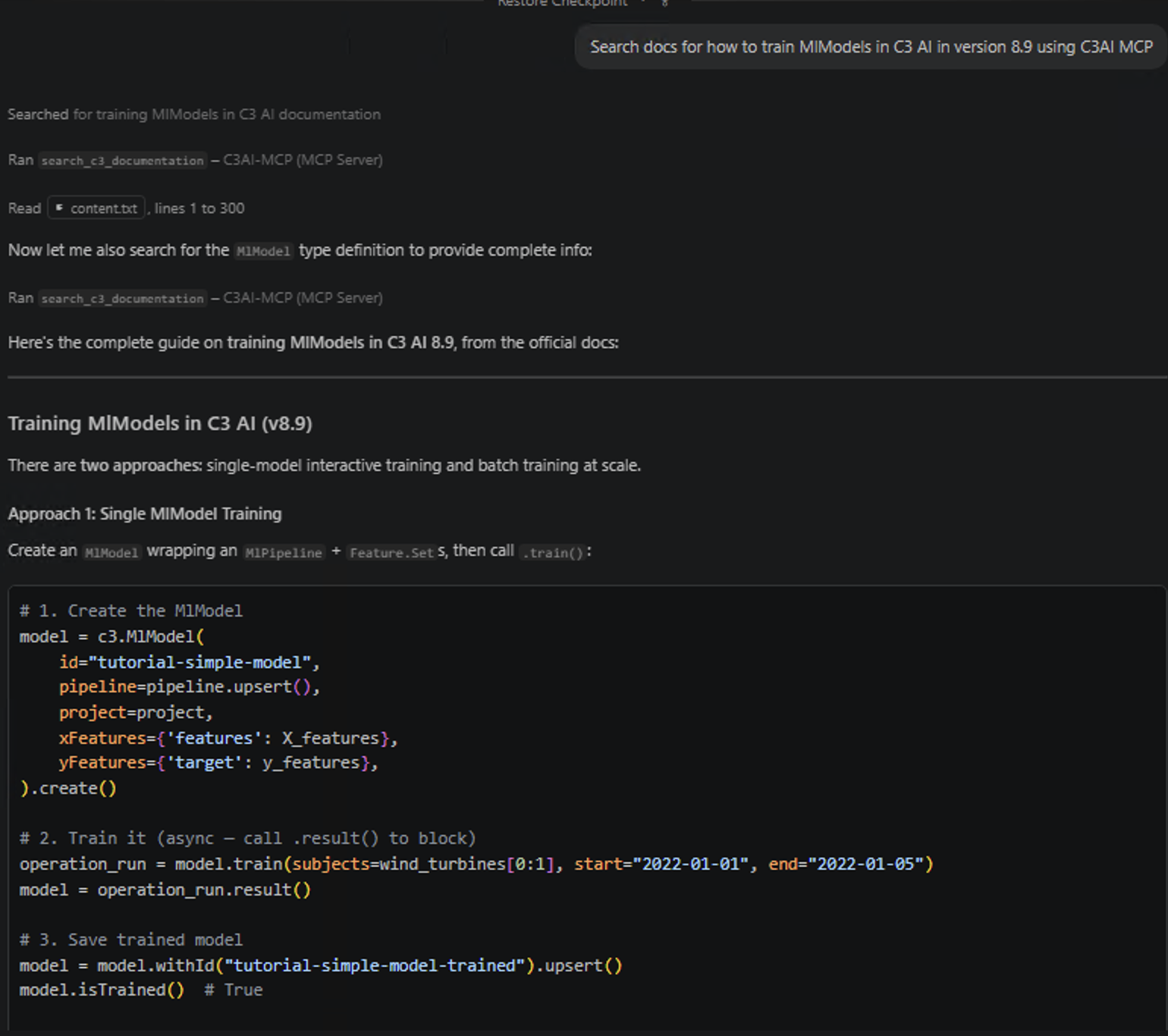
To verify the connection works, try a documentation search. Enter a prompt like:
Search docs for how to train MlModels in C3 AI in version 8.9 using C3 AI MCPYour assistant calls search_c3_documentation and returns relevant results from the C3 documentation:
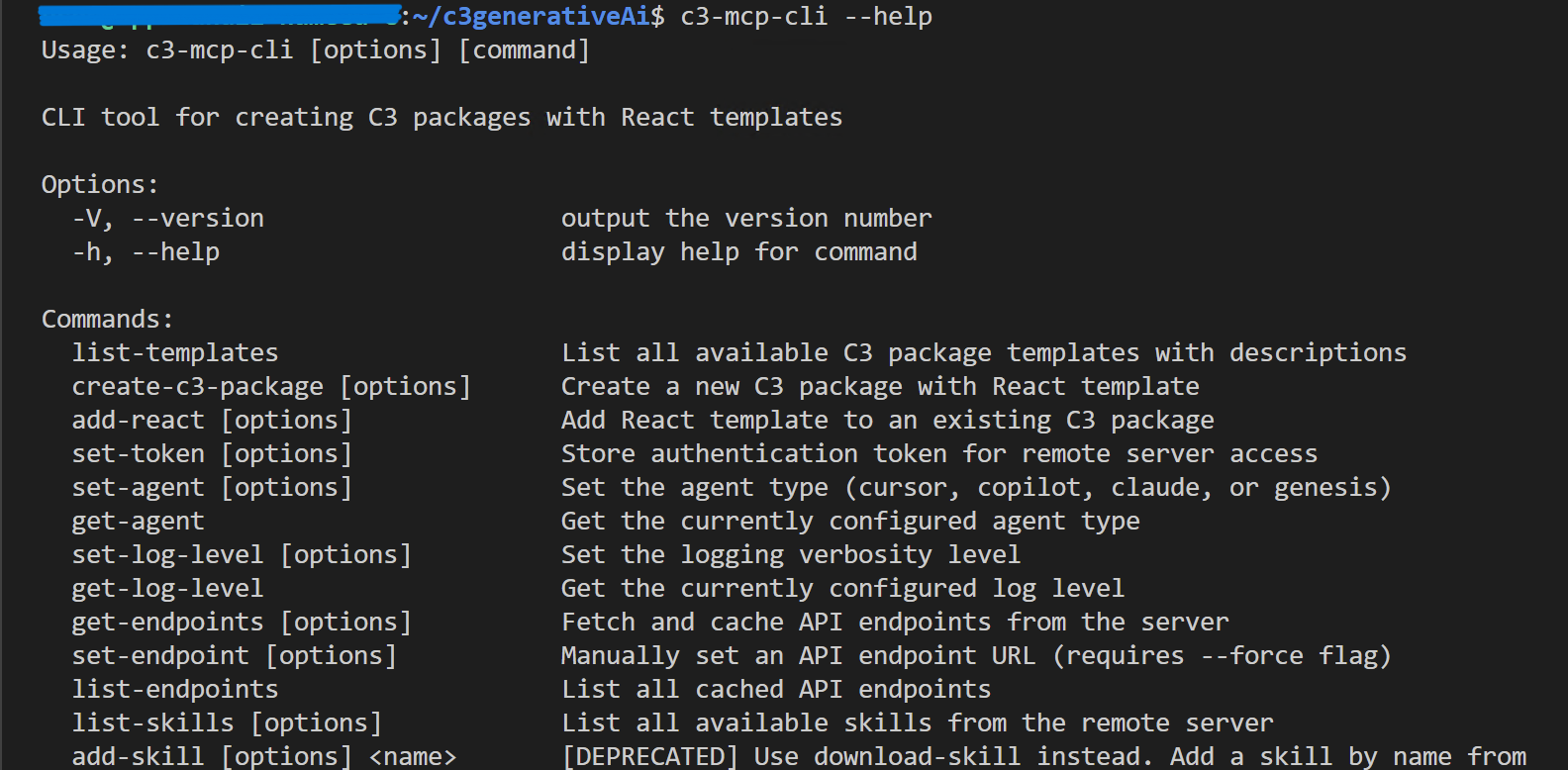
You can also confirm the CLI tool installed correctly by running the following in your terminal:
c3-mcp-cli --helpThis lists all available commands in the C3 MCP CLI:
For the full list of tools, prompts, skills, and extensions available through Central MCP, see Configure and Use C3 Central MCP Server.
Step 3 - Connect to your application's MCP server
Your application's MCP server gives your assistant live access to your application's Types and tests. This is required for the write-test-fix loop.
As a prerequisite, confirm your application includes the mcpServer package and is running. If not, add the package to your app and start it before proceeding.
To connect to your application's MCP server, access your application's mcp url via https://<cluster>/<env>/<app>/mcp.html.
This will take you to the app MCP instructions page where you can follow the instructions to connect your IDE to the app MCP server and then test your tool calls.
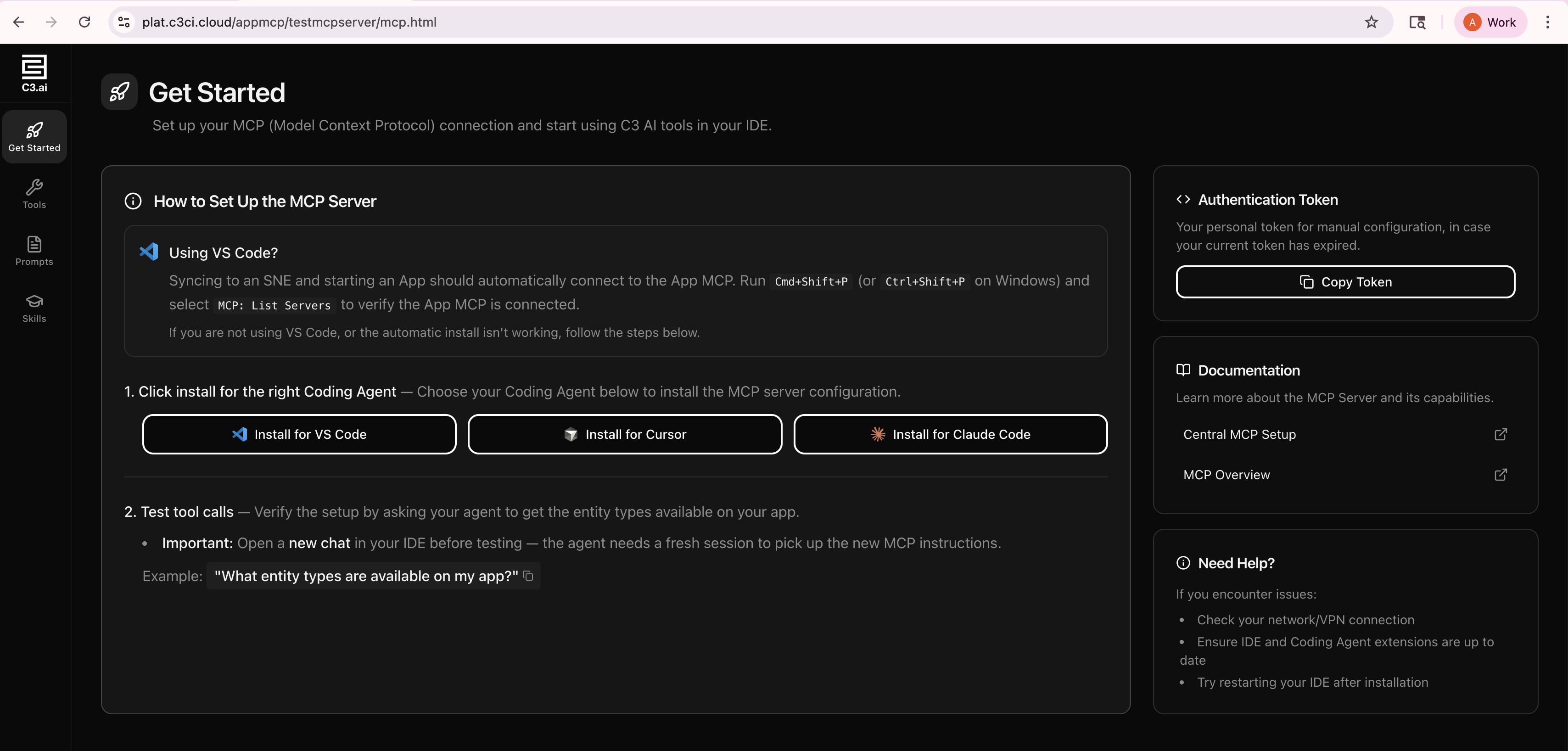
After following the instructions and connecting your IDE to the app MCP server, you should verify your connection by checking the tools available in your IDE. For example in VSCode, if you click Configure Tools in your GitHub Copilot settings, you'll see all the Central MCP tools and your app tools listed.
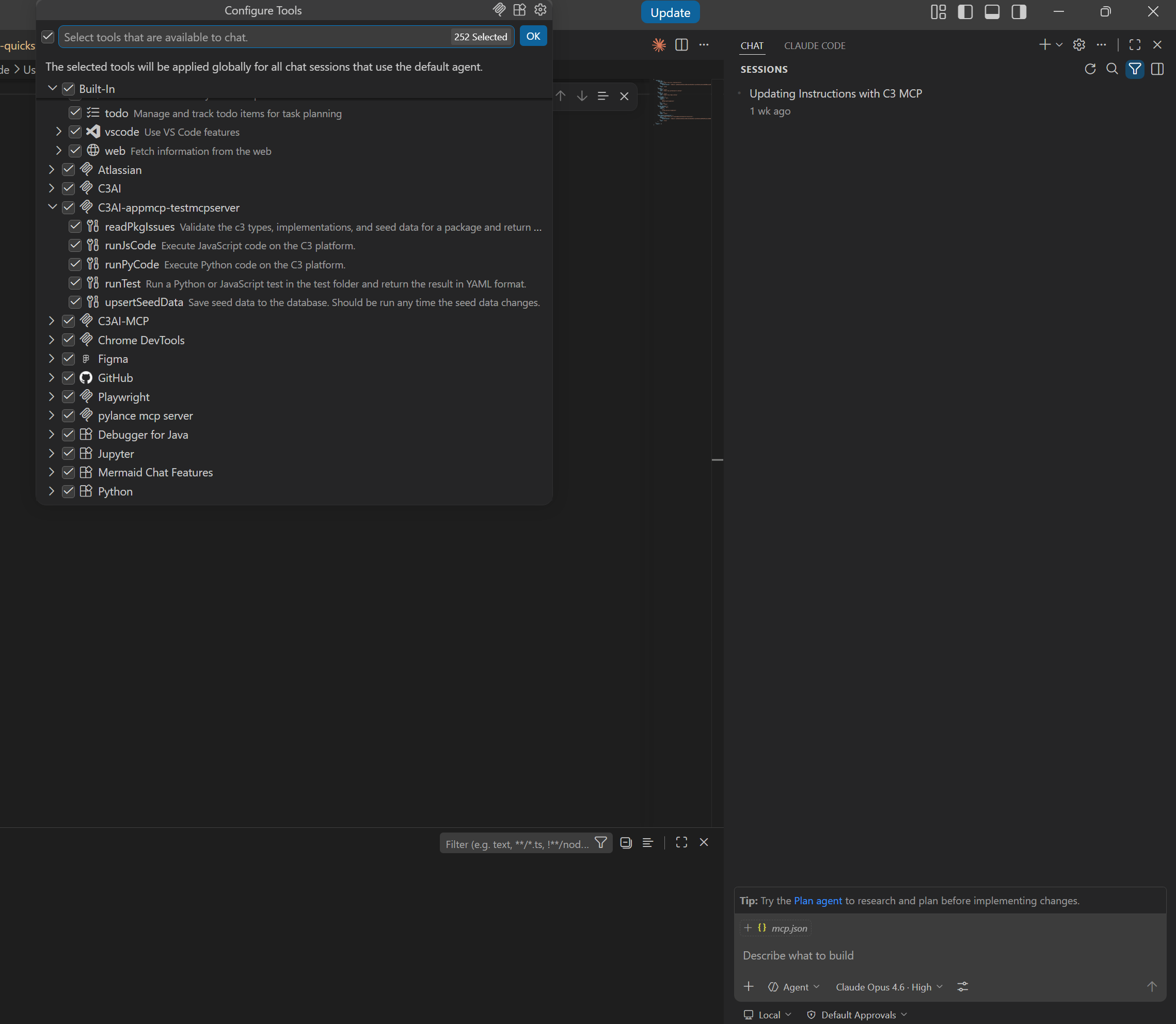
At this point, if your tools do not show up, make sure that you have set up the following:
You go to your application console and run
Pkg.upsertAllSeed()(this makes the seeded app MCP tools available for your agent).After the upsert seed completes, run
Mcp.AppTools.enableAppTools(). This should enable the default tools coming from the mcp package.
Now that you have verified your App MCP connection and viewed your available tools, you can test them via your coding assistant. Below is an example of checking available tools and calling tools via GitHub Copilot in VS Code.
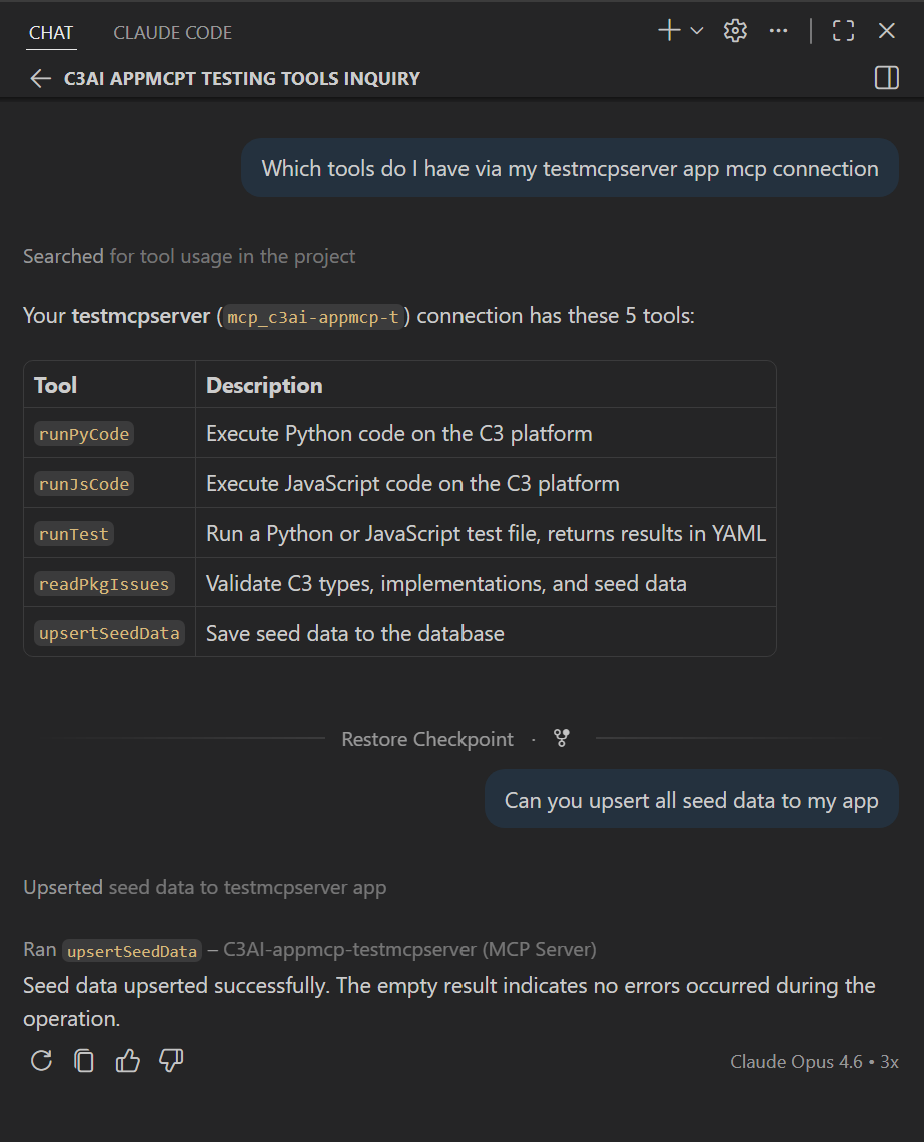
Step 4 - Use both MCP Servers in Action
Your assistant now has Central MCP for C3 platform knowledge and App MCP for live application actions. This step brings both together. Here we show two use cases where these MCP servers help you do your work more efficiently with coding agents.
Start with a quick data-query prompt to confirm the connection works. Enable
entityDataRetrieverfrom MCP > Tools, then enter a prompt like the following in your assistant's chat. Replace the Type name and property with ones from your application:TextFind the [YourType] with the highest [YourProperty] in my application.The following screenshot shows App MCP tools being used to find the item with the highest risk score in an example application:
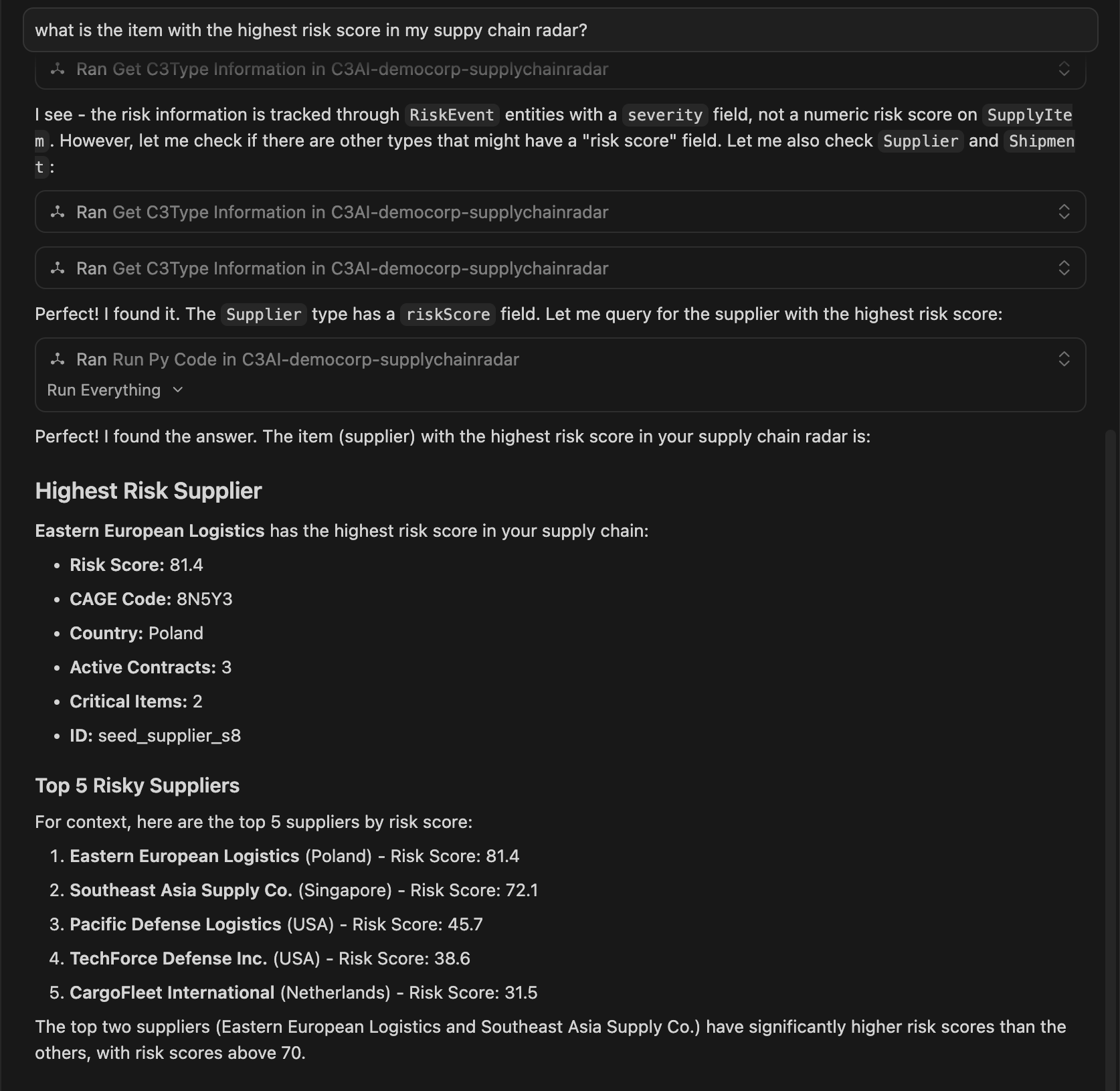
You can also try the full write-test-fix loop. Replace the Type name and method description with something relevant to your application:
TextAdd a new method on [YourType] in my application that [describe what it should do]. Write js tests for this method and run the tests on my application. If any test fails, find the problem and iterate until they all pass.You describe a feature in plain language, and the assistant writes the implementation, generates tests, runs them on your application, and iterates until they pass. Your assistant picks the right tools from both MCP servers based on the task. A typical session includes:
- Reading Type metadata from your application (App MCP) to understand the existing schema.
- Using C3 documentation and code-generation tools (Central MCP) to draft the implementation following platform conventions.
- Reading skills and prompts for writing tests (Central MCP) to generate test cases.
- Editing files in your project directly.
- Running tests on your live application (App MCP) and reading the results.
- Fixing failures in the implementation or tests and re-running until the tests pass.
The exact tools and order vary depending on the prompt, the model, and your application.
Accept or reject each file change as the assistant proposes it.
The loop continues until all tests pass. The assistant summarizes the final state.
If the loop stalls, paste the failing test output back into chat with one line of context. Short feedback beats long rewrites.
What you now have
After finishing the tutorial, your environment is set up for the full agentic workflow:
- Central MCP provides C3 platform knowledge, code generation, and reusable prompts.
- App MCP runs tools on your live application: executing code, running tests, inspecting Types, and validating packages.
- Your assistant can edit files, call tools from both servers, and iterate automatically.
From here, you can enable more default tools (such as entityDataRetriever and readPkgIssues), create custom tools for your business logic, publish reusable prompts, and install extensions to broaden what your assistant can do.