Model Inference Service (MIS) UI
The C3 AI Model Inference Service (MIS) is a C3 Agentic AI Platform Microservice for low latency serving of machine learning (ML) models, including LLMs. With C3 Agentic AI MIS, you can serve any MlAtomicPipe from the C3 Agentic AI Model Registry for a "warm" deployment and manage routing of all inference requests. The MIS UI allows users to serve VllmPipe models from the Studio Managed Model Registry of an application. StudioAdmin users can also manage deployed instance from the Model Inference Microservices section of the Admin Services Tab.
For more information about MIS please see Overview of C3 AI Model Inference Service Administration.
Serving an LLM
The entry point for the deployment process in the Model Registry of an app. You will select the VllmPipe you wish to serve, and click on the row's corresponding Serve Model button (the lightning bolt symbol). If you try to serve a non-VllmPipe, you will see a modal telling you that model type is not supported via the UI.
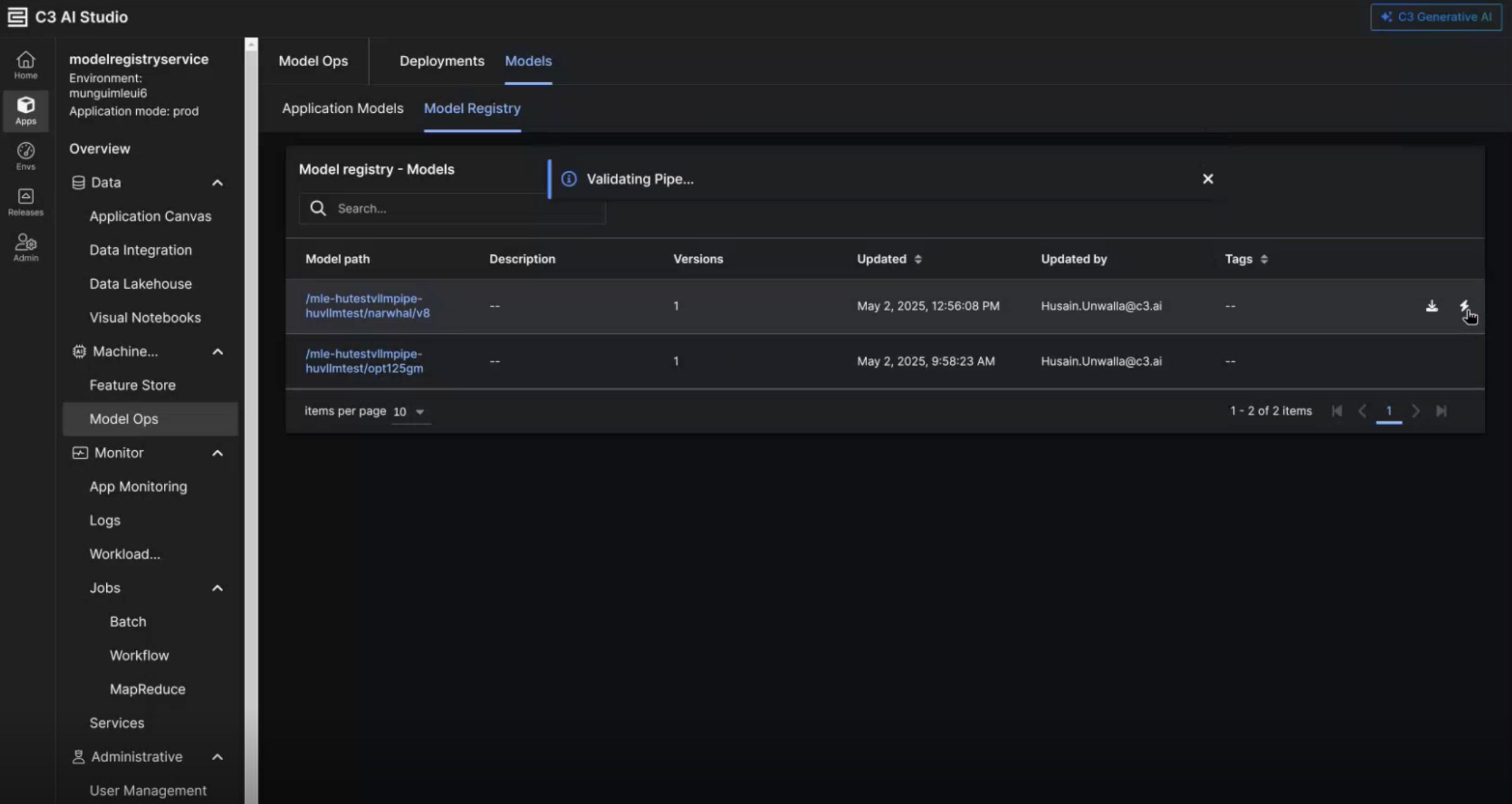
Configure MIS Hardware Constraints
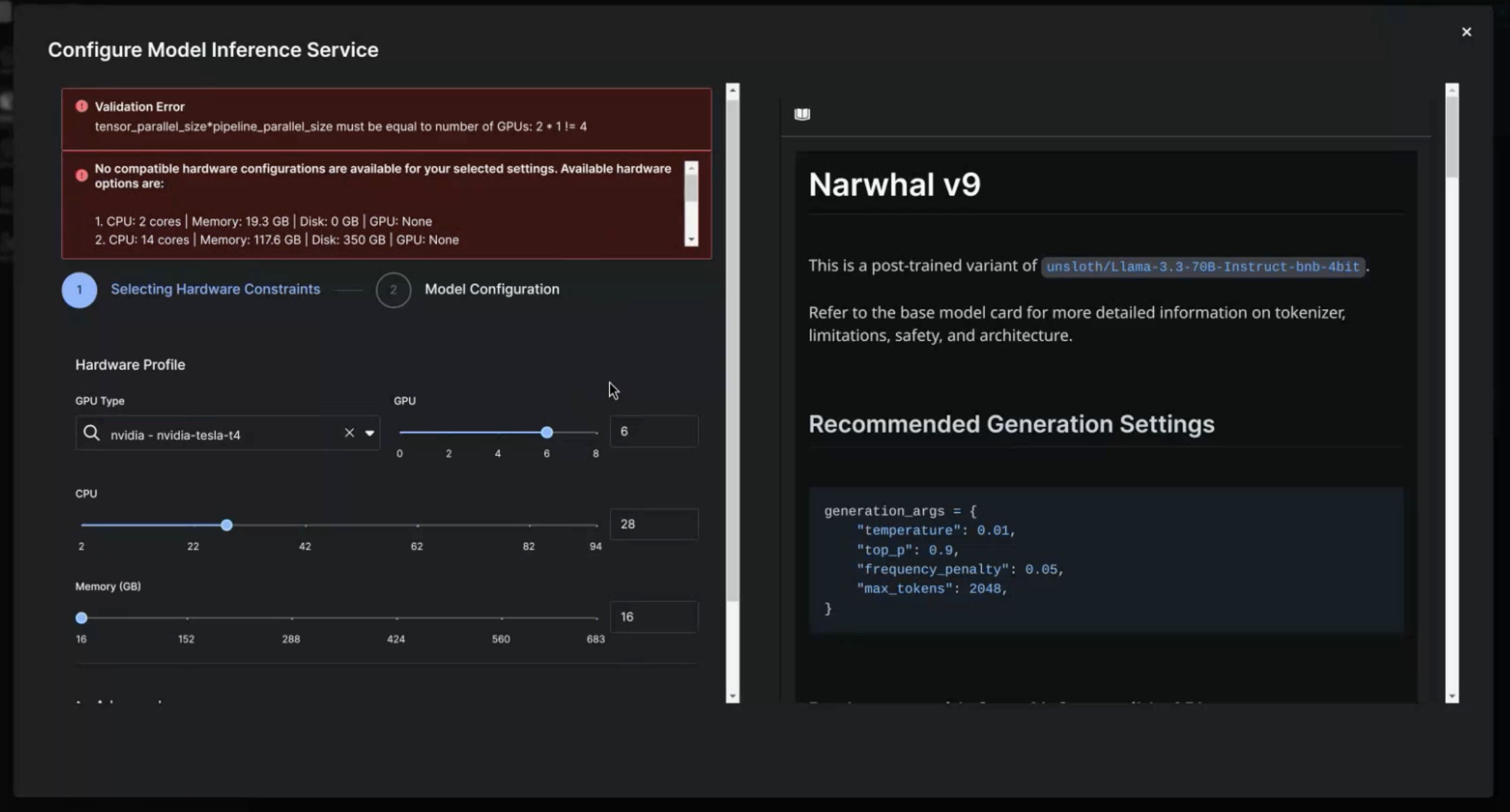
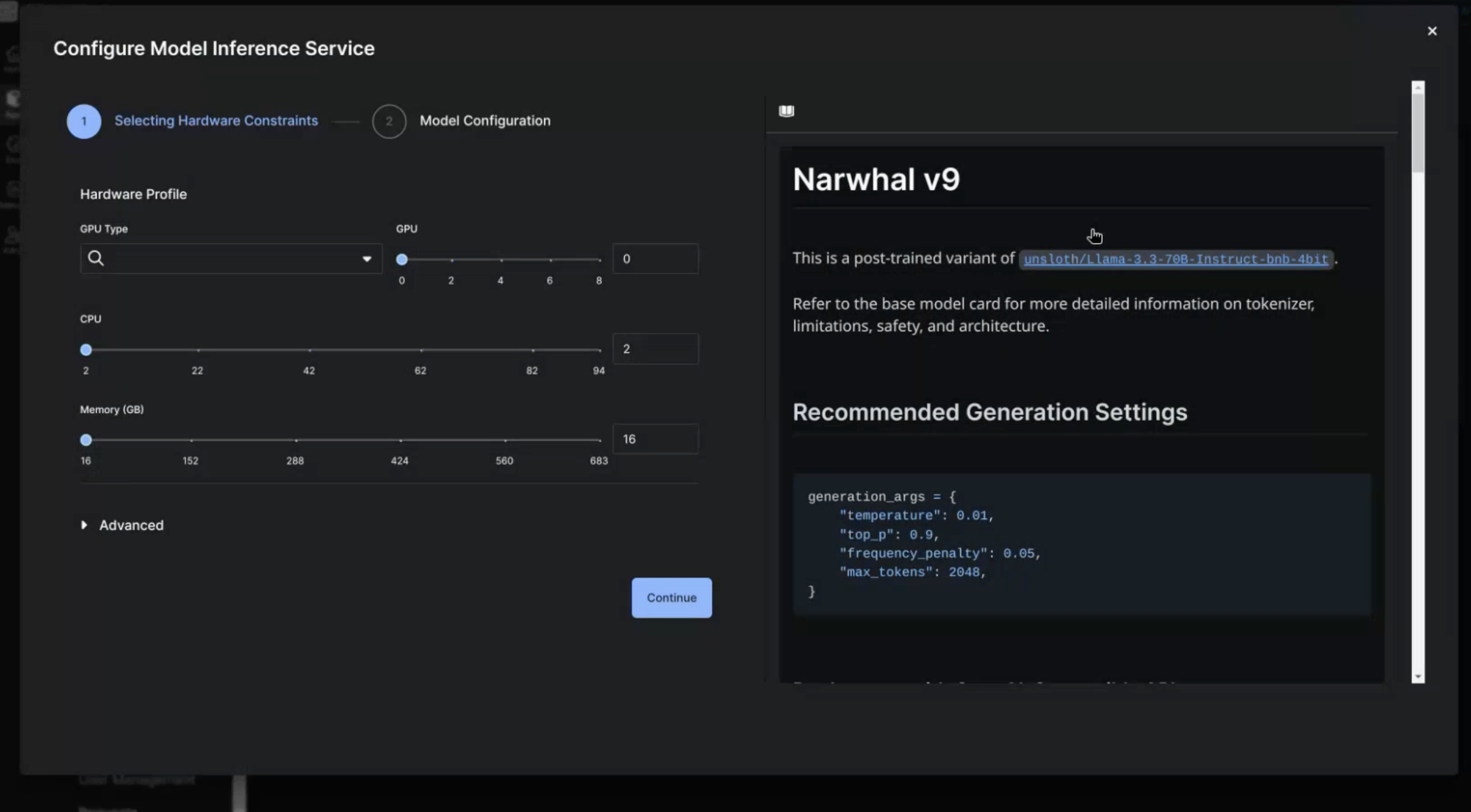
The first page you'll see after clicking the Serve button is the Hardware Configuration page. This page will contain options to select the hardware to host the model on, and the model's Model Card to the right of the options. The specific hardware options are:
- GPU Type - the GPU model to use (eg. A100, T4, L4, etc.). The dropdown menu will only display GPUs available to the app.
- GPU - the number of GPUs of the GPU type to use. If you try to select more GPUs than the cluster has access to you will see an error banner.
- CPU - the number of CPUs to use for the deployment
- Memory (GB) - the amount of RAM to use for the deployment. Note, it is recommended to have at least 2x the model size (in GB) worth of RAM for a deployment.
Additional validation prevents you from advancing if there are errors. The current validation checks the following information for your hardware request:
- Cluster availability
- Compatibility with the desired vLLM Deployment args
After you select your hardware configuration, select Continue to move to the Model Configuration page.
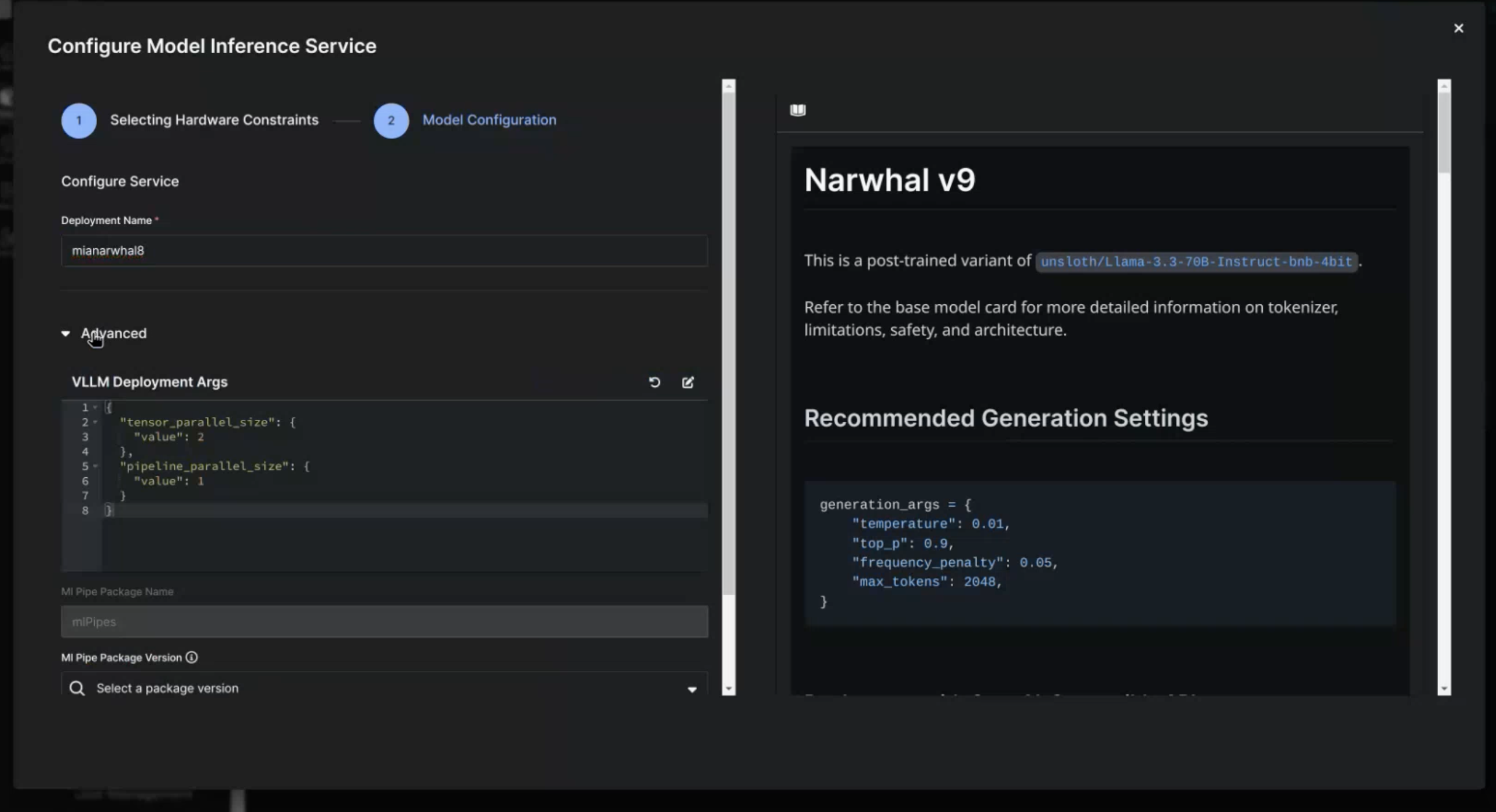
Configure MIS Model Configurations
The only required input for the Model Configuration page is the Deployment Name. Enter the name your model will have on the Model Inference Microservices page.
If you need to update the vLLM Deployment Args, you can configure these in the Advanced section.
Advanced settings can impact the performance of your deployment. Only configure these settings if you know what the parameters do.
The modal expects JSON formatted data, and will not allow you to move forward if you enter improperly formatted code. To edit the modal, select the pen and paper icon. To revert to the default configuration select the refresh icon.
Once you are done with this page, you can select the Back button to return to the Hardware Configuration page or the Submit button to initiate the deployment. Any changes to the Deployment Args will be saved if you select the Back button.
Managing a Deployed Model
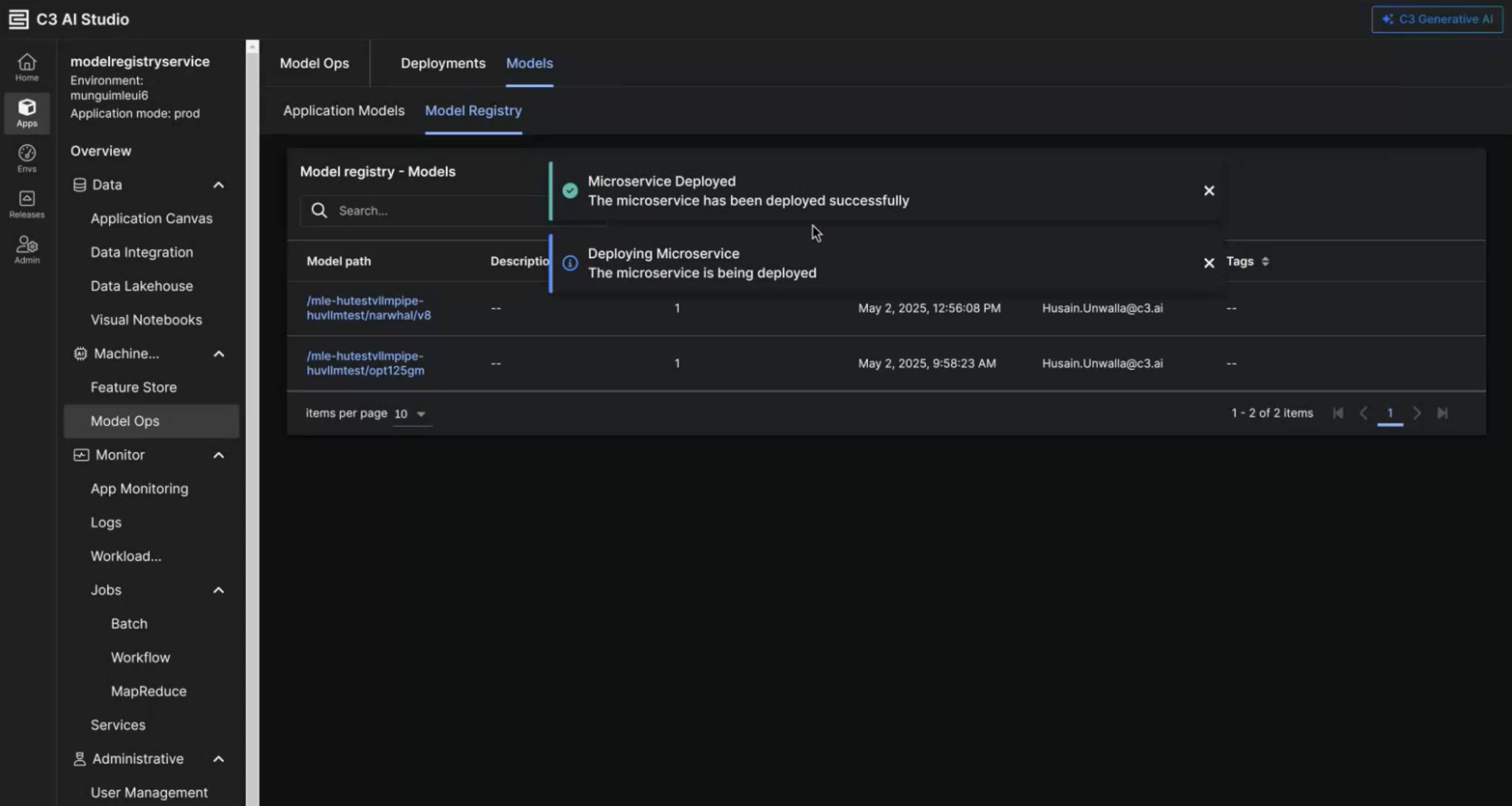
After you deployed a model, a modal appears to notify you of the status of the MIS microservice.
Studio Admin Permissions
If you are a ClusterAdmin, you can view all MIS instances, deployed via the UI, in the Services tab of the Admin page. If there are any instances of models deployed via the MIS UI, you can also find a Model Inference Microservices tab. This tab allows you to do the following:
- Inspect the status of the microservice
- Terminate the microservice
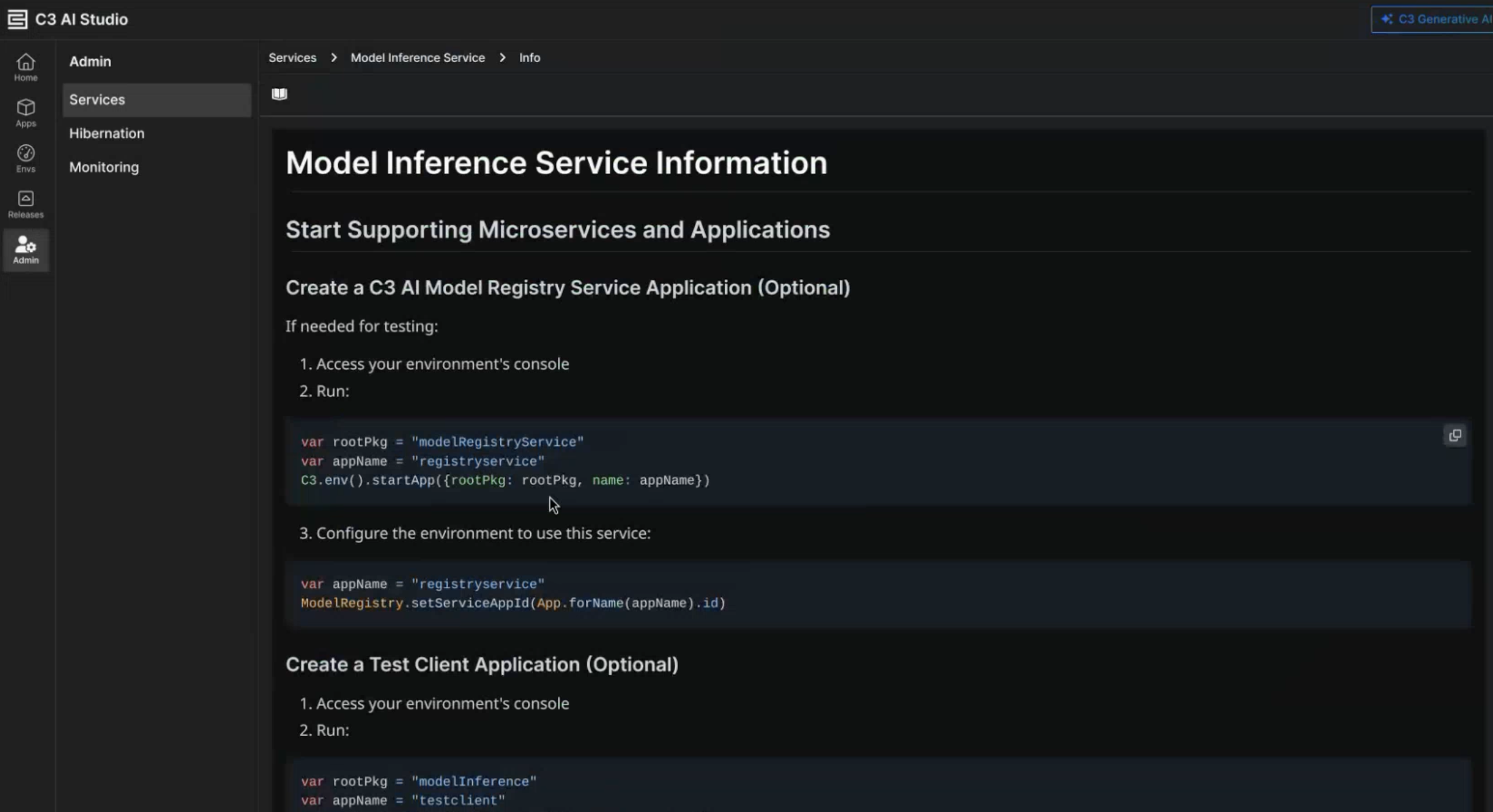
- View instructions of the microservice

Select the service name to open a markdown file that covers the following:
- How users can access the model
- How to validate the model runs as expected
- How to whitelist different clusters so they can access the model
Deploying a Model from the UI vs Code
When serving a model via the Studio UI there are a few considerations to know about:
- Only VllmPipes can be served via the StudioUI
- All deployments initiated from the UI will create their own app to host the MIS instance. Therefore, there is only one route per MIS app. If serving models via MIS from code, the standard approach is for multiple models (routes) to be deployed on one app.
- When selecting GPUs, the number of GPUs specified in the UI is the total GPUs. When selecting GPUs via code, the number of GPUs is the number of node pools you a requesting.
- Only deployments initiated via the Studio UI will be present in the Model Inference Microservices