Connect to GitHub During Application Creation
Choose your starting point
When creating an application, choose whether to start with a blank package or source from an existing GitHub repository.
Create a new package from scratch
Choose this option when no existing GitHub package fits your needs — for example, when building a new integration or testing a feature in isolation. Create an empty package, develop your changes, and publish to GitHub so you or others can resume work later from the same repository.
You can add dependency packages to reuse existing entities, pipelines, or configurations without building directly on a full existing package.
Use an existing package
Choose this option when a published package in GitHub already contains relevant logic or setup. This is useful for continuing development, making incremental updates, or deploying the same package to a different environment or cluster.
Connect to GitHub during application creation
Before you begin
- You have a GitHub account with access to the target repository.
- You have a classic GitHub personal access token with repository permissions. See Version Control with GitHub for details on how to structure your repository and find the correct path.
Steps
- In C3 AI Studio, select the plus icon (+) to open the Create application workflow.
- Select an environment running version 8.8 or above from the dropdown menu.
- Select Use existing package. A modal opens prompting you to select Source from Git Repository.
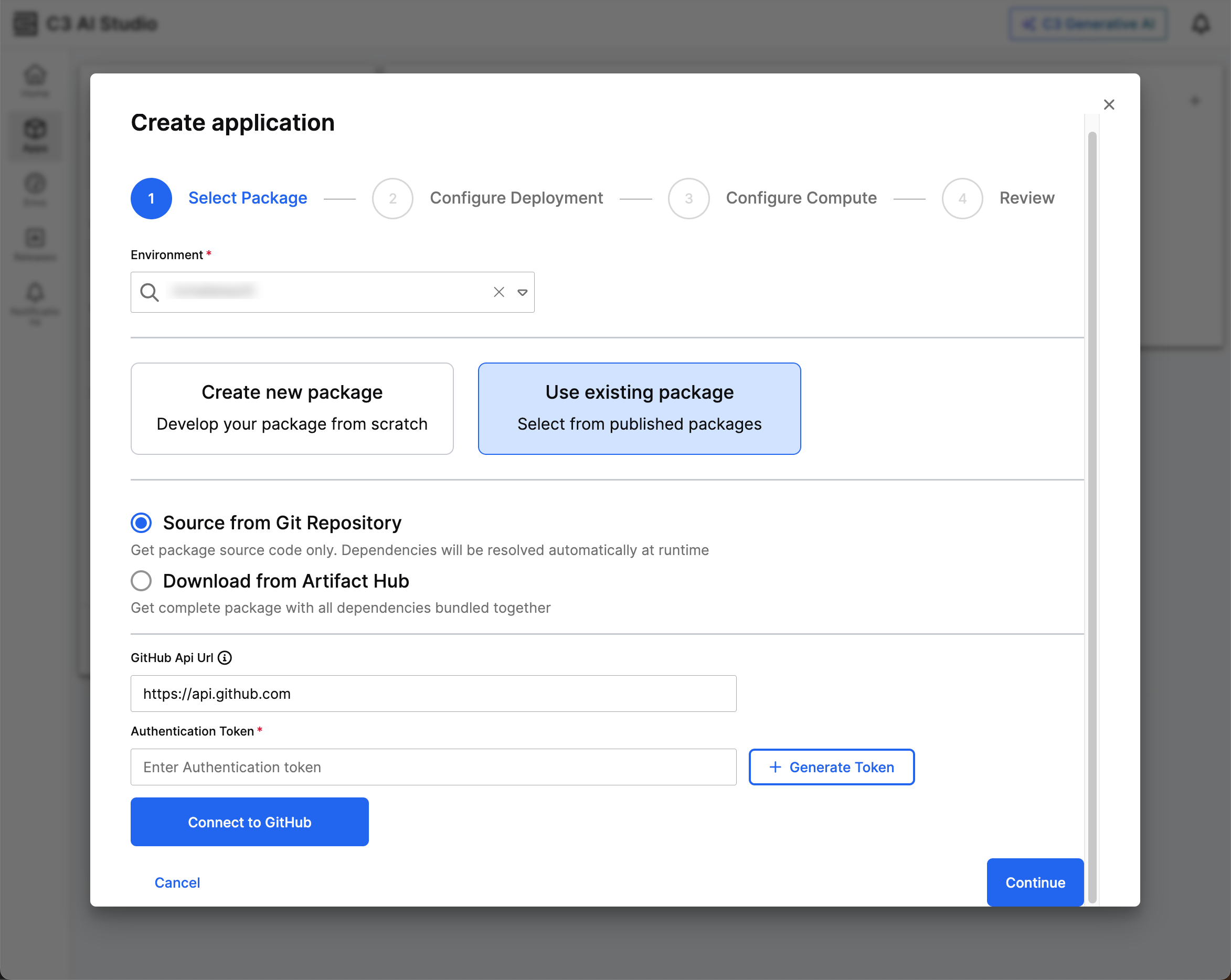
- In the GitHub API URL field, enter
https://api.github.comfor a public repository. For an enterprise account, enter the custom domain for your GitHub account. - In the Authentication Token field, enter your token. To create a new token, select + Generate Token to go to GitHub. After generating the token, copy it into the Authentication Token field.
Generate a classic token with repository permissions. A fine-grained token does not work. The token must have no expiration date.
- Select Connect to GitHub. If the token is valid, Connected to GitHub appears.
- In the Select Repository field, use the dropdown menu to select a repository associated with your account. If the correct repository does not appear, check that your API URL is correct and that your token includes repository permissions.
- In the Branch field, select your branch from the dropdown menu.
- In the Path field, enter the path to your package. In the Package field, enter the package name. See Version Control with GitHub for details on these fields.
- Select Continue to complete the application creation flow.
- After creating your application, select the application name, navigate to the Data Fusion tab, and select GitHub to confirm the connection.