Manage GitHub in Data Fusion
Connect to GitHub in Data Fusion
Use this procedure to configure GitHub from within a running Data Fusion application.
Before you begin
Generate a classic GitHub personal access token with repository permissions. See Version Control with GitHub for details on repository structure and path requirements.
Steps
- In C3 AI Studio, select your running application and navigate to the Data Fusion tab.
- Select Configure GitHub.
- In the REST API field, enter
https://api.github.comfor a public repository. For an enterprise account, enter the custom domain. - In the Authentication Token field, enter your token. To create a new token, select + Generate Token to go to GitHub. After generating the token, copy it into the Authentication Token field.
Generate a classic token with repository permissions. A fine-grained token does not work.
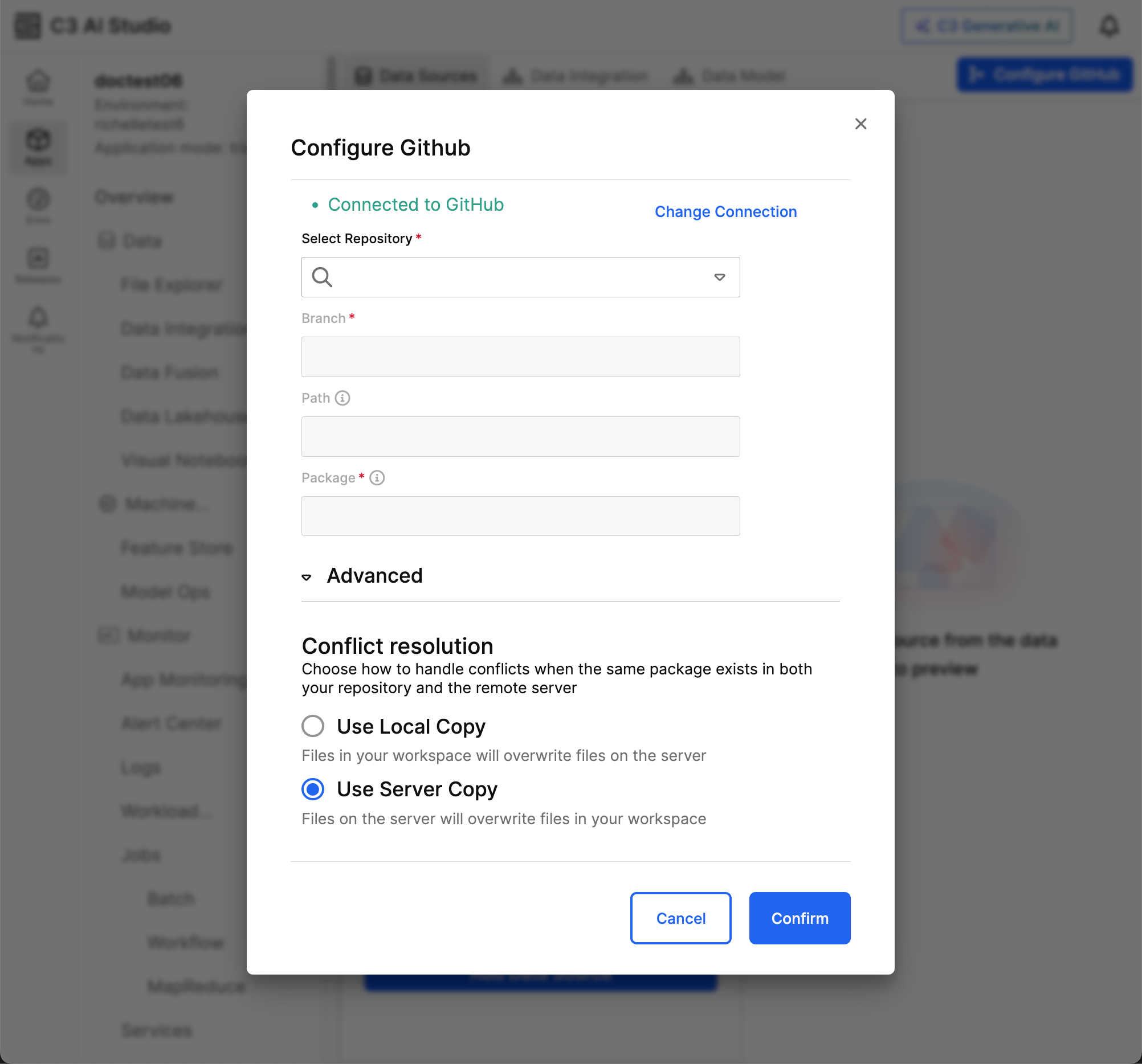
- Select Connect to GitHub.
- From the Select existing branch dropdown menu, select a GitHub branch.
- If the application already exists at the selected Code path in the GitHub branch, open the Advanced dropdown and select whether C3 AI uses your local copy of the package or the GitHub server copy.
The copy you select overwrites the package in the branch.
Publish changes from Data Fusion to GitHub
After configuring GitHub, publish local changes from Data Fusion to your branch.
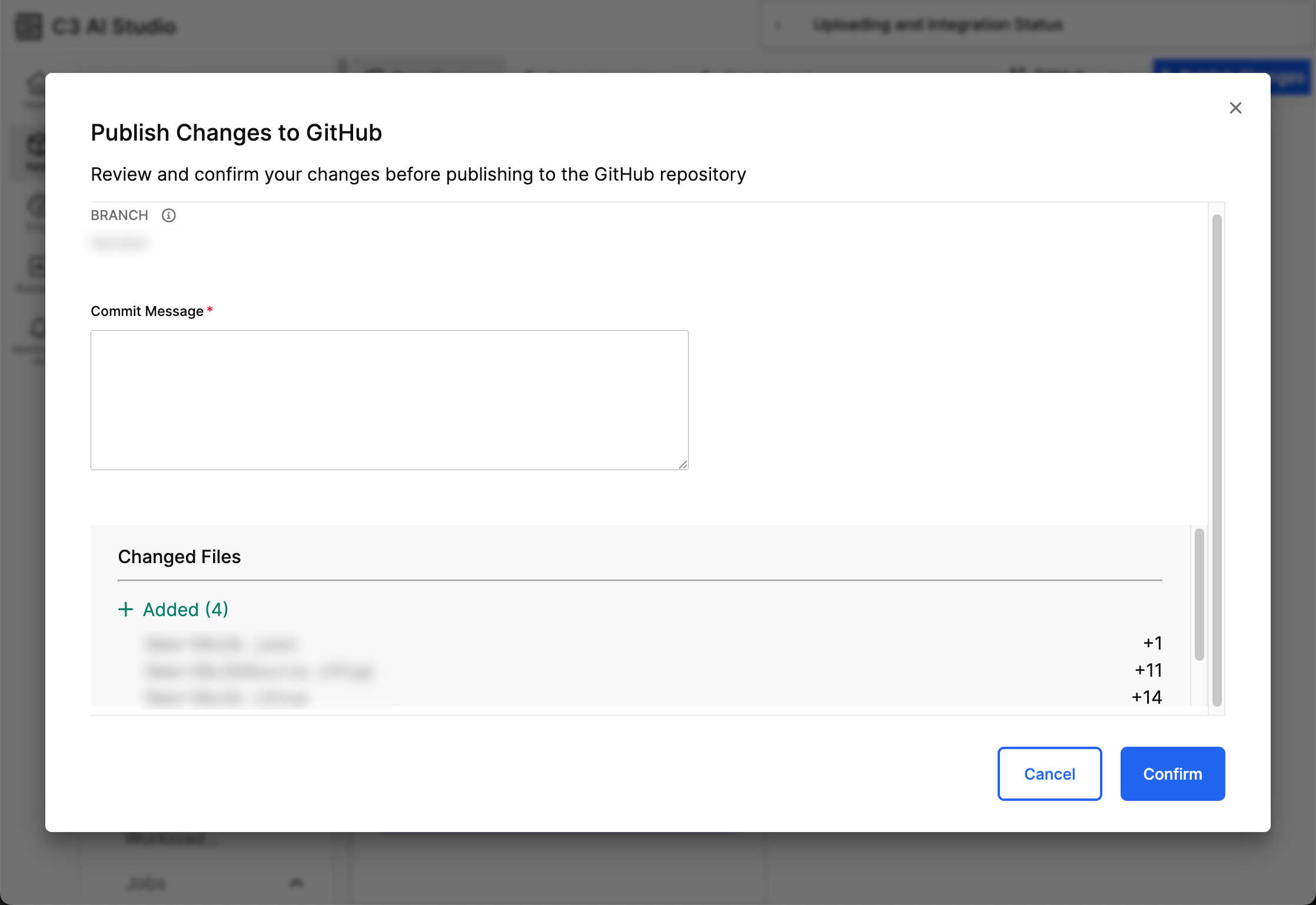
- Select Publish changes. The Publish Changes to GitHub window opens.
- In the Commit Message field, enter details about the change.
- Review your updates in the Changed Files section.
- Select Confirm.
All commits from Data Fusion push directly to the branch. Ensure your branch is safe for direct pushes before confirming.
Save pipeline configuration changes
Saving pipeline configuration values in Data Fusion stores changes in the application package as local changes. These updates are not visible to collaborators until published.
- On the Data Integration canvas, select Save pipeline configurations, then Save to package. The configuration values save to the application package.
- To share the changes, open the GitHub menu and select Publish Changes.
For more information, see Saving Package Configuration.
Troubleshoot GitHub in Data Fusion
No entity types in the package appear in the Object Model tab after configuring GitHub. You entered the wrong path in the Path field. Delete your C3 AI environment, create a new environment, and create a new application. When connecting to GitHub, ensure the path ends in the folder that contains your package.
Data Fusion created a new package in GitHub instead of saving to the existing package. You entered the wrong path in the Path field. Delete your C3 AI environment, create a new environment, and create a new application. When connecting to GitHub, ensure the path ends in the folder that contains your package.
GitHub is in a disconnected state. The token may have expired. Delete your C3 AI environment, create a new environment, and create a new application using a token with no expiration date.