Connect to Microsoft Fabric Using Azure AD Authentication
Overview
Microsoft Fabric SQL Databases can be configured using Azure Active Directory (AD) authentication through either Managed Identity or Service Principal. These methods enable the C3 AI Platform to authenticate using Azure‑managed identities rather than database credentials or shared secrets. This guide discusses how to configure and authenticate Microsoft Fabric using Azure AD credentials. This guide also describes how to infer the source type and fetch data from an SQL table.
Before You Begin
Ensure the following prerequisites are met:
- A Microsoft Fabric SQL Database / SQL Endpoint: Connect to a Microsoft Fabric SQL endpoint via a fully qualified server hostname and port.
- Credentials for the selected authentication method
- Access permissions on the Microsoft Fabric SQL Database: The authenticated identity must have sufficient permissions.
- Network connectivity to Fabric SQL over the required port (1433): The connection uses the standard SQL port 1433.
Method 1: Authenticate using Azure AD Service Principal
Azure AD Service Principal authentication provides a secure way for applications to access Microsoft Fabric resources without relying on user accounts. Service Principal authentication requires manual management of credentials, typically a client secret or certificate.
Note: Create an Azure AD Service Principal if you do not already have one. See Create Azure AD Service Principal and Managed Identity for more information.
Step 1: Create an SQL Source System
Register a new SQL source system to connect to a Microsoft Fabric SQL database.
sys = c3.SqlSourceSystem.make().withName("TestFabricADSP").upsert()
Step 2: Configure JDBC Credentials
Provide the Fabric SQL endpoint, port, datastore type, and Service Principal credentials. Set Authentication and connection properties.
creds = c3.JdbcCredentials.fromServerEndpoint(<SERVER_ENDPOINT>,
    1433,
    c3.Jdbc.DatastoreKind.MSFABRIC,
    <DATABASE_NAME>, None,
    <CLIENT_ID>,
    <CLIENT_SECRET>);

## Set authentication and connection properties
creds = creds.withProperties(c3.Map.ofStrToAny("authentication", "ActiveDirectoryServicePrincipal", "encrypt", "true", "trustServerCertificate", "false"))
Step 3: Attach Credentials to the System
sys.setCredentials(creds)
Step 4: Verify Connectivity
Verify the connection by performing a simple connectivity test. Run the following command:
sys.ping()
When the connection is configured correctly, the command returns the following:
{
    "type" : "PingResult",
    "reachable" : true
} Method 2: Authenticate Using Azure AD Managed Identity
Azure AD Managed Identity authentication provides a secure, passwordless way for Azure‑hosted applications to access Microsoft Fabric resources. Managed identities are automatically created and managed by Azure, eliminating the need to store or rotate secrets.
Note: Create an Azure AD Managed Identity if you do not already have one. See Create Azure (AD) Credentials for more information.
Step 1: Create a Source System
This defines a logical SQL source in C3 for your Fabric connection.
sys2 = c3.SqlSourceSystem.make().withName("TestFabricADMI").upsert()
Step 2: Configure Managed Identity Credentials
Fabric uses Microsoft Entra tokens via the Workspace Identity, so no password/secret is stored.
creds2 = c3.JdbcCredentials.fromServerEndpoint ("tj322u7hsnoeroravsbjbvzffm-coijqz5ljzrudhhqjjoiv4ddm4.database.fabric.microsoft.com",
    1433,
    c3.Jdbc.DatastoreKind.MSFABRIC,
    "<DATABASE_NAME>", None,
    “<MANAGED_CLIENT_ID>”,
    None);

## Set authentication and connection properties
creds2 = creds2.withProperties(c3.Map.ofStrToAny("authentication", "ActiveDirectoryManagedIdentity", "encrypt", "true", "trustServerCertificate", "false"))
Step 3: Attach Credentials to the System
sys2.setCredentials(creds2)
Step 4: Verify Access and List Tables
Input:
sys2.ping()
Output:
{

 "type" : "PingResult",
 "reachable" : true

}
Input:
sys2.connect().listTableNames()
Output:
{   "type" : "JdbcListTableNamesResult",
    "names" : [ "Address", "Customer", "CustomerAddress", "Product", "ProductCategory", "ProductDescription", "ProductModel", "ProductModelProductDescription" ]
}
Infer Source Type
You can infer the entity type definition from an external SQL table.
Create A Source Collection
coll = c3.SqlSourceCollection.builder().name("Address").sourceSystem(sys2).build().upsert()
Infer The Type
Input:
srcType = coll.inferSourceType2();
srcType = c3.pkg().upsertType(None, srcType.toString())
srcType.toString()
Output: The system looked at the source table and generated the entity definition automatically.
"entity type Address mixes External, NoSystemCols, Source schema name '[SalesLT].[Address]' {\n\n @db(dataTypeOverride='int32')\n id: string schema name 'AddressID'\n\n addressline1: string schema name 'AddressLine1'\n"
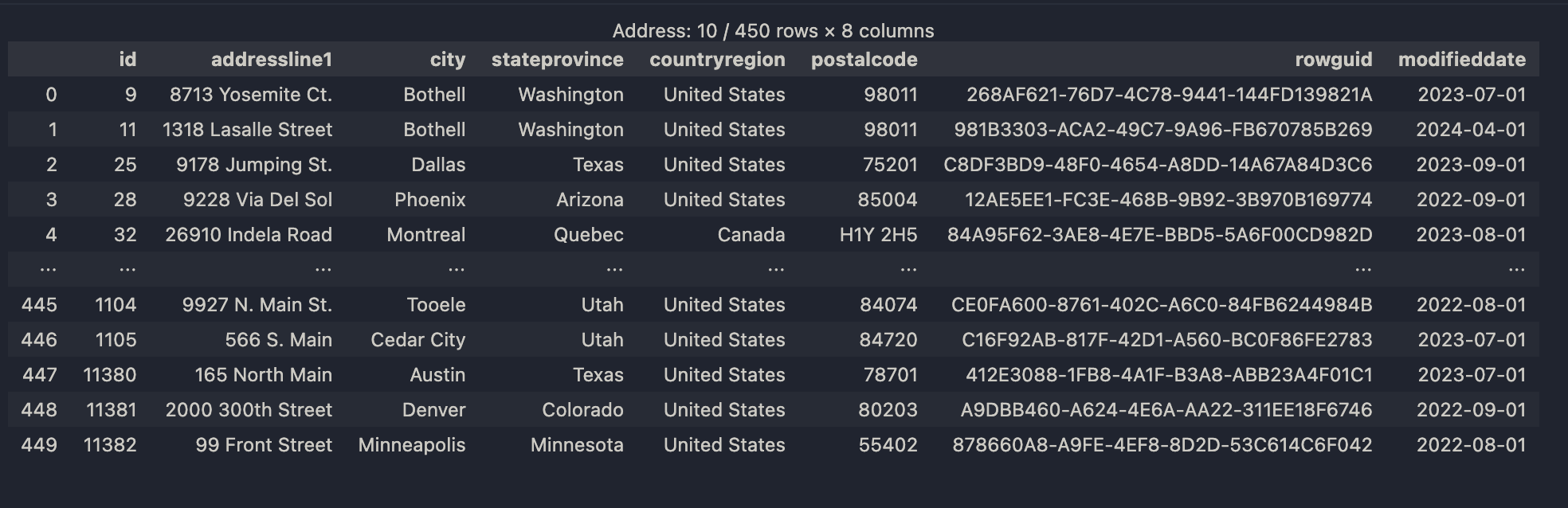
Fetch Data from the Fabric SQL Table
Once the type is generated, fetching data is straightforward.
Input:
c3.Address.fetch()
Output:
 |
| Address Table |