Configure Provider Domain
Provider-side configuration is managed from the Data Sharing section in Studio. Provider admins use this interface to register domains, expose packages or types, and manage consumer access requests.
Registering a Data Domain
Registering a data domain makes selected application data available for discovery by other applications within the same environment. During registration, the provider admin defines the domain name and selects which packages or types to expose.
Once registered, the domain becomes available to consumer applications in the Discover tab, where consumer admins can subscribe to it and request access.
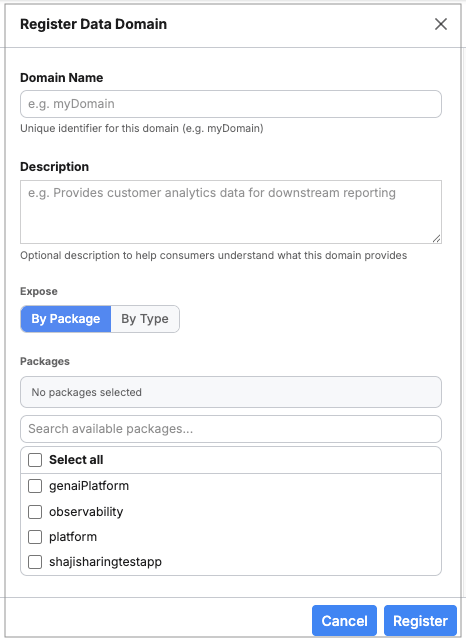
To register a data domain:
- In Studio, navigate to Data > Data Sharing.
- Click the My Domains tab.
- Click the Register Domain button (the + icon next to the search bar). The Register Data Domain panel opens.
- In the Domain Name field, enter a unique name for the domain.
- (Optional) In the Description field, enter a description for the domain.
- Under Expose, choose how to define the domain scope:
- By Package — expose all types declared in the selected packages
- By Type — expose specific individual types
- Select one or more packages or types from the list. (Optional) Enable Auto Approval to automatically grant Read Only access to future consumer requests from single-node applications.
- Click Register.
If the configuration is valid, the domain appears in the My Domains tab with its configured scope displayed. Consumer applications can discover the domain from the Discover tab in their own Data Sharing interface.
Previewing Types While Registering a Domain
When registering a domain using the By Type option, provider admins can review individual type definitions before exposing them to consumer applications.
Selecting a type displays its schema definition in the preview pane. This allows provider admins to inspect the type structure and confirm the exposed types before registering the domain.
Use the search field to filter available types by name.
Previewing a Registered Domain Scope
After a domain is registered, provider admins can review the configured domain scope from the My Domains tab.
Select the Types scope badge to open the Domain Scope dialog. Select a type from the left pane, then use the available preview icons to switch between the type definition view (<>) and the data preview view (table icon).
Package-based domains display a Packages badge that summarizes the number of exposed packages. The Packages badge is informational and is not clickable.
A domain with no configured packages or types displays an Empty badge. The Empty badge is also informational and is not clickable.
The type definition view displays the schema and metadata for the selected type. The data preview view displays paginated sample entity records for the selected type, subject to the current user's runtime permissions. The preview fetches a default set of records and supports page-size controls for navigating additional results.
Managing Registered Domains
After a domain is registered, it appears in the My Domains tab. Provider admins can review the domain scope, edit exposed packages or types, or delete the domain.
Only domains registered using the By Type scope expose the interactive domain-scope preview dialog. Package-based scopes are displayed as static scope badges.
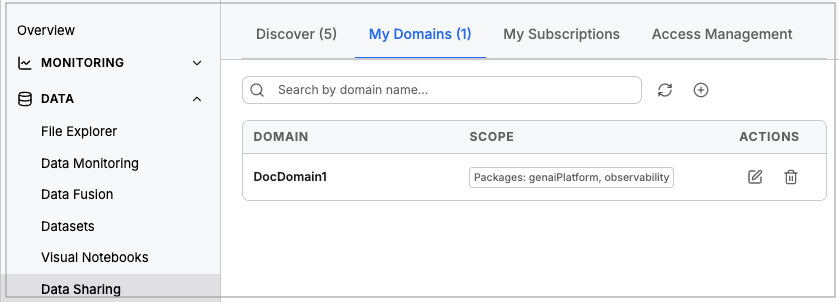
The My Domains table displays:
- Domain — the registered domain name
- Scope — the packages or types exposed by the domain
- Actions — controls for editing or unregistering the domain
To edit a domain:
- Open the My Domains tab.
- Locate the domain.
- Click the Edit icon.
- Update the exposed packages or types.
- Save the changes.
To delete a domain:
- Open the My Domains tab.
- Locate the domain.
- Select the Unregister Domain icon. The Unregister Domain action is available only for domains that were registered through Studio. Domains defined by the application's metadata cannot be unregistered from the Studio UI and must be managed through the application's configuration.
- Confirm the deletion.
Removing a domain makes it unavailable for new subscriptions and access requests.
Managing Consumer Access
Provider admins manage consumer access requests from the Access Management tab.
The Pending Access Requests section displays incoming requests from consumer applications. Each request includes:
- Requester App — the consumer application requesting access
- Domain — the target domain
- Requested Access — the requested access mode submitted by the consumer application
- Comment — an optional reason provided by the consumer application
- Actions — controls for approving or denying the request
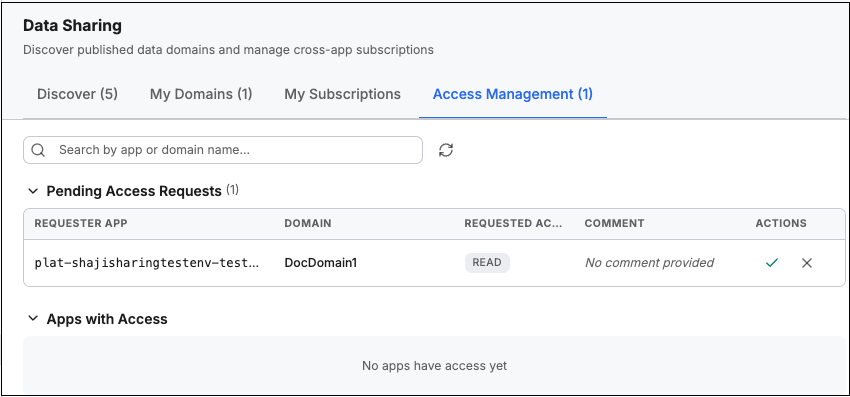
To review a consumer access request:
- Navigate to Data > Data Sharing.
- Open the Access Management tab.
- Locate the request in the Pending Access Requests table.
- Review the requesting application, domain, requested access level, and optional comment.
- Click the Approve icon (checkmark) to grant access, or the Deny icon (X) to reject the request.
Approved applications appear in the Apps with Access section.
Provider admins can optionally configure a domain to automatically approve consumer access requests. When Auto Approval is enabled, new access requests are granted Read Only access without requiring manual review in the Access Management tab.
Auto Approval only takes effect when the requesting consumer application is running in a single-node environment
Consumer applications with approved access can perform operations against the shared domain based on the granted access level.
Access Requests and Role Assignment
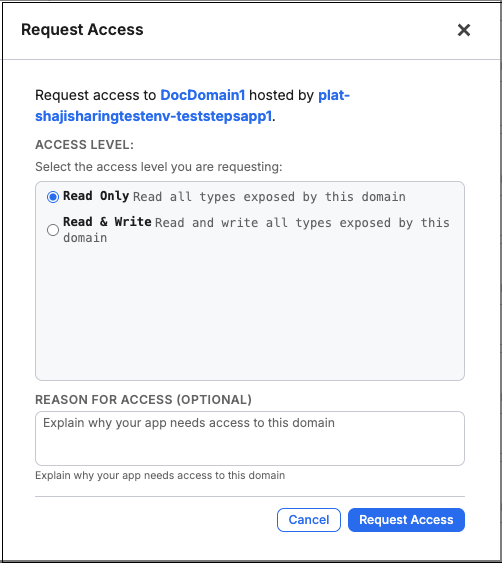
When requesting access to a domain, consumer applications can indicate the intended access mode in the Request Access dialog.
During approval, provider admins grant the requested access level to the consumer application for the selected domain. The granted access level determines the operations the consumer application can perform against the shared domain.
The following access modes are available in the Request Access workflow:
- Read Only — indicates read-oriented access to the shared domain
- Read & Write — indicates read and write access intent for the shared domain
The selected access mode is used during the access approval workflow and determines the level of access granted to the consumer application.
Update Consumer Access
Provider admins can modify the access level granted to consumer applications from the Apps with Access section.
After an access request is approved, it may take a few seconds to a few minutes for the application to move from Pending Access Requests to Apps with Access because approval is processed asynchronously.
To update an application's access level:
Navigate to Data > Data Sharing.
Open the Access Management tab.
Locate the application in the Apps with Access section.
Locate the domain whose access you want to modify.
Open the Edit action for the domain.
Select the new access level.
Save the changes.
The updated access level applies only to the selected shared domain. Access granted to other shared domains is not affected.
Revoke Consumer Access
Provider admins can revoke a consumer application's access to an individual domain without affecting its access to other domains.
To revoke access:
Navigate to Data > Data Sharing.
Open the Access Management tab.
Locate the application in the Apps with Access section.
Locate the domain whose access you want to revoke.
Open the Revoke action for the domain.
Confirm the action.
Revoking access removes the application's Data Sharing access to the selected domain only. Access granted to the application's other shared domains remains unchanged. Access provided through application role assignments is not affected.