Create a Custom Lambda Validation Rule
You have an entity Type with data in your C3 Agentic AI Platform application, and you want to check that data with your own logic. A custom (Lambda) rule is a data validation rule whose check you write in Python or JavaScript. A foreign key rule only confirms that references point to existing records. Use a custom rule for checks that a foreign key rule cannot express: range checks, allowed-value checks, data freshness, and cross-field consistency.
In this tutorial you:
- Start a draft rule from a template.
- Set the entity Type the rule checks and the columns of the rule's results.
- Write the two functions that find and summarize problem records.
- Run the draft one time to test it.
A draft is a working copy of a rule that you can run and edit; it runs on a schedule only after you deploy it.
Prerequisites
Before you start, confirm that:
- Your application runs C3 Agentic AI Platform version 8.9.0 or later.
- Your user has a role that can create data validation rules and runs. To choose one, see Data Integration Roles and Permissions.
- The entity Type you want to check has data.
- The Data Validation tab is open: in C3 AI Studio, select Data > Data Fusion, then the Data Validation tab.
Step 1: Start from a template
Every custom rule starts from a template that supplies working code:
- On the Data Validation tab, select Add New Rule > Custom Rule. The Select a template dialog opens.
- Under Language, at the bottom of the dialog, select Python or JavaScript. Choose the language first: changing it updates the list of templates and replaces the template you selected. You cannot change the language after you create the draft.
- Select a template:
- Tutorial: learn validation patterns from documented examples. Available for Python only.
- Blank Template: start from minimal code.
- Timeliness Rule: check that the data was updated within a time window, to monitor data freshness.
- Data Point/Interval Count Rule: count the time series data points or intervals that belong to a header, optionally only those within bounds that you set.
- Feature Set Missing Materialized Data: check feature sets for missing materialized data in a time range. The draft sets the target entity to
Feature.Set, and its result table has the columnsfeatureSet,subject,start, andend.
- Select Use Template.
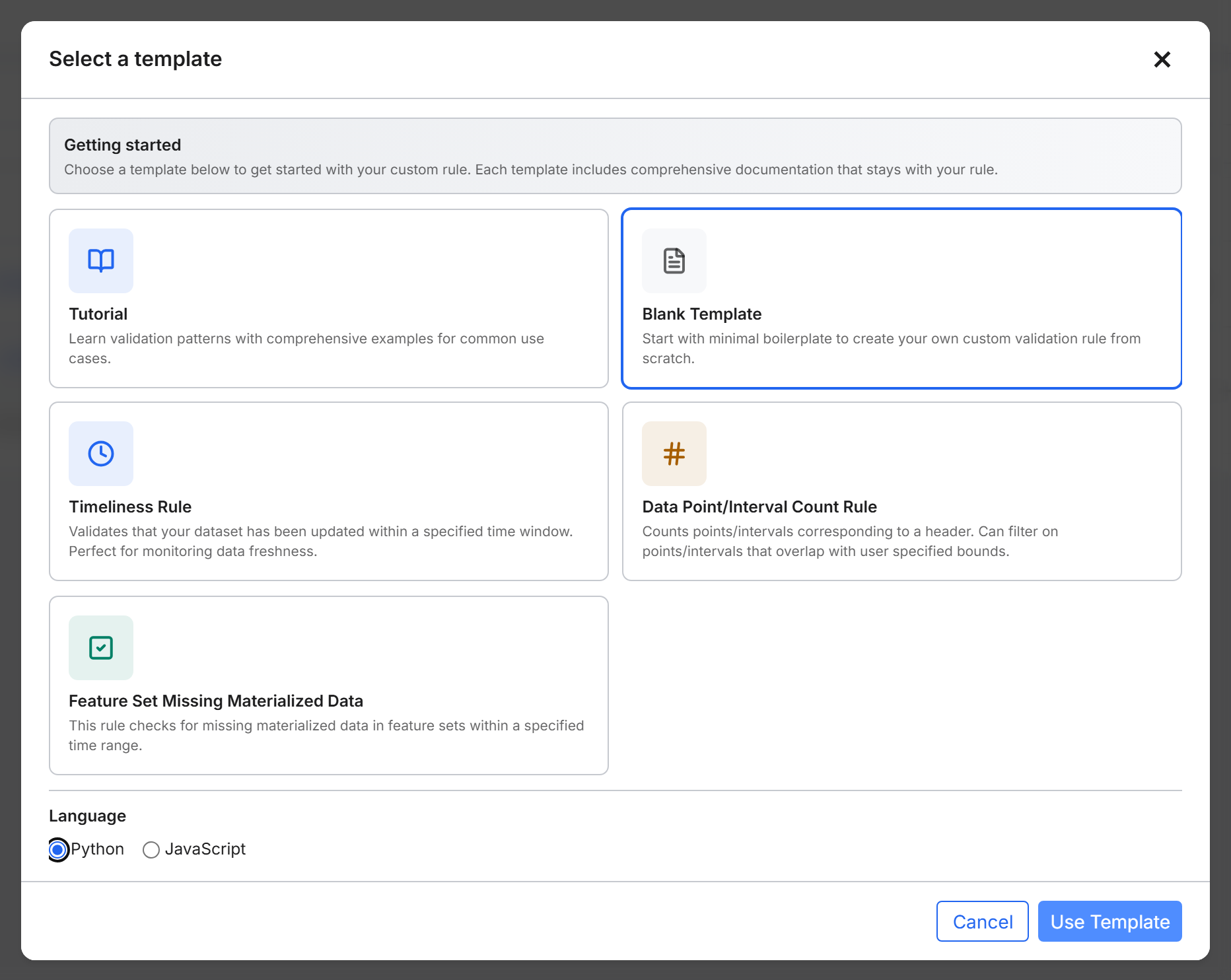
C3 AI Studio creates a draft and opens it in the Rule Builder, the editor for custom rules. The draft also appears on the Drafts sub-tab.
Step 2: Configure the rule
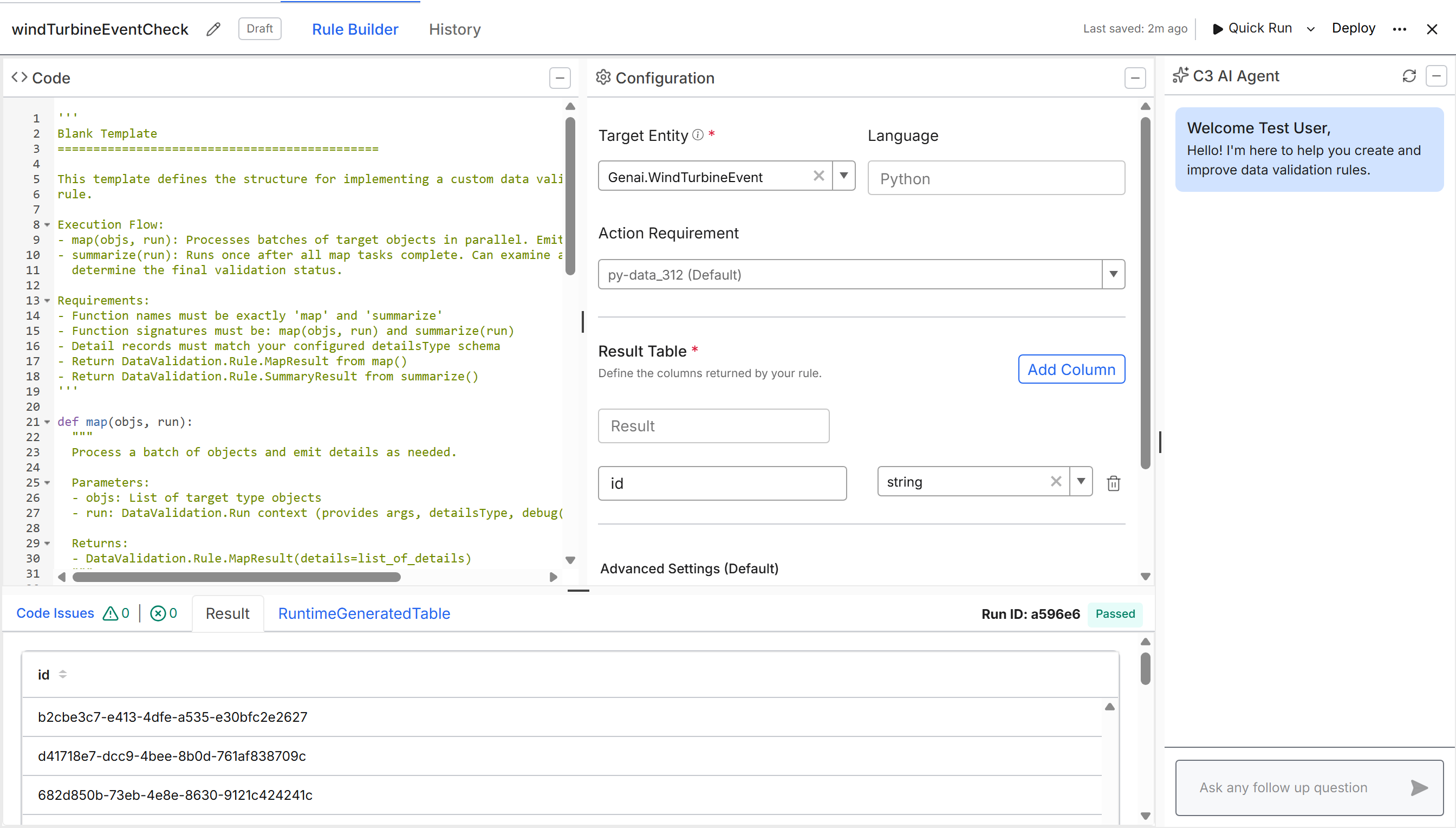
Set the rule's configuration in the Configuration pane before you write code in the Code pane, because the code depends on it:
- In Configuration, select the Target Entity, the entity Type the rule checks. Until you select a Target Entity, the field shows Target type is required.
- Under Result Table, define the columns of the detail rows that your code writes. The default table Result has one column,
id, of typestring. Select Add Column to add more. The table needs at least one column. - Optionally, change the Action Requirement, the runtime that runs your code. The field shows the default, for example py-data_312 (Default).
- Optionally, under Advanced Settings (Default), select +Add Parameter to add arguments for the rule. The default parameter
includewith the valuethisselects the fields that each record loads. Other arguments includefilterandlimit, and you can add your own keys, such as thecutoffDurationthat the Timeliness Rule template reads. Your code reads these arguments fromrun.args. A row with an empty key or value stops the run, so fill in or delete any empty row.
To draft or improve your code from a plain-language description, ask the C3 AI Agent in the C3 AI Agent pane.
Step 3: Write map and summarize
A custom rule has two functions, and the platform runs them as a MapReduce job. The platform splits the target records into batches, runs map on the batches in parallel, then runs summarize once.
map(objs, run): receives one batch of target records inobjs. Check each record and return a detail row, matching the result table columns, for each record that breaks the rule. In Python, return aDataValidation.Rule.MapResult; in JavaScript, return{ details: [...] }.summarize(run): runs after every batch is done. Read the detail rows and return aDataValidation.Rule.SummaryResultwith astatus. UsePASSED,FAILED_MODERATE, orFAILED_CRITICALto report the outcome and its severity. The run takes whatever status you return. If you leave outsummarize, the run status isPASSED.
The run argument gives both functions these helpers:
| Helper | What it does |
|---|---|
run.args | The arguments for this run: the rule's arguments plus any overrides from Advanced Run. |
run.addDetails(rows, name) | Saves detail rows as you go. Safe to call from batches that run in parallel. Pass a table name to write to a table other than the default result table. |
run.debug(message) | Writes a debug message. Recorded only in a Debug Run. |
run.addError(error) and run.addErrors(errors) | Records one or more DataValidation.Run.Error objects. |
run.fetchDetails(spec, name) | Reads the detail rows written so far. spec is a fetch specification, such as limit=1. |
This Python example writes a detail row for every record, so a run on an entity Type with data ends with FAILED_MODERATE. Replace the loop body with your check. In summarize, run.fetchDetails(limit=1).count returns at most one row, which is enough to tell whether map found any problem.
def map(objs, run):
  details = []
  for obj in objs:
    # Emit a detail row for each record that violates the rule.
    details.append({ 'id': obj.id })
  run.debug(f'map executor published {len(details)} details')
  return c3.DataValidation.Rule.MapResult(details=details)

def summarize(run):
  count = run.fetchDetails(limit=1).count
  status = c3.DataValidation.Status.PASSED if count == 0 else c3.DataValidation.Status.FAILED_MODERATE
  return c3.DataValidation.Rule.SummaryResult(status=status)
This JavaScript example is based on the Timeliness Rule template for JavaScript. The example flags records that were not updated within the cutoffDuration argument. The template's summarize returns PASSED in every case, so its runs never fail and send no notification. This example returns FAILED_MODERATE when map finds a stale record. The template sets cutoffDuration to 1d under Advanced Settings (Default). The template also defines the result table columns id (string) and lastUpdated (datetime). The full template also writes every record to a second result table named All.
function map(objs, run) {
  const cutoff = DateTime.nowNoZone().minusDuration(Duration.fromString(run.args['cutoffDuration']));
  const result = [];
  objs.each((obj) => {
    if (DateTime.fromString(obj.meta.updated).isBefore(cutoff))
      result.push({ id: obj.id, lastUpdated: obj.meta.updated });
  });
  return { details: result };
}

function summarize(run) {
  const found = run.fetchDetails({ limit: 1 }).count > 0;
  return { status: found ? DataValidation.Status.FAILED_MODERATE : DataValidation.Status.PASSED };
}Step 4: Save and test the draft
Save the draft and run it one time to confirm that it returns the rows you expect:
Click in the Code pane and press Ctrl+S (Windows) or Cmd+S (macOS), or select Save Rule in the toolbar's overflow menu (the three-dot button). The keyboard shortcut saves only while the Code pane has focus. After you save, the toolbar shows Last saved with the time. Running or deploying the draft also saves it first.
Select Quick Run. To record debug messages or override arguments for one run, use the other run options instead: open More run options, the arrow next to Quick Run, and select Debug Run or Advanced Run.
When the run finishes, check the detail rows on the Result tab and the run status, such as Passed or Moderate. While the run is in progress, the progress bar shows an estimate based on elapsed time and stops at 95% until the run ends. If the run stays at 95%, check the node pool, as described under Prerequisites in Validate Your Data Pipeline.
If the Code Issues tab lists errors, fix them and run the draft again.
Next steps
You now have a tested draft custom rule. Continue with these tasks:
- Run and debug the draft with Quick Run, Debug Run, and Advanced Run, and read its results. Debug Run is available only while the rule is a draft.
- Deploy the rule, optionally with a recurring schedule and notifications.
- Monitor and manage deployed rules, including Type Health and exporting results to Jupyter.
- Publish the rule to your application package for version control and promotion across environments.
For each task, see Validate Your Data Pipeline.