Configure and Tune Batch Jobs
Many long-running operations in the C3 Agentic AI Platform are implemented as batch jobs (for example, data integration, normalization, feature materialization, and ML training and predictions). Internally, these jobs break a problem into smaller pieces and run subsets of those pieces in parallel ("batches"). As an administrator, you want these jobs to run as fast as possible without failing and without wasting resources. There are a number of configuration choices that impact most of these jobs:
- The number of worker nodes available to process a task.
- The number of worker threads running in parallel for the job per node.
- The amount of memory available on each node and the fraction dedicated to the JVM's heap.
- The "batch size" - number of work items to process at a time.
Using the largest possible value for each of these will not necessarily result in the best throughput for the following reasons:
- If you use too large of a batch size and/or number of threads per node, you might exceed the available memory for a node.
- Running too many worker threads per node (for example, beyond the number of available cores) will likely be less efficient due to CPU and other resource contention.
- Too many worker threads across the node pool can bottleneck on I/O bandwidth limitations at the database or file system level.
- The overhead of dispatching a batch to a worker thread is generally small and fixed. However, if the batch size is too small, this overhead may become a significant part of the total execution time.
Let's look at how to best configure your batch jobs to avoid these problems while maximizing performance.
Configure node pools
Much of the configuration that impacts your job will be set on the App.NodePool. Node pools provide a dedicated set of worker nodes with a specific configuration. There is a default node pool configured, depending on your environment type:
taskfor a multi-node environment, andsinglenodefor a single-node environment
Creating additional node pools is recommended when multiple unrelated batch jobs will be running at the same time. This will allow you to isolate the workloads and tune them independently. Node pools can be stopped or down-scaled when not needed to save on cloud costs.
The most relevant parts of the node pool configuration for batch jobs are:
- The hardware profile, which determines the cpu, memory, and GPU allocated to each node
- The node count, which determines the number of nodes in the pool (or the range of nodes if autoscaling is enabled)
maxConcurrentComputes, which determines the number of JVM threads per node that will service batch jobsjvmMaxMemoryPct, which is the fraction of the total memory of each node to be used by the JVM's heap
To see the current configuration of your node pool, run the following from the C3 AI Console:
var NODE_POOL_NAME="my-node-pool-name"; // e.g. task or singlenode, or a custom node pool's name
C3.app().nodePool(NODE_POOL_NAME).config();
Here is an example output in the C3 AI Console:
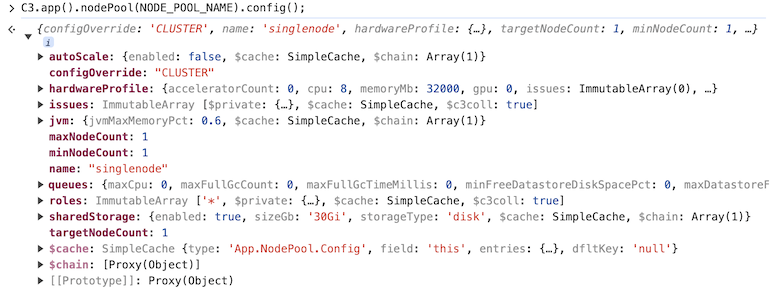
From this, we can quickly see most of the settings on the node pool. For example, the hardware profile specifies 8 CPUs and a memory size of 32000 Mb.
Set configuration values
Let us look at maxConcurrentComputes and jvmMaxMemoryPct in more detail, as these are the settings you will most likely want to tune, once a node pool has been created.
The setting maxConcurrentComputes is on the queue configuration for the node pool. In general, the default value, equal to the number of cores per node, is a good starting point. However, this value may be too large for some jobs, resulting in out-of-memory errors. The current value of maxConcurrentComputes can be accessed as follows:
var NODE_POOL_NAME="my-node-pool-name"; // task or singlenode, or name of custom node pool
C3.app().nodePool(NODE_POOL_NAME).config().queues.maxConcurrentComputes;
You can change maxConcurrentComputes for your node pool as follows:
var NODE_POOL_NAME="my-node-pool-name"; // task or singlenode, or name of custom node pool
var NEW_VALUE = 4; // an integer value typically between 1 and the number of cores per node
C3.app().nodePool(NODE_POOL_NAME).setMaxConcurrentComputes(NEW_VALUE);
This command applies a max concurrent compute setting to all nodes within that node pool. If the configuration does not propagate after you run the command, restart the nodes.
To check the resource governor configuration for maxConcurrentComputes, See the "Resource governor" section in Monitor and Manage Queues.
The setting jvmMaxMemoryPct is part of the JvmSpec. In general, jobs with little to no Python execution (such as, data integration or metric normalization) can set this to a higher fraction, while jobs that have more Python code (such as, lambda feature set materialization or model training) should set this fraction lower. You can view the current value as follows:
var NODE_POOL_NAME="my-node-pool-name"; // task or singlenode, or name of custom node pool
C3.app().nodePool(NODE_POOL_NAME).config().jvm.jvmMaxMemoryPct;
You can change the JVM memory allocation as follows:
var NODE_POOL_NAME="my-node-pool-name"; // task or singlenode, or name of custom node pool
var NEW_JVM_FRACT = 0.9; // new fraction of memory for JVM heap
C3.app().nodePool(NODE_POOL_NAME).setJvmSpec(NEW_JVM_FRACT);
See also Configure and Manage Node Pools for more details on configuring node pools.
Configure concurrency limits at the job level
Most job types have settings that can impact the number of active actions for a given job. For example, MapReduce jobs have maxConcurency and maxConcurrencyPerNode on the JobOptions Type. maxConcurrency limits the total number of concurrent actions for the job across the cluster, while maxConcurrencyPerNode limits the number of concurrent actions per node. These can be convenient for making quick changes when tuning; however, we recommend that you control the concurrency at the node-pool level for production jobs and leave the job level unconstrained. The reasons for this is the following:
- The job-level settings will not impact other activity on the node pool.
- It can be easy to miscalculate the actual level of parallelism if you have configuration at two levels.
- If you resize the nodes of your node pool, you do not have to change the jobs if you only control concurrency at the node-pool level.
See also DynMapReduce and DynBatchJob.
Component-specific tuning recommendations
Along with the batch size, the settings described above are the key tools in optimizing your batch jobs. The exact tuning strategy depends on batch job type due to differences in CPU and memory usage, I/O requirements, and Python versus Java execution. Finally, there may be important application design considerations and best practices to keep in mind. In the following sections, we outline strategies for individual components.
Feature materialization
When a materialization job runs asynchronously, the subjects are materialized in batches distributed across all task nodes using a Feature.Store.MaterializationJob. The "work item" for this batch job is a subject. By default, the Feature Store batch size is 1. This means that each worker thread is retrieving the data for one subject at a time.
Depending on the specific scenario, the data for each subject could be small (measured in kilobytes) or quite large (measured in gigabytes). We want to maximize both the concurrency (maxConcurrentComputes) and batch size while avoiding out-of-memory failures.
A starting point is to set maxConcurrentComputes to the number of cores per node and start with a small batch size. This "small batch size" depends on the amount of data per subject and the execution time for a single subject. If the initial run fails due to an out-of-memory error, reduce the batch size or maxConcurrentComputes. If the batches are completed in tens of seconds, you will want to increase the batch size to reduce the batch dispatch overhead.
If you do not hit a memory limit, repeat the experiment by increasing the batch size until memory/CPU is about 70% utilized (compare using Grafana), as that is the percentage of memory reserved for the JVM.
At some point, increasing the batch size further may lead to saturation due to contention among the threads. In this case, increase only up to the point where throughput levels off. This can be measured as subjects/minute. If it becomes stagnant, there is no point in increasing batch size further.
Model training jobs
MlModel.Train.Job trains many MlModel in parallel.
MlModel.Train.Job provides additional configurations to control the execution of the job through MlModel.Train.JobSpec, such as the following:
jobTimeoutMinutes- Maximum time allocated for execution of a MlModel.Train.Job.operationTimeoutMinutes- Maximum time allocated for training and scoring a single MlModel.maxConcurrentModelTrain- Upper bound on the total number of MlModels that could be trained in parallel during the execution ofMlModel.Train.Job.
Additionally, each MlModel.Train.Template in the MlModel.Train.Job can also specify a MlOperationSpec with a hardwareConstraint or nodePool to control which nodes work on the job.
The recommended initial configuration steps when tuning training jobs are as follows:
- Create an
App.NodePoolspecifically for Model Training, where themaxConcurrentComputesis equal to the number of vCPU per Node (see theHardwareProfile#cpuspecified for the node pool).
The advantage of creating a node pool for training jobs is that the configuration of this node pool can be tuned without impacting other workloads running in the application.
Specify the node pool created in Step 1 in the
MlOperationSpecon eachMlModel.Train.Template.Set
MlModel.Train.JobSpec#maxConcurrentModelTrainequal to the number of nodes in the node pool timesmaxConcurrentComputesto maximize the number of trainings running in parallel.
The above recommended configuration attempts to maximize throughput by running as many training operations in parallel as possible. However, training jobs could run out of memory if too many memory-intensive operations are executed concurrently on the same node.
If there are failures related to out-of-memory, try changing the following parameters:
- Reduce the
maxConcurrentComputesof the node pool. - Increase the amount of memory by updating the HardwareProfile for the App.NodePool.
If maxConcurrentComputes is equal to 1 and out-of-memory errors occur, then a single model requires more memory than is available. For this case, consider training the model in batches by streaming data with Data.FeatureSet.Stream.
ML processing
MlSubject.ProcessJob and MlSubject.InterpretJob launches large-scale predictions and interpretations.
For each job, a MlSubject.OperationJobSpec specifies the data used for predictions by specifying the MlSubjects and the time range. MlSubject.OperationJobSpec also specifies how the data is batched, where each batch is processed independently.
The parameters that control batching are as follows:
batchSize- The number of MlSubjects processed in each batch.batchInterval- If provided, the job not only distributes across MlSubjects but also over time by slicing the time range defined by start and end into slices of the given interval.
In the following example, each batch contains two (2) MlSubject instances (see batchSize) with the Feature.Set values for a day of data (see batchInterval).
job_spec = c3.MlSubject.OperationJobSpec(
    subjectFilter="true",
    start="2022-01-09",
    end="2022-01-11",
    batchSize=2,
    batchInterval=c3.Interval.DAY,
    project=c3.MlProject.forId(...)
)
The recommended initial configuration steps when tuning process jobs to maximize throughput are as follows:
Set
batchSizeequal to# of subjects/(maxConcurrentComputes * # of nodes). This attempts to split the population of data evenly across all available nodes.NOTE: It is recommended to set static values for this parameter production.
Consider creating an
App.NodePoolspecifically for Process Jobs. The advantage of creating a node pool for the jobs is that the configuration of this node pool can be tuned without impacting other workloads running in the application. The node pool created in Step 1 can be specified in theMlSubject.OperationJobSpec.
If there are failures related to out-of-memory, try changing the following parameters:
Reduce the amount of data in each batch through
batchSize. IfbatchSize=1 leads to out-of-memory, usebatchIntervalto batch timeseries data for each subject instance.Increase the amount of memory by updating the HardwareProfile for the App.NodePool.
See also Use Hardware Profiles and Configure and Manage Node Pools for more information.