Connect Application to Google BigQuery
The C3 Agentic AI Platform has a built-in connector for integrating with Google BigQuery.
To connect to BigQuery from your application:
- Add a SqlSourceSystem modeling the BigQuery source system to your package.
- Configure the JdbcCredentials authorizing the connection to the external BigQuery table.
- Add a SqlSourceCollection modeling the target BigQuery table to your package.
- Create an External Type modeling the schema of the external BigQuery table.
The following sections include detailed instructions for configuring the connection to Google BigQuery. For more information, see the documentation for CData JDBC Driver for Google BigQuery.
Model the source system
Create a SqlSourceSystem and set the name field as the identifier for the external database system.
For example, you can add the following BigQuerySourceSystem.json to the \metadata\SqlSourceSystem directory of your package:
{
    "name": "BigQuerySourceSystem"
}Configure the credential used to authorize the JDBC connection
The JDBC connector can be configured to provide credentials and authenticate the connection to your database using one of the following methods:
- Using a Google User Account
- Using a Google Service Account
- Using pre-generated access and refresh tokens
- Using application default credentials
- Using an external account
If the C3 Agentic AI Platform is deployed on the Google Cloud Platform (GCP), then the recommended method is to use a Google Service Account (GSA) configured using Workload Identity. C3 AI does this configuration by default. After you obtain the your GSA, assign the account correct permissions in your BigQuery cluster. At minimum, it should have the BigQuery Job User and BigQuery Data Viewer roles.
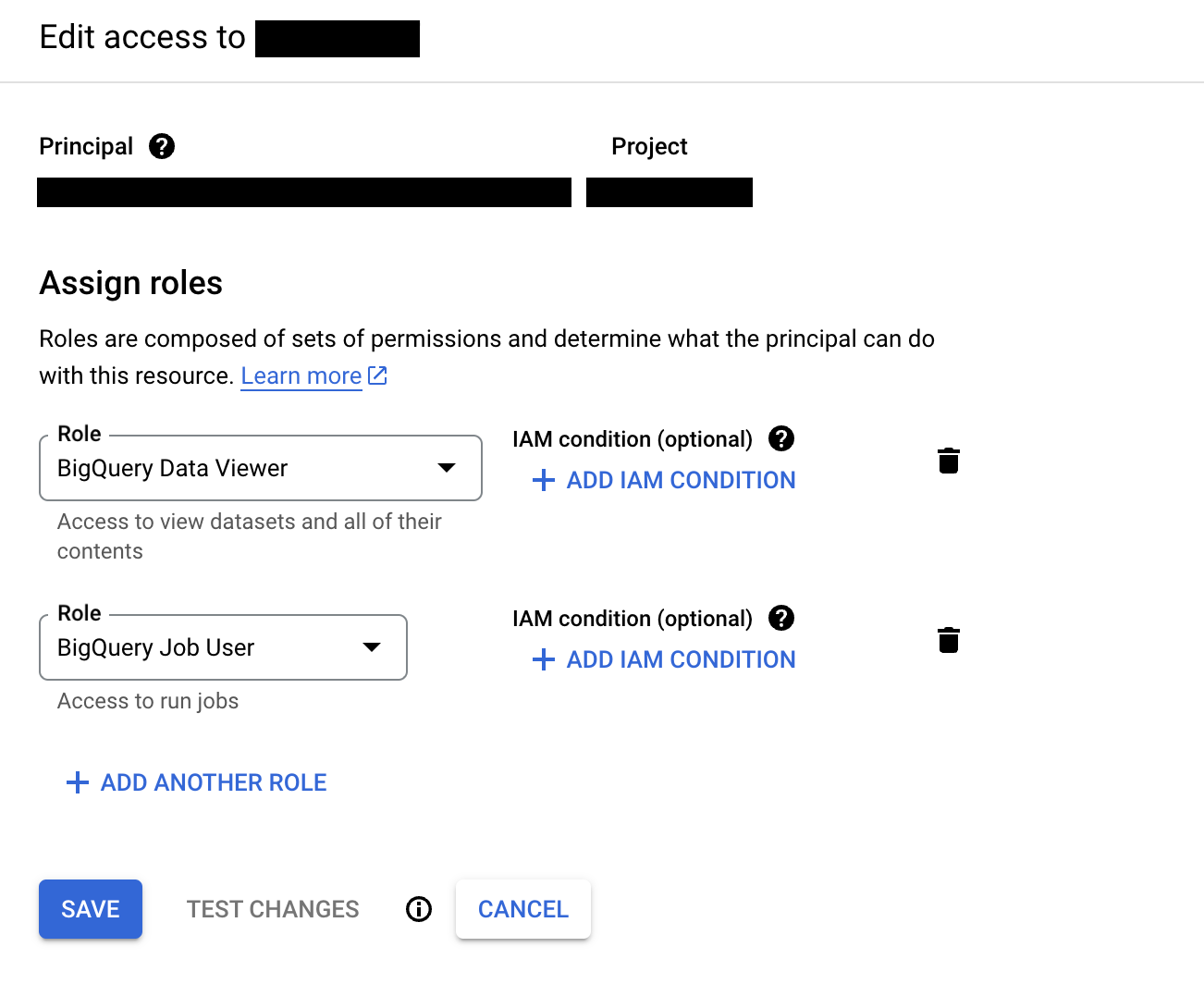
Permissions can be granted at various levels, including at the organization, project, and dataset levels.
Next, create a JdbcCredentials Type instance to configure the connection to the external BigQuery cluster.
var credsRaw = {
"name": "< USER DEFINED NAME >",
"id": "< USER DEFINED ID >",
"datastore": DatastoreType.GOOGLEBIGQUERY,
"url": "jdbc:googlebigquery:AuthScheme=GCPInstanceAccount;ProjectId=< MY_PROJECT_ID >;DatasetId=< MY_DATASET_ID >"
}

creds = JdbcCredentials.make(credsRaw)
JdbcStore.forName("BigQuerySourceSystem").setCredentials(creds);
JdbcStore.forName("BigQuerySourceSystem").setExternal(ConfigOverride.APP);- If permissions are granted at a project level, then the field
DatasetIdis not required. - If permissions are granted at an organization level, then neither
DatasetIdnorProjectIdare required.
If you are billing queries to a separate project from the project containing the data, you must specify the billing project as the ProjectId.
Connect BigQuery with a Service Account
Connecting BigQuery with a service account involves using the service account credentials to authenticate and authorize access to BigQuery. This allows C3 AI applications to interact with BigQuery without requiring individual user credentials.
Prerequisites
Verify that your project includes the necessary dependencies or libraries that provide the SqlSourceSystem class.
Set up Connection to Google BigQuery using a service account
Establish a secure connection to Google BigQuery using a service account for the SQL source system "TestExternalSystem2".
Create a service account:
a. Go to the Google Cloud Console.
b. Navigate to IAM & Admin > Service Accounts.
c. Click Create Service Account.
d. Fill in the necessary details and click Create.
e. Assign the required roles (e.g., BigQuery Data Viewer).
f. Download the JSON key file.
Prepare the Service Account JSON:
a. Open the downloaded JSON key file.
b. Copy the contents of the file.
Set up variables in your code:
a. Define the name of the SQL source:
Typesystem:sysName = 'TestExternalSystem2'b. Store the service account JSON credentials:
Typevariable:content = `{ "type": "service_account", "project_id": "your_project_id", "private_key_id": "your_private_key_id", "private_key": "your_private_key", "client_email": "your_client_email", "client_id": "your_client_id", "auth_uri": "your_auth_uri", "token_uri": "your_token_uri", "auth_provider_x509_cert_url": "your_auth_provider_x509_cert_url", "client_x509_cert_url": "your_client_x509_cert_url" }`c. Set the JDBC URL:
TypeBigQuery:url = "jdbc:googlebigquery:your_connection_string"
Configure JDBC credentials for Google BigQuery using OAuthJWT
Set up and configure JDBC credentials to securely connect to Google BigQuery using OAuth 2.0 with a JSON Web Token (JWT) for authentication.
Define authentication properties:
Create a properties dictionary to specify the authentication scheme and include the service account JSON credentials.
JSONproperties = { "AuthScheme": "OAuthJWT", "OAuthJWTCertType": "GOOGLEJSONBLOB", "OAuthJWTCert": content }Build JDBC credentials:
Use the JdbcCredentials.builder() method to construct the credentials object with the necessary URL, properties, and datastore type.
JavaScriptcreds = JdbcCredentials.builder().url(url) .username("******") .password("******") .properties(properties) .datastore("googlebigquery").build();Set credentials in JDBC store:
Retrieve the JDBC store for the specified system name and set the credentials.
JavaScriptJdbcStore.forName(sysName).setCredentials(creds, ConfigOverride.APP);Mark JDBC store as external:
Indicate that the JDBC store connects to an external data source.
JavaScriptJdbcStore.forName(sysName).setExternal(ConfigOverride.APP);Test the connection:
Verify the connection to Google BigQuery by running a test query to ensure the setup is correct and functioning as expected.
Connect to Google BigQuery using SqlSourceSystem
Utilize the SqlSourceSystem to establish a connection to Google BigQuery and list the available table names.
Retrieve the SqlSourceSystem:
Use the forName method to get the SqlSourceSystem instance for the specified system name.
JavaScriptsys = SqlSourceSystem.forName(sysName)Establish the connection:
Call the connect method on the SqlSourceSystem instance to establish a connection to Google BigQuery.
JavaScriptsys.connect()List table names:
Use the listTableNames method to retrieve and display the names of the tables available in the connected BigQuery dataset.
JavaScriptsys.connect().listTableNames()Verify the connection:
Ensure that the connection is successful and the table names are correctly listed. This step helps confirm that the setup and connection are functioning as expected.
Model the table containing the data
To model the external BigQuery table in your application, create a SqlSourceCollection and set the following fields:
name: Identifier for the BigQuery tablesource: Name of the External Type that models the schema of the external BigQuery tablesourceSystem: Name of the BigQuery SqlSourceSystem
For example, to model a table called iris, you can add the following BigQueryTable.json to the \metadata\SqlSourceCollection directory of your package:
{
    "name" : "IrisBigQuery",
    "source" : "IrisBigQuery",
    "sourceSystem" : {
      "type" : "SqlSourceSystem",
      "name" : "BigQuerySourceSystem"
    }
}Model the table schema
To model the schema of the BigQuery table in your application, create an External Entity Type with a schema name that matches the fully qualified name of the table exactly, as it is case-sensitive.
Start by adding the following IrisBigQuery.c3typ file to the \src directory of your package:
entity type Iris mixes External, NoSystemCols schema name 'dev.iris'For the iris table, the schema name is a qualified name consisting of the dataset and table name separated by a dot. The project name is inherited from the previously set credentials. You can use the inferSourceType() method to access the C3 AI data types of the table, which the C3 Agentic AI Platform infers from the source data types.
This does not work if the table is a materialized view.
var schema = SqlSourceCollection.forName("IrisBigQuery").inferSourceType().declaredFieldTypes;

var myObject = {};
for (let i = 0; i < schema.length; i++) {
        schemaName = schema[i].schemaName;
        myObject[schemaName] = schema[i].valueType.name;
    }
BigQuery data types are mapped to PrimitiveType according to the following table:
| BigQuery Data Types | C3 AI Data Types |
|---|---|
| INT64 | int, int16, int32, bigint |
| NUMERIC, BIGNUMERIC | decimal |
| FLOAT64 | float, double |
| BOOL | boolean |
| STRING | string |
| BYTES | byte |
| DATE, DATETIME, TIME, TIMESTAMP | datetime |
| STRUCT, JSON | json |
| GEOGRAPHY | Not Supported |
You can also access the source data types to validate the type inference:
SqlSourceCollection.forName("IrisBigQuery").connect().columns;
Complete the External Entity Type definition:
entity type IrisBigQuery mixes External, NoSystemCols schema name 'dev.iris' {

  id: ~ schema name "Id"

  sepalLengthCm: double schema name "SepalLengthCm"

  sepalWidthCm: double schema name "SepalWidthCm"

  petalLengthCm: double schema name "PetalLengthCm"

  petalWidthCm: double schema name "PetalWidthCm"

  species: string schema name "Species"

  encoded: int schema name "Encoded"
}
You must include the id field. If your table does not have a column called id, you can change the schema name for the corresponding ID field with the following annotation:
@db(dataTypeOverride="< ID_FIELD_DATA_TYPE >")
id: ~ schema name "< ID_FIELD >"Read data from the table
After setting the credential, you can validate the configuration by fetching the External Type data from the BigQuery table:
c3Grid(IrisBigQuery.fetch());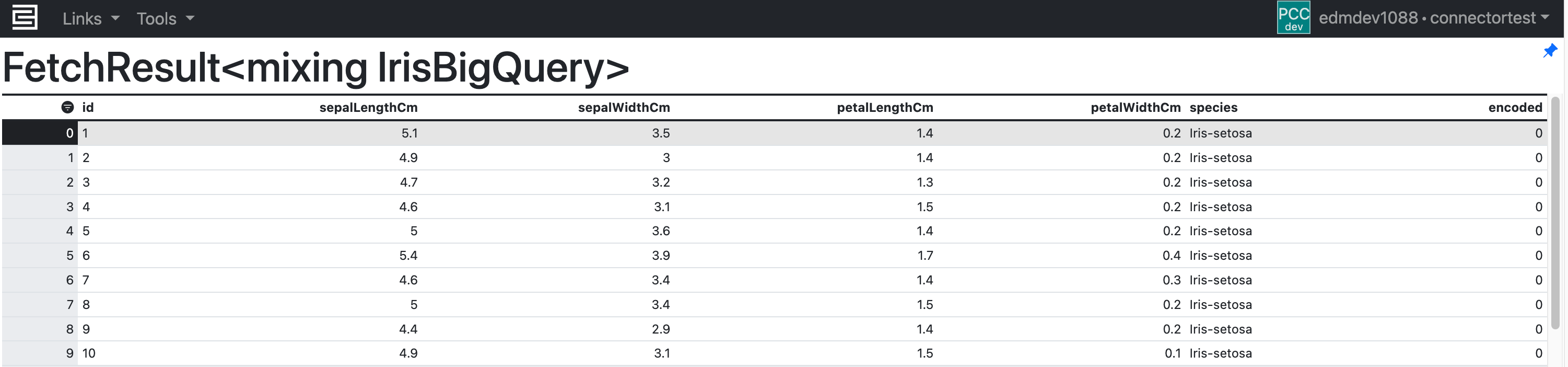
Writing data to BigQuery tables
Data in the C3 Agentic AI Platform can also be written back to BigQuery tables.
To write data to an existing BigQuery table from your application, do the following:
- Create a primary key constraint in the BigQuery table.
- Update the JDBC connection URL by specifying the insert mode and primary keys.
- Insert new records using the create/createBatch APIs or update existing records using the merge/mergeBatch APIs.
The following sections include detailed instructions using an example table called Asset.
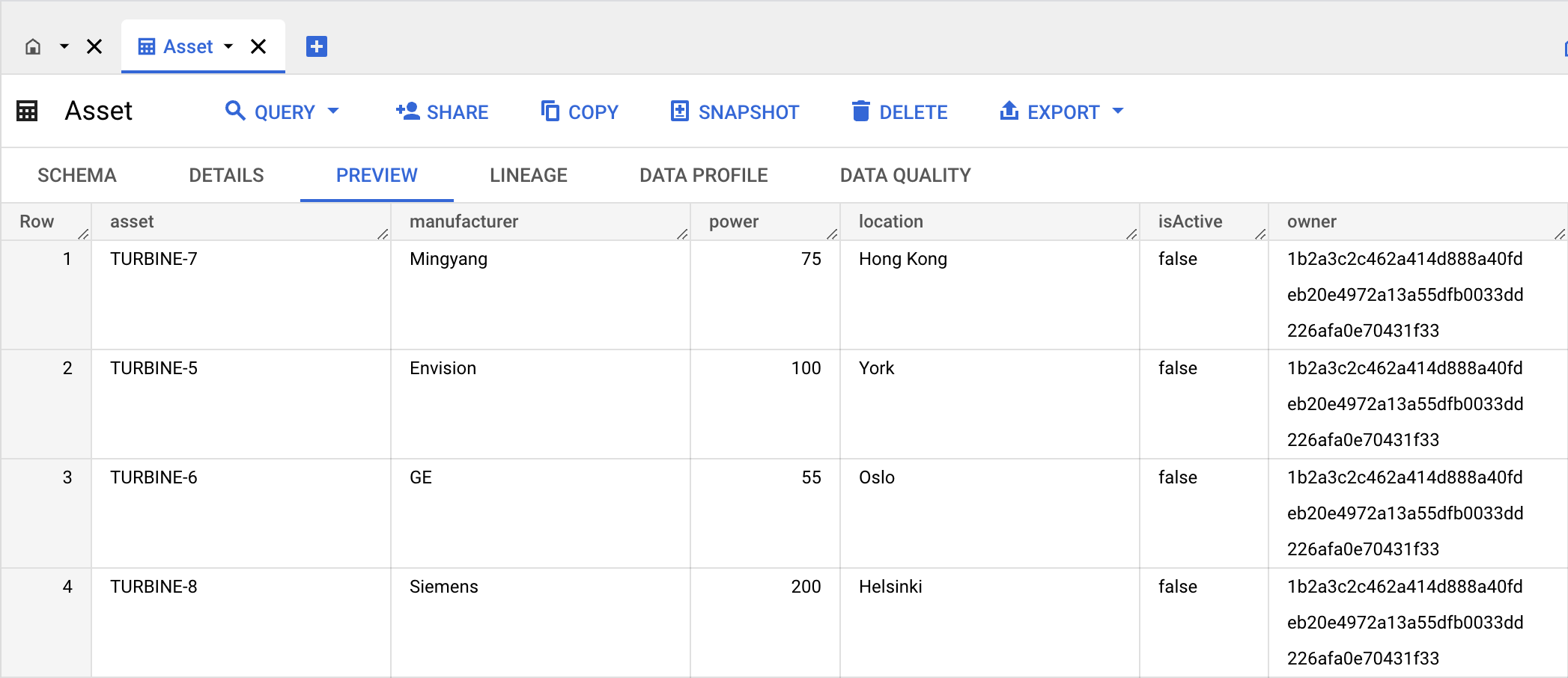
Create a primary key constraint
To set the asset field as the primary key, run the following SQL statement:
ALTER TABLE `aml-demo-317700.aml.Asset` ADD PRIMARY KEY (asset) NOT ENFORCED;Verify that the asset field is the primary key by inspecting the table schema.
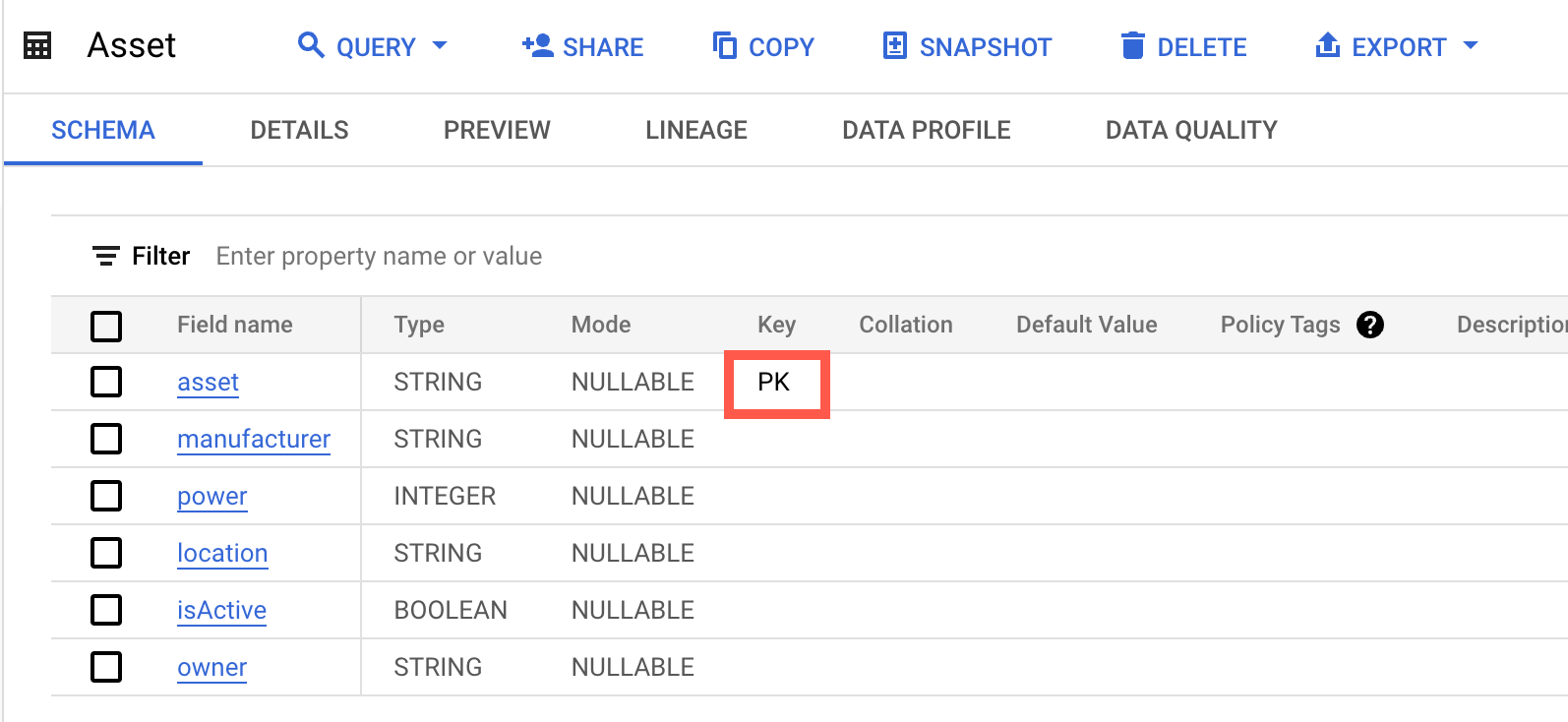
Update the JDBC connection URL
The C3 Agentic AI Platform requires that data be written to BigQuery using a temporary GCS staging bucket, instead of the default streaming mode. You may need to append the following snippet to the JDBC connection URL.
InsertMode=GCSStaging;GCSBucket=< MY_BUCKET >;PrimaryKeyIdentifiers=< KEYS >InsertMode: The method for writing to BigQuery.GCSBucket: The name of GCS bucket, which is in the same location as the BigQuery table.PrimaryKeyIdentifiers: A list of rules that define the primary keys. For more information, see PrimaryKeyIdentifiers in the JDBC driver for Google BigQuery.
Create another JdbcCredentials Type instance to reconfigure the connection.
var credsRaw = {
"name": "< USER DEFINED NAME >",
"id": "< USER DEFINED ID >",
"datastore": DatastoreType.GOOGLEBIGQUERY,
"url": "jdbc:googlebigquery:AuthScheme=GCPInstanceAccount;ProjectId=< MY_PROJECT_ID >;DatasetId=< MY_DATASET_ID >;InsertMode=GCSStaging;GCSBucket=< MY_BUCKET;PrimaryKeyIdentifiers=< KEYS >"
}

creds = JdbcCredentials.make(credsRaw)
JdbcStore.forName("AmlDemoBQSourceSystem").setCredentials(creds);
JdbcStore.forName("AmlDemoBQSourceSystem").setExternal(ConfigOverride.APP);
In this example, the primary key property is set as PrimaryKeyIdentifiers='*=id;Asset=asset'.
Create or modify table records
After adding a SqlSourceCollection and an External Type for the Asset table, records can be created or modified.
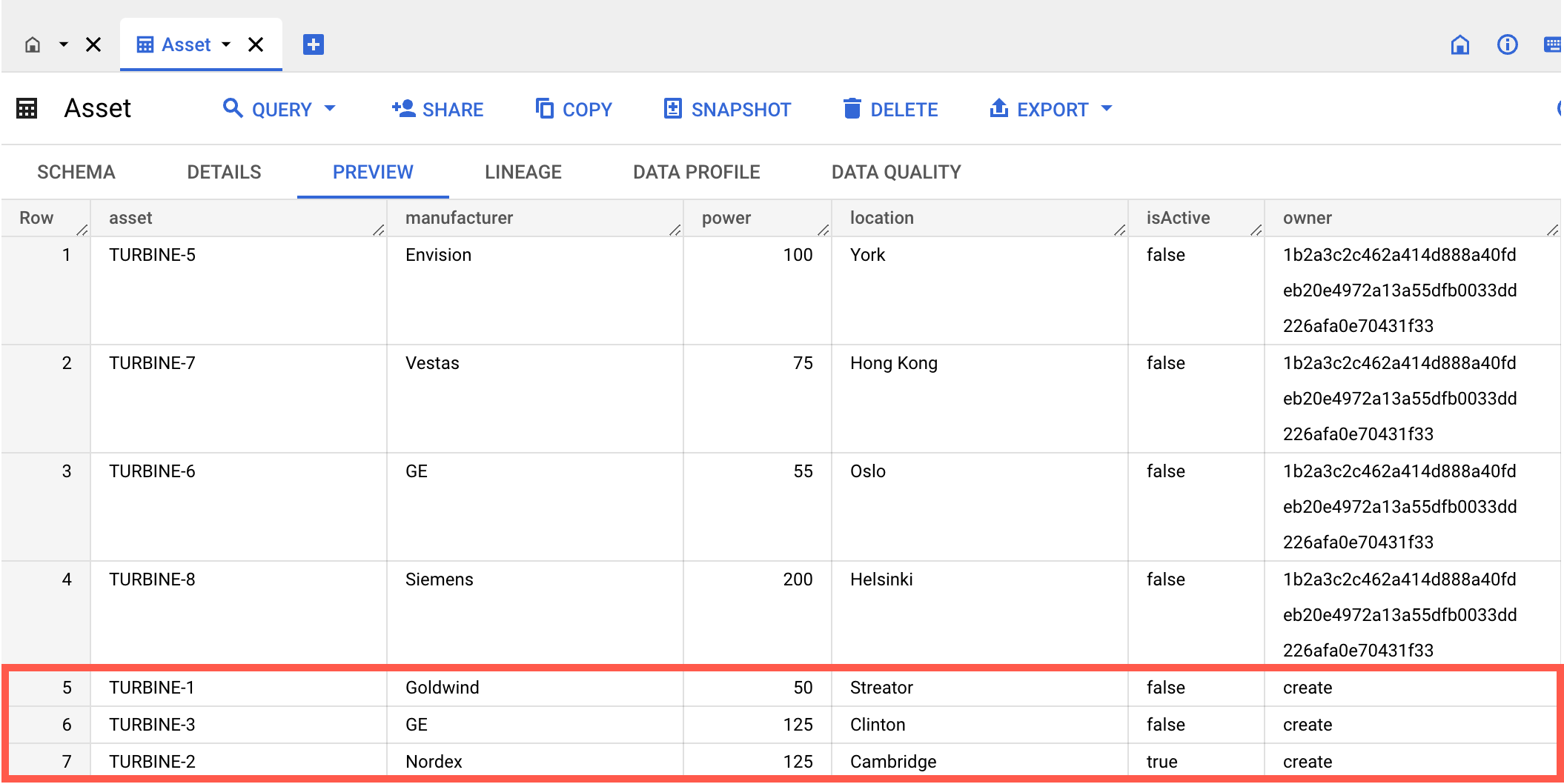
Assume the following three records have been persisted in the C3 Agentic AI Platform.
objs = [{
  "id": "TURBINE-1",
  "manufacturer": "Goldwind",
  "power": "50",
  "location": "Streator",
  "isActive": "false",
  "owner": "create"
}, {
  "id": "TURBINE-2",
  "manufacturer": "Nordex",
  "power": "125",
  "location": "Cambridge",
  "isActive": "true",
  "owner": "create"
}, {
  "id": "TURBINE-3",
  "manufacturer": "GE",
  "power": "125",
  "location": "Clinton",
  "isActive": "false",
  "owner": "create"
}]
To insert them into the BigQuery table, use the createBatch API:

The new records should now be in the table:
Assume that assets with IDs TURBINE-1 and TURBINE-3 become active, and their isActive properties are changed from false to true.
objs = [{
  "id": "TURBINE-1",
  "manufacturer": "Goldwind",
  "power": "50",
  "location": "Streator",
  "isActive": "true",
  "owner": "create"
}, {
  "id": "TURBINE-3",
  "manufacturer": "GE",
  "power": "125",
  "location": "Clinton",
  "isActive": "true",
  "owner": "create"
}]
To update the existing records in the BigQuery table, use the mergeBatch API:

The updates should now be visible in the table:
