OneDrive and SharePoint Connectors
The C3 Agentic AI Platform has a built-in connector for integrating with OneDrive and SharePoint.
Authentication Options for Connecting to OneDrive or SharePoint
The C3 AI Platform supports two authentication flows for connecting to Microsoft OneDrive or SharePoint using Microsoft Graph APIs.
- Delegated Authentication (Authorization Code Flow)
- App-Based Authentication (Client Credentials Flow)
For more details about the two options, review the Microsoft documentation:
Authenticating on behalf of a user: https://learn.microsoft.com/en-us/graph/auth-v2-user?tabs=http
Authentication without a user (this tutorial): https://learn.microsoft.com/en-us/graph/auth-v2-service?tabs=http
1. Delegated Authentication (Authorization Code Flow)
Use this option when access is performed on behalf of a user. This flow requires interactive user sign-in and consent, and returns both access and refresh tokens. Access is limited to the permissions of the authenticated user. It is ideal when the application needs to access a user’s personal OneDrive or SharePoint files.
- Requires: User login and authorization code
- Token type: Access token + refresh token
- Suitable for: User-driven access, personal file operations, and user-scoped SharePoint access
To connect to OneDrive/SharePoint from your application:
- Create an OAuth 2.0 client in Microsoft Azure Active Directory (AAD) / Entra ID.
- Add a FileSourceSystem on which to set credentials.
- Configure the MsGraphCredentials authorizing the connection to OneDrive/SharePoint.
- Set a file system mount pointing to the desired directory.
Create an OAuth 2.0 client
In Azure Portal, go to "App registrations" and add a new registration.
Under "Redirect URI (optional)" select "Web" from the dropdown and insert https://c3.ai for the URI.
Under "Implicit grant and hybrid flows" check both "Access tokens" and "ID tokens."
Add a FileSourceSystem
Create a FileSourceSystem and set the following fields:
name: Unique identifier for the OneDrive/SharePoint instance rootUrlOverride: The root URL for the source system. For OneDrive, this should at least have the drive name. For SharePoint, it should at least contain the site name.
OneDrive
For example, for OneDrive, you can add the following OneDriveFileSource.json to the \metadata\FileSourceSystem directory of your package to access your documents folder:
{
    "name": "EdmPersonalDocuments",
    "rootUrlOverride": "msgraph://documents/"
}SharePoint
For SharePoint, you could add the following SharePointFileSource.json to the \metadata\FileSourceSystem directory of your package to access a specific SharePoint site, replacing the name as necessary:
{
    "name": "SharePointSystem",
    "rootUrlOverride": "msgraph://ExampleSharePointSite/"
}Configure the credentials
Construct the authorization URL. This URL generates an authorization code to exchange for access and refresh tokens.
var client_id = "<CLIENT_ID>"
var redirect_uri = "<REDIRECT_URI>"

query = `client_id=${client_id}&scope=offline_access%20user.read%20files.read%20files.read.all%20files.readwrite%20files.readwrite.all&response_type=code&redirect_uri=${redirect_uri}`

//  If the app registration is single-tenant, run this after replacing the active directory ID:
var active_directory_id = "<ACTIVE_DIRECTORY_ID">
url = Url.builder().scheme("https").host("login.microsoftonline.com").encodedPath(`/${active_directory_id}/oauth2/v2.0/authorize`).encodedQuery(query).build()

// If the app registration is multi-tenant, run this:
url = Url.builder().scheme("https").host("login.microsoftonline.com").encodedPath("/common/oauth2/v2.0/authorize").encodedQuery(query).build()

url.toString()
Select the URL and save the authorization code included in the query parameters. Then, create an MsGraphCredentials Type instance and use it to exchange the authorization code for OAuth access and refresh tokens.
var auth_code = "<AUTH_CODE>"

var creds = MsGraphCredentials.make({
    // For OneDrive, no endpoint is required

    // If using a SharePoint site, uncomment the following line and change the value to endpoint for your SharePoint tenant:
    // "endpoint": "c3e.sharepoint.com",
    "activeDirectoryId": "<ACTIVE_DIRECTORY_ID>",
    "accessKey": "<CLIENT_ID>",
    "secretKey": "<CLIENT_SECRET>"
})

//  If the app registration is single-tenant, run this after replacing the active directory ID:
res = creds.acquireTokenFromAuthorizationCode(auth_code, redirect_uri, "<ACTIVE_DIRECTORY_ID>")

// If the app registration is multi-tenant, run this:
res = creds.acquireTokenFromAuthorizationCode(auth_code, redirect_uri)

access_token = res['access_token']
refresh_token = res['refresh_token']
Finally, append the access and refresh tokens to the credentials and set them on the previously created FileSourceSystem.
creds = creds.withAccessToken(access_token).withRefreshToken(refresh_token)

// Replace "EdmPersonalDocuments" with the name of your FileSourceSystem (it may be "SharePointSystem" if connecting to SharePoint and you copied the example above)
FileSourceSystem.forName("EdmPersonalDocuments").setCredentials(creds)Set a file system mount pointing to the desired directory
OneDrive
You can add mounts to access OneDrive directories and list files.
FileSystem.msgraph().setMount("EdmPersonalDocuments", "msgraph://documents/")

FileSystem.msgraph().listFiles("msgraph://documents/")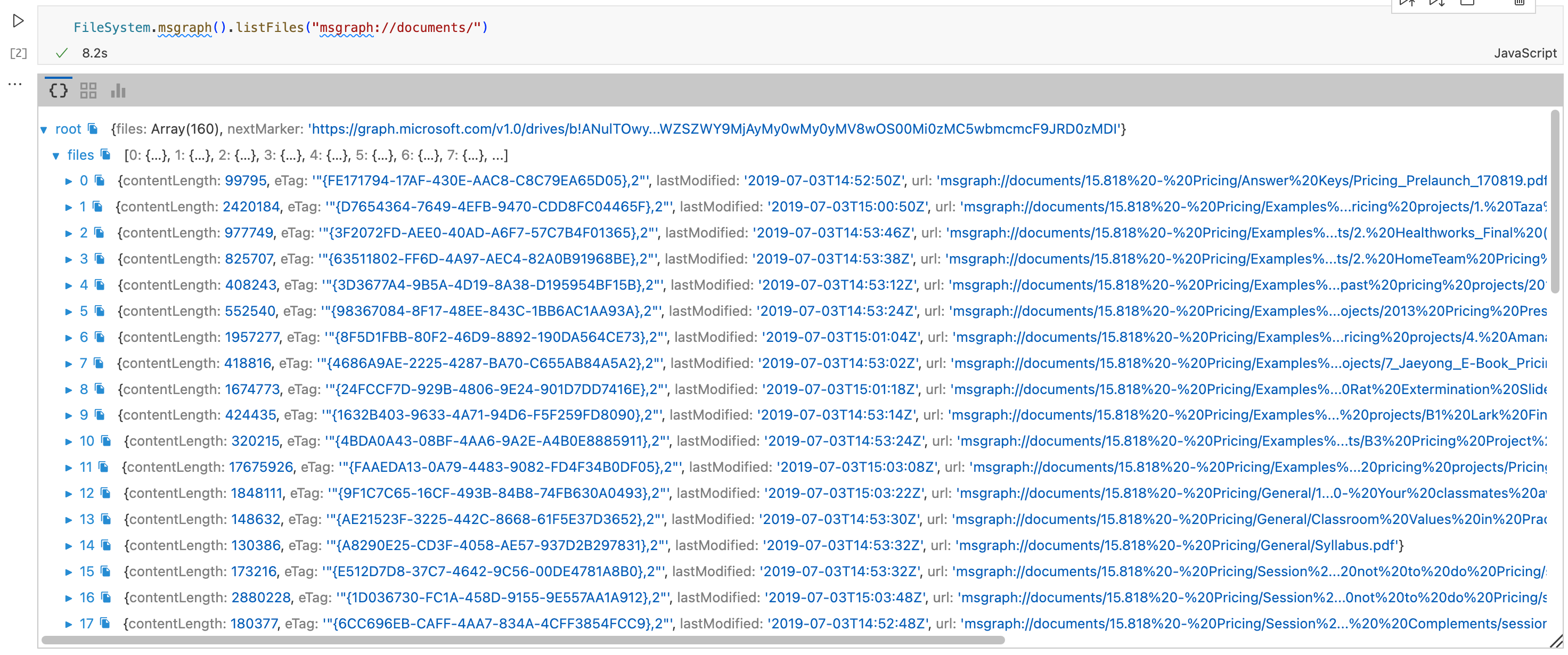
SharePoint
For SharePoint, you can mount to a specific drive (recommended) or to an entire site.
// Mount the documents drive of site
FileSystem.msgraph().setMount("documentsmount", "msgraph://ExampleSharePointSite/Documents/")

// Mount an entire site - only do this if you are okay with giving the access to all drives in the site
FileSystem.msgraph().setMount("sitemount", "msgraph://ExampleSharePointSite/")

// List files from the documents drive. Be sure to provide both the site and drive.
FileSystem.msgraph().listFiles("msgraph://ExampleSharePointSite/Documents/")2. App-Based Authentication (Client Credentials Flow)
Use this option when the application needs to access resources as itself, without user interaction. This flow uses a client ID and client secret to directly request an access token and does not issue a refresh token. Admin consent is typically required to grant access to SharePoint sites. Personal OneDrive accounts are not supported.
- Requires: App registration with admin consent
- Token type: Access token only
- Suitable for: Background processes, service-level access, and tenant-wide SharePoint access
Use this flow when you want to access files from SharePoint sites without having to log in on behalf of a designated user, but you cannot use to access personal OneDrives.
Create the OAuth client
In Azure Portal, go to "App registrations" and add a new registration.
Under "Redirect URI (optional)" select "Web" from the dropdown and insert https://c3.ai for the URI.
Under "Implicit grant and hybrid flows" check both "Access tokens" and "ID tokens."
When using the client credentials grant flow, your app will need to get admin consent for permissions. To get access to files to all sites in your tenant, you must request Files.Read.All and Files.ReadWrite.All permissions. If you don't want your app to have access to all, you can instead request Sites.Selected, but you will then have to work with a tenant admin to configure which sites your app will have access to.
To request permissions, go to "Manage -> API permissions" on the left-side bar. Then, select "Add a permission -> Microsoft Graph -> Application permissions, then select the desired permissions. Then select "Add permissions" and ask an admin for approval.
Add a FileSourceSystem (same as delegated user flow)
Example: Create and add SharePointFileSource.json to \metadata\FileSourceSystem directory: The root URL should have the site name, so replace ExampleSharePointSite with your site name
{
    "name": "SharePointSystem",
    "rootUrlOverride": "msgraph://ExampleSharePointSite/"
}Configure credentials
var creds = MsGraphCredentials.make({
    "endpoint": "c3e.sharepoint.com",
    "accessKey": "<CLIENT_ID>",
    "secretKey": "<CLIENT_SECRET>",
    "activeDirectoryId": "<ACTIVE_DIRECTORY_ID>"
})
Endpoint must be the URL for the target SharePoint tenant. Example: "c3e.sharepoint.com"
After replacing the Active Directory ID, acquire an access token:
res = creds.acquireTokenWithClientCredentials("<ACTIVE_DIRECTORY_ID>")
access_token = res["access_token"]Add the access token to the credentials and set them on the FileSourceSystem
creds = creds.withAccessToken(access_token)

FileSourceSystem.forName("SharePointSystem").setCredentials(creds)
You can then mount to a specific drive (recommended) or to an entire site.
Mount the documents drive of site
Replace ExampleSharePointSite with your site name and Documents with your drive name.
FileSystem.msgraph().setMount("documentsmount", "msgraph://ExampleSharePointSite/Documents/")Mount an entire site
Replace ExampleSharePointSite with your site name.
FileSystem.msgraph().setMount("sitemount", "msgraph://ExampleSharePointSite/")Now you can call file system operations. When calling operations such as list files for SharePoint, you must provide both the site and drive.
FileSystem.msgraph().listFiles("msgraph://ExampleSharePointSite/Documents/")