Access Data on the C3 Agentic AI Platform
The main Type for interacting with data on the C3 Agentic AI Platform is the Data Type. Depending on where your data lives, there are several ways of loading data into an instance of Data for downstream processing and analysis on the C3 Agentic AI Platform. This topic mainly covers two types of data:
Data that is not loaded into a C3 AI application data model. For example, flat files (for example,
CSVfiles) in the file system of your Jupyter service and data in external storage buckets (such as, Google Cloud Storage, AWS S3, Azure Blob Store).Data that is loaded into a C3 AI application data model.
This document provides an introduction to the most common ways of reading data in both of these scenarios. Although there are minor difference in how data is loaded in these two cases, after data loading you can explore and wrangle data using the common interface provided by Data. This includes many APIs that match the exact signature of Pandas APIs with which most data scientists are familiar.
For more information on supported Pandas APIs and Data, see Overview of Pandas APIs.
Data that is not loaded in an application data model (flat files)
This section provides instructions on uploading flat files like CSVs locally into the C3 AI File System through your JupyterLab environment, and reading data directly from remote filesystems like Google Cloud Storage (GCS), AWS S3, and Azure Blob store.
Local CSV into local JupyterLab environment
In your JupyterLab environment, select the Upload Files button and browse to your CSV, then select Upload. You can also upload files by dragging and dropping them into the file explorer panel in JupyterLab.
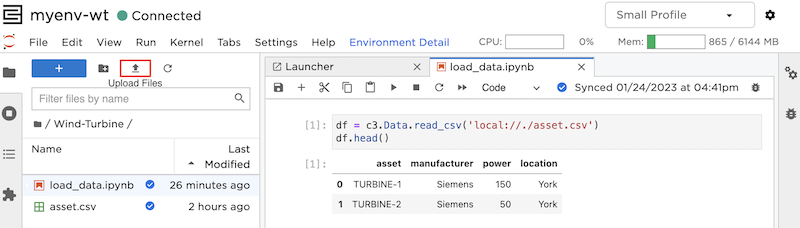
In the image above, you can see an example of uploading a file name asset.csv. Using the following code snippet in a notebook within the same directly reads asset.csv.
DATA_PATH = 'local://./asset.csv'
df = c3.Data.read_csv(DATA_PATH)Read data from remote filesystem
The C3 Agentic AI Platform enables you to read data directly from remote cloud storage, such as Google Cloud Storage (GCS), AWS S3, and Azure Blob store. The topics for setting up these connections are provided below.
You can view a list of GCS storage buckets that are available to your application by running the following code snippet.
c3.FileSystem.gcs().mounts()The example below reads a CSV file from a GCS bucket.
df = c3.Data.read_csv(f"gcs://bucket_name/link/to/file.csv")
df.head()
Data from AWS S3 and Azure Blob storage can be read in a similar way. Replace gcs with azure or s3, and use the correct storage bucket.
Read data from an application data model
This section provides an example of reading data that is loaded into a C3 AI application data model. To fully understand how C3 AI application packages are built, you may need some familiarity with the C3 AI Type System. For more information on the C3 AI Type System, see C3 AI Type System Overview. For more information on creating a data model, see Create an Entity Data Model.
This section provides an example based on the windTurbine application package.
You can now add and update data sources, including databases and data warehouses directly from C3 AI Studio. This tool, Data Fusion, offers a low-code interface where you can more intuitively interact with your data before adding it to data entities. Find out more in the Data Fusion Guide.
Use eval on Evaluatable Types
This is the most common way to create data from a Type. The only prerequisite is that your Type mixes Evaluatable. You can call <Your C3 Type>.eval(<optional EvalSpec>) and get back data. This example reads data from the WindTurbine Type, which is an Evaluatable Type in your application package that represents wind turbines.
df = c3.WindTurbine.eval()
df.head()| ID | name | location | power | manufacturer | |
|---|---|---|---|---|---|
| 0 | WTR1 | TURBINE-1 | York | 150 | Siemens |
| 1 | WTR2 | TURBINE-2 | York | 50 | Alstom |
For more information on using Evaluatable#eval, see Query Data in Python.
Similar to the previous example, df is an instance of Data. The Data APIs, including all Pandas APIs available on data, can be used to explore and manipulate df.
Use fetch on Type
For Persistable Types that do not mix Evaluatable, you can still get a data instance by using <Your Persistable Type>.fetch(<optional FetchSpec>).toData(). This data also includes some database metadata (such as, version). If you don’t want this, you can filter out those columns.
Below is an example of using fetch to retrieve data from name, location, and manufacturer fields of the WindTurbine Type.
fetch_result = c3.WindTurbine.fetch(include='name, location, manufacturer')
df = fetch_result.toData()
df = df.drop(columns=['meta', 'version'])
df.head()| ID | name | location | manufacturer | |
|---|---|---|---|---|
| 0 | WTR1 | TURBINE-1 | York | Siemens |
| 1 | WTR2 | TURBINE-2 | York | Alstom |
For more information on using Persistable#fetch, see Query Data in Python.
Create data from a Collection
Note: Using this method is discouraged. However, if you’re in a situation where you need to create data from Types that are non-entity and non-evaluatable, you can create a Collection of that Type and call .toData on that Collection. Support for this method is limited.