JupyterLab disconnected modes
JupyterLab manages disconnections in four modes by displaying headers and modals to guide users in restoring or continuing with partial functionality.
Header colors and UI responses
The table below describes the different disconnection modes in JupyterLab, their corresponding connection header colors, and the UI behavior for each mode.
| Disconnected Mode | Connection Header Color | UI Behavior |
|---|---|---|
| Internet disconnected | Red | Red header, banner, and retry/dismiss modal after 10 seconds |
| Back end disconnected | Red | Red header, disconnected modal with ripsaws/dismiss options |
| App degraded | Yellow | Yellow header with tooltip indicating "App degraded" |
| Unknown | Red | Red header, disconnected modal with refresh/dismiss options |
Internet disconnected
This mode is triggered when the JupyterLab UI faces issues establishing a proper network connection.
Cases Covered:
- Issues with network (for example, VPN issues, internet connection issues, firewall issues)
- C3 cluster is unreachable
UI behavior
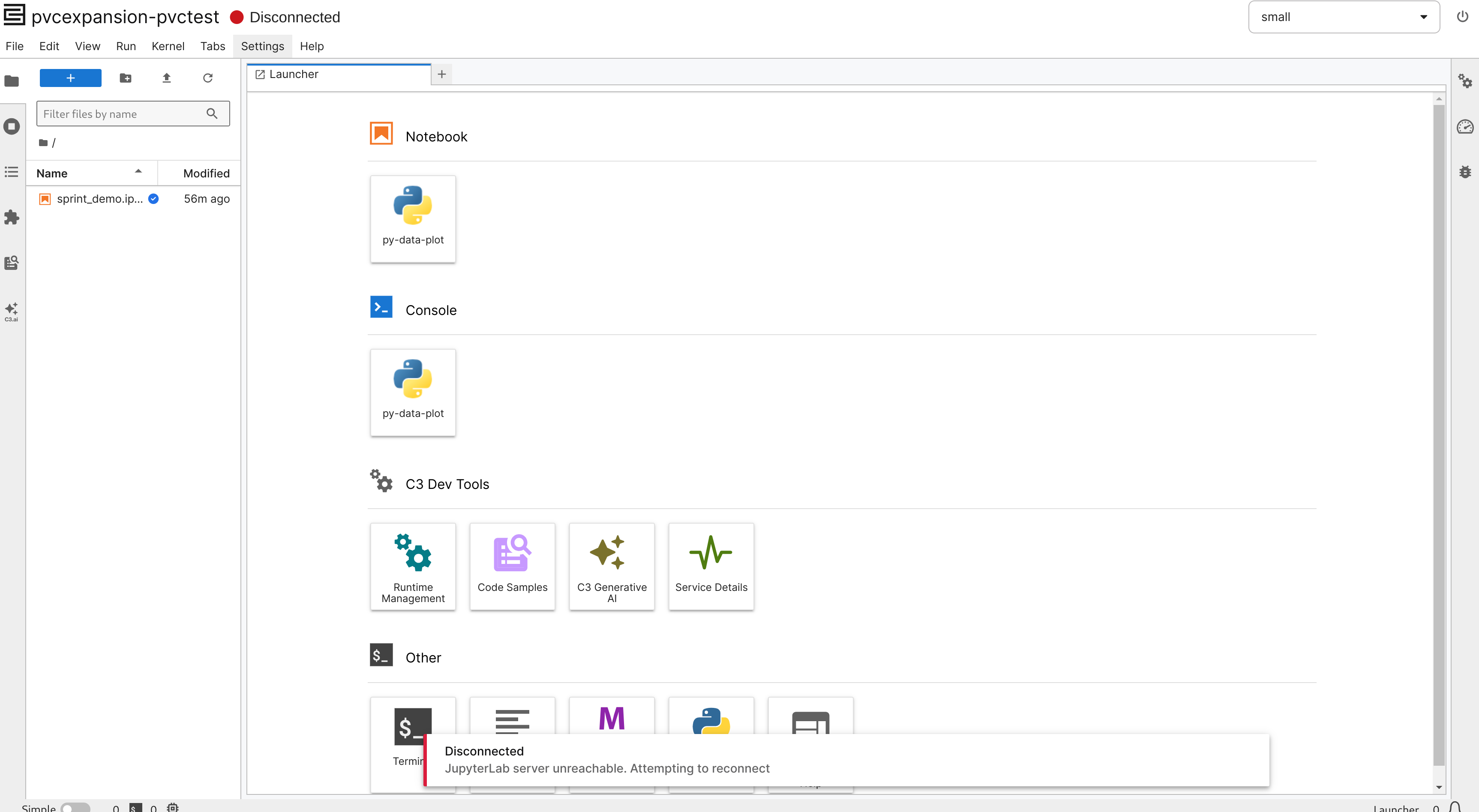
- Connection header changes to red, displaying the text
Disconnected. - A banner appears with the message
JupyterLab server unreachable. Attempting to reconnect. - JupyterLab attempts to reconnect to the internet for 10 seconds.
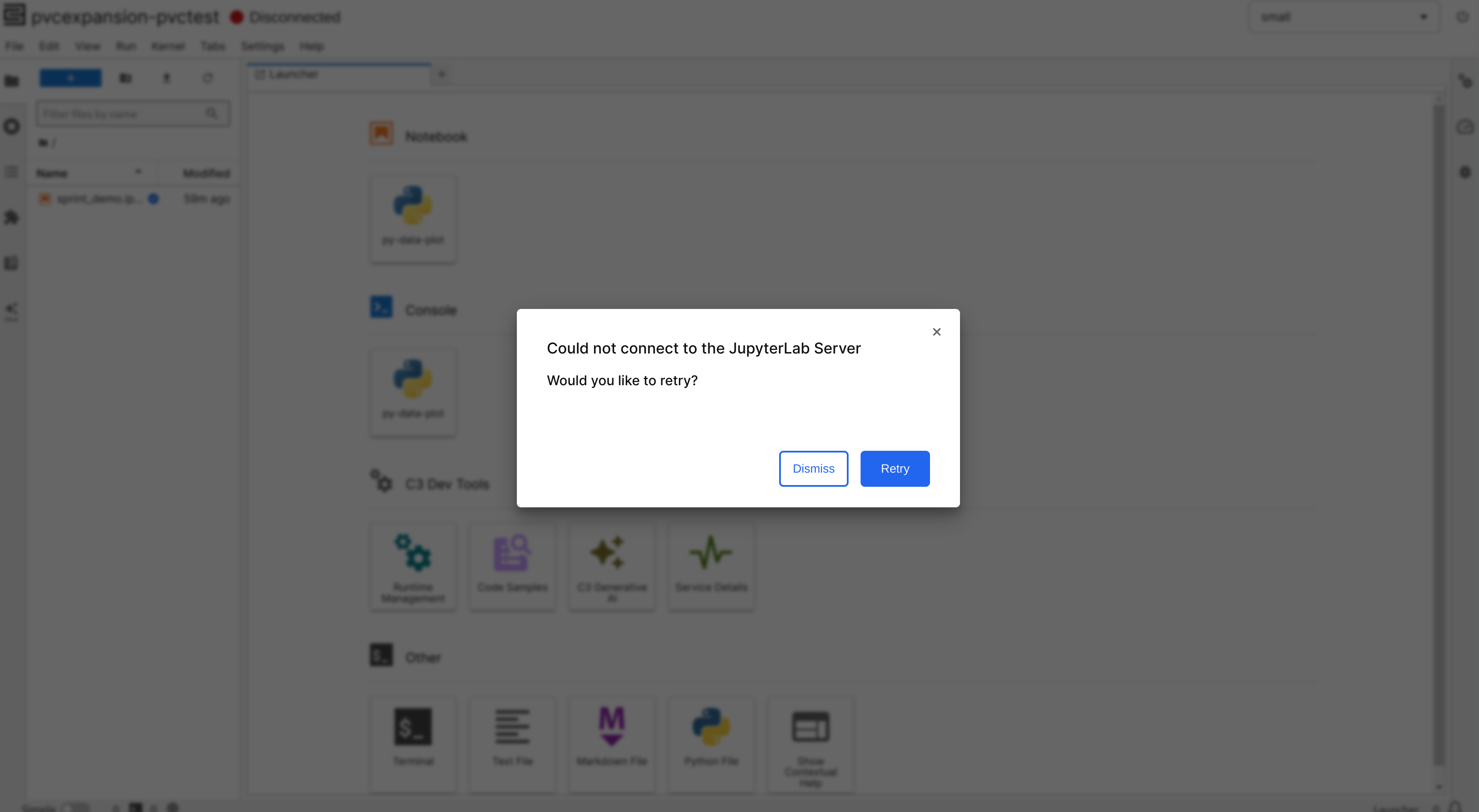
- If it fails:
- A modal appears with options to either
DismissorRetry. - Dismissing the modal allows the user to interact with JupyterLab in a partially functioning state:
- Users can interact with currently open files but cannot open or create new files or run cells.
- Clicking
Retryattempts to re-establish the connection, returning to step 1 if unsuccessful.
- A modal appears with options to either
- If it succeeds:
- The banner disappears.
- The connection header changes to green.
- If it fails:
Back end disconnected
This mode is triggered when the JupyterLab UI loses connection to the back end.
Cases Covered:
- JupyterLab UI loses connection to the JupyterLab pod
- JupyterLab pod loses connection to the C3 app
UI behavior
- Connection header changes to red, displaying the text
Disconnected. - A modal appears with options to
RespawnorDismiss.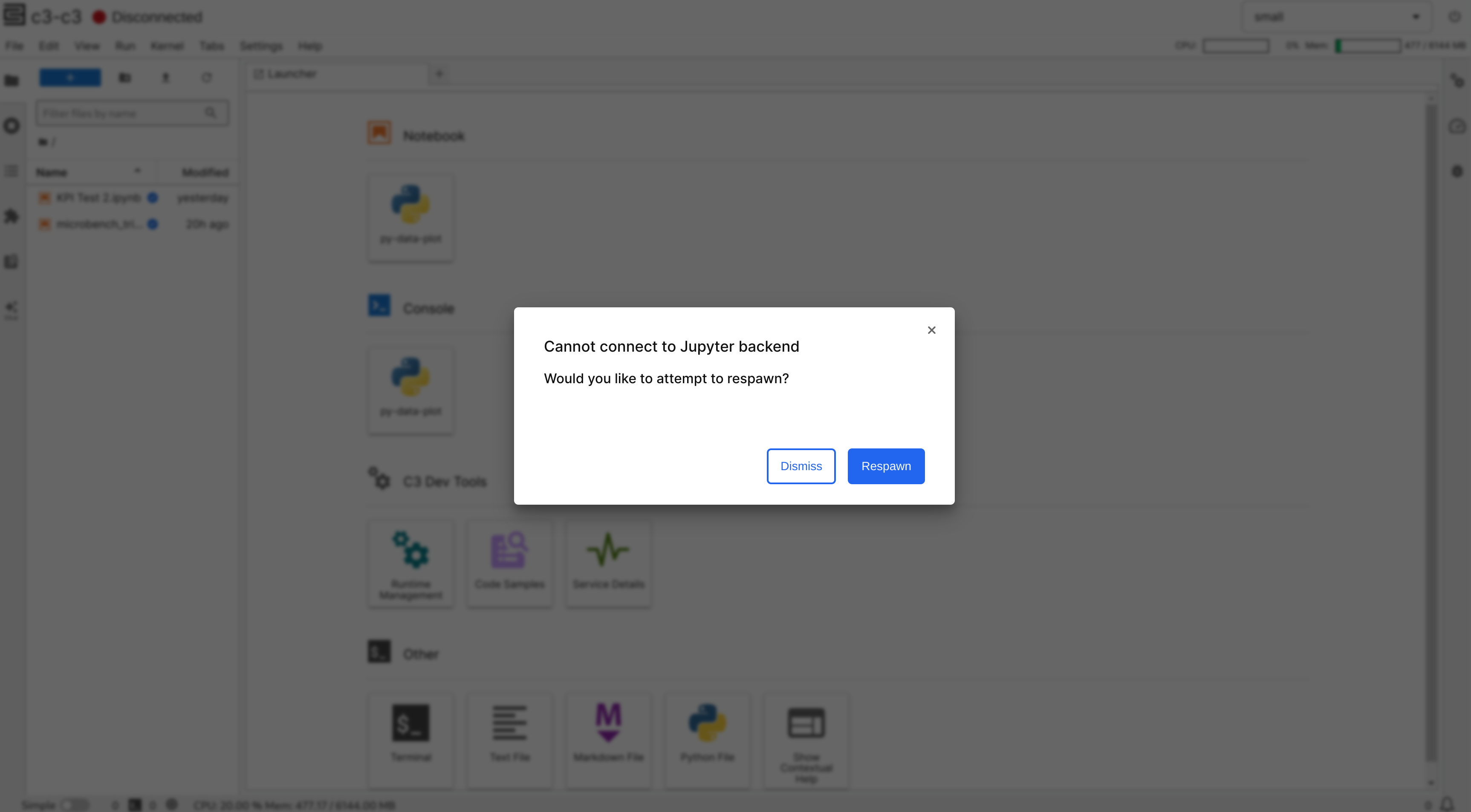
- Dismissing the modal allows partial functionality:
- Users can interact with currently open files but cannot open or create new files or run cells.
- Clicking
Respawnattempts to restart the Lab. If reconnection to the back end fails, the flow returns to step 1.
App degradation
This mode is triggered when the JupyterLab UI loses connection to the C3 app, typically due to the app or environment being stopped or unreachable.
Cases Covered:
- JupyterLab loses connection to the C3 app
UI behavior
- Connection header changes to yellow, displaying the text
Degraded. - The connection header tooltip displays
App degraded.

Unknown disconnected
This mode is triggered when JupyterLab loses connection for reasons not covered by the other modes.
Cases Covered:
- Any unclassified disconnection issue
UI behavior
- Connection header changes to red, displaying the text
Disconnected. - A modal appears with options to
RefreshorDismiss.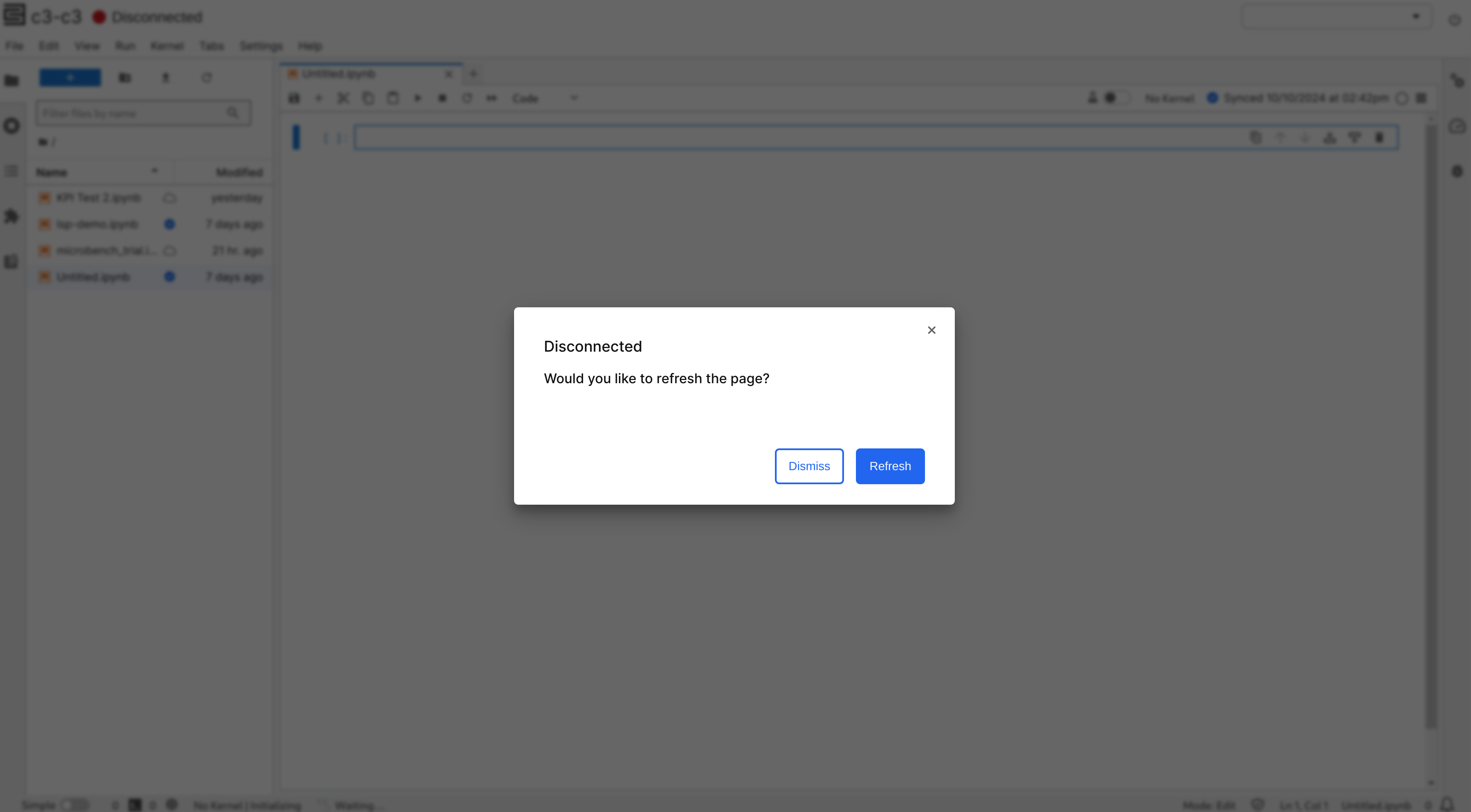
- Dismissing the modal allows partial functionality:
- Users can interact with currently open files but cannot open or create new files or run cells.
- Clicking
Refreshreloads the page. If the connection remains unsuccessful, the flow returns to step 1.