Experiment Tracking in Jupyter
You can associate a Jupyter Notebook to an MlExperiment directly from JupyterLab UI.
Why use MlExperiments
Use MLExperiments to track experiments along with associated metadata and artifacts, making the experimentation and subsequent model selection process easier to manage. An experiment tracking framework and its associated UI enables you to do the following:
- Access experiment metadata.
- Drill down to access experiment details.
- Search and filter experiments.
- Compare metrics and parameters between experiments.
For more information on MLExperiment, open the tutorial MlExperimentTracking.ipynb in JupyterLab. You can access this tutorial through the following steps:
- Create a C3 application with the root package
mlTutorials. - Open the application with Jupyter and navigate to the MlTutorials folder.
- Open
MlExperimentTracking.ipynbto find out more about running experiments on C3 Agentic AI Platform.
Prerequisites
Before you set up an MlExperiment, ensure your application and notebook file include the following:
- Multi-node environment (MNE) — The UI component to MLExperiment is only available in multi-node environments.
- mlExperimentTrackerUi — Your C3 package must include
mlExperimentTrackerUias a dependency. You can usemlPlatformas a dependency to satisfy this requirement. - No other MlExperiments associated to the notebook file — MlExperiments have a one-to-one relationship with notebook files. You can therefore only associate one MlExperiment to one notebook file.
Set up an MlExperiment
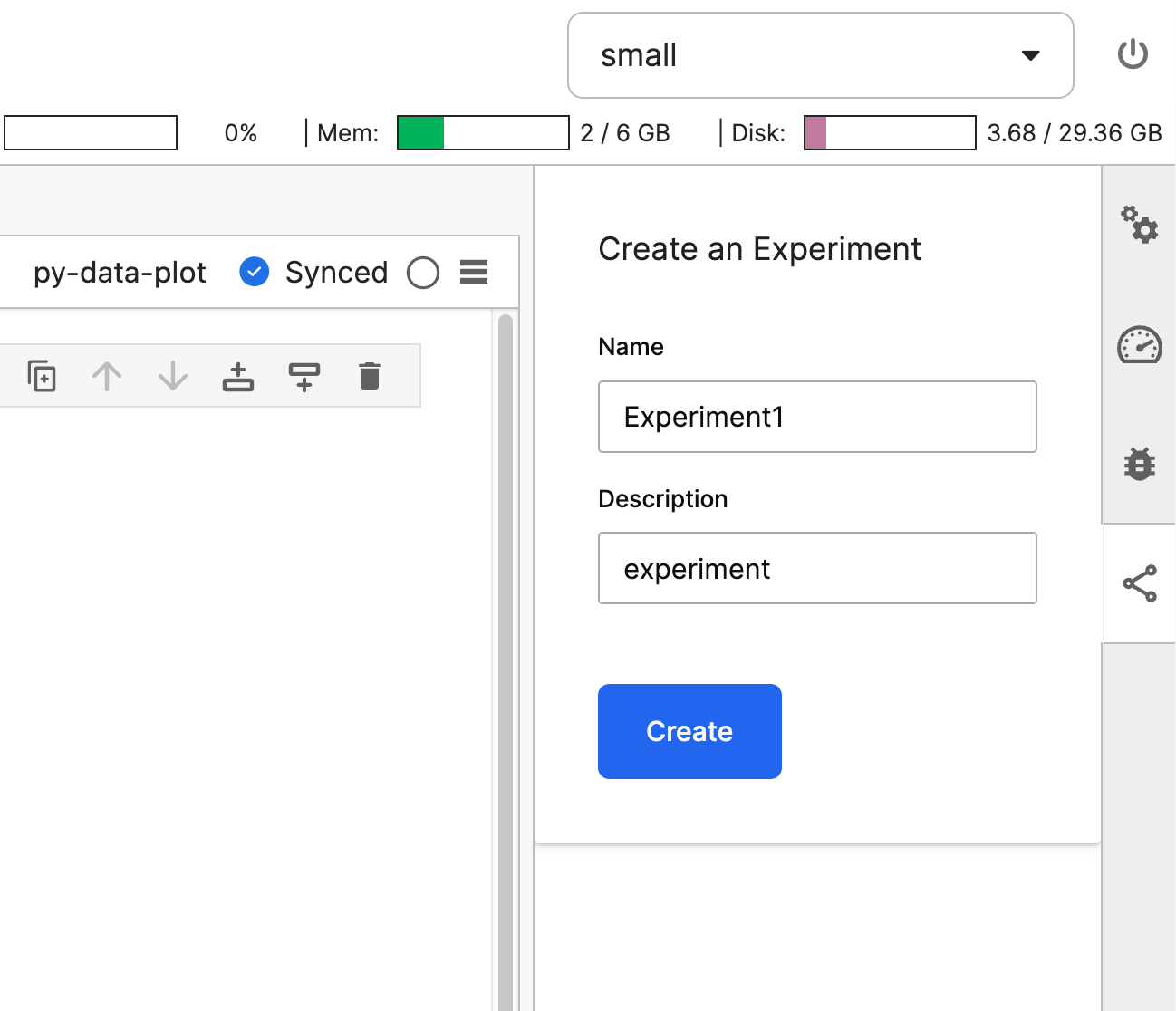
Launch Jupyter within your application and open a notebook file.
MLExperiment Tracker associates each experiment to a notebook using the file name to define the path. Always rename your notebook before generating an MlExperiment. All new notebooks default to the name Untitled. MlExperimentTracker uses this name to associate the experiment with the notebook. If you rename the original notebook later, a new Untitled notebook may be associated with the earlier experiment.
In your notebook file, select the network icon. The Create an Experiment pane opens, prompting you to enter a Name and Description. Use a unique name for each experiment.
Select Create to create the experiment. Experiment Tracker generates a cell that looks something like the following:
    mlExperiment = c3.MlExperiment(id='<experimentName>', name='<experimentName>', description='<description>').upsert()
    notebook = c3.JupyterNotebook.fetch(filter="path == '<fileName>.ipynb'").first()
    c3.JupyterNotebook.Association(id=notebook.path + mlExperiment.id, notebook=notebook, entityTypeName='MlExperiment', entityId=mlExperiment.id).upsert()
    _c3_refresh_imported_component('MlExperiment', mlExperiment.id)
Where:
experimentNamematches the string you enter in the Name field.descriptionmatches the string you enter in the Description field.fileNamematches the name of your notebook.
Access experiments and runs outside of Jupyter
To access your experiment outside of Jupyter, you can enter the following address:
https://<c3Cluster>/<env>/<app>/mltracker/experimentsWhere:
c3Clusteris the base URL of your C3 clusterenvis the name of your environmentappis the name of your app
This link shows a list of all the application's experiments, as well their descriptions, who created them at what date, and when they last updated. Select an experiment name to see the list of experiment runs.
Select a run to access details on the individual experiment run, including plots, metrics, parameters, and child runs.
Troubleshooting
Experiment Tracker does not show up in the side panel.
There could be a couple of reasons why you don't see this panel.
- Your application runs on a server version below 8.7 — Upgrade your application to access
mlExperimentTrackerUi. - Your application doesn't include
mlExperimentTrackerUias a dependency — You can confirm this root cause by navigating to the following address:
https://<c3Cluster>/<env>/<app>/mltracker/experimentsIf the above address returns a 404 error, you do not have a package dependency for mlExperimentTracker, which is included with mlExperimentTrackerUi. Create a new application on an MNE with a server version of 8.7 or above that includes mlExperimentTrackerUi as a dependency.
- Your application is not on an MNE — Create a new application on an MNE with a server version of 8.7 or above that includes
mlExperimentTrackerUias a dependency.
The MlExperiment associates to the wrong notebook.
In the cell that defines the MlExperiment, locate c3.JupyterNotebook.fetch(filter="path == 'MlTutorials/<fileName>.ipynb'"). Change <fileName> to the name of the correct notebook file. Re-run the cell.
The MlExperiment does not exist according to the Experiment Tracker panel.
Someone deleted the MlExperiment in your application. Select Remove association, which removes the connection to the nonexistent MlExperiment. Then follow the steps in Set up an MlExperiment to re-associate your notebook to an experiment.