Create and View Build Configurations for C3 AI Release Management
Configurations can be set to determine certain build behaviors. Build-level configurations can be useful for storing and retrieving information for custom steps. They are also used to determine certain behaviors in the pipeline such as whether to get a particular type of test coverage.
Create the config file
Regardless of whether you are using custom steps, you must set the jarvisFilePath for your desired branch group. Refer to the instructions Customize the Build Pipeline in C3 AI Release Management to do so. First, a config folder must exist at the specified jarvisFilePath. Create a config.js file inside of the config folder. Release Management explicitly looks for this file to retrieve build-level configurations before running the build. The config.js should look as follows:
data = {
  configValues: {
    testKey: 'testValue'
  }
}
Release Management consumes the entire object and persists it as a JarvisService.BuildConfig. Note that only regular config values should live here. Release Management does not ingest secretValues even if provided due to security concerns.
If secret values must be provided to a build, you must manually trigger a build with Jarvis.triggerBuild. This function has a config parameter through which both configValues and secretValues can be provided. The parameter should be of type JSON as follows:
{
  "configValues": {
    "testKey": "testValue"
  },
  "secretValues": {
    "userName": "<password>"
  }
}Add or modify config values
The following config values are currently being used in the pipeline.
| Config Value | Description |
|---|---|
packagesToInclude | Release Management only creates artifacts and runs tests for the packages specified in this array, for example, ['testPkg1', 'testPkg2']. Specify only one of packagesToInclude or packagesToExclude. |
packagesToExclude | Release Management does not create artifacts or run tests for the packages specified in this array, for example, ['testPkg1', 'testPkg2']. Specify only one of packagesToInclude or packagesToExclude. |
If you are using custom steps that need specific values, you can store them here and retrieve them in the custom step by calling Jarvis.buildConfigValue with the appropriate key. If necessary, the value can be set with Jarvis.setBuildConfigValue.
Parallel testing
You can use parallel testing by setting testStrategies in the configValues of their config/config.js file. This section focuses on how testStrategies is parsed by Release Management to orchestrate tests between executors.
Parallel testing only improves performance when test execution is the dominant part of the build's critical path. For large codebases, the goal is to ensure the longest-running test group is not significantly slower than the others. Most teams achieve better results by grouping tests by runtime type (for example, Python server-side vs. UI browser tests) or by comparable execution duration rather than by directory alone.
There are 3 concepts involved in parallel testing:
- Test group — A test group is a list of all the tests that are run in a single
testPackagesstep. Different test groups run tests in parallel across different Java Virtual Machines (JVMs). If notestStrategiesare specified, a test group consists of all the tests in one package. - Test thread — A test thread specifies a subset of tests within the test group that are run by a single thread within the environment that executes the
testPackagesstep. Within a single test group, there can be multiple test threads. These threads run tests in parallel within the same JVM. - Test strategy — A test strategy specifies how to distribute tests among threads within a single test group. Currently, there are only 2 supported testing strategies:
SERIALandMANUAL.
A test group can have multiple fields:
| Field | Description |
|---|---|
tests | The list of tests to be run inside the test group, expressed as Java regex or actual test paths. For example, ['.*/pkgName/.*.js'] specifies that the user wants to dedicate an entire test group to run only JavaScript tests for a specific package. |
strategy | The strategy used to split the above tests. Refer to the table below for the specific strategies. |
threads | How the tests should be distributed between threads. This field is only read if a MANUAL strategy is specified and should be type Array<Array<String>>. threads.length number of threads are spun up with thread i running all the tests specified in threads[i]. |
| Strategy | Description |
|---|---|
SERIAL | Tests are run in serial order. Use this when a small set of tests is already fast and does not benefit from additional threads. |
MANUAL | The test order is determined by the user. If a strategy is MANUAL, the threads field must be specified. Use this when you need deterministic grouping, such as isolating slow integration suites from fast unit suites. |
A config.js file with multiple test strategies could look as follows:
data = {
  configValues: {
    testStrategies: [{
      // Run all the tests that match the regexes in the list in serial order.
      // Tests that match the first regex are run before tests that match the second regex.
      tests: ['.*/a1/.*', '.*/a2/.*'],
      strategy: 'SERIAL'
    },
    {
      // Spin up 2 threads, 1 to run tests that match '.*/c/c1.*' and 1 to run tests that match '.*/c/c2.*'
      tests: ['.*/c/.*'],
      strategy: 'MANUAL',
      threads: [
          ['.*/c/c1.*'],
          ['.*/c/c2.*']
      ]
    }]
  }
}
A common configuration is to dedicate one test group to all browser-based UI tests, because they tend to be slower, and another group to Python or server-side tests. This reduces the chance that one slow test suite determines the total test duration.
Note that parallel testing DOES NOT let the user skip tests.
- If there are any tests that do not match any of the specified regexes, they are collected and run in a separate test group.
- If these tests come from
ndifferent packages,nextra groups are created with each test group running the tests remaining within each package.
View the build config values
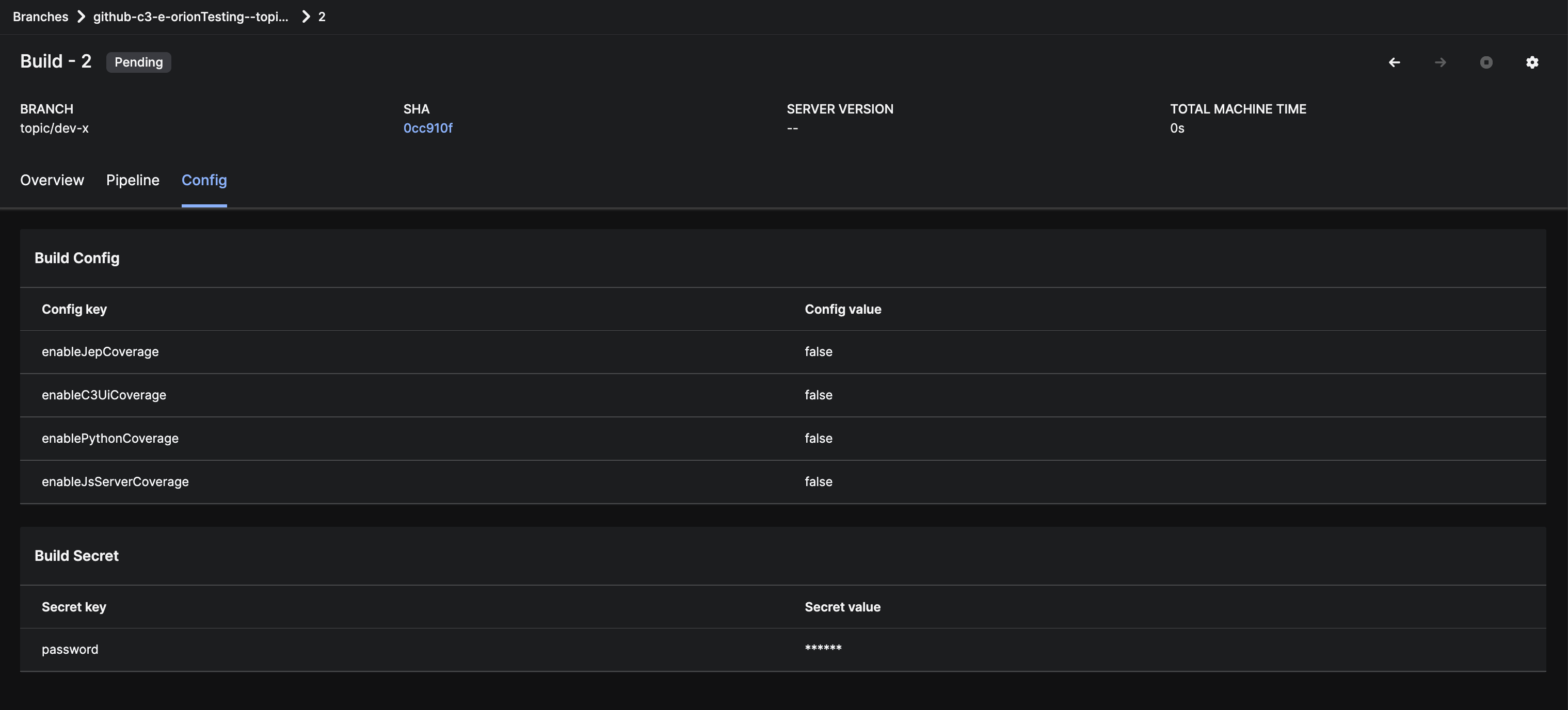
To view the config values for a build, navigate to the page for the build and click the Config tab. This tab lists both branch group and build-level configs with secret values only displayed as asterisks.