Monitor Application Builds Across Branches in C3 AI Release Management
Select Releases and then Branches on the left sidebar of C3 AI Studio.
On the Branches tab for Release Management, there is the list of registered branches. If there is no registered branch showing, go to Register, Update, and Delete a Group of Branches to learn how to register a branch.
Select the branch name to be redirected to a page about the specific branch details.
Select a build from the branch page to be redirected to a page that contains details about that specific build.
On the specific build details, you can:
- Navigate between previous pages.
- View the details about the build.
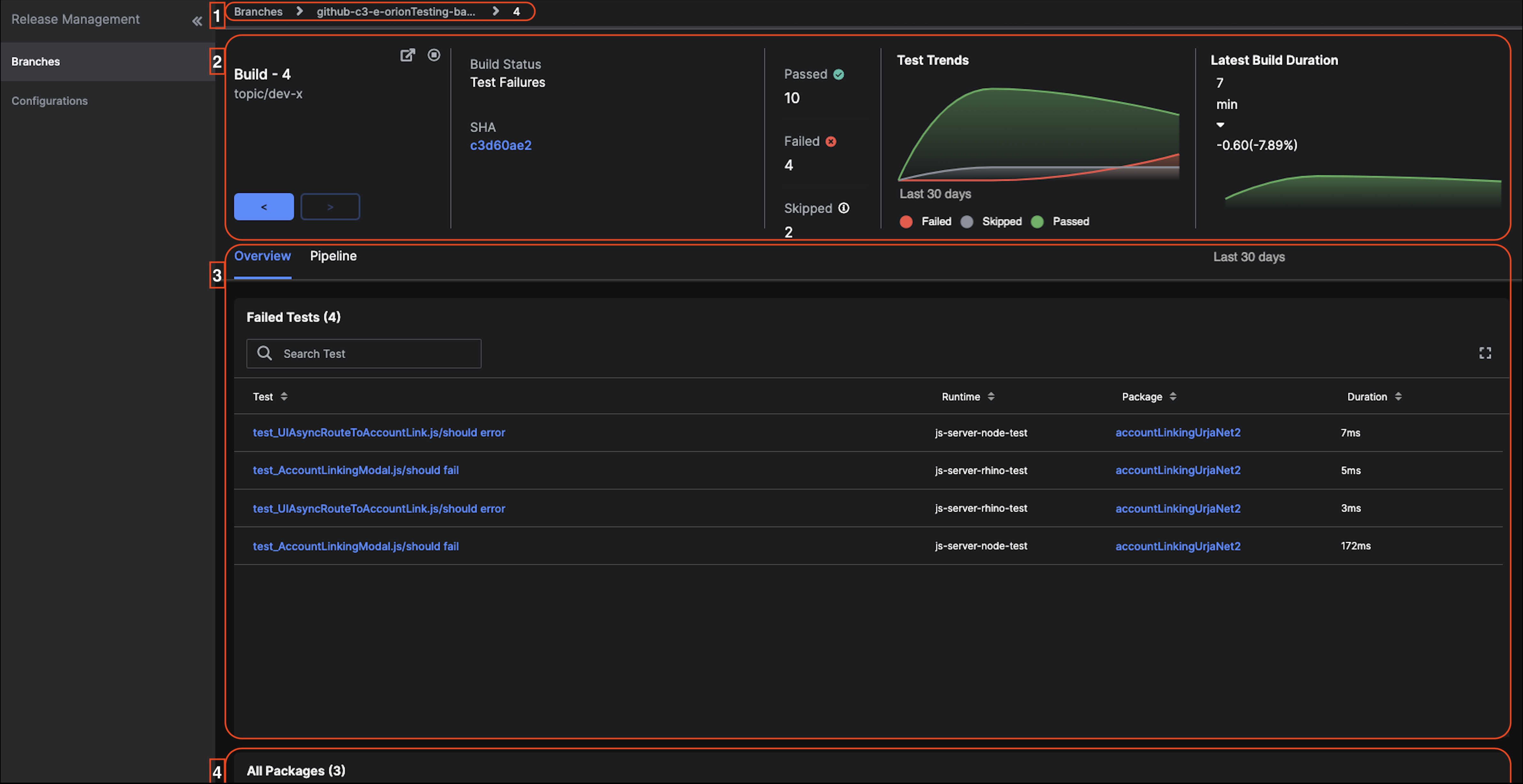
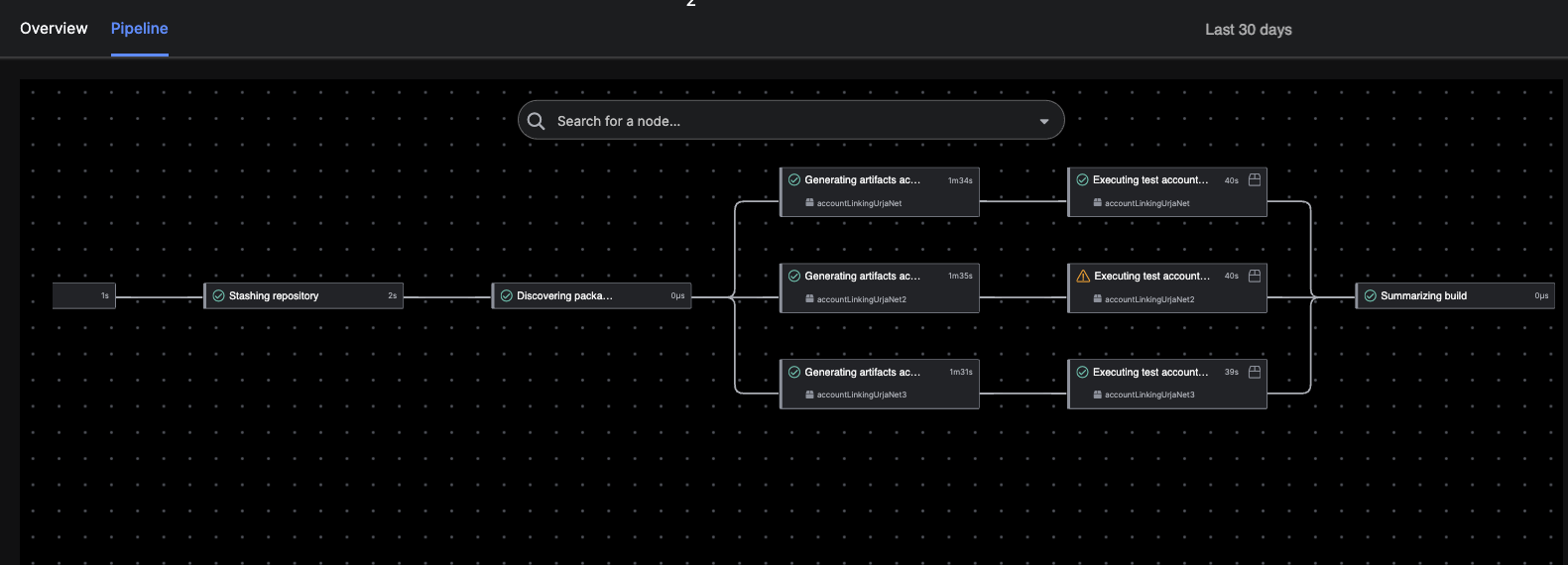
- View the Overview or Pipeline tab. The Overview tab shows the set of failed tests and the Pipeline tab shows the steps of the continuous integration (CI) process.
- View the packages associated with the build. To see more details about your packages, see View Package Builds Within the Branch Build in C3 AI Release Management.
 |
|---|
| A page about a specific build (this example showcases build 4 and the Overview tab). |
View the details about the build
You can:
- View the number of the build.
- Go to the source control by selecting the
 icon.
icon. - Abort the build by selecting the circle icon.
- Navigate between builds.
- View the build status.
- Select the SHA number to be redirected to the related commit.
- View how many tests were Passed, Failed Skipped.
- View the graphs showcasing test trends and build durations of the branch.
View the Overview or Pipeline tab
The Overview tab shows the related test and the results of the test. To see the test details, select the desired test.
The Pipeline tab shows the steps of the CI process. Select a node of the pipeline to see detailed logs. For example, select Stashing repository node to see the related logs with that node.
 |
|---|
| Pipeline Tab |