Create and Configure a Vector Store
Data Fusion is in Beta. Please contact your C3 AI representative to enable this feature.
A Vector Store is a C3 type (GenaiCore.VectorStore) that defines how vector embeddings are stored and retrieved.
It references an entity type that holds the embedded data, metadata, and content fields. In C3 AI Studio, Unstructured Data Integration (UDI) pipelines are managed under Data Fusion, and the Vector Store serves as the entry point to view and configure Unstructured Data Integration (UDI) pipelines in the Data Integration graph view.
A Vector Store is required to complete the Unstructured Data Integration (UDI) pipeline. The Vector Store stores the vector embeddings generated during data ingestion, enabling efficient semantic search and retrieval across unstructured content.
If a Vector Store does not already exist in your application, you can create a new one from the Data Integration (DI) perspective to define where the embeddings and related metadata will be stored.
Create a New Vector Store
A Vector Store defines where and how vector embeddings and their associated content are stored. It links embedding data generated by the Embedder to a target entity (for example, ScientificDocuments or KnowledgeBase).
Prerequisite
Before adding a Vector Store, ensure that an Embedder node is configured. The Vector Store depends on the Embedder’s output to store and manage the generated embeddings.
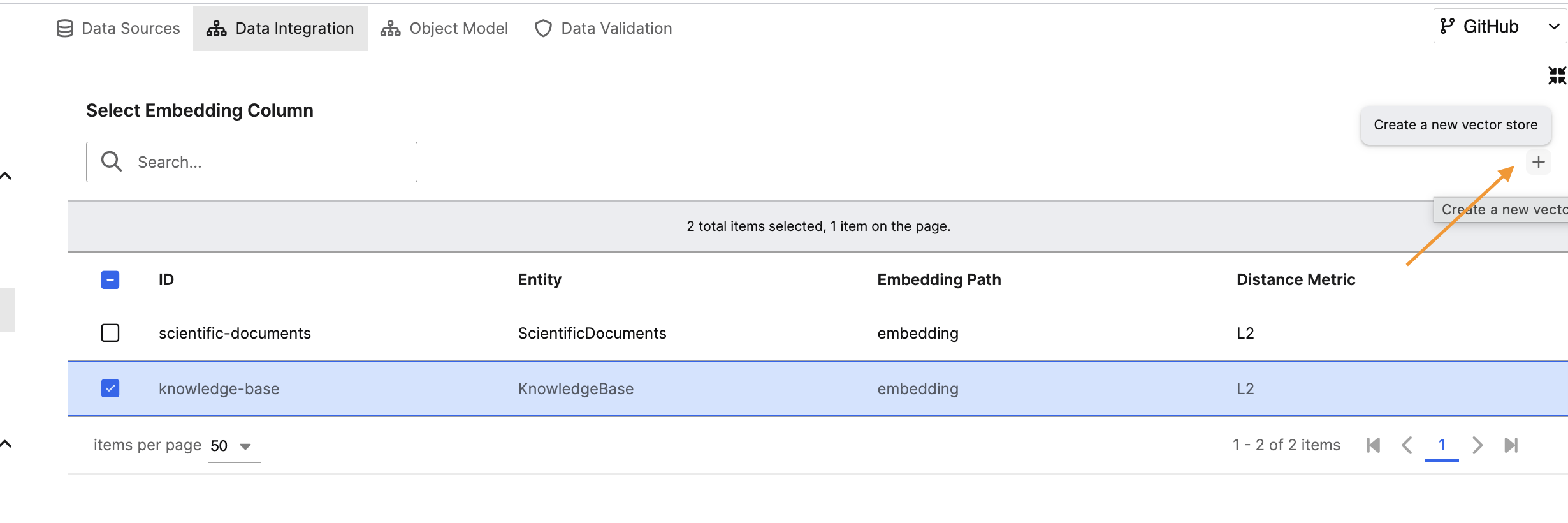
Open the Vector Store Creation Dialog
a. From the Data Integration canvas, click the + icon next to the Embedder node.
The Create a new Vector Store dialog appears.
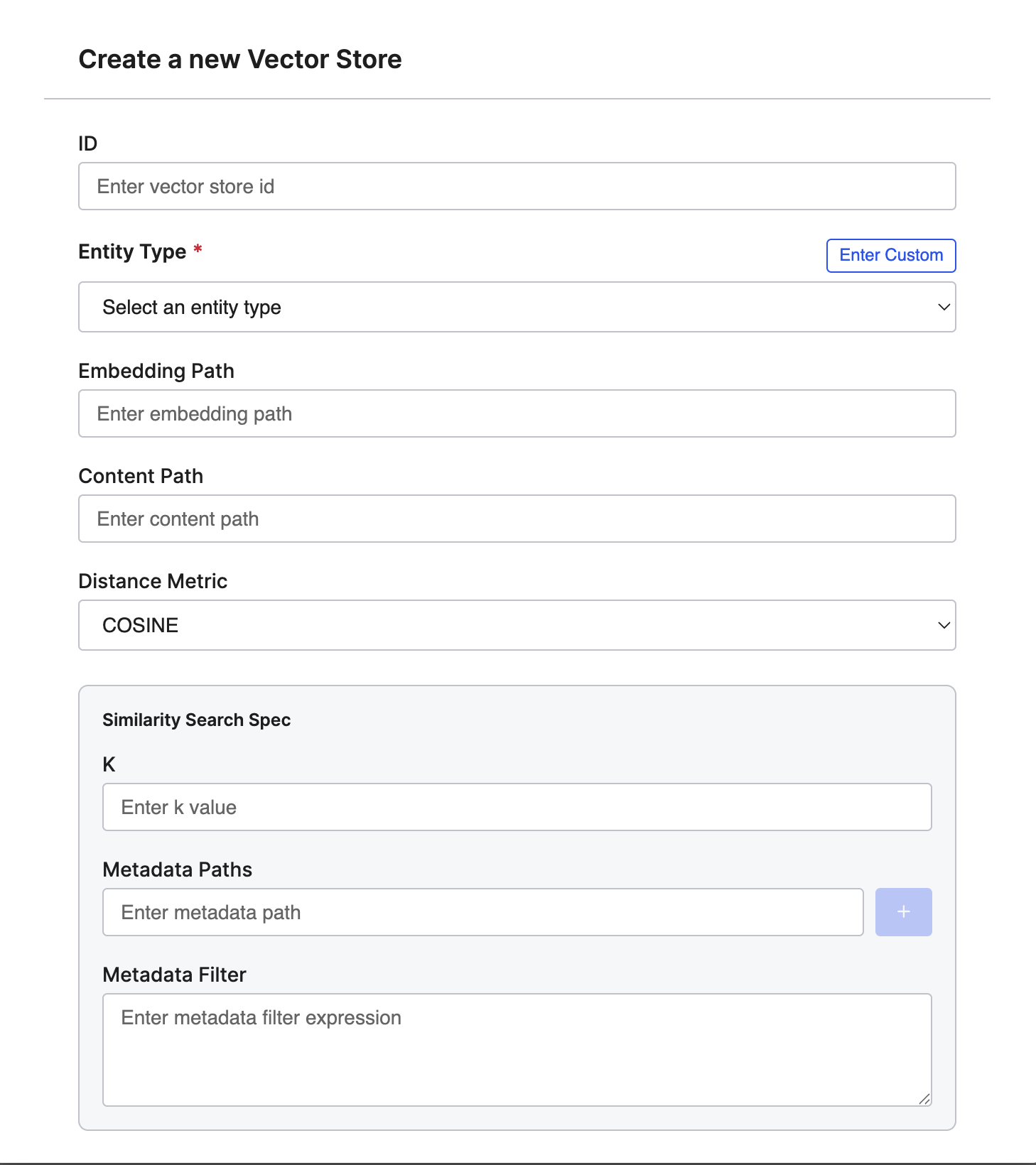
Enter Basic Details
a. ID – Enter a unique identifier for the vector store.
Example:scientific-documentsorknowledge-base.b. Entity Type – Select the target entity that will store the embeddings and metadata.
Example:ScientificDocumentsorKnowledgeBase.
You can also select Enter Custom to specify an entity type manually.Define Storage Paths
a. Embedding Path – Enter the field path in the entity that stores the embedding vectors.
Example:embedding.b. Content Path – Enter the field path for the original content text.
Example:content.Select Distance Metric
a. Choose a similarity metric to measure vector distance:
- COSINE (default) – Best for normalized embeddings.
- L2 – Uses Euclidean distance.
- DOT_PRODUCT – Uses vector dot product for similarity scoring.
Configure Similarity Search (Optional)
Within Similarity Search Spec:
- K – Enter the number of top results (
k) to retrieve during similarity search (for example,5or10). - Metadata Paths – (Optional) Specify metadata fields (for example,
meta.authorormeta.category) to include in similarity queries. Click + to add multiple paths. - Metadata Filter – (Optional) Add an expression to restrict searches based on metadata criteria.
Example:meta.source == "ResearchPaper".
- K – Enter the number of top results (
Save the Vector Store
a. Click Create to save your configuration.
The new Vector Store appears as a node connected to your Embedder in the Data Integration pipeline.Verify Configuration
Once created, the Vector Store appears in the Select Embedding Column view.
Each Vector Store in the Unstructured Data Integration (UDI) pipeline references an Entity Type, which defines where embeddings and metadata are stored. When you create a new Vector Store, you can either link it to an existing Entity or define a new one.
Multiple Vector Stores can point to the same Entity, allowing different pipelines to store embeddings within a shared data structure.
This approach is useful when you want to process data using different configurations (such as alternative document processors or embedders) but maintain a unified repository of embeddings for search and retrieval.
Note:
You still need to configure a SourceSystem and SourceCollection for your UDI pipeline, but the graph will only appear once a Vector Store instance exists.